
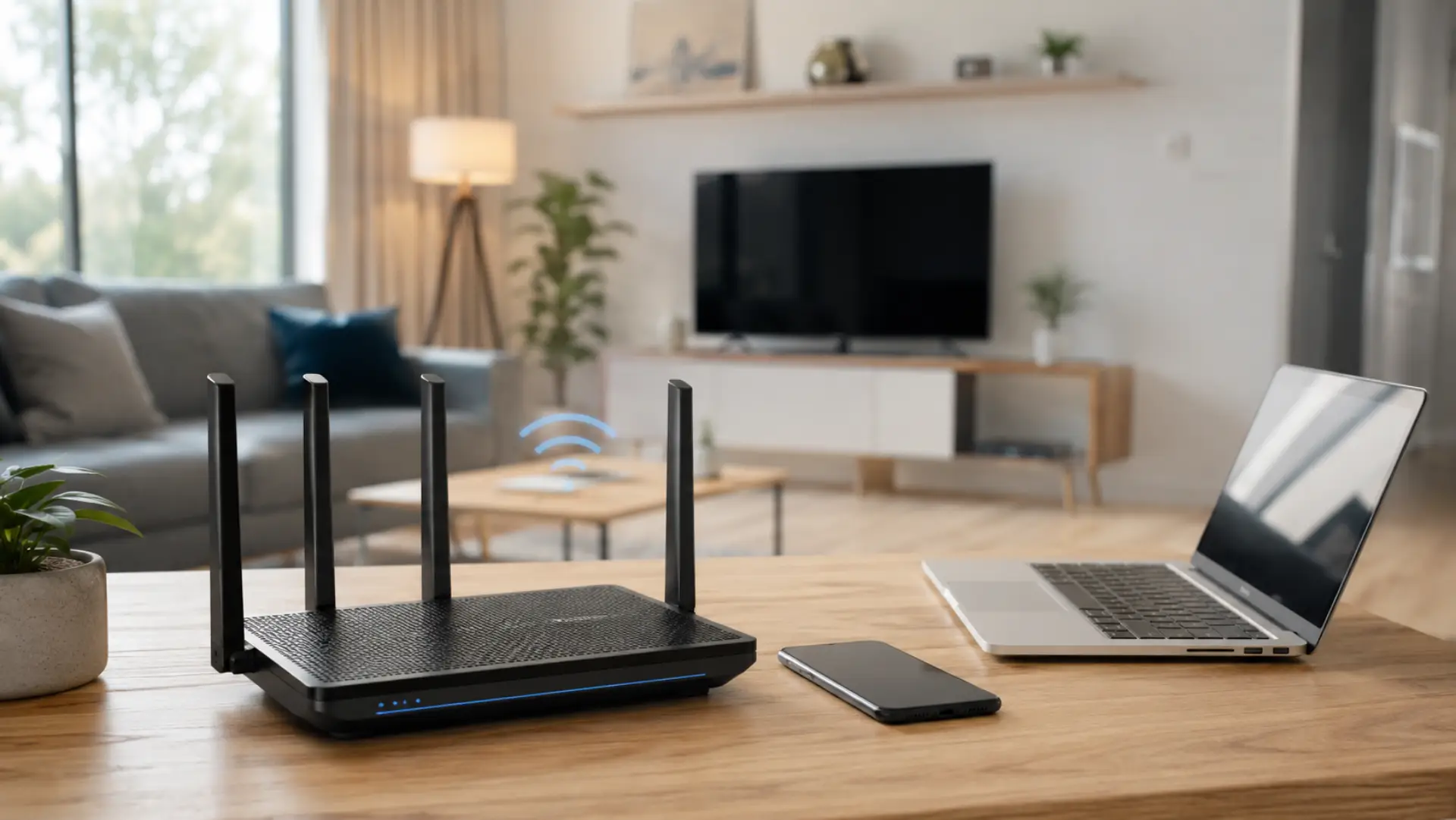
WiFi packet loss happens when data does not move smoothly between your device, router, and internet service. This can make your connection feel unstable even when WiFi is connected. You may notice lag, buffering, frozen calls, delayed loading, or poor gaming response. In online matches, the same unstable connection may appear as wifi lagging during gaming with high ping or slow response.
The right fix is to find where the data is being dropped: your device, router, wireless signal, modem, or internet provider.
How to Stop WiFi Packet Loss
To stop WiFi packet loss, start with the basic checks that directly affect wireless stability:
- Restart the modem and router in the correct order
- Understanding the modem vs router difference helps you restart the correct device first during packet loss troubleshooting.
- Move closer to the router and test again
- Keep the router in an open central location
- Reduce nearby wireless interference
- Disconnect unused devices from the network
- Update router firmware and device software
- Check modem lights, cables, and service stability
If all devices are affected, the issue is likely router, modem, cable, or provider-related. If only one device is affected, the problem is usually inside that phone, laptop, tablet, or computer.
What WiFi Packet Loss Means
A WiFi packet is a small piece of data sent across your wireless network. When that data fails to reach the correct destination, the connection has to resend it. This creates packet delay, unstable browsing, weak video call quality, and poor online response.
Common Signs of WiFi Packet Loss
WiFi packet loss usually appears during real-time online activity. Normal browsing may still work, but live apps can become unstable.
Common signs include:
- Video calls freezing or breaking
- Online games showing high ping
- Streaming buffering often
- Pages loading slowly
- Voice delay during meetings
- Downloads slowing down suddenly
- WiFi connected, but performance is still poor
These signs usually mean the issue is not only speed. It is connection stability.
Main Causes of WiFi Packet Loss
A network problem can happen at different points in the connection path. Some packet loss symptoms also overlap with DNS server not responding errors when browsing and apps fail repeatedly. The most common causes are weak wireless coverage, router overload, interference, outdated firmware, loose cables, or provider-side faults.
Common causes include:
- Weak wifi connection between the device and router
- Router placed behind walls, cabinets, or electronics
- Too many devices are using the same network
- Old router firmware or outdated device drivers
- Wireless interference from nearby devices
- Loose modem or Ethernet cable
- Service instability from the provider
Check Router Placement and Signal Strength
Poor router placement can cause signal loss in different rooms. If the router is inside a cabinet, behind a TV, near metal objects, or far from your main usage area, the wifi signal may become weak and unstable.
For better performance:
- Place the router in an open area
- Keep it away from thick walls
- Avoid metal shelves and mirrors
- Keep it away from microwaves and cordless phones
- Place it higher than floor level
- Keep it closer to the area where you use the internet most
If your device works better near the router, the issue is likely weak coverage, not your internet plan.
Restart the Modem and Router Correctly
Restarting clears temporary errors and refreshes the connection. The correct order matters because the modem should reconnect to the provider before the router starts sharing the network.
Use this method:
- Turn off the router.
- Turn off the modem.
- Wait for one minute.
- Turn on the modem first.
- If the router was recently reset or lost settings, a slow internet after router reset issue may also need setup checks.
- Wait until modem lights become stable.
- Turn on the router.
- Test the connection again.
This simple step can fix many temporary connection problems.
Reduce Wireless Interference
Wireless interference can create a network issue even when the router is working. Nearby routers, Bluetooth devices, smart devices, and electronic appliances can disturb wireless performance.
To reduce interference:
- Move the router away from electronics
- Use 5 GHz for nearby devices
- Use 2.4 GHz for longer range areas
- Keep smart hubs and cameras away from the router
- Change the WiFi channel if your router allows it
This helps improve stability and reduce sudden drops.
Control Heavy Device Usage
Too many active devices can reduce network capacity. Streaming, gaming, downloads, cloud backups, CCTV cameras, and video calls can compete for bandwidth at the same time.
To improve performance:
- Disconnect unused devices
- Pause large downloads during calls or gaming
- Stop cloud backups during busy hours
- Restart devices using too much data
- Use Ethernet for TVs, desktops, or gaming consoles when possible
This can reduce latency and make real-time apps more stable.
Check If the Problem Is on One Device or All Devices
If only one phone, laptop, tablet, or computer has slow wifi while other devices work fine, the issue is usually inside that device. It may be caused by outdated software, weak wireless hardware, VPN settings, background apps, saved WiFi errors, or browser problems.
Forget the network on that device, reconnect, restart the device, update software, turn off VPN temporarily, and test near the router. If all other devices work normally, the full home wifi setup is probably not the main cause.
Update Router Firmware and Device Software
Old firmware can cause stability problems over time. Router updates often fix bugs, improve wireless handling, and improve security.
Check these updates:
- Router firmware
- Phone system updates
- Laptop WiFi drivers
- Tablet software updates
- Computer network adapter drivers
Outdated software can cause slow internet, unstable browsing, and poor app performance.
Test Speed, Ping, and Stability
A speed test only shows download and upload numbers. It does not always show connection quality. You may have an acceptable wifi speed, but still face lag if ping is unstable or data is being dropped.
Check download speed, upload speed, and ping stability. If ping jumps up and down or requests fail, the problem is likely connection stability instead of only speed.
Check Modem Lights and Cables
If every device is affected at the same time, check the modem lights and cables. A loose cable, weak modem signal, damaged fiber connection, or provider fault can create an internet issue that looks like a wifi issue.
Check the modem power light, internet light, fiber or DSL light, Ethernet cable, wall socket, and router power adapter. If modem lights keep dropping or changing, contact your internet provider.
When to Call a WiFi Technician
Call a wifi technician if the same problem returns after restarting, moving the router, reducing interference, and checking devices. You should also get help if the router keeps dropping, modem lights are unstable, or several devices face the same issue.
A technician can test coverage gaps, router health, interference, cable quality, and provider stability. This is useful when basic steps do not stop the problem.
FAQs
What causes WiFi packet loss?
WiFi packet loss is usually caused by weak signal, wireless interference, router overload, outdated firmware, loose cables, or provider faults. It can also happen when too many devices use the same router at the same time. Testing your device near the router helps confirm whether the issue is signal-related.
How do I fix packet loss on WiFi?
To fix packet loss on WiFi, restart the modem and router, move closer to the router, reduce interference, and disconnect unused devices. You should also update router firmware and device software. If the issue affects all devices, check the modem lights, cables, and provider service.
Can packet loss make the internet slow?
Yes, packet loss can make the internet feel slow because missing data has to be sent again. This creates a delay during browsing, gaming, video calls, and streaming. A stable connection is just as important as a fast internet plan.
Why is my WiFi slow on only one device?
WiFi can be slow on only one device because of outdated software, weak wireless hardware, VPN settings, background apps, or saved network errors. Forget the WiFi network, reconnect, restart the device, and update it. If other devices work fine, the issue is probably device-specific.
Does a weak WiFi signal cause packet loss?
Yes, a weak WiFi signal can cause packet loss because the device and router cannot exchange data cleanly. Distance, walls, furniture, metal objects, and poor router placement can make the signal weaker. Moving closer to the router can quickly confirm this issue.
Can too many devices cause packet loss?
Yes, too many active devices can overload the router and reduce connection stability. Streaming, gaming, cameras, downloads, and cloud backups can compete for bandwidth. Disconnecting unused devices and pausing heavy activity can improve performance.
Is packet loss always an ISP issue?
No, packet loss is not always caused by the internet provider. It can happen inside your home network because of router placement, interference, outdated firmware, weak signal, or cable problems. If every device drops at the same time, then the provider may be involved.
What is the fastest way to improve WiFi performance?
The fastest way to improve WiFi performance is to restart the modem and router, test near the router, remove interference, and disconnect unused devices. If the issue continues, update router firmware and check modem lights. These steps help identify whether the problem is inside your network or from the provider.
Leave a Reply