
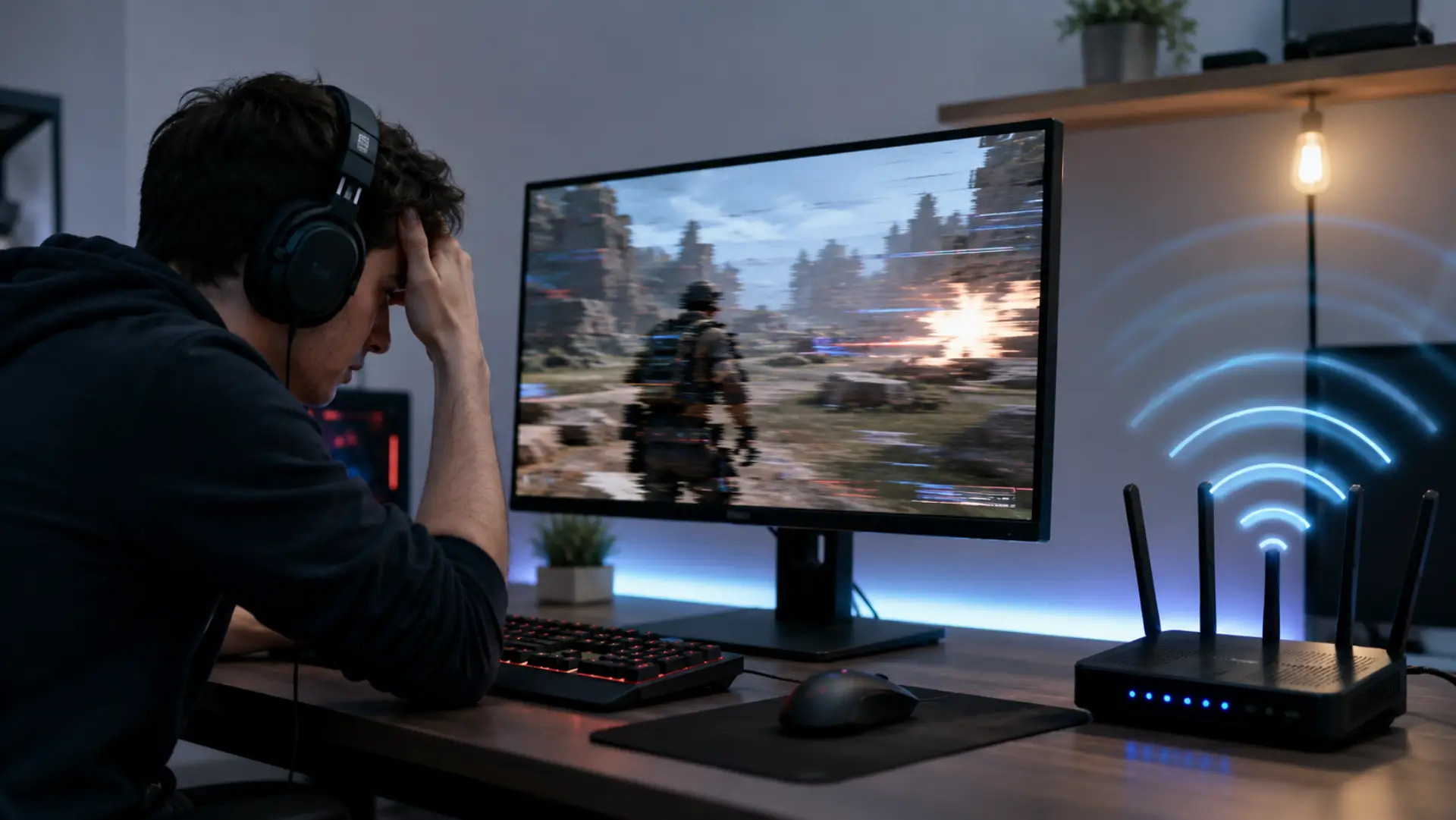
WiFi lagging during gaming can make online matches feel delayed, unstable, and frustrating. For gaming setups, the best router settings for gaming can help reduce delay when the network is busy or poorly configured. The problem usually stems from poor signal quality, network traffic overload, router issues, or inconsistent response times between your device and the game server.
If your game freezes, reacts late, or shows sudden delays, it does not always mean your internet plan is too slow. Online play needs a stable, low-delay connection, not just high download speeds.
Why Your Game Feels Delayed
Game delay usually happens because of WiFi lag, unstable signal, or high ping. A proper WiFi speed test should be checked with ping and stability, not download speed alone. A fast plan can still feel slow if your router is overloaded, the signal is weak, or the connection between your device and the game server is not stable.
For smooth online play, your network needs steady response time, low delay, and fewer signal drops.
Main Causes of Lag While Playing Online
1. Too Many Active Devices on the Same Network
When several people are streaming, downloading, video calling, or using smart devices at the same time, your gaming connection can become unstable.
This creates extra load on your router and may cause gaming lag, even if your plan looks fast enough for normal browsing.
2. Weak Wireless Signal Near Your Gaming Setup
A weak WiFi signal can cause delayed movement, missed shots, and slow response during matches. This often happens when your setup is far from the router or blocked by walls, doors, mirrors, or furniture. Gaming rooms with weak coverage may sit inside wifi dead zones, especially in thick-wall homes or multi-floor spaces.
A poor WiFi connection may look connected, but the quality can still drop during real-time play.
3. Wireless Interference Around the Router
WiFi interference can come from nearby routers, Bluetooth devices, cordless phones, microwaves, smart devices, and other wireless equipment.
This issue is common in apartments, shared buildings, and busy neighborhoods where many networks are working close to each other.
4. Router Load and Incorrect Configuration
Your router settings can affect how smoothly online games run. Before changing QoS, channel, or bandwidth options, router settings should be adjusted carefully to avoid creating new connection problems. A crowded channel, old firmware, or poor bandwidth handling can increase delay. Older routers may also struggle when multiple devices are active on the same home WiFi network.
5. Packet Drops During Online Matches
Packet loss happens when small pieces of game data fail to reach the server or return to your device properly. This can cause freezing, rubber-banding, delayed actions, and sudden movement jumps. This problem is more noticeable in fast online games because every second matters.
6. Slow Speed During Peak Usage Hours
Your internet speed may drop during busy hours when many users in your area are online. This can affect real-time games more than normal browsing. Even a small speed drop can feel worse when the connection is not stable.
7. Server Distance and Routing Issues
Sometimes the issue is not inside your home. If the game server is far away or your provider routes traffic poorly, you may face internet lag.
Checking your gaming ping on different servers can help you understand whether the delay is from your network or the server route.
8. Poor Router Placement
Router placement has a strong effect on WiFi performance. If the router is hidden inside a cabinet, placed behind a TV, or kept near thick walls, the signal may become weaker. A better router position can improve stability without changing your internet plan.
How to Fix WiFi Problems During Online Play
Restart Your Router and Gaming Device
Restart your router, modem, and gaming device. This clears temporary network issues and refreshes the connection. Turn off the router for at least 30 seconds before switching it back on.
Move Closer to the Router
Play closer to the router if possible. Distance and obstacles can reduce signal quality and increase delay. Keep the router in an open, central location for better coverage.
Use the 5 GHz Band for Short Distance
The 5 GHz band is usually better for online matches when you are close to the router. It can offer better WiFi speed and less congestion than 2.4 GHz.
However, 5 GHz does not travel as far through walls, so test both bands and use the one that feels more stable.
Reduce Heavy Network Activity
Pause large downloads, cloud backups, app updates, and 4K streaming while playing. This helps reduce slow WiFi problems and gives online games a cleaner connection path.
Test Your Network Quality
Run a speed test near the router and then test again from your gaming area. If results drop heavily in one room, the issue is likely signal coverage.
Also, check ping and stability, because online games depend on response time more than download speed.
Improve Router Placement
Place the router higher, in an open area, and away from metal objects, thick walls, and electronic devices. Better placement can improve wifi performance and reduce sudden connection drops.
Update Router and Device Software
Update your router firmware, console software, computer drivers, or game app. Old software can cause connection stability problems. Updates often fix bugs that affect network response.
Use Ethernet When Possible
A wired Ethernet connection is usually best for serious online play. It avoids wireless signal drops and gives a more stable connection between your device and router.
If Ethernet is not possible, use a strong WiFi band and keep the device close to the router.
When You May Need Help from a WiFi Technician
You may need help from a WiFi technician if the lag continues after restarting the router, changing router placement, testing 5 GHz, and reducing heavy network use. If online games still show delay, high ping, or unstable response, the issue may be deeper than normal WiFi troubleshooting.
A wifi technician can check signal coverage, router health, channel congestion, wiring, modem connection, and overall network setup. This is helpful when lag happens often, the signal drops in certain rooms, or your router is not handling gaming traffic properly.
FAQs
Why is my game lagging even with good speed?
Good speed does not always mean a stable response. Online games need low delay and a clean signal. Check ping, router placement, and network traffic.
What causes high ping in online games?
High ping can come from a weak signal, busy servers, poor routing, or network congestion. It means your device is taking longer to communicate with the game server. Using a stable connection can reduce the delay.
Can too many connected devices cause game lag?
Yes, too many active devices can overload the router. Streaming, downloads, and video calls can affect online matches. Pause heavy usage while playing.
Is 5 GHz better for online games?
5 GHz is usually better when you are close to the router. It is faster and often less crowded than 2.4 GHz. Use 2.4 GHz only if you need a longer range.
Does router placement affect gaming response?
Yes, router placement can affect signal quality and response time. Walls, furniture, and electronics can weaken the signal. Place the router in an open and central area.
Can packet loss make games freeze?
Yes, packet loss can cause freezing, rubber-banding, and delayed actions. It means game data is not reaching the server properly. A stronger and more stable connection can help.
Should I use Ethernet for gaming?
Ethernet is usually more stable than WiFi. It reduces wireless interference and signal drops.
Use it if your setup is close to the router.
Final Thoughts
Online games need a stable connection, low ping, and strong signal quality. A fast internet plan alone does not always stop lag if your router placement is poor, wireless channels are crowded, or the network is overloaded.
Start with simple fixes: restart your router, move closer to the signal, pause heavy downloads, test 5 GHz, and use Ethernet when possible. If the problem continues, your router or WiFi coverage may need professional checking.
Leave a Reply