
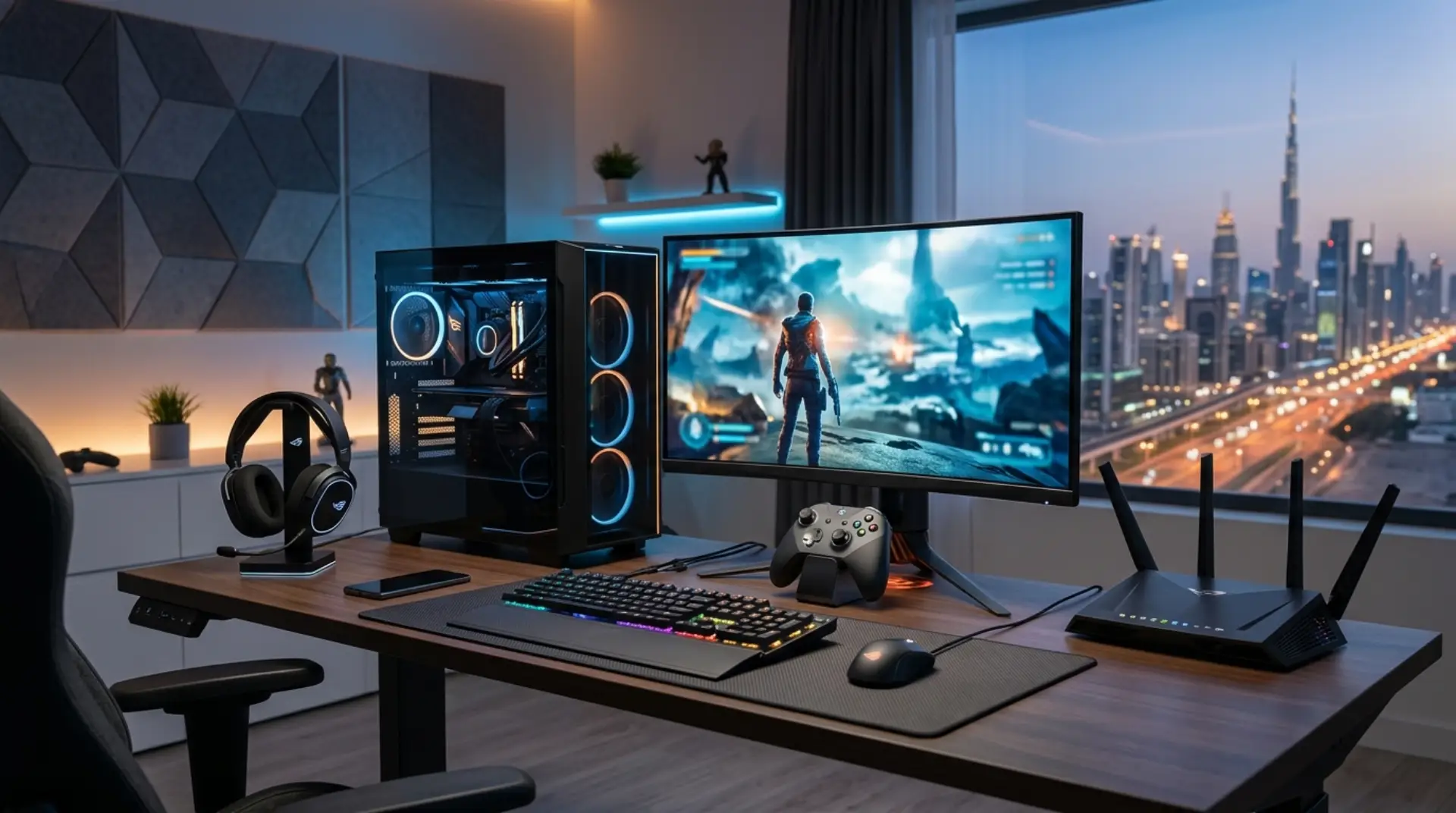
You are in the middle of a match, your aim is perfect, and suddenly the game freezes for one second. By the time the screen moves again, you are already out. For many home gamers in Dubai and across the UAE, the problem is not always the game server or the console. Often, the issue starts inside the home network.
The right Router Settings for Gaming can help reduce lag, lower ping, and keep your connection more stable during online matches. Whether you play on PlayStation, Xbox, PC, or mobile, a few simple router changes can make gaming feel smoother.
The best router settings for gaming include using a wired connection when possible, enabling QoS for your console or PC, connecting to the 5GHz WiFi band, choosing a less crowded channel, updating router firmware, and using stable DNS settings. These steps help reduce lag, improve connection stability, and lower ping during online gaming.
Why Gaming Feels Laggy
Lag happens when your gaming device takes too long to send and receive data from the game server. This delay is called ping. A lower ping usually means faster response in online games.
However, lag is not always caused by slow internet speed. You may have a good internet package but still face delays because of poor router placement, weak WiFi signal, wrong router configuration, or too many devices using the same network.
For example, when understanding Modem vs Router performance, if someone is streaming 4K video while you are playing online, your game may start to stutter. As a result, your router needs to manage traffic properly so gaming gets a stable connection.
Use Wired Connection First
The best internet settings for gaming start with one simple rule: use Ethernet if possible.
A wired connection from your router to your gaming console or PC is usually more stable than WiFi. It reduces signal drops, avoids wireless interference, and gives your device a direct path to the router.
If your gaming room is far from the router, you can consider:
- Ethernet cable installation
- Mesh WiFi with Ethernet backhaul
- Powerline adapters were suitable
- Relocating the router closer to the gaming area
For serious gamers, wired internet is still the most reliable option.
Choose the Right WiFi Band
If you cannot use a cable, the next best step is choosing the right WiFi band.
Before changing WiFi settings, also check whether your router not connecting issue is affecting the connection. Sometimes gaming lag is not caused by the WiFi band but by a loose cable, ISP issue, or router error. First, restart the router, check the internet light, and make sure other devices can browse normally. If the connection is unstable, fix that issue before optimizing 2.4GHz or 5GHz for gaming.
Most modern routers offer 2.4GHz and 5GHz WiFi. The 2.4GHz band covers a longer distance, but it is often slower and more crowded. The 5GHz band is faster and better for gaming if your device is near the router.
For gaming WiFi optimization, use:
- 5GHz when you are close to the router
- 2.4GHz only when the device is far away
- WiFi 6 if your router and device support it
In Dubai apartments, 2.4GHz can become crowded because many nearby flats use the same wireless channels. Therefore, 5GHz is usually better for console and PC gaming.
Enable QoS Settings
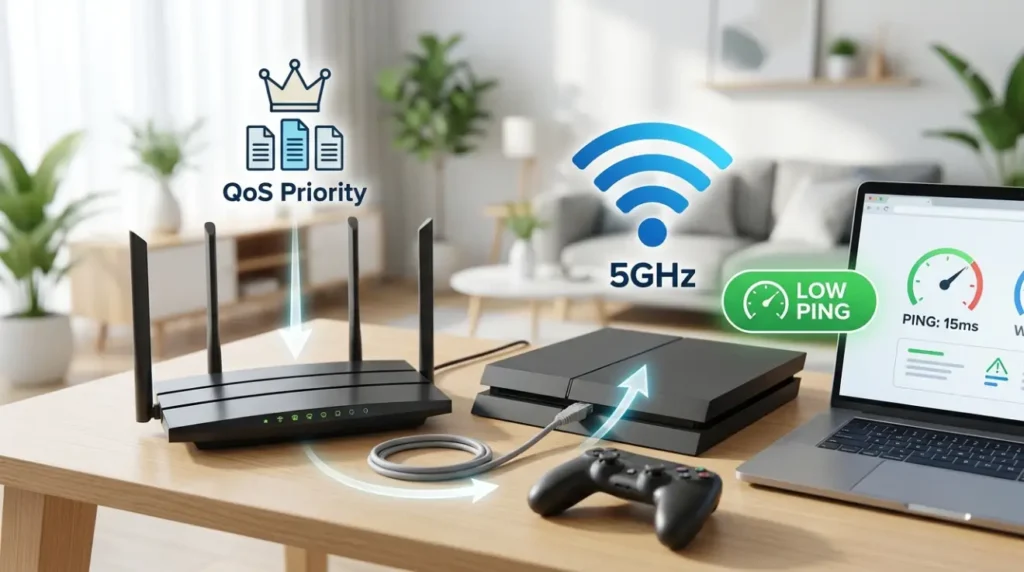
QoS means Quality of Service. It allows your router to give priority to important devices or activities. For gamers, this is one of the most useful gaming router settings.
The best QoS settings for gaming usually involve giving priority to your console, gaming PC, or gaming app traffic. This helps your router understand that your gaming connection should stay stable, even when other devices are browsing, streaming, or downloading.
You can usually find QoS under router settings, such as:
- Traffic Management
- Bandwidth Control
- Device Priority
- Gaming Mode
- Adaptive QoS
When setting QoS, choose your gaming device and mark it as high priority. However, avoid giving too many devices high priority because that reduces the benefit.
Pick a Better WiFi Channel
WiFi channels work like lanes on a road. If too many routers nearby are using the same lane, your connection can become unstable.
This is common in apartments, villas with nearby networks, and shared buildings. Changing the WiFi channel can help reduce lag in online gaming, especially when your current channel is crowded.
For 2.4GHz, channels 1, 6, and 11 are usually preferred. For 5GHz, your router may automatically choose a better channel, but sometimes manual selection works better.
A simple router configuration for gaming is to test different channels and check which one gives the most stable connection. You do not need to choose the fastest speed only. For gaming, stability is more important.
Keep Router Firmware Updated
Router firmware is the software inside your router. If it is outdated, your router may have bugs, weak security, or poor performance.
Updating firmware can improve connection stability, fix known issues, and sometimes improve gaming performance. Many UAE home users keep the same router for years without checking updates, which can lead to random drops and slow response.
Log in to your router admin panel and check for firmware updates. If your router is provided by your internet provider, you may need to contact support or ask a technician to check it safely.
Set Stable DNS
DNS does not directly reduce ping in every game, but it can improve how quickly your device finds game servers, login services, and online platforms. For some users, changing DNS makes the connection feel more responsive.
The best DNS settings for gaming are usually stable and reliable DNS servers. You can test options such as your ISP DNS, Google DNS, or Cloudflare DNS. The best choice depends on your connection and location.
Common DNS options include:
- Google DNS: 8.8.8.8 and 8.8.4.4
- Cloudflare DNS: 1.1.1.1 and 1.0.0.1
- ISP default DNS
If one DNS causes issues with game login or store access, switch back to automatic DNS.
Reduce Network Load
Even the best home network settings for gaming will struggle if too many devices are using heavy bandwidth at the same time.
Large downloads, cloud backups, IPTV streaming, video calls, and smart cameras can affect gaming performance. This is especially true during evening hours when everyone at home is online.
To improve gaming performance:
- Pause large downloads before gaming
- Stop cloud backup during matches
- Disconnect unused devices
- Schedule updates for late night
- Use QoS to prioritize gaming
This simple step can quickly reduce lag without changing your internet plan.
Improve Router Placement
Router placement is often ignored, but it plays a big role in gaming performance. If your router is inside a cabinet, behind a TV, near thick walls, or far from the gaming room, WiFi quality can drop.
Place the router in an open area, away from metal objects, mirrors, cordless phones, and microwave ovens. Also, keep it at a higher position when possible.
For villas and larger Dubai homes, one router may not cover every room properly. In that case, mesh WiFi or access points may be better than using cheap WiFi extenders.
Restart and Clean Up Settings
Sometimes, routers become slow because they have been running for weeks without a restart. A simple reboot can clear temporary issues.
However, if problems keep coming back, the router may need a proper settings review. Old connected devices, wrong IP settings, weak channel selection, or poor DHCP configuration can create gaming issues.
For beginners, avoid changing advanced settings randomly. One wrong setting can affect the whole home network.
When Home Fixes Are Not Enough
If your ping is still high after changing router settings for low ping, the issue may be outside your device. It could be poor wiring, weak router hardware, ISP routing, overloaded WiFi, or bad placement.
For business users, gaming cafés, shared accommodations, and home offices, network traffic needs more careful setup. A proper router configuration for gaming can separate work devices, streaming devices, and gaming devices for better control.
If the problem keeps coming back, WiFiFix can inspect your setup and help you choose the right solution for your home or small business network in Dubai.
FAQs
How to optimize router settings for gaming?
The best settings include enabling QoS, using 5GHz WiFi, choosing a less crowded channel, updating firmware, and using Ethernet when possible. These settings help improve stability and reduce lag during online gaming.
How can I lower the ping on WiFi?
To lower ping on WiFi, move closer to the router, use the 5GHz band, reduce connected devices, and avoid downloads while gaming. Also, check router placement because weak signal can increase delay and packet loss.
Is 5GHz better for gaming?
Yes, 5GHz is usually better for gaming when your device is close to the router. It offers faster speed and less interference than 2.4GHz. However, if you are far from the router, 2.4GHz may give stronger coverage.
Should I use QoS for gaming?
Yes, QoS is useful if multiple people use the internet at the same time. It lets your router prioritize gaming traffic, which can help reduce lag when others are streaming, downloading, or using video calls.
Can DNS improve gaming speed?
DNS may help with faster server lookup and smoother platform access, but it does not always reduce in-game ping. Try stable DNS options and keep the one that works best with your connection.
Why is my gaming laggy even with fast internet?
Fast internet speed does not always mean low ping. Lag can happen because of WiFi interference, poor router settings, weak signal, overloaded network traffic, or bad router placement inside the home.
Do I need a gaming router?
Not always. Many standard routers can work well if configured correctly. However, a gaming router may help if you need better QoS, stronger WiFi, more control, and improved performance for multiple devices.
Conclusion
Good gaming performance is not only about internet speed. The right Router Settings for Gaming can improve stability, reduce lag, and make online matches feel smoother. Start with Ethernet, 5GHz WiFi, QoS, better router placement, and updated firmware.
If your ping issues continue, WiFiFix can check your home network, router setup, and WiFi coverage to help you get a more stable gaming connection in Dubai and across the UAE.
Leave a Reply