
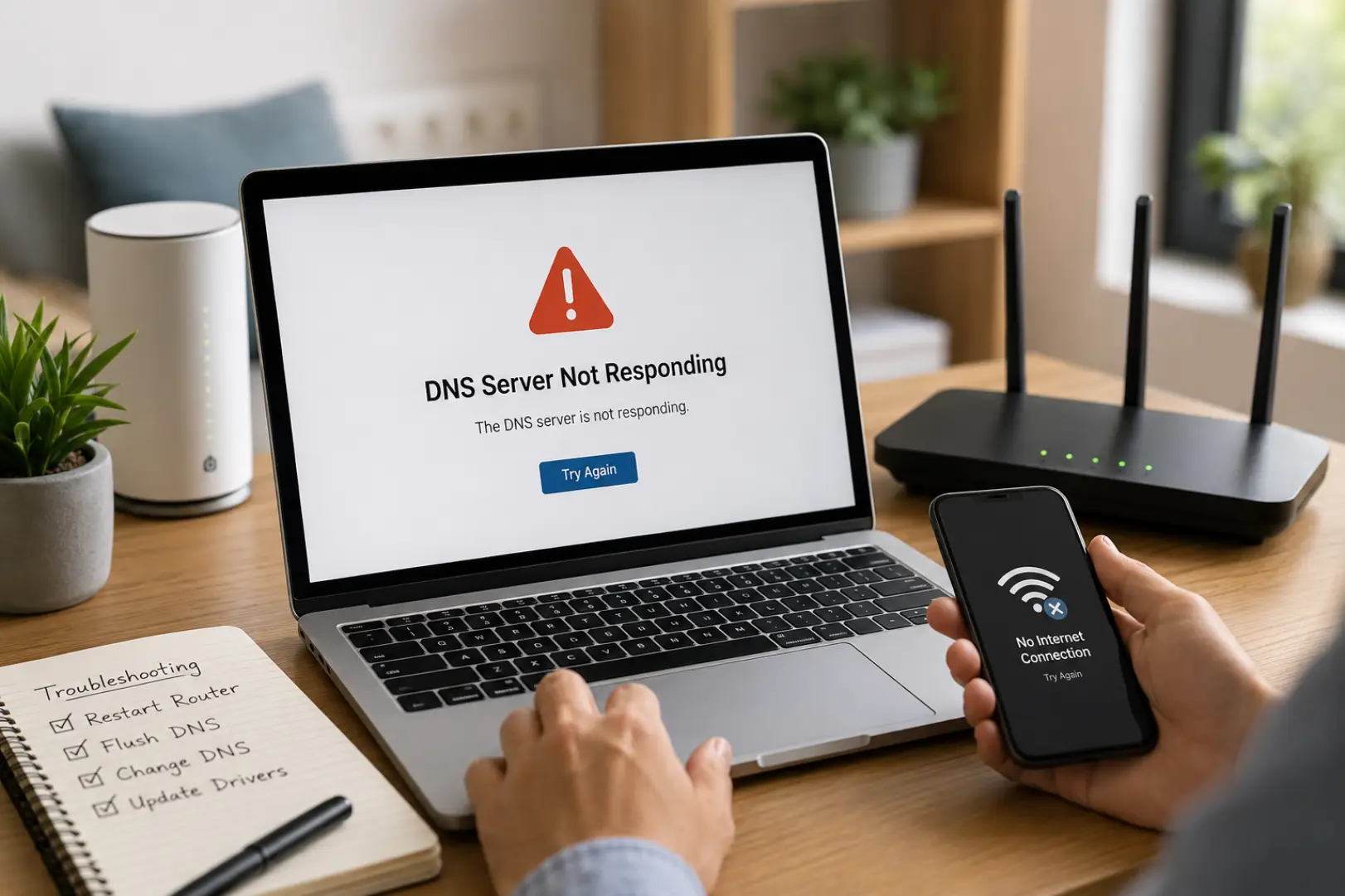
A DNS Server Not Responding error prevents your device from connecting to websites because it cannot communicate with the DNS server responsible for translating domain names into IP addresses. The issue is commonly caused by router problems, incorrect DNS settings, ISP outages, corrupted DNS cache files, or network adapter errors.
If you’re wondering How to Fix DNS Server Not Responding, the solutions below address the most common causes found on home networks.
Causes of DNS Server Not Responding
Several issues can trigger a DNS Server Not Responding, including:
- Router DNS configuration problems can also affect the router not connecting
- ISP DNS outages
- Corrupted DNS cache
- Incorrect DNS settings
- Network adapter issues
- Firewall or antivirus interference
- VPN or proxy conflicts
- Outdated network drivers
Identifying the source of the problem makes troubleshooting faster and more effective.
Restart Your Router and Modem
Temporary network glitches are one of the most common causes of DNS Server Issues.
Steps
- Turn off your modem and router.
- Unplug both devices for 30 seconds.
- Turn the modem back on.
- Wait until the connection stabilizes.
- Turn on the router.
- Test your internet connection.
This simple restart refreshes DNS communications and often resolves the issue immediately.
Flush the DNS Cache
A corrupted DNS cache can result in a DNS Lookup Failed message.
Windows
Open Command Prompt as Administrator and run:
ipconfig /flushdns
Restart your browser and test the connection again.
Renew Your IP Address
Refreshing your IP configuration can resolve communication problems between your device and the network.
Run the following commands in Command Prompt:
ipconfig /release
ipconfig /renew
This forces your computer to obtain updated network information from the router.
Change DNS Servers
Switching to a reliable public DNS provider is one of the most effective ways to fix a DNS Server Not Responding problem.
Google DNS
- 8.8.8.8
- 8.8.4.4
Cloudflare DNS
- 1.1.1.1
- 1.0.0.1
Quad9 DNS
- 9.9.9.9
- 149.112.112.112
If your ISP’s DNS servers are unavailable, changing DNS providers can restore internet access immediately.
Check Router DNS Settings
Incorrect Router DNS Settings can affect your entire network and cause WiFi connection issues across devices.
Log in to your router’s admin panel and verify:
- DNS addresses are correct
- Automatic DNS configuration is enabled if required
- No invalid custom DNS entries exist
Save changes and restart the router after updating settings.
Disable VPN or Proxy Connections
VPNs and proxy services can interfere with DNS requests.
Temporarily disable:
- VPN applications
- Browser proxy extensions
- System proxy settings
Then test whether websites load normally.
Restart the Network Adapter
Network adapter issues can prevent your device from reaching DNS servers.
Windows
- Open Network Connections.
- Disable the active adapter.
- Wait a few seconds.
- Enable it again.
This refreshes the network connection without requiring a full restart.
Update Network Drivers
Outdated drivers can contribute to recurring DNS Connection Problems.
Steps
- Open Device Manager.
- Expand Network Adapters.
- Select your adapter.
- Choose Update Driver.
- Install available updates.
- Restart your computer.
Updated drivers improve overall network stability and compatibility.
Check Firewall and Antivirus Software
Security software can occasionally block DNS traffic.
Temporarily disable your firewall or antivirus software and test the connection. If the error disappears, review the software’s network settings before re-enabling protection.
Reset Network Settings
If the problem continues, Resetting network settings can fix hidden WiFi connection issues and restore connectivity.
Windows
Go to:
Settings → Network & Internet → Advanced Network Settings → Network Reset
After the reset completes, reconnect to your network and test internet access.
Contact Internet Service Provider or WiFi Technician
If the issue continues even after trying all troubleshooting steps, the problem may be outside your home network. In some cases, service disruptions from your Internet Service Provider or regional network faults can prevent proper internet access. These situations usually cannot be resolved through device-level settings.
You should contact your ISP to check for outages, line issues, or configuration problems on their side. If the connection problem is caused by hardware faults or incorrect home network setup, a professional WiFi technician can inspect your router, fix configuration errors, and restore stable connectivity.
FAQs
How to Fix DNS Server Not Responding?
Restart your router and modem first, as most temporary network issues are resolved this way. If the problem continues, flush your DNS cache, renew your IP address, and switch to a reliable public DNS provider such as Google DNS or Cloudflare DNS. These steps fix most home network DNS issues.
Why Is My DNS Server Not Responding on WiFi?
This usually happens due to router configuration issues, ISP DNS outages, or wireless network instability. Restarting the router and checking DNS settings often resolves the issue. If possible, test with a wired connection to confirm whether WiFi is causing the problem.
Why Is DNS Server Not Responding on One Computer Only?
If the issue affects only one device, it is usually caused by local system problems. Common reasons include corrupted DNS cache, outdated network drivers, or incorrect network configuration. Resetting network settings or flushing DNS often fixes it.
How Do I Fix DNS Server Not Responding in Windows 11?
Run the built-in Network Troubleshooter, then flush the DNS cache and update network drivers. You can also switch to Google DNS or Cloudflare DNS if the default DNS is not working. Restarting the network adapter may also help restore connectivity.
How Do I Fix DNS Server Not Responding in Windows 10?
Restart your router, clear the DNS cache using Command Prompt, and renew your IP address. If the issue continues, check DNS settings and update network drivers. These steps resolve most Windows 10 DNS connection problems.
What Causes a DNS Lookup Failed Error?
A DNS Lookup Failed error occurs when the DNS server cannot convert a domain name into an IP address. This can be caused by DNS server outages, incorrect settings, router issues, or corrupted DNS cache data.
Can Router DNS Settings Cause DNS Server Issues?
Yes, incorrect Router DNS Settings can affect all devices connected to the network. Misconfigured DNS addresses or router firmware issues can prevent proper internet access, so reviewing router settings is an important troubleshooting step.
Should I Change My DNS Server?
Switching to a reliable public DNS provider can improve stability when ISP DNS servers are slow or unavailable. Google DNS, Cloudflare DNS, and Quad9 are commonly used options that often resolve connectivity issues quickly.
Summary
A DNS Server Not Responding error is usually caused by router issues, DNS configuration problems, ISP outages, or corrupted network settings. Restarting networking equipment, flushing the DNS cache, reviewing Router DNS Settings, and switching to a reliable DNS provider can resolve most cases. Following these troubleshooting steps will help eliminate DNS Server Issues, fix DNS Connection Problems, and restore normal internet access.
Leave a Reply