
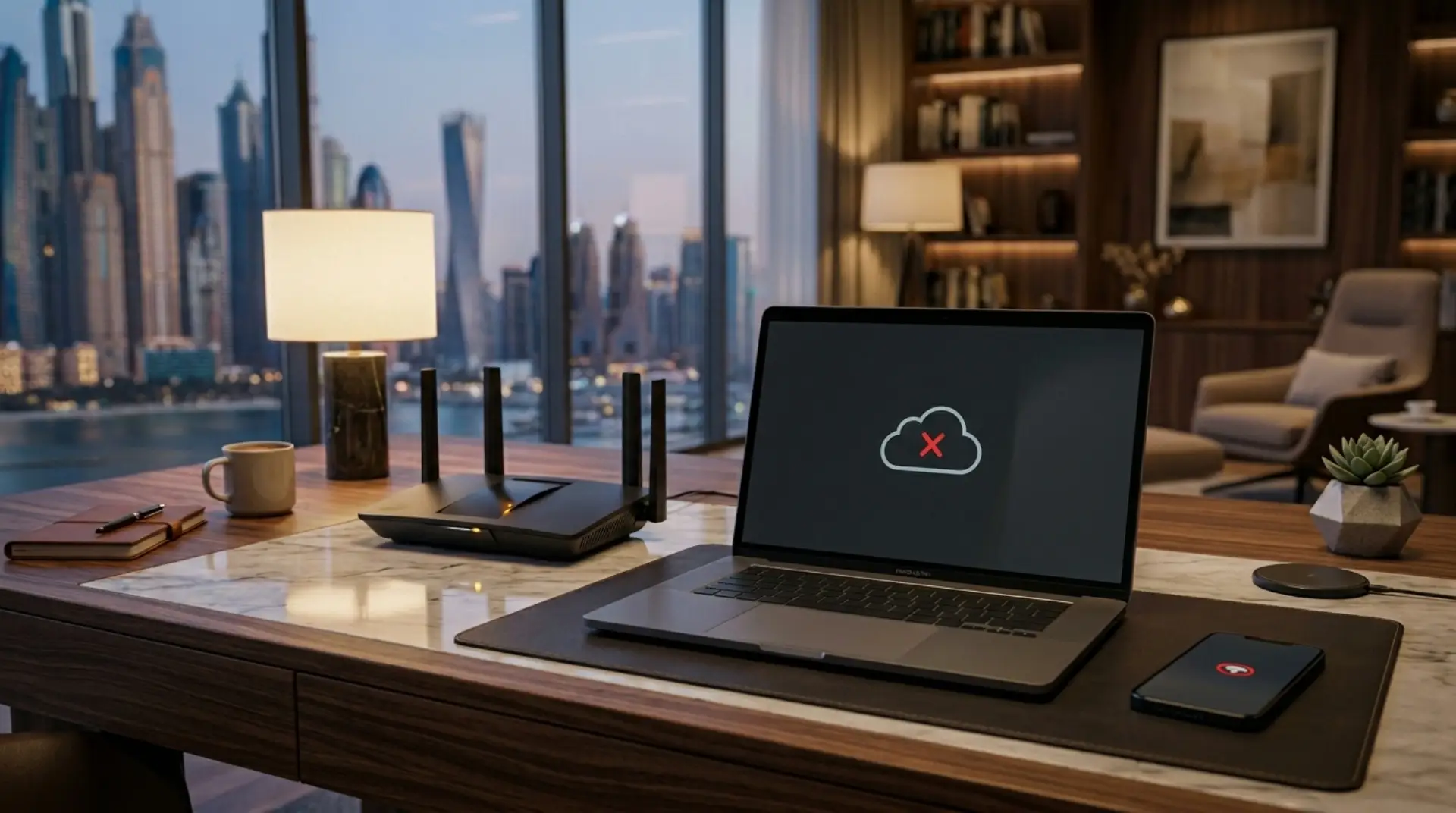
If your WiFi is connected but no internet issue appears, it usually means your phone, laptop, or TV is connected to the router, but the router is not getting proper internet from the service provider or network setup. Restart your router, check cables, forget and reconnect to WiFi, test another device, and confirm whether the problem is with your router, device, or internet provider.
For homes and businesses in Dubai, this issue can also happen because of weak router placement, overloaded networks, wrong router settings, signal interference, or ISP service problems.
What Does “WiFi Connected but No Internet” Mean?
When your device says it is connected to WiFi, it only means it has successfully joined your wireless network. However, that does not always mean the internet connection is working.
Your router may be switched on and sending a WiFi signal, but the actual internet line may not be active. That is why you may see full WiFi bars but still cannot open websites, use apps, or stream videos.
This problem is common in apartments, villas, offices, shops, and shared workspaces across Dubai, especially where multiple devices depend on one router.
Common Causes of WiFi Connected but No Internet
1. Router Needs a Restart
Sometimes the router runs for many days without a break. Over time, it can slow down, freeze, or stop passing the internet properly.
A simple restart can refresh the connection. Turn off the router, wait for 30–60 seconds, then turn it back on. After the lights become stable, reconnect your device and test the internet again.
This is often the fastest way to fix WiFi connected but no internet access at home, but if the issue keeps coming back, proper router setup in Dubai may be needed.
2. Internet Service Provider Issue
If all devices are connected to WiFi but none of them can use the internet, the issue may not be inside your home or office. Your internet provider may be facing a temporary outage or service problem.
Check if the internet light on your router is red, orange, or off. If it is not stable, your router may not be receiving internet from the provider.
In Dubai, this can happen during maintenance, line issues, expired packages, billing problems, or network faults in the area. If the router looks active but the internet still does not work, understanding the difference between modem and router can help you check whether the issue is from the modem, router, or provider line.
3. Loose or Damaged Cable
A router is connected, but no internet problem can happen because of a loose cable. Even if the WiFi signal is strong, the internet will not work if the main cable is disconnected or damaged.
Check the power cable, fiber cable, Ethernet cable, and any wall socket connection. Make sure everything is inserted properly.
Avoid bending fiber cables too much because they are sensitive and can affect your internet connection. Loose cables, modem faults, or network setup issues can also be checked through professional home IT support for a more stable connection.
4. Problem with One Device Only
If your mobile phone has internet but your laptop does not, the issue is probably with that specific device, not the router.
In this case, forget the WiFi network and reconnect. You can also restart the device, clear network settings, or check whether airplane mode, VPN, or proxy settings are causing the problem.
This is common when a laptop has old network drivers or incorrect IP settings.
5. Too Many Devices Connected
Your router may become overloaded if too many phones, laptops, smart TVs, cameras, gaming consoles, and office systems are connected at the same time.
When the router cannot handle the load, some devices may show connected to WiFi but no internet. This is especially common in offices, shared apartments, cafés, and large homes.
Disconnect unused devices and test again. If the issue improves, you may need a stronger router, WiFi extender installation, mesh system, or office WiFi setup in Dubai for better performance.
6. Weak WiFi Signal
A weak signal can also make the internet feel disconnected. Your device may still show WiFi connected, but the connection may be too weak to load websites or apps.
This often happens when the router is placed far away, behind thick walls, inside cabinets, or near electronic devices.
Place the router in an open central area. For larger Dubai villas or multi-room offices, improving WiFi signal coverage may be a better solution than depending on one router.
7. Wrong Router Settings
Sometimes the router settings are changed by mistake. Incorrect DNS, IP, DHCP, or security settings can stop the internet from working even when WiFi is connected.
This can happen after a router reset, new installation, password change, or manual configuration.
If you are not sure about the settings, avoid changing random options. A wrong setting can make the network worse.
8. DNS Problem
DNS helps your device open websites by converting website names into addresses. If DNS is not working properly, your WiFi may connect, but websites will not open.
You may notice that some apps work slowly or pages keep loading without opening.
Changing DNS settings can help, but it should be done carefully. For business networks, it is better to let a network support technician check it properly.
Simple Steps to Restore Your Internet Connection
Restart Your Router and Device
Start with the simple step first. Restart your router and the device that has the problem.
Wait until all router lights are stable before testing again. Do not keep turning the router on and off quickly because it may take a few minutes to reconnect properly.
Test Another Device
Connect another phone or laptop to the same WiFi. If the internet works on one device but not another, the issue is device-related.
However, if no device can access the internet, the issue is likely with the router, the internet line, or the provider.
Forget and Reconnect to WiFi
On your phone or laptop, forget the WiFi network and connect again using the correct password.
This refreshes the saved connection and can fix minor network conflicts.
Check Router Lights
Look at the router lights carefully. The power, WiFi, and internet lights should usually be stable.
If the internet light is red, blinking continuously, or off, your router may not be receiving proper service from the internet provider.
Move Closer to the Router
If you are far from the router, move closer and test again. If the internet works near the router but not in another room, the problem is signal coverage.
In that case, you may need better router placement, a WiFi extender, or a mesh WiFi setup.
Call a WiFi Technician
If you have tried basic steps and the internet is still not working on WiFi, professional checking can save time.
WiFiFix.ae helps with WiFi fixing, router setup, WiFi installation, internet troubleshooting, and home or business network support in Dubai and across the UAE.
FAQs
Why is my WiFi connected but the internet is not working?
This usually means your device is connected to the router, but the router is not receiving proper internet. Restart the router, check the main cable, and test another device. If all devices have the same issue, your service provider or router setup may need checking.
What should I check first when WiFi has no internet?
Start with the basic steps. Restart your router, make sure all cables are properly connected, and check the internet light on the router. Also, try connecting another phone or laptop to see if the issue is with one device or the whole network.
Can a weak signal cause internet problems?
Yes, a weak signal can make your connection unstable even when WiFi shows as connected. This often happens when the router is far away, blocked by walls, or placed inside a cabinet. Moving closer to the router can help confirm if coverage is the issue.
If the internet works near the router but not in another room, a properly placed WiFi extender can help improve weak coverage areas.
Why does the internet work on my phone but not my laptop?
If only one device has the problem, the issue is likely with that device’s network settings. Forget the WiFi network, reconnect with the correct password, restart the device, and disable VPN or proxy settings if they are active.
Can too many devices slow down or block internet access?
Yes, too many connected devices can overload a basic router. This is common in Dubai apartments, offices, and shared spaces. Disconnect unused devices and test again. If the connection improves, you may need a stronger router or mesh WiFi setup.
When should I call a WiFi technician?
Call a technician if the issue keeps coming back, router lights show errors, or the connection drops in different rooms. A technician can check router settings, cables, coverage, and network performance properly.
Contact Us
Get quick WiFi, router, and network support in Dubai
Summary
A WiFi connection can stop giving internet for many reasons, including router errors, loose cables, weak signal, overloaded devices, or service provider issues. Start with simple checks like restarting the router, testing another device, and checking cables.
If the issue continues, professional network support can help find the exact problem and restore a stable connection for your home or business in Dubai/UAE.
Leave a Reply