
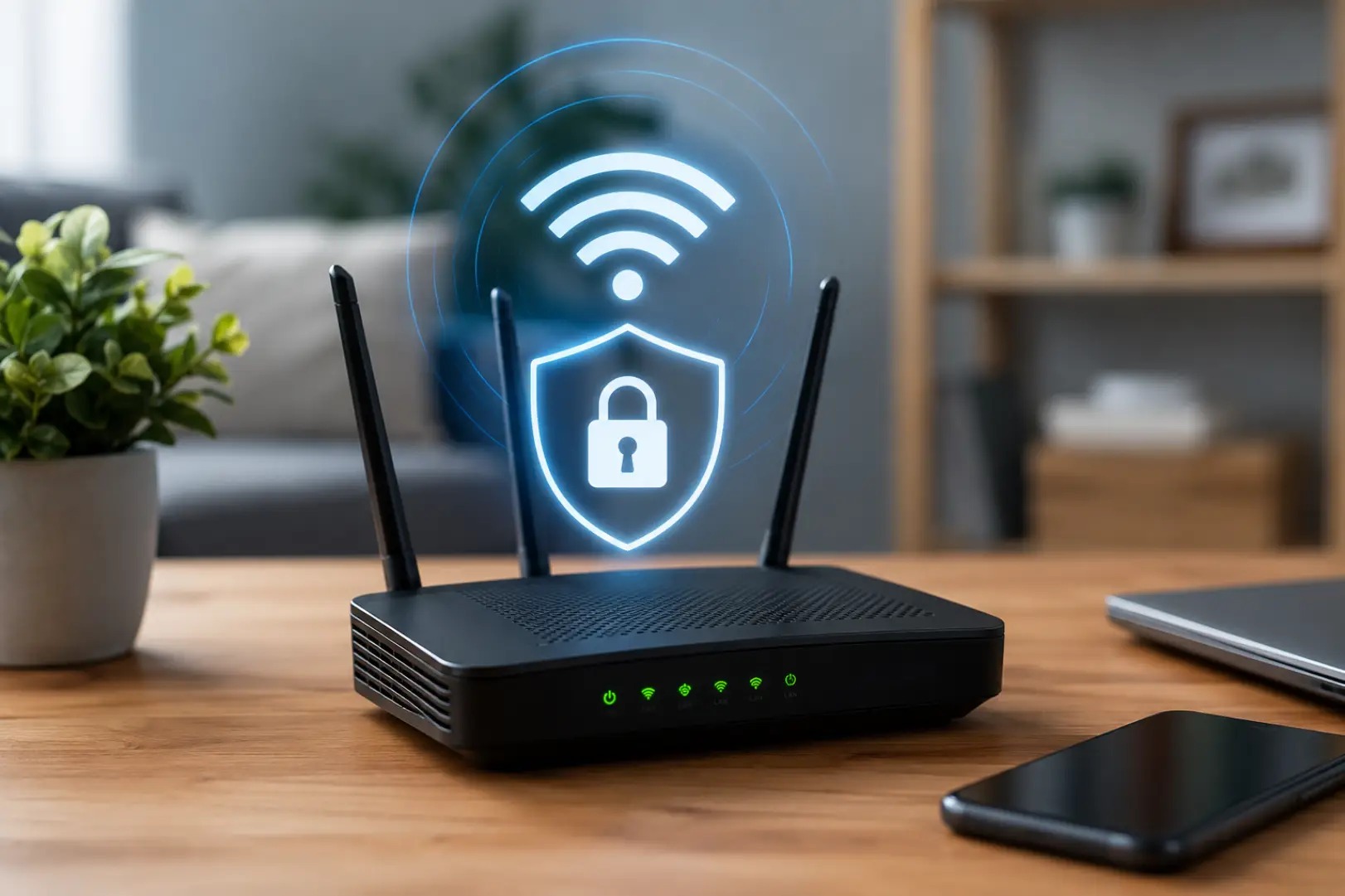
A proper Wireless Network Setup protects your internet connection, personal information, smart devices, and connected computers from unauthorized access. A secure network setup helps protect passwords, router access, guest devices, and connected equipment from the beginning. The process involves securing the router, choosing strong encryption, creating unique passwords, updating firmware, separating guest devices, and checking the network regularly.
A secure home network does not require advanced technical knowledge. Most protections can be enabled through the router’s mobile application or administration page by following the steps below.
What Is a Secure Home Wireless Network?
A secure home wireless network allows approved devices to access the internet while preventing unknown users from connecting. It uses modern encryption, strong passwords, updated router software, and controlled access settings.
Security should cover both the wireless connection and the router itself. Protecting only the WiFi password is not enough if the router administration account still uses default login details. A router password change protects the admin panel from unwanted setting changes.
What You Need Before Starting
Before changing any settings, collect the following information:
- Router or modem-router model
- Router administration address
- Current administrator username and password
- Internet provider login details, if required
- Names of devices currently connected
- A computer or phone connected to the router
The router administration address is often printed on a label underneath the device. Common addresses include 192.168.1.1 : and 192.168.0.1, although the correct address depends on the manufacturer and internet provider.
Connect and Access the Router Settings
Router settings should be changed carefully so security, DHCP, WiFi name, or band changes do not create new issues. Connect a computer to the router using an Ethernet cable when possible. A wired connection reduces the chance of losing access while changing wireless settings.
Open a web browser and enter the router’s administration address. Sign in using the administrator credentials shown on the router label or provided by the internet service provider.
Some modern routers use a mobile application instead of a browser-based control panel. Follow the manufacturer’s instructions if the administration page does not open.
Change the Router Administrator Password
The administrator password controls access to all router settings. Anyone who gains access to it may be able to change passwords, redirect traffic, disable protections, or disconnect devices.
Replace the default administrator password with a unique password containing at least 12 to 16 characters. Use a combination of uppercase letters, lowercase letters, numbers, and symbols.
Do not reuse the wireless password, email password, or any password already used for another account. Store the administrator password in a trusted password manager or another secure location. Along with changing the administrator password, review all available router security settings to disable unnecessary features and strengthen protection against unauthorized access.
Choose a Unique Wireless Network Name
Hiding your WiFi network name is not a strong replacement for encryption and a secure password. The wireless network name is also called the SSID. Change the default name so it does not reveal the router manufacturer, internet provider, address, surname, or apartment number.
Choose a neutral name that is easy for household members to recognize. Avoid personal details because nearby users can usually see the network name even when they cannot connect.
Hiding the SSID is not a reliable security measure. A hidden network can still be detected with basic network tools, so strong encryption and passwords provide more meaningful protection.
Enable WPA3 or WPA2 Encryption
Use WPA3-Personal when the router and connected devices support it. WPA3 provides stronger protection against password-guessing attacks and improves the security of wireless connections.
Select WPA2-Personal with AES encryption when WPA3 is unavailable. Avoid outdated options such as WEP, WPA, or WPA2 with TKIP because they provide weaker protection.
Some routers offer a WPA2/WPA3 mixed mode for compatibility with older equipment. A WiFi authentication error may appear if older devices cannot match the router’s security settings. This can be useful when certain devices cannot connect through WPA3 alone, but WPA3-only mode is preferable when every device supports it.
This encryption choice is one of the most important parts of creating a Secure Wireless connection because it protects information travelling between the router and connected devices. Strong encryption is the foundation of home network security because it prevents nearby attackers from reading or intercepting wireless traffic while devices communicate with the router.
Create a Strong WiFi Password
Use a wireless password that is long, unique, and difficult to guess. A passphrase containing several unrelated words, numbers, and symbols is usually easier to remember and harder to crack than a short, complicated password.
Avoid using:
- Phone numbers
- Birth dates
- Family names
- Street names
- Common phrases
- Sequential numbers
- Router model numbers
A password containing at least 14 to 16 characters provides stronger protection. Share it only with trusted household members and change it when someone who should no longer have access knows the password.
Good password practices should always be combined with proper WiFi security settings, including modern encryption, disabled WPS, and regular firmware updates.
Update the Router Firmware
Router firmware controls the device’s operating system, security features, and network functions. Manufacturers release firmware updates to correct vulnerabilities, improve stability, and add protections.
Open the update or system section in the router control panel and check for available firmware. Enable automatic updates when the router supports them.
Do not turn off or restart the router during an update. Interrupting the process may damage the firmware or prevent the router from starting correctly.
Firmware updates should also be included in ongoing Network Setup maintenance rather than treated as a one-time task.
Disable WiFi Protected Setup
WiFi Protected Setup, commonly called WPS, allows devices to connect using a button or PIN. Although convenient, PIN-based WPS can introduce an unnecessary security weakness.
Disable WPS through the router settings unless a specific trusted device requires it. Devices can still connect normally by entering the wireless password.
Turning off WPS does not affect internet speed, coverage, or the performance of devices that are already connected.
Create a Separate Guest Network
A guest connection allows visitors to use the internet without joining the main household network. It helps prevent guest devices from reaching computers, printers, storage drives, cameras, and other private equipment.
Enable the guest feature in the router settings and create a different network name and password. Turn on client isolation or local network blocking when available.
Do not use the same password for the main and guest connections. Disable guest access when it is no longer needed, or change its password periodically if visitors use it regularly.
A separate guest connection also improves WiFi Security by reducing the number of unfamiliar devices that can communicate with trusted equipment.
Separate Smart Home Devices When Possible
Smart televisions, cameras, speakers, plugs, appliances, doorbells, and other Internet of Things devices may not receive security updates as frequently as computers and phones.
Place smart devices on a separate IoT network, guest network, or isolated wireless band if the router supports this function. This limits their ability to communicate with sensitive devices.
Keep computers used for banking, business files, passwords, and personal records on the primary network. Network separation reduces the potential impact if a smart device becomes compromised.
Disable Remote Router Administration
Remote administration allows router settings to be accessed from outside the home. Most households do not need this feature.
Disable remote management, web access from the internet, or WAN administration unless there is a clear reason to keep it active. Local administration should remain available from devices connected inside the home.
If remote access is necessary, restrict it to trusted accounts, use multifactor authentication when supported, and avoid exposing the standard administration port.
Review Universal Plug and Play Settings
Universal Plug and Play, or UPnP, allows applications and devices to open network ports automatically. Gaming consoles and media devices may use it for easier connectivity.
UPnP can also create security risks when an unsafe application or compromised device requests access. Disable it when it is not required.
When disabling UPnP causes a necessary service to stop working, configure only the required port manually and remove the rule when it is no longer needed.
Use the Router Firewall
Most home routers include a built-in firewall that blocks unsolicited incoming connections from the internet. Confirm that the firewall is enabled in the security section of the control panel.
Leave stateful packet inspection enabled when available. Avoid placing devices in a demilitarized zone unless a specific technical requirement makes it necessary.
A firewall supports WiFi Network Security, but it does not replace encryption, firmware updates, strong passwords, or secure device settings.
Check Connected Devices
Review the router’s connected-device list after completing the configuration. Identify each phone, computer, television, camera, printer, console, and smart device.
Remove or block devices that you do not recognize. Remember that some devices may appear under a manufacturer name or an unfamiliar hardware address.
Many routers can send alerts when a new device connects. Enable these notifications when available to detect unauthorized access quickly.
Secure Every Connected Device
Router protection cannot fully protect an outdated or infected device. Update operating systems, browsers, security applications, and installed software on every connected device.
Use screen locks, strong account passwords, and multifactor authentication. Remove applications and browser extensions that are no longer needed.
Disable automatic connection to open public networks on phones and laptops. This prevents devices from joining unsafe connections without your knowledge.
Position the Router Carefully
Place the router in a central, elevated, and open location for reliable coverage. Avoid hiding it inside cabinets, placing it on the floor, or positioning it beside large metal objects.
Better placement may allow you to reduce unnecessary signal reach outside the property while maintaining strong coverage indoors. However, router placement should not be treated as a security control by itself.
Complete the physical WiFi Setup before testing coverage in bedrooms, work areas, living spaces, and outdoor areas that require access. Proper WiFi setup at home includes placing the router where household devices receive reliable coverage while limiting unnecessary signal exposure outside the property.
Use Secure DNS Settings
The Domain Name System converts website names into internet addresses. Some internet providers use their own DNS service, while routers may allow a trusted third-party DNS provider to be selected.
Choose a reputable DNS service that supports security filtering or encrypted DNS when compatible with the router. Using encrypted DNS adds another layer of privacy to a secure wireless network by helping protect DNS requests from interception. Avoid unknown providers that make unrealistic claims about speed or privacy.
DNS protection can help block known malicious domains, but it cannot prevent every unsafe download, phishing page, or account compromise.
Back Up the Router Configuration
After completing the secure configuration, save a backup of the router settings if the device provides this option. A backup makes it easier to restore the correct settings after a reset or hardware problem.
Store the backup file securely because it may contain sensitive configuration details. Do not upload it to a public file-sharing service.
Record the network name, encryption mode, administrator address, and important custom settings in a secure location.
Test the Network After Configuration
Reconnect each approved device using the new wireless password. Confirm that phones, computers, televisions, cameras, printers, and smart devices can access the services they require.
Test the following:
- Internet access
- Wireless coverage
- Guest network isolation
- Printer access
- Smart device control
- Video calls and streaming
- Router administration access
- Connected-device alerts
Complete the test before deleting previous settings or disconnecting any temporary wired connection. Successful testing confirms that every security change works together to provide a secure internet connection for approved users and connected devices.
Home Wireless Network Security Checklist
A protected home network should have:
- A unique router administrator password
- A neutral wireless network name
- WPA3 or WPA2-AES encryption
- A long and unique wireless password
- Updated router firmware
- WPS disabled
- Remote administration disabled
- An active router firewall
- A separate guest connection
- Isolated smart devices where possible
- Only recognized connected devices
- Updated computers, phones, and smart equipment
Review these settings every few months and after replacing the router, changing internet providers, adding smart devices, or sharing access with temporary visitors.
FAQs
What is the safest security mode for a home router?
WPA3-Personal is currently the preferred option for compatible home routers and devices. WPA2-Personal with AES is a suitable alternative when WPA3 is unavailable. WEP, WPA, and TKIP-based settings should not be used.
How long should a home WiFi password be?
Use a unique password containing at least 14 to 16 characters. Long passphrases made from unrelated words, numbers, and symbols are effective. Do not reuse a password from another account or network.
Should I hide my wireless network name?
Hiding the network name provides little practical protection because it can still be detected. It may also create connection problems for some devices. Use modern encryption and a strong password instead.
Is a guest network safer for visitors?
Yes, a properly isolated guest connection keeps visitor devices away from private household equipment. Use a different password and block access to local devices. Review or disable guest access when it is no longer required.
How often should router firmware be updated?
Install security updates as soon as they become available from the manufacturer.
Enable automatic updates if the router supports them reliably. Check manually every few months when automatic updating is unavailable.
Should WPS be turned off?
WPS should normally be disabled, particularly when the router uses a PIN-based connection method. Devices can connect securely by entering the wireless password manually. Disabling WPS does not reduce normal network performance.
How can I tell whether someone is using my WiFi?
Open the router control panel and review the connected-device list. Compare the listed devices with equipment owned by household members. Block unknown devices and change the password when unauthorized access is suspected.
Do I need professional help to secure a home network?
Most households can apply the essential protections through the router application or control panel. Professional assistance may be useful for large properties, advanced segmentation, or persistent security problems. Always keep a record of any settings changed by a technician.
Leave a Reply