
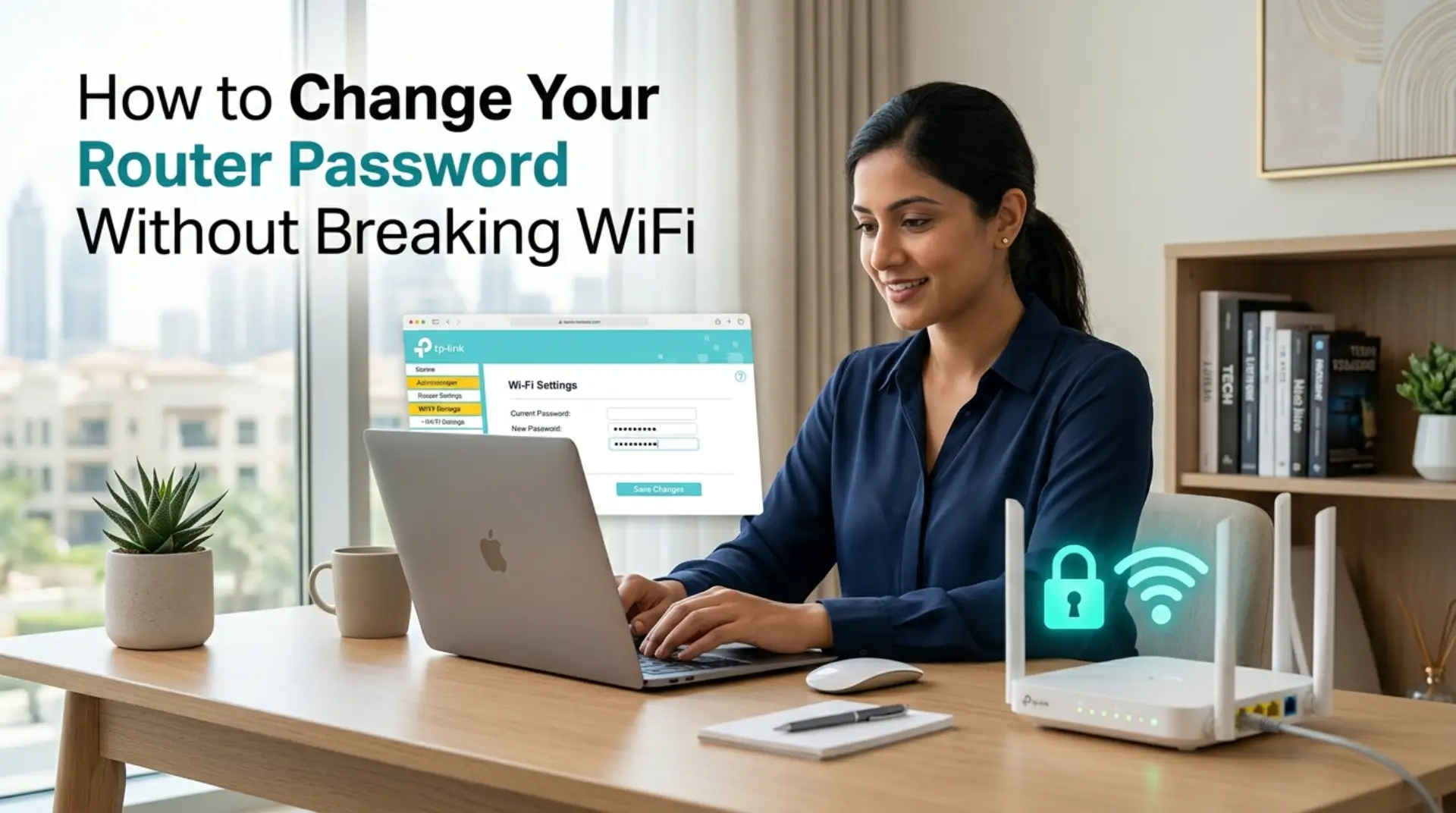
Changing a router password sounds simple until half the house loses internet, the smart TV refuses to reconnect, or your work laptop drops during a video call. If you searched for router password change, you probably want a safe way to update your settings without creating a bigger WiFi problem. The good news is that you can do it yourself, but you need to know the difference between your router login password and your WiFi password before making changes.
First, Know Which Password You Want to Change
Many users confuse two different passwords:
Your WiFi password is the password people use to connect phones, laptops, TVs, cameras, and gaming consoles to your wireless network.
Your router admin password is the password used to log in to your router settings page. This is where you manage network name, security, connected devices, firmware, and other router settings.
If you only want to stop neighbors, guests, or old tenants from using your internet, change the WiFi password. If you want to stop someone from accessing your router control panel, change the admin password. For better security, it is smart to update both, but not at the same time, if you are unsure.
Before You Change Anything, Do This Quick Check
A few minutes of preparation can save you from internet drops later. This is especially important in Dubai apartments, villas, shared offices, and rental properties where several devices may depend on one network.
Before logging in to your router:
- Check the router brand and model.
- Keep your current WiFi name written down.
- Make sure you are connected to the router network.
- Save your internet provider details if available.
- Avoid changing settings during work calls, gaming sessions, or online payments.
- Take photos or screenshots of the current router settings.
Also, do not reset the router unless you really need to. A reset can erase internet settings, mesh WiFi configuration, modem details, and custom network setup. That is when many users accidentally “break” WiFi.
How to Change Your WiFi Password Safely
The safest way is to change only the wireless password first and leave the advanced settings alone.
Step 1: Connect to Your Router Network
Use a laptop or phone that is already connected to your WiFi. A laptop is better because router settings pages are easier to manage on a larger screen.
If possible, connect your laptop to the router using an Ethernet cable. This helps prevent disconnection while saving changes.
Step 2: Open the Router Login Page
Open a browser and enter your router login address. Common addresses include:
- 192.168.1.1
- 192.168.0.1
- 192.168.100.1
You can usually find this address on the sticker under the router or in your internet provider’s setup guide. Some routers also use a mobile app.
Step 3: Log In to Router Settings
Enter the router admin username and password. This is not always the same as your WiFi password. If you never changed it, the login may still be printed on the router label.
For security, avoid using default admin details for too long. Anyone connected to your network may be able to access router settings if the admin password is still weak.
Step 4: Find Wireless or WiFi Settings
Look for a menu called:
- Wireless
- WiFi Settings
- WLAN
- Network Settings
- SSID Settings
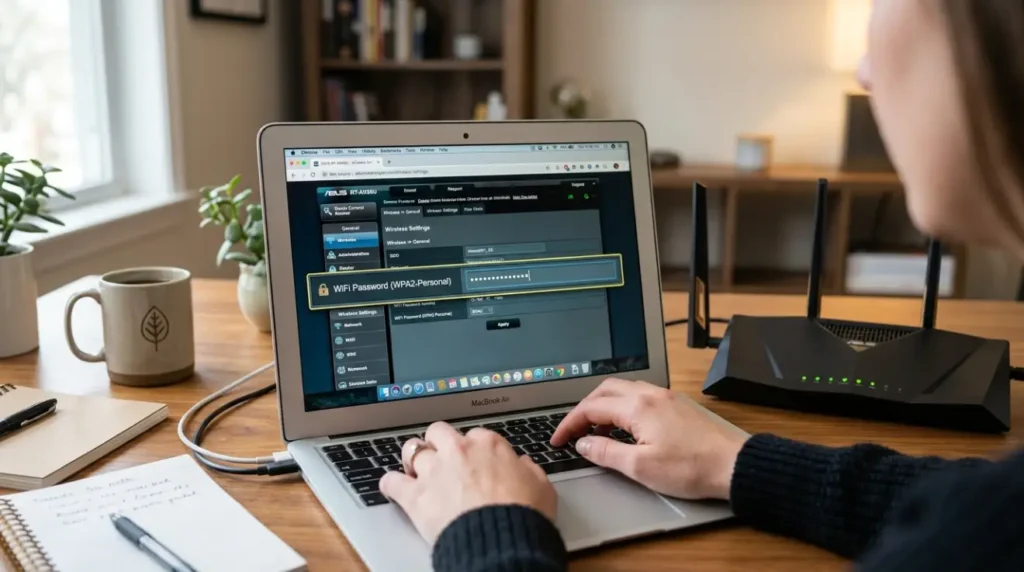
Inside this section, you will see your WiFi name and password field. Some routers show separate settings for 2.4GHz and 5GHz networks.
Step 5: Change the WiFi Password Only
Enter a strong new password. Use at least 12 characters with a mix of uppercase letters, lowercase letters, numbers, and symbols.
Avoid passwords like:
- your mobile number
- apartment number
- family name
- business name only
- “password123”
- “dubai12345”
A better password is something memorable but difficult to guess, such as a short phrase with numbers and symbols.
Step 6: Save and Reconnect Devices
After saving, your devices will disconnect. This is normal. Reconnect your phone or laptop using the new WiFi password first.
Once your main device connects successfully, reconnect other devices one by one. Start with important devices such as work laptops, security cameras, smart locks, POS systems, or office printers.
How to Avoid Breaking Smart Devices and Mesh WiFi
Smart homes are common in Dubai villas and apartments, but they can be sensitive to WiFi changes. Cameras, doorbells, AC controllers, Alexa devices, and smart TVs may not reconnect automatically after a password update.
To avoid problems, keep your WiFi name the same and change only the password. If you change both the WiFi name and password, every device will treat it like a brand-new network.
For mesh WiFi systems, use the official app if your system is from brands like TP-Link Deco, Google Nest WiFi, Netgear Orbi, Linksys Velop, or ASUS AiMesh. Changing settings directly from the main router without understanding the mesh setup may cause weak signals or node disconnection.
If your mesh nodes stop working after the change, restart the main router first, then restart the satellite nodes. Give the system a few minutes to rebuild the connection.
Should You Change the Router Admin Password Too?
Yes, but do it carefully. The admin password protects your router settings from unwanted access. If someone logs in to your router, they may change your WiFi password, view connected devices, adjust DNS settings, or weaken your secure network.
To change it, look for a section called Administration, System, Management, or Router Password. Choose a different password from your WiFi password. Store it safely because losing it may force you to reset the router.
This is also a good time to check encryption settings. Encryption protects the data moving between your device and router. WPA2 or WPA3 is recommended on modern routers. Avoid old security modes like WEP because they are not safe.
What If Your Internet Slows Down After Changing the Password?
Changing the password itself does not usually reduce internet speed. However, other things may happen during the process.
For example, some devices may reconnect to the slower 2.4 GHz band instead of 5 GHz. In other cases, a router restart may trigger channel changes, signal interference, or temporary network congestion.
If your internet speed feels slower after the update:
- Restart the router and modem.
- Check whether you are connected to 2.4 GHz or 5 GHz.
- Move closer to the router and test again.
- Disconnect old or unknown connected devices.
- Run a speed test near the router.
- Check if downloads, streaming, or cameras are using too much bandwidth.
For gamers and remote workers, poor latency can feel worse than slow speed. Latency means the delay between your device and the server. If video calls freeze or games lag after the change, you may need network troubleshooting, not just a stronger password.
When a WiFi Booster Is Not the Real Fix
Many users buy a WiFi booster after changing passwords because they think weak signal is the main issue. Sometimes it helps, but not always.
A booster may not solve:
- poor router placement
- thick villa walls
- too many connected devices
- bad modem-router setup
- incorrect mesh WiFi configuration
- outdated router firmware
- internet package limitations
In larger Dubai villas, a proper mesh WiFi system is usually better than a basic extender. For small offices, access points may offer better coverage and bandwidth optimization. The right solution depends on your layout, number of users, and the type of devices connected.
Safe Password Tips for Homes and Small Businesses
For families, use one main WiFi network and a separate guest network. Give guests access to the guest network instead of sharing your main password.
For tenants, change the WiFi password when moving into a new apartment. Previous tenants, maintenance workers, or visitors may still have the old password.
For small businesses, update WiFi access when employees leave. Also, keep office printers, POS systems, and security devices on a controlled network where possible.
A good rule is simple: if someone no longer needs access, remove their access.
When to Call a Professional WiFi Service
You can safely change a password yourself if you are only updating basic WiFi settings. However, call a wifi repair technician if your setup includes multiple routers, mesh nodes, business devices, CCTV, smart locks, or special ISP settings.
Professional help is also useful when:
- The router login page does not open
- You forgot the admin password
- The internet drops after every restart
- mesh WiFi nodes stop connecting
- smart devices fail to reconnect
- WiFi works in one room but not another
- Your business’s internet affects staff or customers
- You need a secure network setup for office use
A professional wifi service can check router settings, connected devices, modem status, signal strength, firmware, and overall network health. This saves time and reduces the risk of changing the wrong setting.
Final Thoughts
Changing your router or WiFi password should make your network safer, not create new problems. The safest approach is to understand which password you are changing, take screenshots before editing settings, keep your WiFi name the same, and reconnect devices carefully.
For a simple home network, the process is usually quick. For villas, shared apartments, remote work setups, gaming rooms, smart homes, and small businesses, it is worth being more careful. One wrong setting can affect internet speed, connected devices, security cameras, and daily work.
FAQs
What is the difference between the router password and WiFi password?
The router password is used to log in to your router settings page. The WiFi password is used to connect devices to your wireless network. Changing one does not always change the other.
Will changing my WiFi password disconnect all devices?
Yes, devices connected with the old password will disconnect. You need to reconnect phones, laptops, TVs, cameras, and smart devices using the new password.
Can I change my router password from my phone?
Yes, many routers allow password changes through a mobile browser or official app. However, using a laptop is often easier because router settings pages can be difficult to manage on small screens.
Why can’t I open my router login page?
You may be using the wrong router IP address, connected to mobile data, or not connected to the router network. Try checking the router label, using a laptop, or restarting the router.
Should I change my WiFi name when changing the password?
You can, but it is safer to keep the same WiFi name if you have many smart devices. Changing both the name and password means every device must be set up again.
How often should I change my WiFi password?
For homes, change it when you move in, share it too often, or notice unknown devices. For small businesses, update it when staff changes or when guest access is not properly controlled.
What should I do if my internet stops working after changing the password?
Restart the router and modem, then reconnect using the new password. If the internet still does not work, check whether you changed the advanced settings by mistake or contact a wifi repair technician.
Is it safe to use the default router password?
No, default router passwords are risky because they may be easy to guess or printed on the device. Change the admin password and use strong WiFi encryption for better security.
Leave a Reply