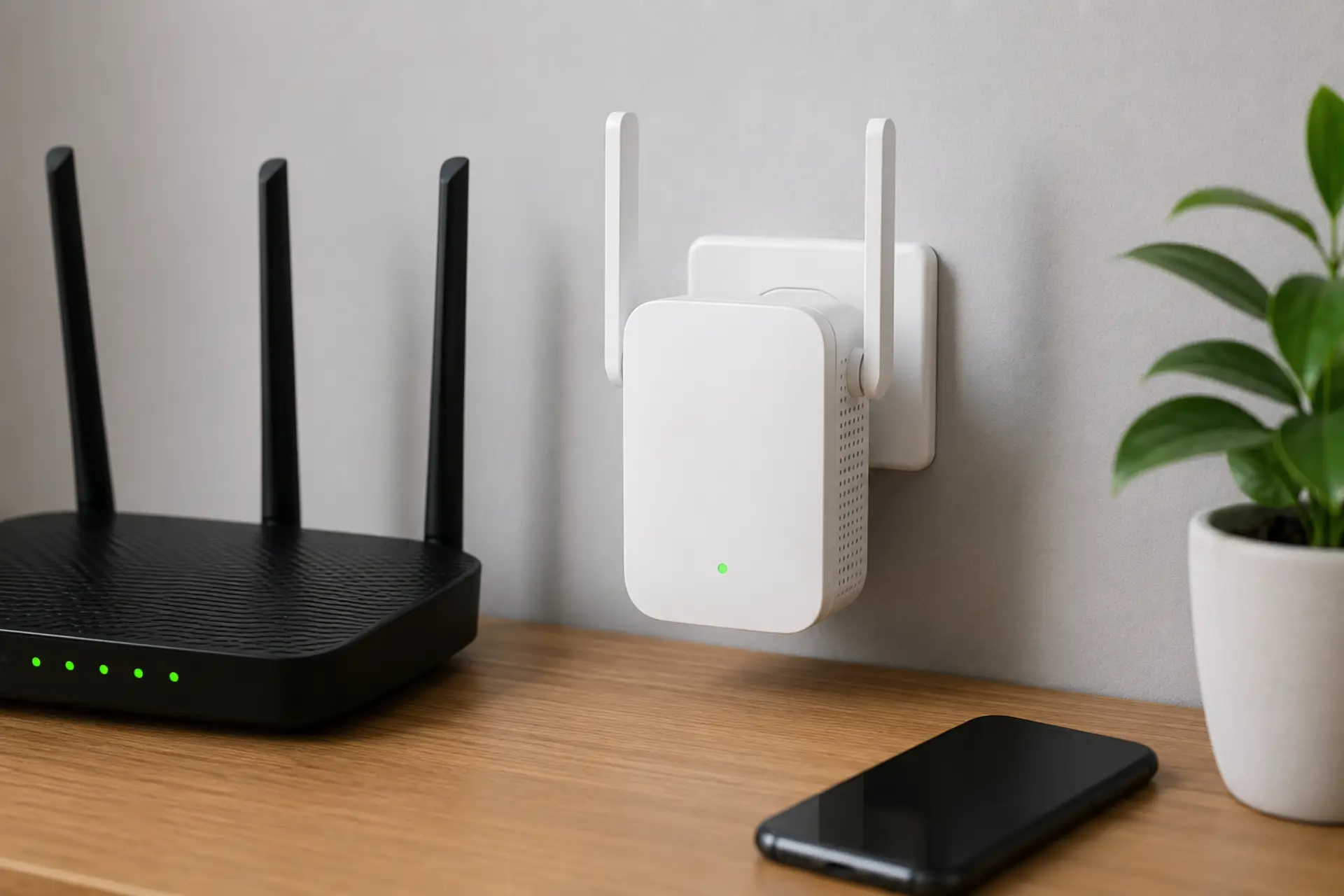
A WiFi extender without WPS can still be connected easily through manual setup using a browser, mobile app, or an IP address. A WiFi extender can still improve weak rooms when it is configured correctly and placed where the router signal is usable. Manual installation lets you choose the correct network, enter the password safely, and place the device where it can improve connection quality.
You do not need advanced networking skills to complete the setup. The main requirement is that your router is working, your WiFi password is correct, and the device is placed close enough to receive a stable signal before being moved to its final location.
Before You Start the Setup
Before connecting the device, check a few basic things so the setup does not fail halfway. A weak router connection, wrong password, or poor starting location can stop the process even when the device is working correctly.
- Make sure your main router has active internet. If the router itself cannot stay online, it may be close to a router not connecting to internet problem.
- Keep your WiFi name and password ready.
- Place the device near the router during setup.
- Use a phone, laptop, or tablet with WiFi access.
- Check whether your router has separate 2.4 GHz and 5 GHz networks.
- Reset the device first if it was used with another network before.
Starting close to the router helps the device receive a stable signal while saving the settings. After setup, you can move it closer to the weak area and test the connection again.
What Manual Setup Means
Manual setup means connecting the device to your router through a setup page instead of pressing a button. You connect your phone, laptop, or tablet to the extender’s temporary network, open the setup page, select your home WiFi, enter the password, and save the settings.
This method works for most brands, including TP-Link, Netgear, D-Link, Linksys, Tenda, and many other home networking devices. TP-Link router setup steps can also help if your router and extender are from the same brand family. A range extender usually broadcasts its own setup network when it is new or after a reset, making it possible to configure it even without app support.
Manual setup is often more reliable than button pairing because it shows exactly which router network you are joining, which band you are using, and whether the password was accepted.
Step-by-Step Manual Setup Without the Button
Manual setup is easiest when the device starts near the router and receives a strong signal during configuration. Use a phone, laptop, or tablet to connect to the setup network, open the setup page, and save the correct router details.
- Plug the device into a power socket near your router and wait until the power light becomes stable.
- Open the WiFi settings on your phone or laptop and find the temporary setup network.
- Connect to the temporary network shown by the device, usually with the brand name, “EXT,” “Setup,” or a model number.
- Open a browser and enter the setup address printed on the device label or shown in the user manual.
- Use the WiFi extender login screen to begin the setup process.
- Create an admin password if the setup page asks for one.
- Select your main home network from the available WiFi list.
- Enter the correct router password carefully.
- Choose a name for the extended network.
- Save the settings and allow the device to restart.
- After rebooting, connect your phone or laptop to the extended network and test the internet.
Once the device is connected successfully, move it to a better location between the router and the weak area. Extender placement matters because repeating a weak signal will not create strong coverage. Test the connection again before placing it permanently.
Where to Place It After Setup
Once setup is complete, move the unit to a socket between your router and the weak area. It should not be placed inside the room where the signal is already very poor. The device must still receive a stable connection from the router before it can improve WiFi coverage.
A good position is usually halfway between the router and the dead zone. A WiFi signal strength meter can show whether that location has enough signal for the extender to repeat. Avoid placing it behind thick walls, inside cabinets, near metal objects, beside microwaves, or too close to cordless phones. These locations can reduce performance and create unstable results.
If the indicator light shows weak reception, move the device closer to the router. If it shows strong reception but the weak area still has poor speed, try a different wall socket with a clearer path.
Same Network Name or Different Network Name?
Using the same network name can make movement around the home easier because your device may switch automatically between the router and the extended network. This works best in smaller homes or open layouts.
Using a different name gives you more control. For example, you can connect WiFi extender users in bedrooms, balconies, or upstairs areas to the extended network only when needed. This is useful when devices do not switch automatically to the stronger signal.
For most homes, a different name is easier during testing because you can clearly see whether your phone or laptop is connected to the router or the extended network.
Common Problems During Manual Setup
If the setup page does not open, confirm that your phone or laptop is connected to the device’s temporary network, not your main router network. Turn off mobile data on your phone if the browser keeps using cellular internet instead of the local setup page.
If your home network does not appear in the list, move the unit closer to the router and scan again. The router may also be using a hidden SSID or an unsupported wireless mode.
If the password is rejected, re-enter it carefully and check uppercase letters, numbers, and special characters. Your router password is case-sensitive.
If the device connects but the speed is poor, location is usually the issue. The WiFi signal limit of the router may already be too weak where the device is plugged in, so move it closer to the router and test again.
When Manual Setup Is Better Than Button Pairing
Manual setup is better when the router WPS button is unavailable, disabled for security, or not working properly. It is also useful when you want to choose a specific WiFi band, set a custom network name, or avoid connecting to the wrong network.
Some routers pair quickly through WPS, but the process does not always show what happened in the background. Manual setup gives better visibility and reduces guessing, especially in homes with multiple networks nearby.
This method is also safer for users who want more control over device settings, admin access, and network naming.
Security Tips After Setup
Change the default admin password during setup if the page gives you that option. Do not leave the device protected by a common default password.
Use WPA2 or WPA3 security on your router when available. Avoid outdated security modes because they can reduce protection and may cause compatibility issues with newer devices.
Keep the firmware updated through the brand’s app or admin page. Updates can improve stability, fix bugs, and support better wireless performance.
Do not place the device on an open guest network unless that is the intended purpose. For normal home use, it should connect to your private WiFi network.
How to Test the Connection After Setup
After the device restarts, connect to the extended network and open a few websites or apps. Walk to the area where the connection was weak and check if loading speed, video calls, or streaming improves.
Run a speed test near the router first, then near the extended area. The extended network may not always match the router’s full speed, but it should improve usability in places where the original signal was weak.
Also test more than one device. If only one phone or laptop has poor results, the issue may be with that device instead of the network.
When an Extender May Not Be Enough
A single extender is helpful for small dead zones, one weak room, or a short distance from the router. It may not be enough for large villas, thick concrete walls, multiple floors, outdoor areas, or office layouts with heavy device usage.
If weak areas are far from the router, a mesh system or wired access point may provide better results. Extenders are useful, but they cannot create strong performance from a very weak source signal.
When the home layout is large, or the internet drops in several rooms, testing the router position and full network design is better than adding more devices without checking the root cause.
FAQs
Can I set up a WiFi extender without WPS?
Yes, you can set it up manually through a browser or mobile app. Connect to the device’s setup network, open the setup page, choose your home WiFi, enter the password, and save the settings. This method works even when the router does not have a button.
Why is my setup page not opening?
The setup page usually fails to open when your phone or laptop is not connected to the device’s temporary network. Connect to the correct setup network, turn off mobile data, and try the setup address again. Restarting the device can also help.
Should I place the extender close to the router?
Place it close to the router only during setup. After configuration, move it halfway between the router and the weak area. It must still receive a strong enough signal to repeat the connection properly.
Can I use the same WiFi name as my router?
Yes, many devices allow you to use the same network name. This can make roaming easier, but some phones and laptops may not switch automatically to the stronger source. A separate name is often better for testing and control.
Why is the extended network slow?
Slow speed usually happens when the device is placed too far from the router. It may connect but still receive a weak source signal. Move it closer to the router and test again before changing other settings.
Do I need the router password for manual setup?
Yes, you need the correct home WiFi password. Manual setup requires selecting your router network and entering its password. Without the correct password, the device cannot connect to your main internet connection.
Is manual setup safer than button setup?
Manual setup gives more control because you can choose the network, set the extended name, and create an admin password. It also avoids accidental pairing with the wrong nearby network. For many users, it is the more transparent method.
What should I do if setup keeps failing?
Reset the device, move it near the router, and repeat the setup from the beginning. Confirm the WiFi password, use the correct setup address, and check that the router internet is working. If the issue continues, the device may need a firmware update or replacement.
Leave a Reply