
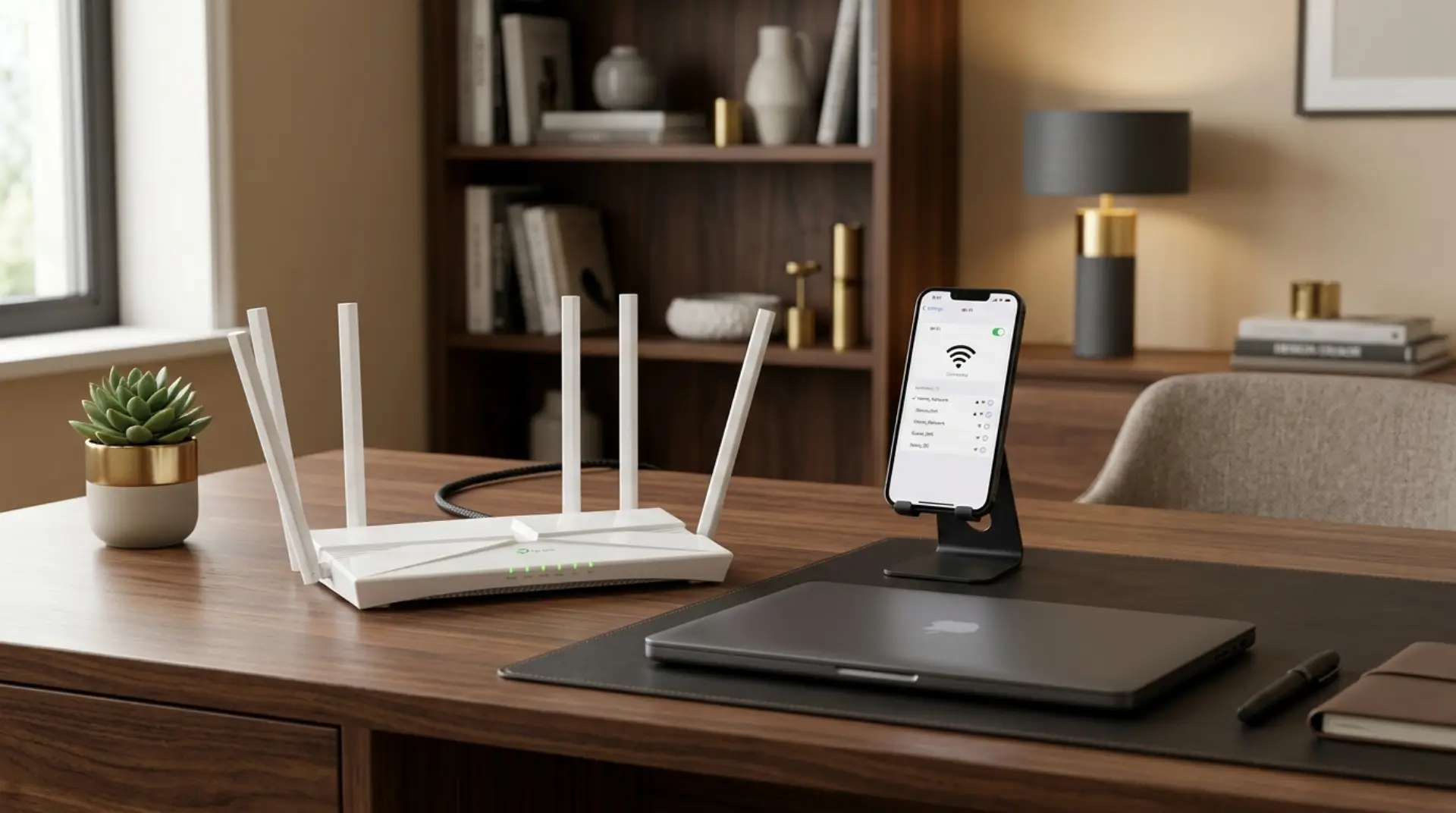
A TP-Link router can make your internet faster and more stable, but only when it is set up correctly. Many home users face the same problem: the router turns on, the WiFi name appears, but the internet does not work properly.
Sometimes the issue is wrong cable placement. Sometimes the router password, admin page, or internet settings are not configured correctly. For better low-ping gaming, these basic setup issues should be checked first. In apartments, weak signals and thick walls can also make the connection feel slow, even after setup.
For TP-Link Router Setup Dubai, connect the modem to the router WAN port, open the admin page through 192.168.0.1 or 192.168.1.1, choose the correct internet connection type, set your WiFi name and password, then test the signal in each room. If the internet still fails, check provider settings, cables, and router mode.
This guide only explains TP-Link router setup, so you can connect to your internet, secure your WiFi, and avoid common mistakes.
Before You Start
Before opening the TP-Link router admin page, check the basic hardware setup. A wrong cable connection can make the router look faulty even when it is working fine.
Make sure you have:
- TP-Link router power adapter
- Internet modem or fiber box
- Ethernet cable
- Laptop or phone
- Internet account details, if required
- Router login details
Now connect the Ethernet cable from the modem or fiber box to the WAN/Internet port of the TP-Link router. This port is usually blue or clearly labeled.
After that, connect your phone or laptop to the default TP-Link WiFi name printed on the router label. You can also use a cable from your laptop to one of the LAN ports for a more stable setup process.
Open the Router Page
To begin TP-Link router configuration, open a browser and type:
- 192.168.0.1
- 192.168.1.1
- tplinkwifi.net
One of these should open the TP-Link router login page. If it does not open, check that your device is connected to the TP-Link router and not mobile data or another WiFi network.
For new routers, TP-Link may ask you to create an admin password first. This password protects the router settings page. It is not always the same as your WiFi password.
Choose a strong admin password and save it somewhere safe. If someone can access your admin page, they can change your WiFi name, password, DNS, and network settings.
Choose Internet Settings
Once you enter the TP-Link router admin page setup, the router usually starts a quick setup wizard. This is where many users get confused.
You may see internet connection options such as:
- Dynamic IP
- PPPoE
- Static IP
- Bridge mode
- Access Point mode
For many home connections, Dynamic IP works when the modem is already handling the internet connection. However, some connections may require a PPPoE username and password from the internet provider.
If your TP-Link router setup with Etisalat or TP-Link router setup with Du does not connect automatically, do not keep changing random settings. First confirm whether your router should work as a main router or only as an access point.
Using the wrong mode can cause no internet, double NAT, login problems, or slow speed.
Set WiFi Name
After the internet settings, set a clean and easy WiFi name. Avoid using personal details like your full name, flat number, or phone number.
For example, you can use:
- HomeNet_5G
- FamilyWiFi
- Office_Main
- TPLink_Home
Most TP-Link Archer routers support both 2.4GHz and 5GHz bands. The 2.4GHz band gives better range, while the 5GHz band gives better speed when you are closer to the router.
If your router supports Smart Connect, you can use one WiFi name for both bands. However, for troubleshooting, separate names can be useful. For example, use HomeWiFi_2.4G and HomeWiFi_5G.
Create a Strong Password
Your TP-Link router password setup should be simple enough to remember but strong enough to protect your network.
Use a password with:
- Uppercase letters
- Lowercase letters
- Numbers
- Special characters
- At least 12 characters
Avoid passwords like 12345678, your mobile number, or your family name. Weak passwords can allow unknown devices to connect, which can slow your internet and create privacy risks.
Also, select WPA2-Personal or WPA3-Personal if your router and devices support it. These options are safer than old security modes.
Best Home Settings
The best TP-Link router settings for home WiFi depend on your space, router model, and number of devices. However, a few settings work well for most users.
Keep the router in an open area, not inside a cabinet. Place it away from microwaves, cordless phones, metal shelves, and thick walls.
For better performance:
- Use 5GHz for phones, laptops, TVs, and gaming devices near the router
- Use 2.4GHz for smart bulbs, cameras, and far rooms
- Keep firmware updated
- Restart the router after major setting changes
- Limit unknown connected devices
- Use guest WiFi for visitors
For apartments, router placement matters a lot. A central location usually gives better coverage than placing the router near the entrance or behind the TV.
Extender Setup
If some rooms still have weak signal, a TP-Link WiFi extender setup can help. However, extenders must be placed correctly.
Do not install the extender in the room where the WiFi is already very weak. Place it halfway between the router and the weak area. This helps it receive a stronger signal and repeat it properly.
For larger homes, mesh WiFi may be better than a basic extender. Mesh systems give smoother roaming and better coverage across multiple rooms or floors.
If you run a small office, salon, clinic, or shop, a proper access point setup may be more reliable than using multiple cheap extenders.
Common Setup Problems
Sometimes the router connects, but the internet does not work. This can happen even when the WiFi signal looks strong.
Common causes include:
- WAN cable connected to the wrong port
- Wrong connection type selected
- Old ISP modem has not been restarted
- PPPoE details entered incorrectly
- Router working in the wrong mode
- IP conflict with another router
- Weak signal due to poor placement
If you want to fix the TP-Link router’s internet issue quickly, start with the simple checks first. Restart the modem and router. Confirm the WAN cable is properly connected. Then open the router page and check whether the internet status shows connected or disconnected.
If the router shows connected but websites do not open, the issue may be DNS, IP conflict, or provider-side service.
Why Professional Setup Matters
A basic setup may get your WiFi working, but a professional setup can make it more stable. This matters especially when you have smart TVs, cameras, gaming devices, work laptops, and multiple family users on the same network.
Professional router installation can help with:
- Correct router mode selection
- Better router placement
- Secure WiFi and admin passwords
- Extender or mesh planning
- Speed testing in different rooms
- Business network separation
- Guest WiFi setup
- Device connection issues
For home users, this means fewer drops and better coverage. For business users, it means smoother calls, payments, cameras, and daily operations.
FAQs
How do I open my TP-Link router login page?
Connect your phone or laptop to the TP-Link router, then open a browser and type 192.168.0.1, 192.168.1.1, or tplinkwifi.net. If the page does not open, check that you are connected to the router’s WiFi and not mobile data.
Why is my TP-Link router connected but no internet?
This usually happens because the WAN cable is in the wrong port, the internet connection type is incorrect, or the modem needs a restart. Also check whether your router should use Dynamic IP, PPPoE, or Access Point mode.
What is the best WiFi password for a TP-Link router?
Use a strong password with letters, numbers, and symbols. Avoid simple passwords like your phone number or 12345678. A strong WiFi password protects your network and helps stop unknown devices from using your internet.
Should I use 2.4GHz or 5GHz on my TP-Link router?
Use 5GHz for faster speed when you are close to the router. Use 2.4GHz for better range in far rooms or for smart devices. Many homes work best when both bands are enabled.
Can I set up a TP-Link router with Etisalat or Du?
Yes, but the correct settings depend on how your modem or fiber box is configured. Some setups work with Dynamic IP, while others may need PPPoE or Access Point mode. Wrong settings can cause no internet after installation.
Why is my TP-Link router slow in some rooms?
A weak signal is usually caused by distance, walls, router placement, or interference. Try placing the router in a central open area. If the issue continues, a WiFi extender, mesh system, or access point may be needed.
Do I need professional TP-Link router installation?
You may not need it for a simple setup. However, professional help is useful if the internet keeps dropping, the admin page is confusing, extenders are not working, or your home has weak signal areas.
Leave a Reply