
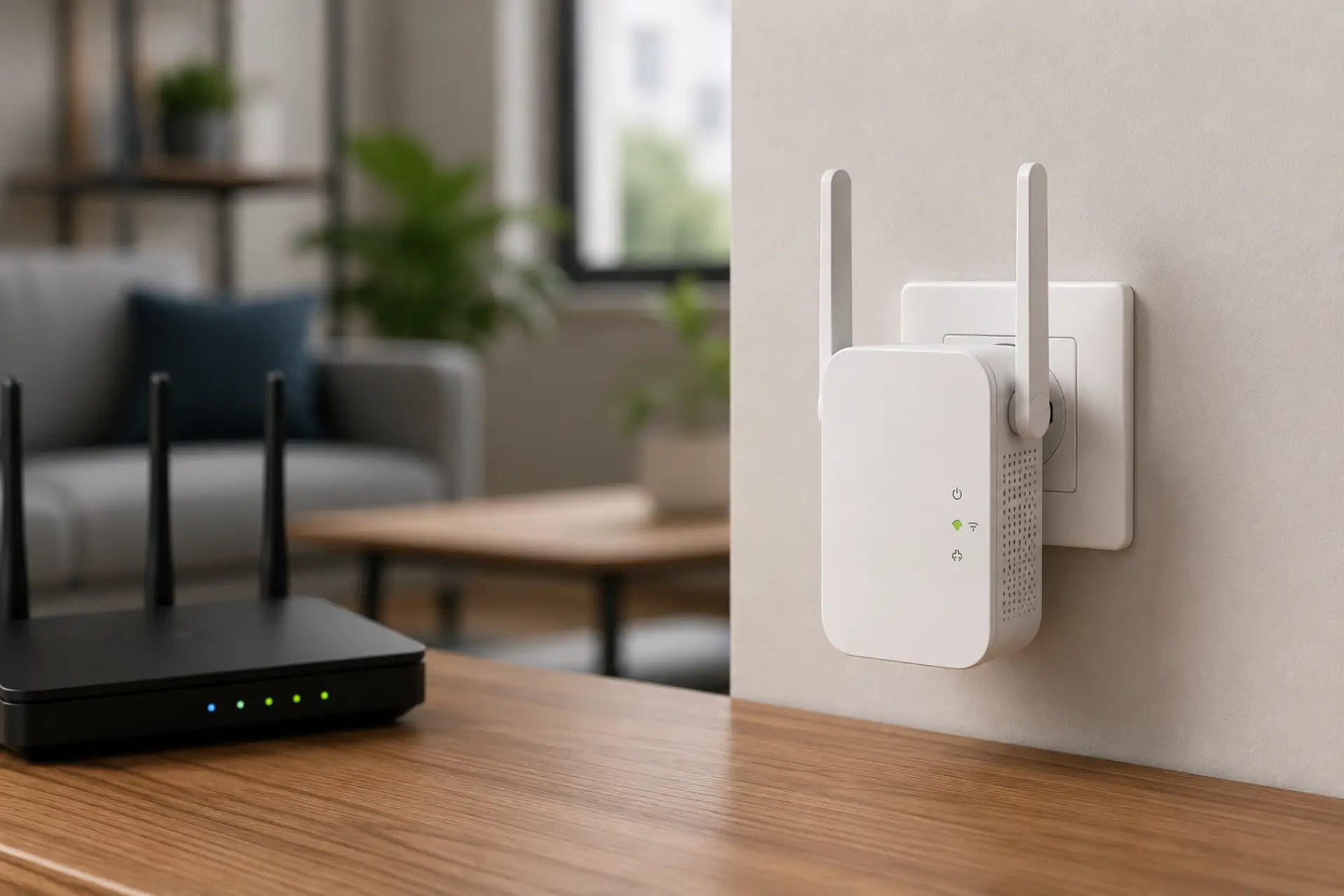
A WiFi extender no internet problem happens when your phone, laptop, or smart TV connects to the extender network but cannot open websites or apps. The extender may show connected status, yet the internet access does not pass through from the main router.
This usually comes from a weak router link, wrong password, IP conflict, outdated settings, poor placement, or a problem with the main internet line. Common causes of slow WiFi should also be checked, as a weak signal and router load can create similar symptoms. The checks below help you find the real cause before resetting the device or replacing it.
What to Check First When Your Extender Has No Internet
Start by checking the main router internet first. Restart the router and extender. Move the extender closer to the router. Confirm the router password. Forget and reconnect the extender network on your device.
Update firmware, check the setup mode, test another device, and reduce connected devices. If the internet problem continues after these steps, reset the extender and configure it again from the beginning. Keeping router firmware updated can improve stability, compatibility, and security for connected network devices.
Confirm the Main Router Has Internet First
Before troubleshooting the extender, connect your phone or laptop directly to the main router network. If the router itself has no internet, the extender cannot fix the problem because it only repeats the connection it receives.
Restart the router and modem, then check the internet light, WAN light, or service status from your internet provider. If the main router connection is down, wait until it becomes stable before testing the extender again.
Check Whether the Extender Is Too Far from the Router
An extender must receive a clean signal from the router before it can extend coverage. A WiFi signal strength meter can show whether the extender location has enough signal to repeat properly. If it is placed in a dead zone, it may still show as connected but fail to provide working internet.
Place the extender halfway between the router and the weak area, not inside the weak area itself. A poor WiFi signal between the router and extender can cause dropouts, loading failures, and unstable device connections.
Restart the Extender Properly
A simple restart can clear temporary network errors. Unplug the extender from power, wait 30 seconds, and plug it back in. Allow it to fully boot before reconnecting your device.
After restarting, disconnect your phone or laptop from the extender network and reconnect again. This refreshes the device connection and helps clear a temporary connection issue caused by cached network data.
Recheck the Router Password Used During Setup
If the extender was set up with the wrong WiFi password, it may create an extended network but fail to pass internet access. This is common after changing the router password but forgetting to update the extender.
Open the extender setup page or app and reconnect it to the main router using the current router password. If you are not sure, forget the saved router network and run the setup again from the start.
Make Sure You Are Connected to the Correct Network
Many extenders create a new network name with “EXT” at the end. Some homes also have old extender networks saved on phones and laptops, which can confuse devices.
Check the network name carefully. Connect to the active extended network, then test a website. If your device keeps switching between networks, forget the old networks and reconnect only to the correct one.
Check for IP Address or DHCP Problems
A WiFi extender needs to receive a valid IP address from the router. If the router does not assign one correctly, your device may connect to the extender but still fail to open the internet.
Restart the router first, then restart the extender. If the problem continues, log in to the router and make sure DHCP is enabled. For advanced setups, avoid giving the extender an IP address already used by another device.
Review Extender Mode and Setup Type
Some devices can work in extender, access point, bridge, or repeater mode. If the wrong mode is selected, the network may appear available but not provide internet access.
For most homes, extender or repeater mode is used when the device connects wirelessly to the router. Access point mode is used when the device connects through an Ethernet cable. Choose the correct mode based on your setup.
Test the Extender Near the Router
Move the extender close to the router and test it again. If internet access works near the router but fails in the original location, the issue is placement, distance, or interference.
This test helps confirm whether the device is faulty or simply outside the useful WiFi limit of the main router. If it only works near the router, choose a better socket with stronger signal reception.
Update the Extender Firmware
Outdated firmware can cause setup errors, unstable connections, and compatibility problems with newer routers. Log in to the extender admin page or manufacturer app and check for firmware updates.
Install only the official firmware for your exact model. Do not unplug the extender during the update. After updating, restart both the router and extender before testing again.
Check for Router Security Compatibility
Some older extenders may not work well with newer router security settings. If the router uses WPA3 only, an older extender may connect poorly or fail to pass internet access.
Set the router security mode to WPA2/WPA3 mixed if available. This keeps better compatibility while maintaining reasonable protection for most home networks.
Look for Interference Around the Extender
Thick walls, metal cabinets, mirrors, cordless phones, microwave ovens, and electrical panels can weaken the connection between the router and extender. This may cause loading failures even when the network appears connected.
Move the extender into an open area and avoid placing it behind furniture or near heavy appliances. Better placement often solves unstable browsing, app loading errors, and slow WiFi symptoms.
Test With Another Device
If only one phone, laptop, or TV fails to use the extender, the issue may be with that device instead of the extender. Forget the network on that device and reconnect with the correct password.
Also restart the device and check whether VPN, private DNS, firewall settings, or saved proxy settings are blocking access. If other devices work fine, the extender is likely not the main cause.
Check for Too Many Connected Devices
An extender has limited capacity. If many phones, TVs, cameras, laptops, and smart devices are connected at the same time, performance can drop or become unstable.
Disconnect unused devices and test again. If the extender works better after reducing the load, the network may need a stronger router, wired access point, mesh system, or better device distribution.
Understand When an Extender Cannot Fix the Problem
A range extender helps improve coverage, but it cannot create faster internet than the router receives. If the main line is unstable or the router is overloaded, the extender will repeat the same weakness.
If the whole home has slow internet, test the router speed directly before blaming the extender. A weak service line, old router, or overloaded network may be the real cause.
Reset the Extender Only After Basic Checks
A factory reset removes all saved settings and returns the extender to default mode. Use this only after checking router internet, placement, password, firmware, and network mode.
Press and hold the reset button for the time shown in the manual, usually 5 to 10 seconds. After the reset, set up the extender again near the router, then move it to a better location after confirming internet access.
When to Call a WiFi Technician
Call a wifi technician if the extender connects but fails repeatedly, the router has unstable output, or different rooms show inconsistent results. A professional can check router settings, signal strength, IP conflicts, cabling, channel interference, and device placement.
This is also useful when a home needs more than a basic WiFi booster. Larger apartments, villas, offices, and multi-floor layouts may need an access point or mesh design instead of another plug-in device.
FAQs
Why is my WiFi extender connected but not giving internet?
Your extender may be connected to your device but not properly connected to the main router. This can happen because of weak signal, wrong password, IP conflict, router outage, or incorrect setup mode. Always test the main router first before resetting the extender.
Should I reset my extender if it says connected but has no internet?
Resetting should not be the first step. Check the router internet, extender placement, saved password, and firmware before doing a factory reset. Reset only when the extender settings are incorrect or you cannot access the setup page.
Can poor placement cause an extender to connect without internet?
Yes, poor placement is one of the most common causes. If the extender is too far from the router, it may create a network but fail to carry stable internet access. Move it closer to the router and test again before choosing its final location.
Why does my extender work near the router but not in another room?
This means the extender is likely receiving a weak router signal in the other room. The device is not faulty; it is placed too far away or behind signal-blocking materials. Put it between the router and the weak area, not at the farthest point.
Can an extender cause a speed issue?
Yes, an extender can reduce speed if it receives a weak signal, uses an older wireless standard, or has too many connected devices. It may also slow down if placed near interference. For better performance, test it near the router and compare results.
Is a WiFi booster the same as an extender?
In most home use, people use both terms for a device that improves wireless coverage. The exact function can vary by model, but the goal is usually to expand usable WiFi in weak areas. Always check whether the device supports extender mode, access point mode, or both.
Why does my phone connect to the extender but apps do not load?
Your phone may have saved old network settings, or the extender may not be receiving internet from the router. Forget the extender network on your phone, restart the extender, and reconnect. Also test another device to confirm whether the problem is phone-specific.
When should I replace my WiFi extender?
Replace it if it is outdated, incompatible with your router, overheating, dropping connections often, or unable to support your home layout. If repeated setup and placement changes do not help, a mesh system or wired access point may be a better long-term solution.
Leave a Reply