
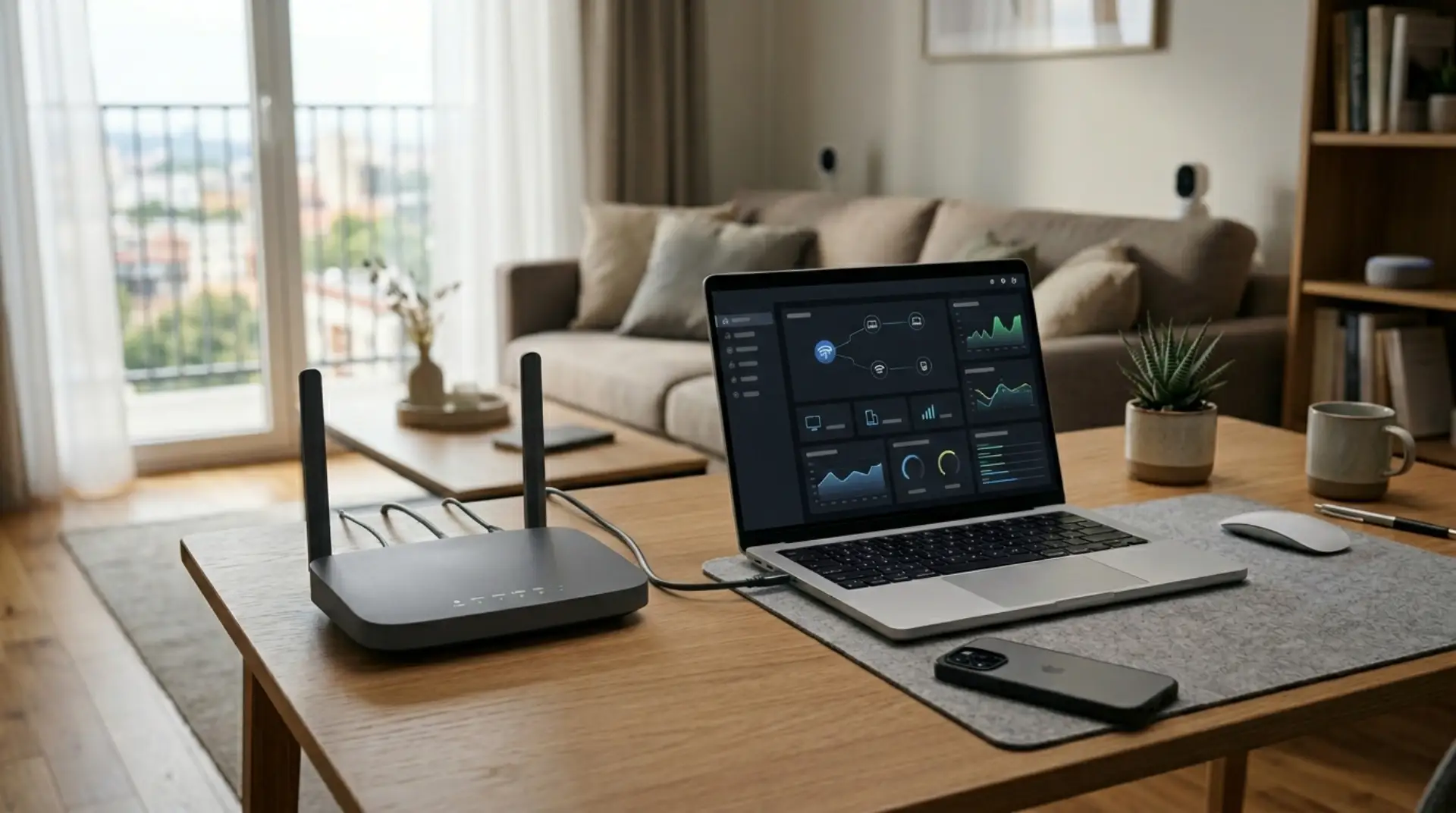
Your WiFi may look normal from the outside, but small warning signs can mean your router needs attention. Maybe work calls drop when everyone is home. Maybe smart cameras disconnect at night. Maybe visitors use your main WiFi password, and now you are not sure which phones, laptops, TVs, and smart devices are connected to your network.
For many homes, apartments, villas, and small businesses in Dubai, the router is set up once and then forgotten. But router setup is not only about internet speed. It also protects private devices, work laptops, payment systems, smart home products, family phones, and business files. One of the most important steps is to Update Router Firmware regularly, along with checking your router settings, WiFi password, guest network, and connected devices.
Why Router Firmware Updates Matter for Security and Speed
Router firmware is the built-in software that controls how your router works. It manages WiFi performance, router login access, security settings, connected devices, bandwidth, and communication between your modem and router.
When you update router firmware, you may fix:
Security weaknesses
Internet drops
Router bugs
Poor WiFi performance
Device connection problems
Slow router settings response
Compatibility issues with newer phones, laptops, and smart devices
Old firmware can leave your secure network exposed to privacy risks. It may also cause unstable connections, weak signal handling, or poor bandwidth optimization. For a family home, that can mean buffering, gaming lag, and smart TV issues. For a small business, it can mean unstable video meetings, payment delays, printer disconnections, or unreliable customer WiFi.
Updating firmware does not magically increase internet speed beyond your plan, but it can help your router perform more safely and reliably.
Poor Router Setup Can Slow Down Your Whole Network
Many people blame the internet provider when WiFi becomes slow. Sometimes the issue is the line or modem, but many times the problem is inside the home or office network.
Poor setup can affect internet speed and WiFi performance in several ways. A router placed inside a cabinet, behind a TV, near thick walls, or beside electrical equipment may struggle with signal interference. Too many connected devices can overload bandwidth. Weak passwords can allow unwanted users to join the network. Outdated firmware can cause router instability.
Common causes of slow WiFi include:
Too many devices using the network at the same time
Old router firmware
Weak WiFi password shared with too many visitors
Router placed far from the bedrooms or office rooms
Signal interference from walls, mirrors, appliances, or neighboring routers
Old modem or router hardware
No guest WiFi network
High-bandwidth use from streaming, gaming, cloud backups, and smart cameras
A proper network troubleshooting check looks at both speed and security. Fast WiFi is useful, but fast WiFi with poor privacy is still a weak setup.
How to Update Router Firmware Safely
Before you update router firmware, make sure you are connected to the router using a stable connection. A wired connection is best if available, especially for small businesses or offices. Do not switch off the router during the update because this can damage the firmware installation.
The basic process is usually simple:
Open a browser and enter your router login address. Common examples are 192.168.1.1 or 192.168.0.1.
Enter the admin username and password. This is not always the same as your WiFi password.
Go to router settings, admin settings, system tools, advanced settings, or firmware update section.
Check for available firmware updates.
Download and install the update through the router panel if the option is available.
Wait until the router restarts fully.
Reconnect your devices and test the internet speed, WiFi signal, and connected devices.
Some routers update automatically. Others require you to download firmware from the manufacturer’s official website. Only use firmware made for your exact router model. Installing the wrong firmware can break the router.
After the update, check your WiFi password, encryption, guest network, and admin password. Firmware updates sometimes reset or change certain router settings.
Guest WiFi Protects Your Main Devices
A guest WiFi network is a separate WiFi name created for visitors, customers, friends, delivery staff, or temporary users. It allows them to use the internet without giving access to your main private network.
This is very useful for homes and small businesses. Your main network may have phones, laptops, smart TVs, security cameras, printers, NAS drives, office systems, and smart home devices. When visitors use the same WiFi, their devices sit closer to your private equipment on the network.
Guest WiFi helps protect privacy because it separates visitors from your main devices. It also makes password management easier. Instead of changing your main WiFi password every time it is shared too widely, you can update only the guest WiFi password.
To create a guest network:
Log in to your router settings.
Find the Guest Network or Guest WiFi section.
Turn on the guest WiFi.
Create a separate WiFi name, such as Home-Guest or Office-Guest.
Set a strong WiFi password.
Keep guest access separate from local network devices if your router gives this option.
Save settings and test the connection.
For a small business, guest WiFi is especially important. Customers or visitors should not connect to the same network as office laptops, POS systems, printers, or business files.
Choose a Safe WiFi Password and Use Strong Encryption
A WiFi password should be easy for you to manage but hard for others to guess. Avoid simple passwords like your phone number, shop name, apartment number, birthday, or “password123.”
A safer WiFi password should include:
At least 12 characters
Uppercase and lowercase letters
Numbers
Symbols
No personal details
No common words alone
Encryption is the security method that protects the data moving between your device and your router. In simple words, it helps stop outsiders from easily reading your WiFi traffic. Use WPA2 or WPA3 if your router supports it. Avoid old security options like WEP because they are outdated and unsafe.
Also, change the router admin password. Many users change the WiFi password but leave the router login password as the default. That is risky because anyone connected to the network may try to access router settings.
Connected Devices, Bandwidth, and Network Congestion
Every connected device uses some amount of bandwidth. Some devices use very little, such as smart plugs or sensors. Others use much more, such as smart TVs, gaming consoles, CCTV cameras, laptops, cloud backups, and video calling apps.
Network congestion happens when too many devices compete for the same internet connection or WiFi channel. This can cause latency, which means delay. Gamers may notice high ping. Remote workers may notice voice delays on calls. Families may notice buffering during streaming.
For better bandwidth optimization:
Disconnect devices you no longer use.
Pause large downloads during work calls or gaming.
Use wired connections for TVs, gaming consoles, desktop PCs, or office systems where possible.
Place high-demand devices closer to the router or mesh node.
Use 5 GHz WiFi for faster nearby connections and 2.4 GHz for longer range.
Check if unknown connected devices are using your network.
If you see devices you do not recognize, change your WiFi password and restart the router. Then reconnect only trusted devices.
Improve WiFi Signal Before Replacing Everything
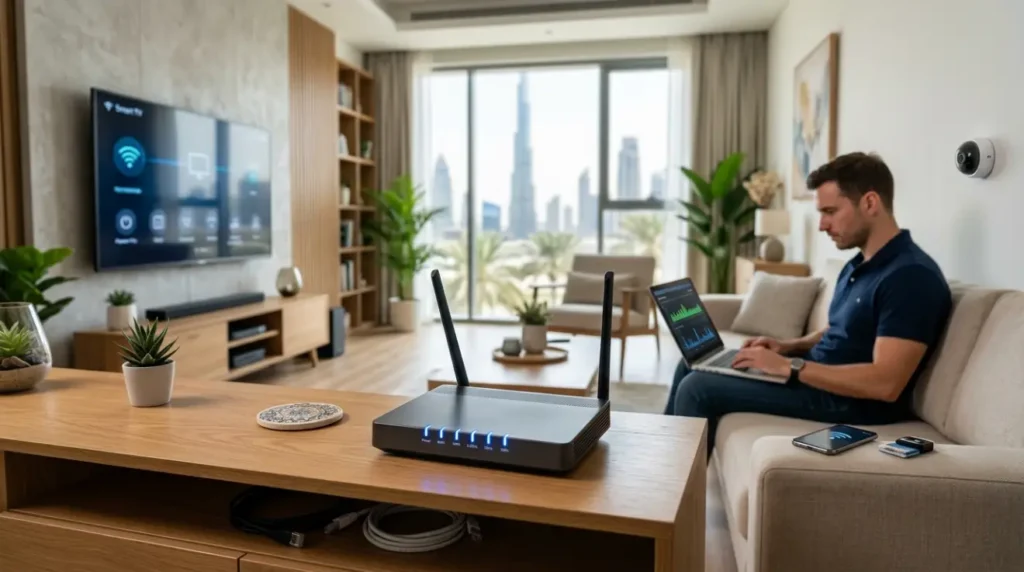
Weak signals are common in villas, large apartments, multi-floor homes, and offices with thick walls. A firmware update can improve router stability, but physical placement still matters.
Place your router in a central, open location. Avoid hiding it in cabinets, behind metal objects, near microwaves, beside cordless phones, or close to thick concrete walls. Keep it elevated when possible.
For a WiFi signal increase, you may need extra equipment. A WiFi booster can help in small dead zones, but it is not always the best choice for larger homes. Mesh WiFi is usually better for villas, larger apartments, and multi-room coverage because it creates a smoother network across several areas.
Wired connections are still the most stable option for important devices. If you run a small office, wired connections for desktops, printers, servers, cameras, and payment systems can reduce WiFi pressure and improve reliability.
When DIY Is Enough and When to Call a WiFi Repair Technician
DIY is enough when the issue is simple. You can update router firmware, change WiFi passwords, enable guest WiFi, move the router, restart the modem, remove unknown devices, and check basic router settings.
But professional help is better when the issue keeps returning. A WiFi repair technician or professional WiFi service can test signal strength, locate interference, check modem and router performance, inspect cabling, configure mesh WiFi, separate guest and private networks, and improve security settings.
Call a technician if:
Internet drops happen daily
WiFi works in one room but fails in others
Smart cameras or office systems keep disconnecting
Router login settings are confusing
Guest WiFi setup is needed for a business
You see unknown devices repeatedly
Gaming latency stays high even near the router
Mesh WiFi or booster setup is not working properly
For homes and small businesses, good network troubleshooting saves time. It also prevents repeated trial-and-error changes that can make the router setup worse.
FAQ
How often should I update router firmware?
Check for router firmware updates every few months. Also check after major internet issues, repeated drops, or security concerns. Some modern routers offer automatic updates, which can make maintenance easier.
Can updating router firmware improve internet speed?
It can improve WiFi performance, stability, and router behavior, but it will not increase your internet plan speed. If old firmware is causing bugs, drops, or poor bandwidth handling, an update may make the connection feel faster and smoother.
Is it safe to update router firmware myself?
Yes, if you follow the correct process and use firmware for your exact router model. Do not turn off the router during the update. If the router belongs to your internet provider, check whether updates should be done through their app or support team.
What is guest WiFi and why should I use it?
Guest WiFi is a separate network for visitors or customers. It protects your main devices by keeping guests away from private phones, laptops, printers, smart cameras, and business systems. It is one of the simplest privacy upgrades.
What is the best WiFi password style?
Use a long password with letters, numbers, and symbols. Avoid names, phone numbers, birthdays, building names, or simple words. A strong WiFi password helps stop unwanted users from joining your network.
Why does WiFi become slow when many people are home?
More connected devices use more bandwidth. Streaming, gaming, video calls, downloads, and smart cameras can create network congestion. This can reduce internet speed and increase latency, especially during busy hours.
Should I use a WiFi booster or mesh WiFi?
A WiFi booster may help with one small weak area. Mesh WiFi is usually better for villas, larger apartments, multi-floor homes, and offices because it gives wider and more stable coverage across rooms.
When should I call a professional WiFi service?
Call a professional if drops, weak signals, unknown devices, or router settings problems keep returning. A WiFi repair technician can test coverage, fix configuration issues, improve security, and recommend the right router, booster, mesh, or wired setup.
Final Router Setup Review for Safer, Faster WiFi
Updating router firmware is a smart first step, but it should be part of a full router setup review. Check your router login password, WiFi password, encryption, guest network, connected devices, placement, and signal strength. Remove unknown devices, keep visitors on guest WiFi, and use wired connections for important systems where possible.
For simple home issues, DIY steps may be enough. For larger villas, busy apartments, gaming setups, remote work spaces, smart homes, and small businesses, a professional WiFi service can help build a secure network that supports both privacy and performance.
Leave a Reply