
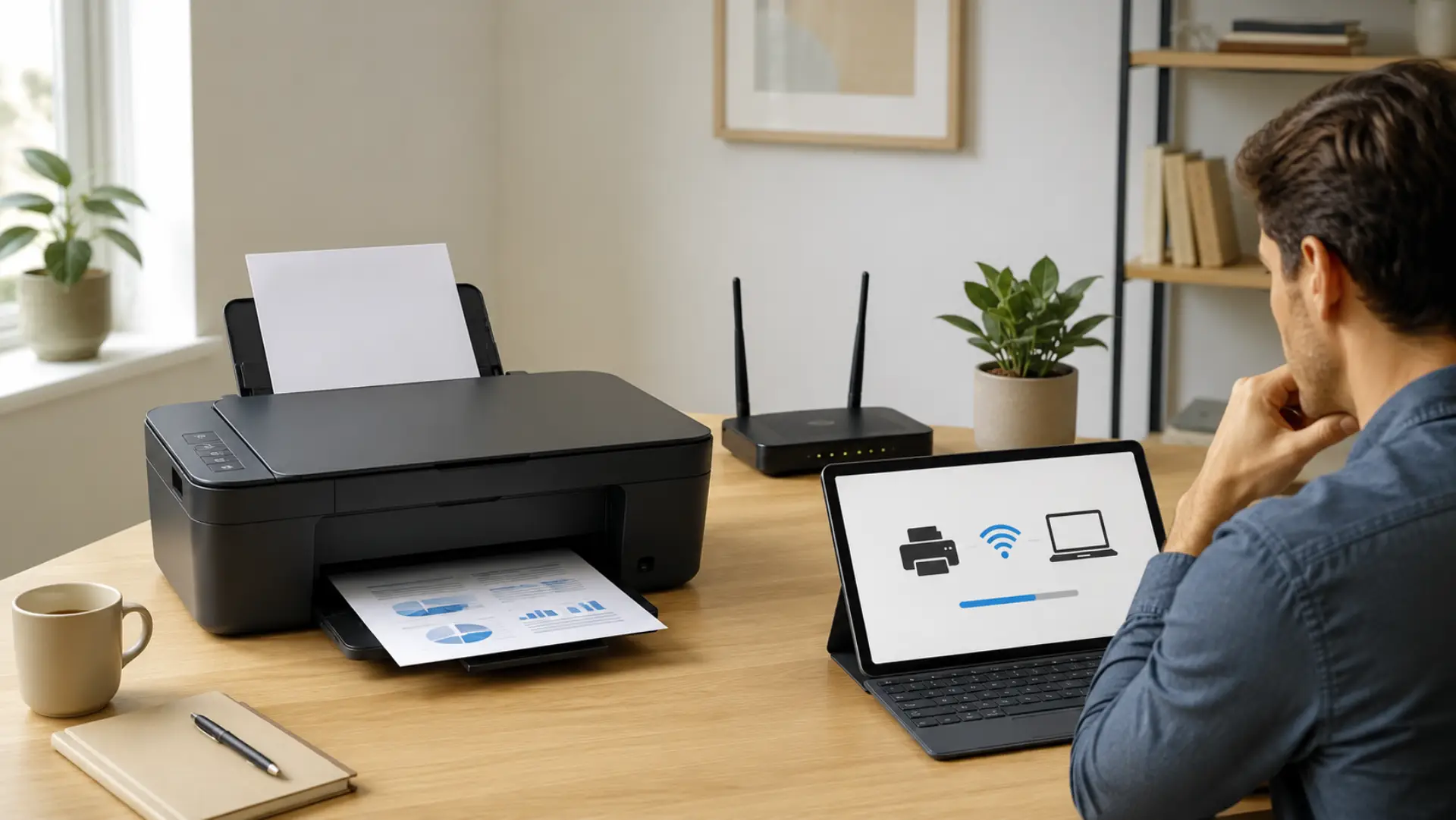
A stable printer wifi connection lets you print from laptops, phones, tablets, and office devices without using cables. When a printer does not connect, the issue is usually linked to weak signal, wrong WiFi details, outdated saved networks, router changes, or a missed setup step. A stable WiFi connection also depends on correct router settings, signal strength, and device compatibility.
The most common signs include the printer showing offline, setup failure messages, blinking wireless lights, failed test pages, or your device being unable to find the printer. In most cases, you can fix the problem by checking the WiFi name, restarting the router and printer, reconnecting the device, and confirming everything is on the same network.
Quick Checks Before You Start Setup
Before changing advanced settings, check the simple things first. Make sure the printer is turned on, has paper, has enough ink or toner, and is not showing any hardware error on the display screen.
Also confirm that your router is working properly and your phone or computer can access the internet. A basic printer connection can fail when the router is unstable, the printer is too far away, or the device is trying to connect to an old saved network.
Use this quick checklist before setup:
- Keep the printer close to the router during setup. Better router placement can improve printer signal reach before you change advanced settings.
- Confirm your phone or laptop is connected to the correct WiFi.
- Restart the printer if it has been idle for a long time.
- Check that the printer is not in sleep mode or error mode.
- Avoid guest WiFi networks during setup.
Once the printer connects successfully, you can move it back to its normal position and test the connection again.
Check the WiFi Name and Password
Many setup failures happen because the printer is trying to join the wrong network. Routers often have separate 2.4GHz and 5GHz networks, and many printers work more reliably on 2.4GHz because it usually has better range through walls. Advanced router settings should be changed carefully so band, channel, or security changes do not block printer access.
When using WiFi printer setup, choose the exact network name your computer or phone is using. Enter the password carefully, including uppercase letters, numbers, and symbols. Even one wrong character can stop the printer from joining the network.
A helpful setup rule is simple: if your phone, computer, and printer are not on the same network, wireless printing may not work correctly.
Restart the Printer, Router, and Device
Restarting clears temporary errors and helps devices reconnect properly. If the problem started after a restart or power cut, internet slow after power outage troubleshooting can help check router recovery. Turn off the printer, unplug the router for about 30 seconds, then plug the router back in and wait until the internet light becomes stable.
After the router is fully online, turn the printer back on and restart your computer or phone. This simple step often fixes a temporary WiFi issue without changing any advanced configuration.
For best results, restart in this order:
- Router first
- Printer second
- Computer or phone last
This gives the network time to refresh before your devices try to detect the printer again.
Connect the Printer to the Correct Network
Use the printer control panel, touchscreen, or manufacturer app to open the wireless setup menu. Select your WiFi name, enter the password, and wait for a confirmation message or solid wireless light.
If you need to connect printer to WiFi for the first time, keep your phone or computer on the same network during setup. The printer and your device must be on the same local network for printing, scanning, and device discovery to work properly.
If the printer cannot find your WiFi name, move it closer to the router and try again. If it still does not appear, restart the router and check whether the WiFi network is hidden.
Use the Manufacturer App for Easy Setup
Most modern printers support setup through an app from HP, Canon, Epson, Brother, Xerox, or another brand. The app can detect the printer, send WiFi details, install drivers, and help complete the wireless printer connection process.
If the app cannot find the printer, make sure your phone is connected to WiFi, not only mobile data. Turn on Bluetooth if the app requests it, and avoid guest networks because they may block communication between devices.
A manufacturer app is often the easiest option because it guides you through setup step by step and reduces manual errors.
Review Network and Printer Settings
Open the printer menu and check the printer network settings to confirm the device has a valid IP address. If the IP address starts with 169.254, the printer is not properly connected to the router and needs to be reconnected.
You should also check the printer settings on your computer. Remove old copies of the same printer, add the printer again, and set the correct one as the default. This prevents your computer from sending print jobs to an old offline printer profile.
Useful settings to review include:
- WiFi network name
- Printer IP address
- Default printer selection
- Print queue status
- Driver or app version
- Network permission settings
These checks are especially helpful after changing routers, passwords, internet providers, or mesh WiFi equipment.
Fix Offline Printer Status
A printer can be connected to WiFi but still show offline on Windows, macOS, or mobile apps. This usually happens when the computer has the wrong driver, an old saved connection, a paused print queue, or blocked local network permission.
Clear the print queue, restart the print service if needed, and reinstall the printer driver from the official manufacturer source. This type of printer troubleshooting is useful when the printer is online but print jobs still fail.
If your device shows more than one copy of the same printer, remove the old versions and keep only the active one. Duplicate printer profiles often confuse and failed print jobs.
Check Router Compatibility and Signal Strength
Some printers have problems with mixed-band networks, WPA settings, MAC filtering, or hidden WiFi names. If your printer cannot detect the network, temporarily separate the 2.4GHz and 5GHz network names and try connecting again.
If the signal is weak, the printer may connect and disconnect repeatedly. A WiFi signal strength meter can confirm whether the printer location has enough signal for stable printing. A weak signal can create a network issue even when other devices seem fine because printers often have smaller wireless antennas than phones or laptops.
A stable printer WiFi setup depends on both correct configuration and strong signal. If the printer works near the router but not in its normal place, the issue is likely wireless coverage rather than the printer itself.
What to Do If the Printer Still Will Not Connect
Reset the printer’s wireless connection and run setup again from the beginning. This removes old WiFi details and gives the printer a fresh connection to the router.
If the same wifi problem continues, check for firmware updates, reinstall the printer app, and test the printer near the router. If it works close to the router but fails in its regular location, improve router placement or strengthen WiFi coverage in that area.
You may also need to reconnect the printer after:
- Changing your WiFi password
- Replacing your router
- Updating router security settings
- Moving the printer to another room
- Installing a mesh WiFi system
- Restoring factory settings on the printer
These changes can break the saved wireless connection and require a fresh setup.
When Professional Help Makes Sense
Professional wifi support is useful when the printer connects but keeps dropping, multiple devices cannot detect it, or the router configuration is blocking local printing. A technician can check signal strength, IP conflicts, router security settings, and device communication.
This is especially helpful in homes or offices with mesh systems, multiple access points, guest networks, or shared printers. Proper WiFi troubleshooting can save time and prevent repeated setup failures.
If the issue affects more than one device, the problem may not be only with the printer. It may be related to router setup, wireless coverage, IP conflicts, or local network permissions.
FAQs
Why is my printer not connecting to WiFi?
Your printer may not connect because it has the wrong WiFi password, weak signal, old network details, or router compatibility problems. Restart the printer and router first, then reconnect the printer to the correct network. Make sure your computer or phone is using the same WiFi network.
How do I reconnect my printer after changing the WiFi password?
Open the wireless setup menu on the printer and remove or reset the old network connection. Select your current WiFi name and enter the new password carefully. After it connects, print a test page to confirm the setup is working.
Why does my printer say offline when it is connected?
This can happen when your computer is using an old printer profile, the print queue is paused, or the printer IP address has changed. Remove the printer from your device and add it again. Restarting the printer and computer can also refresh the connection.
Should my printer connect to 2.4GHz or 5GHz WiFi?
Most wireless printers work better on 2.4GHz because it reaches farther and passes through walls more easily. Some newer printers support 5GHz, but many still rely on 2.4GHz for stable setup. Check your printer manual if you are unsure.
Why can my phone find the printer but my laptop cannot?
Your phone and laptop may be on different networks, or your laptop may have an outdated driver. Make sure both devices are connected to the same WiFi name. Then reinstall the printer driver or add the printer again through system settings.
Can a weak WiFi signal stop a printer from connecting?
Yes, weak signal can stop setup or cause the printer to disconnect after a short time. Move the printer closer to the router and try again. If it works nearby, improve router placement or use better wireless coverage in that area.
Do I need internet for wireless printing?
You usually need WiFi, but not always active internet, for local wireless printing. The printer and device must be connected to the same local network. Cloud printing, app setup, and firmware updates may still require internet access.
When should I reset my printer network connection?
Reset the network connection when the printer remembers an old WiFi name, fails after a router change, or keeps showing offline. A reset clears saved wireless details and allows a clean setup. After resetting, reconnect it using the correct WiFi name and password.
Leave a Reply