
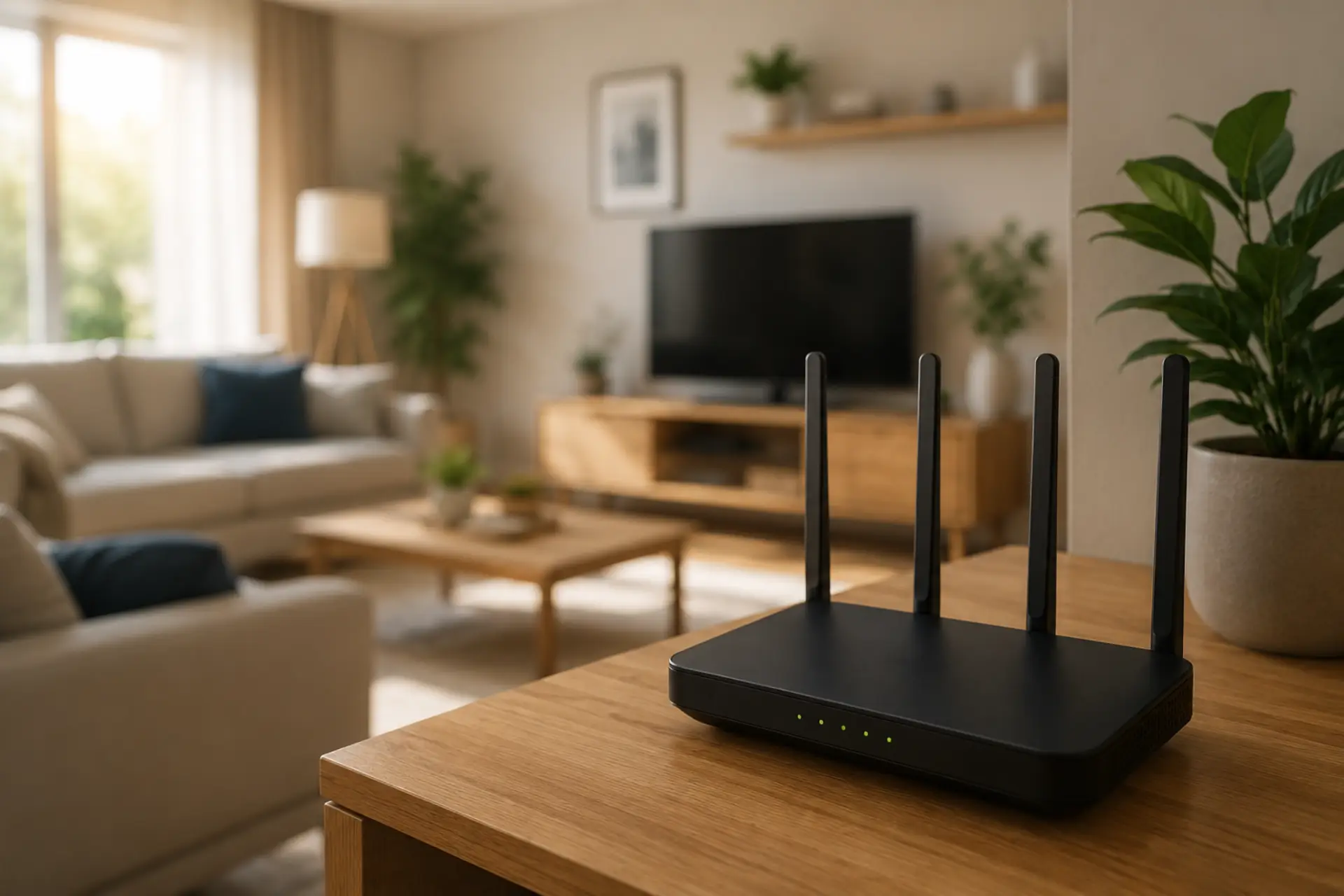
Good router placement helps your internet feel faster, more stable, and easier to use across the home. Better placement is also one of the easiest ways to boost your WiFi signal before buying extra equipment. Even with a strong internet plan, a poorly positioned WiFi router can create dead zones, unstable connections, and slow performance in rooms farther away from the device. The best location is usually central, open, raised above the floor, and away from objects that block or disturb wireless signals.
Best Position for Stronger Coverage
Place the device near the center of your home so the WiFi signal can spread more evenly in all directions. Good placement can also help increase WiFi range at home when the signal is weak in far rooms. A living room, hallway, or open central area often works better than a bedroom corner, kitchen counter, or closed TV cabinet.
For better WiFi coverage, avoid placing it at one far end of the house. When the device is too far from important rooms, the signal has to pass through more walls, furniture, and distance before reaching phones, laptops, smart TVs, and cameras.
Keep It in an Open Area
The best position is open and visible. Do not hide the device inside a drawer, cupboard, media unit, or behind a large object. Enclosed spaces reduce performance because signals cannot move freely.
A weak WiFi signal often starts from poor positioning rather than the internet provider. If the connection is strong near the device but poor in other rooms, the location is likely part of the problem.
Raise It Above Floor Level
Place the device on a shelf, table, wall mount, or open stand. Floor placement is not ideal because furniture, people, cabinets, and walls can block the signal path.
To improve WiFi signal, keep the device around chest height or slightly higher. Do not place it directly on the floor, behind a sofa, under a desk, or inside a low cabinet.
Avoid Thick Walls and Corners
Corners are poor locations because they push much of the signal toward one side of the home. Thick walls also reduce performance, especially concrete, brick, stone, and metal-reinforced walls.
For better home WiFi coverage, place the device closer to the rooms where you use the internet most. In larger homes, a central position helps reduce dead zones and gives more balanced performance.
Keep It Away from Electronics and Appliances
Do not place the device beside microwaves, cordless phones, baby monitors, Bluetooth speakers, smart TVs, gaming consoles, or large metal objects. These can disturb wireless performance and reduce stability. These devices can cause interference and may lead to internet speed drops during normal use.
Better WiFi signal strength comes from a clean location with fewer physical and electronic obstacles nearby. Keep some space around the device so heat can escape and antennas can perform properly.
Reduce Interference Around the Device
Signal problems can come from crowded networks, nearby electronics, metal furniture, mirrors, and appliances. Kitchens, entertainment walls, laundry areas, and storage rooms are usually not ideal locations.
WiFi interference is more noticeable in apartments and dense buildings where many nearby networks compete for space. Moving the device a few feet away from crowded electronics can sometimes improve stability.
Do Not Place It Near Windows
A window-side position may waste signal outside the home instead of pushing it through the rooms you actually use. It can also expose the device to direct sunlight and heat.
To get a better WiFi range, place the device on an inside wall or a central open shelf. Testing different rooms with a WiFi speed test can show whether the new position is actually improving coverage. The goal is to spread the signal through your home, not toward the street, balcony, or garden.
Best Position for Multi-Storey Homes
In a two-storey home, place the device as close to the center as possible between the main usage areas. If most devices are upstairs, a stairwell or upper-floor central position may work better.
If one device cannot cover both floors properly, a mesh system or wired access point may be needed. Better positioning helps, but building layout, floor thickness, and distance can still limit performance.
Test After Changing the Position
After moving the device, test the connection in the rooms where you use the internet most. Check browsing, video calls, streaming, gaming, and smart TV performance.
A speed test can help, but daily use matters more. If wifi speed improves near the device but stays poor in far rooms, the home may need extra coverage support instead of another small position change. A WiFi extender may help one small weak area when it still receives a strong signal from the main router.
Signs the Current Position Is Wrong
The location may be wrong if one room works well while another keeps disconnecting. It may also be wrong if performance drops behind walls, upstairs, in bedrooms, or near outdoor areas.
A common wifi issue is blaming the internet plan when the real problem is a poor indoor signal spread. Testing close to the device helps confirm whether the service line is fine or the signal is failing inside the home.
When Placement Is Not Enough
Better positioning can solve many coverage problems, but not every case. Large villas, thick walls, long hallways, basements, outdoor rooms, and multiple floors may need extra hardware.
If all devices are slow even when close to the equipment, it may be a network issue. If the router itself cannot stay online, the issue may be close to a router not connecting to internet problem. In that case, check cables, modem performance, firmware, device load, and basic settings.
Basic Setup Checks
A proper router setup should include correct placement, secure login details, updated firmware, clean cables, and suitable channel settings. Old hardware can also reduce performance, especially when many devices are connected.
If the router is outdated or not designed for the size of the home, placement alone may not be enough. Upgrading equipment or adding a mesh system may be the better solution.
Simple Placement Checklist
Keep the device in a central, open, and raised position. Avoid closed cabinets, thick walls, corners, windows, mirrors, metal objects, and large electronics. Test important rooms after every major placement change.
If the same network problem continues after better positioning, professional testing can help find the real cause.
When to Get Professional Help
Get expert help when rooms still have weak coverage after moving the device, when upstairs areas keep disconnecting, or when multiple devices suffer from unstable performance. A technician can test signal levels, cable condition, modem output, device limits, and interference sources.
Professional help is useful when the problem affects work calls, streaming, gaming, CCTV, smart TVs, or business devices.
Conclusion
The best position is central, open, raised, and away from anything that blocks or disturbs the signal. Small placement changes can improve speed, stability, and room-to-room performance. If better positioning does not solve weak areas, the home may need a mesh system, a wired access point, or a full network check.
FAQs
Where should I place my router at home?
Place it near the center of your home in an open area. Keep it above floor level and away from thick walls, cabinets, windows, and large electronics so the signal can spread more evenly.
Is it better to place it high or low?
A higher position is usually better than floor placement. Use an open shelf, table, or wall mount so furniture and other objects do not block the signal path.
Can walls reduce wireless performance?
Yes, thick walls can reduce wireless performance. Concrete, brick, stone, metal, and dense building materials weaken the signal as it moves between rooms.
Should I keep it near the TV?
It is better not to place it directly behind or beside a TV. Entertainment areas usually have electronics, cables, and metal parts that can reduce connection stability.
Why is internet strong in one room but weak in another?
This usually happens because distance, walls, furniture, or poor device location weaken the signal. Moving the device to a more central area often gives more balanced coverage.
Can better placement fix slow internet?
Better placement can fix slow performance when the issue is weak indoor signal. If speed is still poor when standing close to the device, the problem may be with the service line, hardware, cable, or settings.
Do large homes need extra equipment?
Yes, large homes often need extra coverage support. A mesh system or wired access point may be needed when one device cannot reach every room properly.
How do I know if placement is the real problem?
Test the connection close to the device and then test it in weak rooms. If performance drops mainly with distance or walls, placement or coverage is likely the main cause.
Leave a Reply