
Your WiFi may look connected, but the speed still feels painfully slow. Pages load late, video calls freeze, online classes lag, and streaming keeps buffering even when your router lights look normal.
This is a common problem in many Dubai and UAE homes, apartments, villas, and offices. However, replacing the router is not always the first solution. In many cases, slow WiFi is due to poor router placement, weak signal areas, interference, crowded devices, or incorrect device settings.
The good news is that you can often increase WiFi speed without changing the router by making a few smart changes to your setup.
Why Your WiFi Is Slow Even If the Router Is Working
A router can be working, but that does not mean the WiFi signal is strong everywhere. WiFi speed depends on distance, walls, device load, router position, and wireless interference, which are some of the most common causes of slow WiFi. For example, if your router is placed inside a cabinet, behind a TV, near the floor, or in one corner of the house, the signal will become weaker before reaching other rooms.
In Dubai villas and apartments, thick walls, glass partitions, concrete, mirrors, and closed doors can reduce WiFi strength. As a result, one room may have good speed while another room feels completely slow.
Also, if many phones, laptops, smart TVs, cameras, and gaming devices are connected at the same time, your WiFi can become overloaded.
Check Your Router Placement First
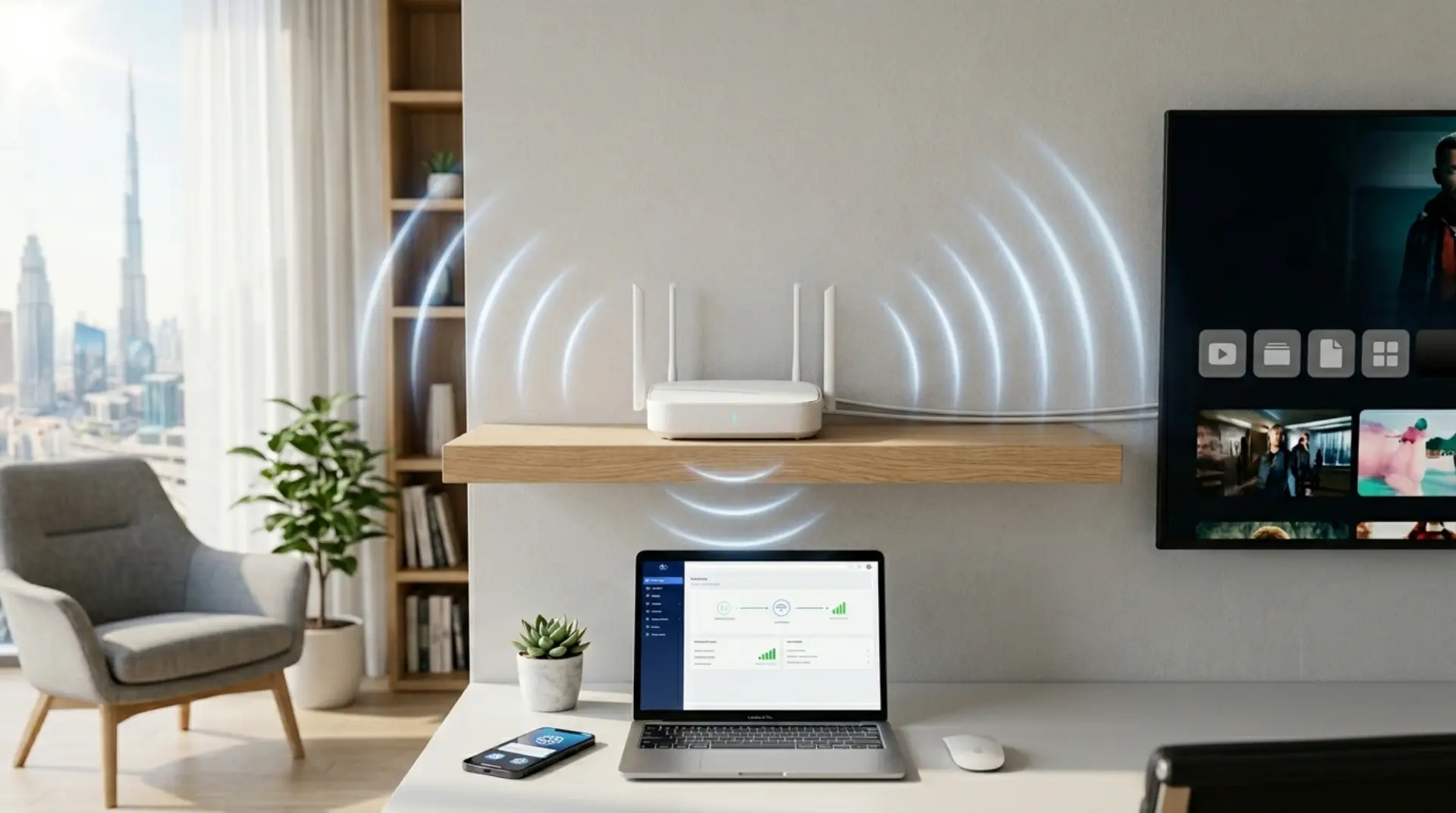
Router placement is one of the easiest ways to boost your WiFi signal without buying new equipment. Many users place the router where it is convenient, not where it performs best.
Keep your router in an open and central location. It should not be hidden inside a drawer, cabinet, TV unit, or behind furniture.
For better WiFi coverage, place the router:
- In a central area of the home or office
- At table height or higher
- Away from thick walls
- Away from metal objects
- Away from microwaves and cordless devices
- In an open space with clear airflow
This simple change can improve signal quality in nearby rooms. However, if your property is large or has multiple floors, placement alone may not solve every weak spot.
Restart Your Router the Right Way
Restarting the router sounds basic, but it can fix temporary network issues, especially when your router is not connecting to internet properly. Many routers stay on for weeks or months without a proper restart.
To restart correctly, switch off the router for at least 30 seconds. Then turn it back on and wait until all lights become stable.
This can clear temporary errors, refresh the connection, and improve speed. However, if slow WiFi comes back again and again, you need to check coverage, connected devices, or router settings.
Use the Right WiFi Band
Most modern routers have 2.4GHz and 5GHz WiFi bands. Both are useful, but they are not the same.
The 2.4GHz band covers longer distances and passes through walls better. However, it is usually slower and more crowded.
The 5GHz band gives faster speed, but it works best when you are close to the router. It is better for streaming, video calls, online gaming, and large downloads.
If you are near the router, connect to 5GHz. If you are far away or behind multiple walls, 2.4GHz may be more stable.
This small setting can help you increase WiFi speed without changing router.
Reduce the Number of Connected Devices
Too many connected devices can slow your WiFi. Even unused devices may still use the internet in the background.
Phones may update apps. Laptops may sync files. Smart TVs may download updates. Security cameras may upload video. As a result, your main device gets less bandwidth.
Disconnect devices you do not use. Also, remove old phones, guest devices, tablets, and smart products that are no longer needed.
For business users, this is even more important. A shop, office, clinic, or restaurant may have staff devices, customer WiFi, POS machines, cameras, and laptops connected to one network. In this case, a separate guest network and better WiFi planning can improve performance.
Avoid Signal Interference
WiFi signals can be affected by other electronics and nearby networks. This is common in apartment buildings where many routers are working close to each other.
Keep your router away from:
- Microwave ovens
- Cordless phones
- Bluetooth speakers
- Thick mirrors
- Metal cabinets
- Large appliances
- CCTV equipment
- Closed wooden or metal units
Also, avoid placing the router near the floor. A higher position usually gives better signal spread.
If many nearby WiFi networks are using the same channel, your connection may feel slow, so it helps to understand how to change router settings safely before adjusting channels. In that case, changing the WiFi channel from router settings may help.
Update Router Firmware and Device Software
Old software can also affect WiFi performance. Your router firmware controls how the router works, manages devices, and handles wireless connection.
If your router supports firmware updates, check the admin panel or service provider app and follow a safe process to update router firmware. Updating firmware may improve stability and fix bugs.
Also, update your phones, laptops, and tablets. Sometimes the problem is not the router. It can be an old WiFi driver, outdated mobile software, or background system issue.
Improve Weak WiFi Areas
If WiFi speed is fast near the router but slow in bedrooms, upstairs rooms, balconies, or office corners, you have a coverage problem and may need to boost your WiFi signal in weak areas.
In this case, you may need better signal distribution. You can use a WiFi extender, mesh WiFi system, or wired access point, depending on the size and layout of your place.
For small apartments, a good router position may be enough. For large villas and offices in Dubai, proper WiFi planning is usually needed because one router may not cover every area properly.
When You Should Not Replace the Router
Many users replace the router too quickly, even though the issue may be related to simple router setup mistakes instead of router hardware. However, a new router will not always solve the problem if the real issue is placement, walls, device load, or poor setup.
You may not need a new router if:
- Speed is good near the router
- Only some rooms have slow WiFi
- Only one device is slow
- The router is hidden in a bad location
- Too many devices are connected
- The WiFi band is not selected properly
- Weak coverage areas are not handled correctly
On the other hand, a router replacement may be needed if the router is very old, overheating, restarting often, or unable to support your internet package.
Still, it is better to test the setup before spending money.
Best Fixes Before Buying a New Router
Before buying a new router, follow these practical steps and first check your WiFi speed near and far from the router:
- Move the router to a central, open place
- Restart the router properly
- Use 5GHz for nearby devices
- Use 2.4GHz for far rooms
- Disconnect unused devices
- Stop background uploads
- Update router firmware
- Update mobile and laptop software
- Test speed near and far from the router
- Use an extender, mesh system, or access point for weak areas
These steps help you understand whether the issue is internet speed, WiFi signal, device settings, or coverage.
Contact Us
Get quick WiFi, router, and network support in Dubai
Home and Business WiFi Needs Are Different
Home users usually need WiFi for streaming, browsing, gaming, online classes, mobile use, and video calls, while gamers may also need the best router settings for gaming for low ping. A small apartment may work fine with one properly placed router.
Business users need more stable WiFi. Offices, shops, clinics, warehouses, salons, restaurants, and shared workspaces may have many users and devices connected at once.
For business WiFi, it is better to create a guest WiFi network and separate guest devices from business devices. Also, access points can improve coverage in larger spaces. As a result, the network becomes more stable, secure, and reliable.
FAQs
How can I increase WiFi speed without changing router?
You can increase WiFi speed without changing router by improving router placement, using the correct WiFi band, reducing connected devices, updating settings, and fixing weak coverage areas. If the speed is good near the router but slow in other rooms, the problem is usually signal coverage.
How to increase WiFi speed?
To increase WiFi speed, place your router in an open central area, use 5GHz near the router, reduce background downloads, disconnect unused devices, and restart your router properly. Also, check if walls, mirrors, or furniture are blocking the signal.
How to increase WiFi speed on iPhone?
To increase WiFi speed on iPhone, forget and reconnect to the WiFi network, restart the phone, update iOS, and turn off VPN if it is slowing the connection. Also, use 5GHz WiFi when you are close to the router for better speed.
How to increase WiFi speed on Android?
To increase WiFi speed on Android, restart the phone, close background apps, update the software, and reconnect to the WiFi network. If the signal is weak, move closer to the router or improve the WiFi coverage in that area.
How to increase WiFi speed in mobile?
To increase WiFi speed in mobile, keep the phone in a strong signal area, close heavy background apps, pause downloads, and reconnect to WiFi. If all mobile phones are slow, check router placement, signal coverage, and connected devices.
How to increase WiFi speed in Samsung mobile?
To increase WiFi speed in Samsung mobile, reconnect to WiFi, update the phone, turn off power saving mode during heavy internet use, and close background apps. Also, check the Intelligent WiFi settings if the phone keeps switching between networks.
How to increase WiFi speed in laptop?
To increase WiFi speed in laptop, move closer to the router, close background programs, update WiFi drivers, and connect to 5GHz WiFi if supported. If only the laptop is slow, the issue may be related to the driver, software, or wireless adapter.
How to increase WiFi speed in laptop Windows 10?
To increase WiFi speed in laptop Windows 10, update the wireless adapter driver, pause heavy Windows updates, reconnect to the WiFi network, and use better performance power mode. These steps can improve stability and speed without changing the router.
Do WiFi extenders increase speed?
WiFi extenders can increase speed in weak-signal rooms by improving coverage. However, they do not increase your actual internet package speed. They work best when placed where they can still receive a strong signal from the router.
How to increase upload speed of WiFi?
To increase upload speed of WiFi, stop cloud backups, disconnect unused devices, use 5GHz WiFi, move closer to the router, and avoid heavy uploads during video calls. For important business devices, a wired connection can give more stable upload performance.
How to increase Etisalat WiFi speed?
To increase Etisalat WiFi speed, test speed near the router, restart the router, improve placement, use the right WiFi band, and reduce connected devices. If speed is good near the router but poor in other rooms, the issue is likely WiFi coverage, not Etisalat internet.
Summary
You do not always need a new router to fix slow WiFi. In many cases, better placement, fewer connected devices, the right WiFi band, updated device settings, and improved coverage can make a clear difference.
For Dubai and UAE homes or businesses, WiFi problems often happen because of thick walls, poor router location, large spaces, or too many devices, which is why many users search for why their WiFi is slow in Dubai. Therefore, test your speed near the router first, then check weak areas and device settings.
If the issue continues, a professional WiFi setup can help you increase WiFi speed without changing router and create a stronger, smoother, and more reliable connection across your home, office, or business space.
Leave a Reply