
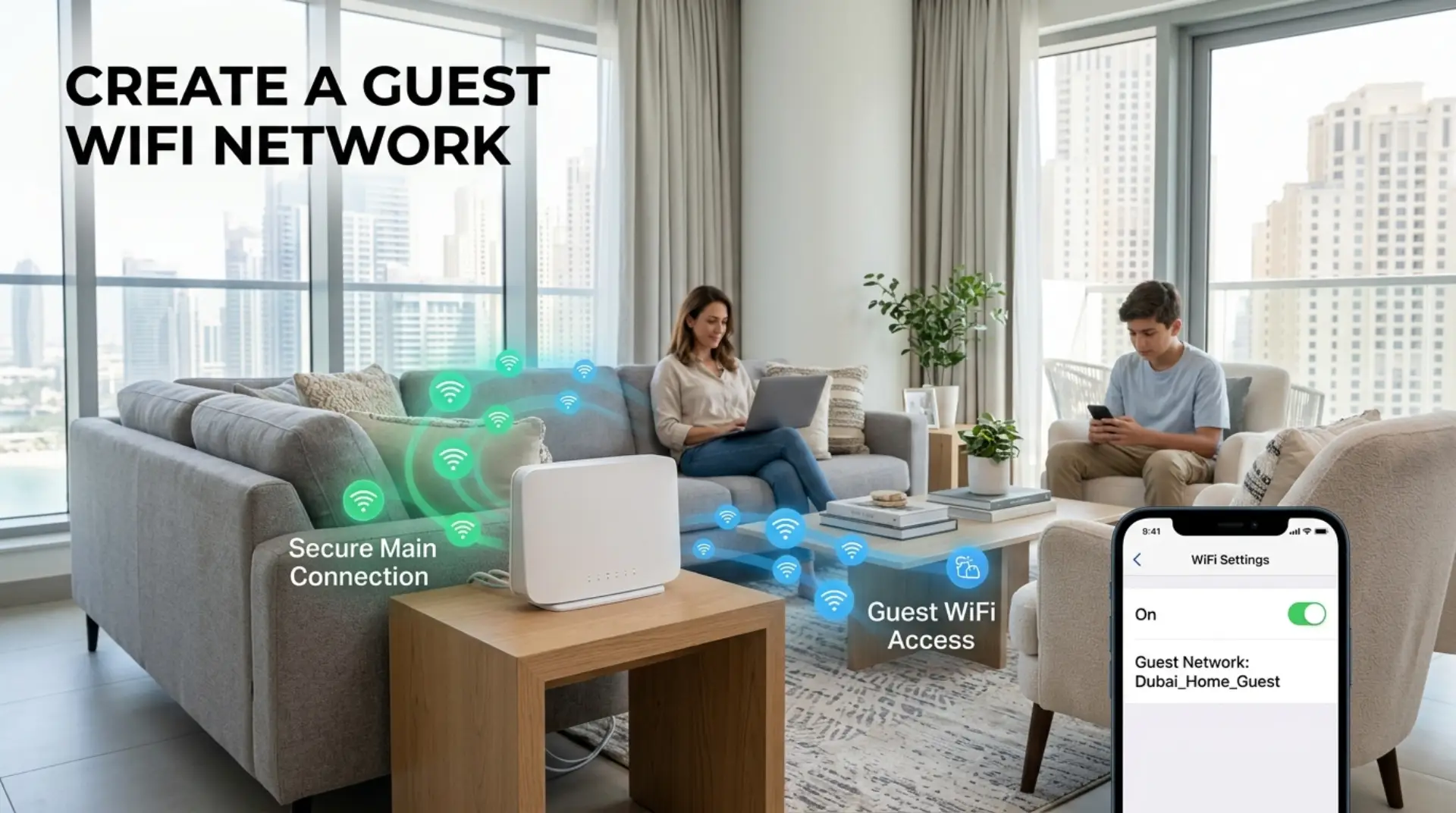
Visitors do not need full access to your private home network just to check WhatsApp, stream a video, or join a quick work call. A guest wifi network gives them internet access while keeping your main devices, smart TVs, laptops, cameras, printers, and business files more protected. For homes, villas, apartments, remote workers, gamers, and small offices in Dubai, this simple router feature can improve privacy, reduce security risks, and make your WiFi setup easier to manage.
Why a Guest WiFi Network Matters
Most people share their main WiFi password without thinking twice. A friend visits, a tenant needs internet access, a cleaner asks for internet access, or a customer comes into a small office. The problem is that your main WiFi network usually connects everything you own.
That may include:
- Personal phones and laptops
- Smart cameras and doorbells
- Gaming consoles
- Office computers
- Network printers
- Smart TVs and home assistants
- Shared folders or business devices
When someone joins the same network, their device may be able to “see” other connected devices, depending on your router settings. If their phone or laptop has malware, poor security, or outdated software, it can create unnecessary risk.
A guest network solves this by creating a separate WiFi name for visitors. They can use the internet, but they do not need access to your private devices.
How a Guest WiFi Network Works
A guest WiFi network is a second WiFi connection created from the same router. It usually uses the same modem and internet plan, but it separates guest devices from your main home or business network.
Think of it like giving visitors a separate entrance. They can reach the internet, but they do not walk through your private rooms.
Most modern routers, mesh WiFi systems, and ISP-provided routers include a guest network option. You may find it in the router settings under names such as “Guest Network,” “Guest Access,” “Guest WiFi,” or “WiFi for Visitors.”
Before You Start: Check These Things First
Before logging into your router, make sure you have a few basic details ready. This avoids confusion, especially if your router was installed by your internet provider or a previous tenant.
You may need:
- Router login address, such as 192.168.1.1 or 192.168.0.1
- Router username and admin password
- Your current WiFi name and WiFi password
- Access to the router app, if your router uses one
- A phone or laptop connected to your home WiFi
If you do not know the router login details, check the sticker on the router. Some routers also show the login address and admin password on the back or bottom label. However, if the default password was changed and you cannot access the settings, a wifi repair technician or professional wifi service can help without resetting everything unnecessarily.
How to Create a Guest WiFi Network

Different routers have different menus, but the process is usually similar. The names may change slightly depending on the brand, internet provider, or mesh WiFi system.
1. Log In to Your Router
Connect your phone or laptop to your WiFi. Open a browser and type your router login address into the address bar. Common addresses include:
- 192.168.1.1
- 192.168.0.1
- 192.168.100.1
Enter the router admin username and password. This is not always the same as your WiFi password. If your router has a mobile app, open the app instead and look for WiFi or network settings.
2. Find the Guest Network Option
Once inside the router settings, look for a section such as:
- Wireless
- WiFi Settings
- Guest Network
- Guest Access
- Advanced Wireless Settings
In many routers, the guest WiFi option is available for both 2.4GHz and 5GHz bands. If your visitors mainly browse, message, or use basic apps, 2.4GHz is usually enough. If they need faster internet speed for video calls or streaming, 5GHz may perform better when they are close to the router.
3. Turn On Guest WiFi
Enable the guest network option. Some routers allow you to create one guest WiFi name, while others let you create separate guest networks for 2.4GHz and 5GHz.
For most homes, one guest WiFi name is enough. For a small business, you may want a clear name such as “Office-Guest” or “Shop-Visitor-WiFi.”
4. Choose a Clear WiFi Name
Pick a simple network name that visitors can recognize easily. Avoid using your full personal name, apartment number, business details, or private information.
Good examples include:
- HomeGuest
- VillaGuestWiFi
- OfficeGuest
- FamilyGuest
- VisitorWiFi
Keep it professional and easy to type. If you run a small business, a clean guest WiFi name also makes your setup look more organized.
5. Set a Strong Guest WiFi Password
A guest network should still have a password. Leaving it open can allow neighbors, strangers, or nearby devices to connect without permission. This can slow down your internet speed and create security problems.
Use a password that is easy enough to share but not easy to guess. A good guest WiFi password can include a mix of words, numbers, and symbols.
Avoid passwords like:
- 12345678
- guest123
- password
- your phone number
- Your business name only
A better example would be something like: WelcomeHome#482 or DubaiGuest@73.
6. Turn Off Access to Local Devices
This is one of the most important settings. Look for an option called:
- Allow guests to access local network
- Access intranet
- Guest isolation
- AP isolation
- Access internal devices
For better privacy, guest devices should not access your local network. This keeps your laptops, printers, smart cameras, storage drives, and work devices separate.
If you see “guest isolation,” turn it on. If you see “allow access to local network,” turn it off.
7. Add a Speed Limit If Needed
Some routers allow bandwidth control or guest speed limits. This is useful if guests often stream videos, download large files, or affect gaming and work calls.
For example, if you work from home and need stable Zoom calls, you can limit guest devices so they do not consume all available bandwidth. This is part of bandwidth optimization, which simply means managing internet capacity so important devices get enough speed.
Small businesses can also use limits to stop visitor WiFi from slowing down payment systems, office computers, or staff devices.
Best Security Settings for Guest WiFi
Creating a guest network is helpful, but it should be set up correctly. Poor settings can still create problems.
Use WPA2 or WPA3 encryption if your router supports it. Encryption protects the data moving between your device and router, making it harder for others nearby to intercept the connection.
Also, avoid using outdated security modes like WEP. If your router only supports old security options, it may be time to update the router or ask a wifi service provider to check it.
You should also update your router firmware. Firmware is the built-in software that controls your router. Updates can fix bugs, improve wifi performance, and close security weaknesses.
Guest WiFi for Villas, Apartments, and Small Businesses
In Dubai homes, WiFi problems often come from building layout, thick walls, router placement, and too many connected devices. A guest network will not magically increase wifi signal in every room, but it can help organize devices and reduce unnecessary access.
For villas, place the router or mesh system where it can serve both family and visitor areas. If guests usually sit in the majlis, living room, or outdoor seating area, make sure the signal reaches those spaces.
For apartments, avoid placing the router inside cabinets or behind TVs. Signal interference from neighboring routers can also affect performance, especially in high-rise buildings.
For small businesses, separate staff WiFi from customer WiFi. This protects business devices and creates a more professional network setup. A visitor should not be on the same network as your POS system, office laptop, or shared printer.
Common Mistakes to Avoid
Many users enable guest WiFi quickly but miss important details. As a result, the network may be slow, insecure, or confusing.
Avoid these mistakes:
- Using the same password as your main WiFi
- Leaving guest WiFi open without a password
- Allowing guests to access local devices
- Forgetting to change the password after many people have used it
- Creating too many WiFi names and confusing family members
- Ignoring firmware updates
- Placing the router in a weak signal area
A guest network should make your setup safer and simpler, not more complicated.
When Guest WiFi Does Not Fix the Real Problem
Sometimes people create a guest network because their WiFi feels slow, but the real issue may be different. A guest network improves separation and control, but it may not solve weak coverage, internet drops, or poor router performance.
You may need network troubleshooting if you notice:
- Video calls freezing even near the router
- Internet speed changing throughout the day
- WiFi disconnecting randomly
- Smart devices going offline
- Gaming lag or high latency
- Mesh WiFi nodes not connecting properly
- Weak signal in bedrooms, office rooms, or outdoor spaces
Latency means delay. Even if your internet speed looks fine, high latency can make gaming, calls, and live meetings feel slow or unstable.
In these cases, the causes of slow wifi could include signal interference, network congestion, old router hardware, poor mesh placement, or modem issues. A wifi repair technician can test signal strength, check router settings, inspect connected devices, and suggest the right wifi booster, mesh system, or router upgrade.
Contact Us
Get quick WiFi, router, and network support in Dubai
How Often Should You Change the Guest WiFi Password?
For a home, changing the guest WiFi password every few months is usually enough, especially if many visitors have used it. For rental spaces, shared villas, or small businesses, change it more often.
You should update the guest password immediately if:
- A tenant or staff member moves out
- Too many unknown devices appear
- Internet speed suddenly drops
- You shared the password publicly
- You suspect unauthorized access
A fresh password keeps your secure network cleaner and easier to manage.
Final Thoughts
A guest WiFi setup is one of the easiest ways to protect your main network without making internet access difficult for visitors. It keeps personal devices separate, helps manage connected devices, and gives you better control over your home or small business WiFi.
For most users, the setup takes only a few minutes through router settings or a mobile app. The key is to use a strong wifi password, disable local network access, keep encryption enabled, and review connected devices from time to time.
If your WiFi is still slow, unstable, or weak after setting up guest access, the issue may not be the guest network. It may be router placement, signal interference, modem problems, or a larger network design issue. In that case, professional wifi service can help diagnose the problem and improve wifi performance across your home, villa, apartment, or office.
FAQs
What is a guest WiFi network?
A guest WiFi network is a separate WiFi connection for visitors. It lets guests use the internet without giving them access to your main devices, private files, printers, or smart home equipment. Most modern routers include this feature.
Is guest WiFi safer than sharing my main WiFi password?
Yes, guest WiFi is safer because it separates visitor devices from your private network. Guests can browse online, but they should not be able to access your laptops, cameras, office devices, or shared storage if isolation settings are enabled.
Can a guest WiFi network slow down my internet?
Yes, it can slow down your internet if many guests stream, download, or use heavy apps at the same time. Some routers allow speed limits for guest users, which helps protect your main devices from poor performance.
Should guest WiFi have a password?
Yes, guest WiFi should always have a password. An open network can allow nearby strangers to connect, use your internet, and create security risks. Use a strong password and change it regularly.
Can I create guest WiFi on any router?
Most modern routers support guest WiFi, but some older routers may not. Check your router app or login page under WiFi settings. If the option is missing, a router upgrade may be needed.
Should I use 2.4GHz or 5GHz for guest WiFi?
Use 2.4GHz if guests need wider coverage across rooms or outdoor areas. Use 5GHz if guests are near the router and need faster speed. Many routers can offer both, depending on your setup.
Why can guests still see my printer or devices?
This usually happens when local network access is allowed. Go into guest WiFi settings and disable access to internal devices. Look for settings like guest isolation, AP isolation, or intranet access.
When should I call a WiFi repair technician?
Call a wifi repair technician if your router settings are locked, guest WiFi is not working, internet drops often, or the signal is weak in important rooms. A technician can check router settings, modem issues, mesh placement, and network performance.
Leave a Reply