
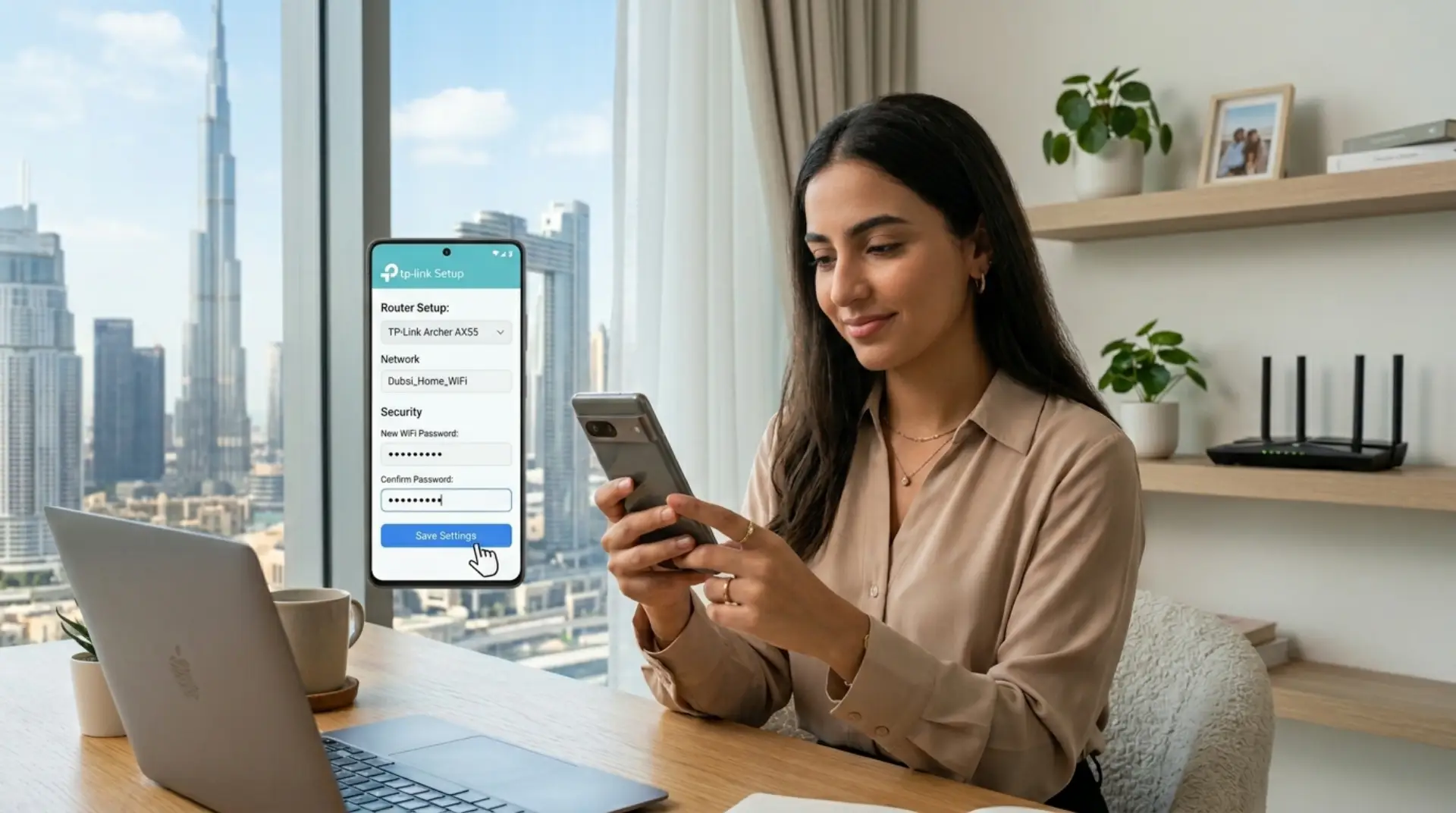
Your internet feels slow, your kids are complaining about buffering, your smart TV keeps disconnecting, and you suspect too many people may be using your connection. In many Dubai homes, apartments, villas, and small offices, the quickest first step is changing the WiFi password from your phone. A mobile wifi password update can help secure your network, remove unwanted connected devices, and improve daily internet use without needing a laptop. A secure network setup also helps protect phones, laptops, smart TVs, cameras, and office devices from unwanted access.
Before You Change the WiFi Password
Before opening router settings, make sure you are connected to the same WiFi network you want to update. Your phone must usually be connected to that router; the login page may not open. If you are not sure how to access the router, the router login IP address can help you open the correct admin page.
You should also keep these details ready:
- Router admin username and password
- Router IP address, such as 192.168.1.1 or 192.168.0.1
- Current WiFi name
- New password you want to set
- Access to your router label, if login details are printed on it
This is important because your WiFi password and your router admin password are not always the same. The WiFi password connects devices to the internet. If you need the password on another device, checking the saved WiFi password on Windows and Mac can help before changing it. The router admin password lets you change router settings.
Method 1: Change WiFi Password Using Your Phone Browser
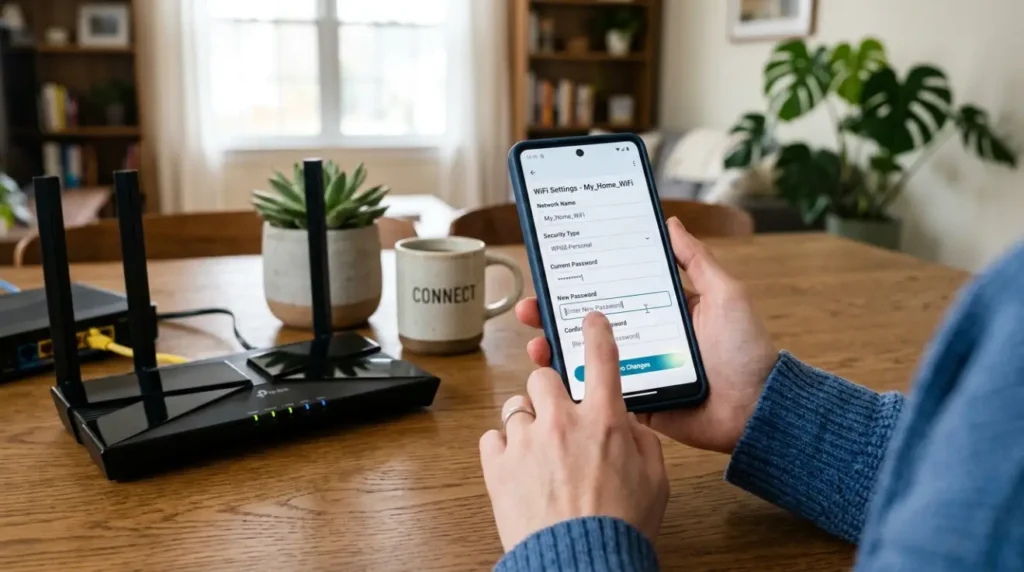
This method works for many routers used in homes, villas, shared apartments, and small offices.
Step 1: Connect Your Phone to WiFi
Open your phone’s WiFi settings and connect to your current network. If your internet is slow but still connected, that is fine. You only need local access to the router settings.
Step 2: Open the Router Login Page
Open Chrome, Safari, or any browser on your phone. The same router admin page can usually be opened from a browser when your phone is connected to the correct network. Type one of these common router addresses into the address bar:
- 192.168.1.1
- 192.168.0.1
- 192.168.100.1
Do not type this into Google search. Enter it directly where you normally type a website address.
If the page does not open, check the router sticker or your phone’s WiFi details. On many Android phones, you can tap the connected WiFi network and look for “Gateway” or “Router.” On iPhone, tap the “i” icon beside the WiFi name and check the router address.
Step 3: Log In to Router Settings
You will see a login screen. Enter the router admin username and password. Common usernames may be “admin,” but passwords vary depending on the router, internet provider, or previous setup.
If you changed the router admin password before and forgot it, do not rush to reset the router. A router reset can sometimes create slow internet after router reset if the setup details are lost. A reset can remove internet settings, mesh WiFi settings, and custom network configurations. For small businesses or villas with multiple access points, it is safer to contact a professional wifi service before resetting anything.
Step 4: Find Wireless or WiFi Settings
Once logged in, look for a section called:
- Wireless
- WiFi Settings
- WLAN
- Network
- SSID Settings
- Wireless Security
Different routers use different names, but the goal is the same. You need to find the WiFi name and password field.
Step 5: Enter a New Password
Choose a strong password that is easy for your family or staff to type but hard for others to guess. Avoid using your phone number, apartment number, villa number, business name, or simple words like “password123.”
A good WiFi password should include:
- At least 12 characters
- Uppercase and lowercase letters
- Numbers
- One or two symbols
- No personal information
For example, instead of using Dubaiwifi123, use something stronger and less predictable.
Step 6: Save and Reconnect Devices
Tap Save, Apply, or Submit. Your phone will disconnect because the old password no longer works. Go back to your WiFi settings, choose your network, and enter the new password.
After that, reconnect your important devices, such as laptops, smart TVs, gaming consoles, CCTV cameras, printers, tablets, and smart home devices.
Method 2: Change WiFi Password Through a Router App
Some modern routers and mesh WiFi systems allow password changes through an official app. This is common with mesh systems, advanced home routers, and business-grade WiFi setups.
Open the router app and look for:
- WiFi Settings
- Network Settings
- Wireless Password
- SSID and Password
- Security Settings
Router apps are usually easier than browser settings because their layouts are optimized for mobile screens. However, not every internet provider router gives full control through an app.
If you have a mesh WiFi system in a Dubai villa, large apartment, office, clinic, or retail shop, changing the password in the app may update all mesh nodes together. That is useful because you do not need to configure each device separately.
What Happens After You Change the WiFi Password?
Changing the password removes devices that only know the old password. This includes unwanted users, old phones, guests, and sometimes smart devices you forgot about.
However, it also means your own devices must be updated. If your smart TV, printer, camera, or doorbell stops working after the change, it probably still has the old password saved.
For families and small offices, it helps to reconnect devices in this order:
- Your main phone
- Work laptops
- Smart TVs and streaming devices
- Gaming consoles
- Printers and cameras
- Smart home devices
- Guest devices
This reduces confusion and helps you quickly notice if one device has trouble connecting.
Best WiFi Password Settings for Security
A secure network is not only about the password. Your router security mode also matters.
If your router gives options, choose WPA2 or WPA3 security. These use stronger encryption, which means your network data is better protected from unauthorized access. Avoid outdated options like WEP because they are weak and unsafe.
Also, do not leave your WiFi open without a password. Open networks may allow unknown users to connect, consume bandwidth, affect internet speed, and create security risks.
For small businesses, a guest network is often a better option. You can give customers or visitors internet access without sharing the main office password.
When Changing the Password May Not Fix the Problem
Changing the password can help if unknown devices are using your connection. However, it will not solve every WiFi issue.
For example, if your WiFi is still slow after the password change, the real issue may be:
- Weak router placement
- Signal interference from walls or appliances
- Too many connected devices
- Old router hardware
- Poor mesh WiFi setup
- Low internet package speed
- Network congestion during peak hours
- Outdated router firmware
Firmware is the router’s internal software. If it is old, your router may have performance or security problems. Some routers update automatically, while others need manual updates through settings.
Gamers and remote workers should also watch latency. Latency means the delay between your device and the server. Even if your speed looks fine, high latency can cause video calls to freeze or online games to lag.
Simple Expert Tips Before You Call a Technician
You can safely change your WiFi password yourself if you know the router login details and only need a basic update. Still, take a careful approach.
Before calling a wifi repair technician, try these quick checks:
- Restart the router after saving the new password
- Place the router in an open central area
- Remove unknown connected devices
- Use a stronger password
- Keep the router away from thick walls and metal cabinets
- Test the internet speed near the router and far from it
- Check whether only one device has the issue or all devices
If only one phone has trouble connecting, forget the network and reconnect. If all devices are slow, the problem is more likely with the router, signal coverage, modem, or internet line.
When to Contact a Professional WiFi Service in Dubai
You should contact a professional wifi service if you cannot access router settings, forgot the admin login, have a complex mesh system, or manage WiFi for a small business.
Professional help is also useful when the issue keeps coming back. For example, a Dubai villa may need better router placement, extra access points, or proper bandwidth optimization so video calls, streaming, gaming, and smart devices can work smoothly at the same time.
A technician can also check connected devices, router settings, signal strength, coverage gaps, modem issues, and security settings. This is especially helpful for offices, holiday homes, shared apartments, and families with many devices.
FAQs
Can I change my WiFi password from my phone?
Yes, you can change your WiFi password from your phone by opening the router login page in a mobile browser. You can also use your router’s official app if your router supports it. Your phone must usually be connected to the same WiFi network.
What is the router login address on a phone?
Common router login addresses include 192.168.1.1, 192.168.0.1, and 192.168.100.1. If these do not work, check the router sticker or your phone’s WiFi details. The router address may appear as “Gateway” or “Router.”
Is the router password the same as the WiFi password?
No, they are usually different. The WiFi password connects your devices to the network. The router admin password lets you enter settings and change network details. Changing one does not always change the other.
Will changing my WiFi password disconnect all devices?
Yes, devices using the old password will disconnect. You must reconnect your phone, laptop, TV, printer, cameras, and smart devices with the new password. This is also useful for removing unwanted users from your network.
What should I do if I forgot my router admin password?
First, check the router label or any setup notes from your internet provider. If you still cannot log in, avoid resetting the router unless you know how to set it up again. A reset may remove important internet or mesh settings.
What is a strong WiFi password?
A strong WiFi password should be at least 12 characters and include letters, numbers, and symbols. Avoid names, phone numbers, apartment numbers, and simple words. A strong password helps protect your secure network from unauthorized access.
Why is my WiFi still slow after changing the password?
Your WiFi may still be slow because of weak signal, router placement, signal interference, old equipment, or too many connected devices. The issue may also come from your modem or internet package. Network troubleshooting can help find the exact cause.
Should I use a guest WiFi network?
Yes, a guest network is a good idea for visitors, tenants, customers, or temporary staff. It keeps your main devices separate and protects your primary WiFi password. This is especially useful for small businesses and shared homes.
Leave a Reply