
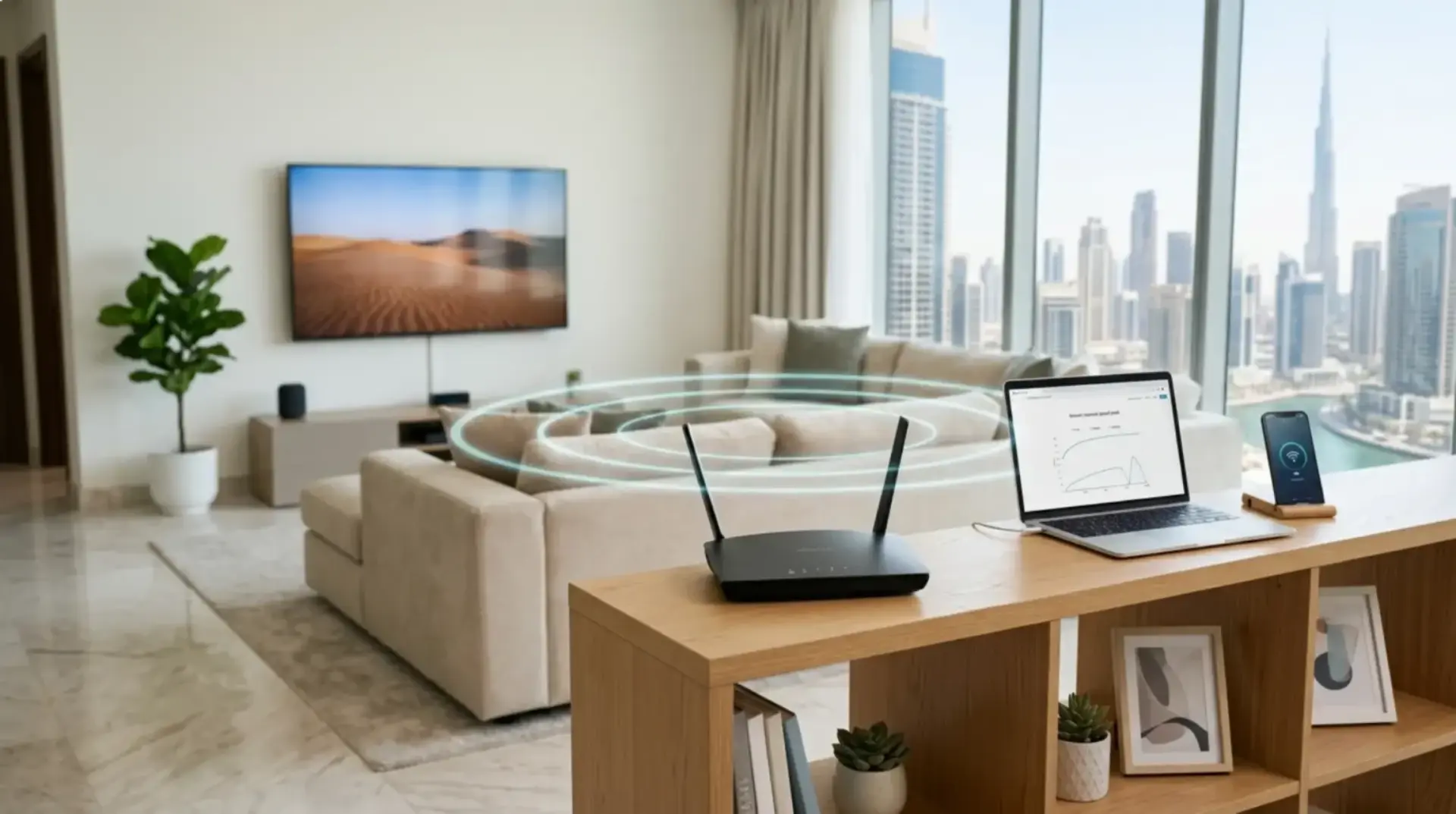
One of the most common WiFi mistakes at home is setting up the router once, hiding it inside a TV cabinet, using the default password, and never checking it again. Then the video calls start freezing, online games lag, smart TVs buffer, and nobody knows whether the issue is the router, the modem, the internet speed, or the connected devices. A proper router login helps you check the real settings behind your WiFi and fix many small problems before they become daily frustrations.
Why Router Setup Affects Speed, Privacy, and WiFi Stability
Your router is not just a box that sends WiFi around the home. It controls how your internet connection is shared between phones, laptops, smart TVs, gaming consoles, cameras, printers, and smart home devices.
Poor router setup can affect three important things:
Internet speed: If the router is badly placed, outdated, overloaded, or using crowded channels, your speed may drop even when your internet package is good.
Privacy: If your WiFi password is weak or shared with too many people, unknown users can connect to your network and use your bandwidth.
Daily stability issues: Internet drops, weak signals, high latency, and random disconnections often stem from signal interference, outdated firmware, incorrect router settings, or network congestion.
For Dubai apartments, villas, shared homes, and small offices, router setup matters even more because walls, floor levels, neighboring networks, and many connected devices can all reduce WiFi performance.
Before Router Setup: A Quick Home WiFi Checklist
Before changing router settings, check the basics first. Many WiFi problems come from simple setup mistakes.
Basic checklist before router setup
- Place the router in an open area, not inside a cabinet.
- Keep it away from thick walls, mirrors, cordless phones, microwaves, and metal objects.
- Check that the modem and router cables are properly connected.
- Restart the modem and router if the connection has been unstable.
- Count how many connected devices are using the network.
- Make sure your WiFi password is not shared with too many visitors.
- Check whether your router firmware has an update available.
- Keep your router login details private.
This quick network troubleshooting step helps you understand whether the problem is location, settings, bandwidth, or equipment.
How to Choose the Right Router Location
Router location can make a huge difference in the strength of the Wi-Fi signal. A powerful router placed badly can perform worse than a basic router placed correctly.
For apartments, place the router near the center of the home, preferably in an open area like a hallway, living room shelf, or wall-mounted position. Avoid putting it behind the TV, under furniture, inside a cupboard, or near electrical clutter.
For villas, one router may not cover all rooms, especially if bedrooms are upstairs or far from the modem. Thick concrete walls, long corridors, and multiple floors can weaken the signal. In that case, a mesh WiFi system is usually better than a single wifi booster.
A wifi booster can help in a small dead zone, but it may reduce speed if placed too far from the router. Mesh WiFi is better for larger homes because it uses multiple units that work together as one network. This gives smoother coverage and better roaming between rooms.
How to Access Router Login Safely
To open your router settings, you need the router login IP address. Common examples include:
192.168.1.1
192.168.0.1
192.168.100.1
The exact IP address depends on your router or internet provider. You can usually find it printed on the router label, in the user manual, or in your device’s network details under “gateway” or “router.”
To access router login safely:
- Connect your phone or laptop to your home WiFi.
- Open a browser.
- Type the router IP address into the address bar.
- Enter the router admin username and password.
- Avoid using public WiFi or unknown devices for router login.
- Log out after making changes.
Do not confuse your WiFi password with your router admin password. The WiFi password connects devices to the network. The admin password opens the router settings. Both should be strong, but they are not the same thing.
Router Settings You Can Change Without Risk
You do not need to be a technician to adjust basic router settings. Some changes are safe and useful for home users.
You can safely change:
WiFi name: Use a simple network name that does not reveal personal details, apartment number, or business-sensitive information.
WiFi password: Use a strong wifi password with a mix of letters, numbers, and symbols.
Guest WiFi: Create a separate network for visitors, tenants, children, or smart devices.
Encryption: Choose WPA2 or WPA3 if available. Encryption protects your WiFi from unauthorized access.
Firmware updates: Firmware is the router’s internal software. Updating it can improve security and stability.
Device list: Check connected devices and remove unknown users.
Avoid changing advanced settings like DHCP ranges, DNS, port forwarding, firewall rules, or VLAN settings unless you understand them. Wrong changes can break internet access or affect office devices.
What Guest WiFi Means and Why It Helps
A guest WiFi network is a separate WiFi name created from your main router. Visitors can use the internet without accessing your main network devices.
In simple words, guest WiFi gives people internet access without handing them the keys to your private network.
Guest WiFi is useful for:
Visitors: Guests can browse without using your main WiFi password.
Smart devices: Cameras, smart TVs, speakers, and doorbells can stay separate from work laptops.
Children: Parents can create a separate network with limited access, depending on router features.
Tenants: Shared villas and apartments can keep networks more organized.
Small businesses: Customers or staff can use guest WiFi without accessing printers, files, or office systems.
Guest WiFi setup steps
- Log in to your router settings.
- Look for “Guest Network,” “Guest WiFi,” or “Wireless Guest.”
- Turn on guest WiFi.
- Create a simple guest network name.
- Set a strong guest wifi password.
- Choose WPA2 or WPA3 encryption.
- Disable access to local network devices if the option is available.
- Save settings and test with a phone.
For a secure network, do not leave guest WiFi open without a password.
Password, Devices, and Bandwidth: What Slows WiFi Down
The internet provider does not always cause slow WiFi. Your own network can become crowded.
Every connected device uses bandwidth. Streaming 4K video, gaming, cloud backups, video calls, security cameras, and large downloads can all reduce wifi performance. When too many devices use heavy data simultaneously, network congestion occurs.
Latency is another issue. Latency means delay. Even if your internet speed looks good, high latency can cause gaming lag, delayed video calls, and slow response times.
Common causes of slow wifi include:
- Router placed too far from users
- Too many connected devices
- Weak or outdated router
- Old firmware
- Signal interference from walls or electronics
- Neighboring WiFi networks using crowded channels
- Weak wifi password allowing unknown users
- Poor modem or cable connection
- Wrong router settings
- Internet package not matching household usage
For bandwidth optimization, disconnect devices you do not use, schedule large downloads outside work hours, keep firmware updated, and use guest WiFi to control visitor access.
DIY Fixes vs When You Need a WiFi Repair Technician
Many WiFi issues can be fixed with simple steps. Move the router, restart the modem, update firmware, change the wifi password, create a guest WiFi, or reduce connected devices. These are safe DIY fixes.
But some problems need professional wifi service, especially when the issue keeps coming back.
Signs you need a technician
- WiFi works near the router but fails in bedrooms.
- Internet drops several times a day.
- The router login page does not open.
- Devices connect but show “no internet.”
- A villa needs full-home WiFi coverage.
- A small office has printer, camera, or POS connection problems.
- Mesh WiFi or access points need proper placement.
- The modem, router, and cabling setup is confusing.
- You suspect unknown devices are using your network.
A wifi repair technician can test signal strength, check modem and router health, identify interference, improve router settings, install mesh WiFi, and create a more stable layout for your home or business.
FAQs
What is router login?
Router login is the process of opening your router admin page using its IP address, username, and admin password. It lets you manage WiFi settings, passwords, guest networks, security, and connected devices.
How do I find my router login IP address?
Check the label on your router, your router manual, or your device network settings. The IP is often listed as “gateway,” “default gateway,” or “router.”
Is it safe to change router settings myself?
Yes, basic settings like WiFi name, wifi password, guest WiFi, firmware updates, and encryption are usually safe to change. Avoid advanced settings unless you know what they do.
Why is my WiFi slow even with good internet speed?
Your internet speed may be fine, but poor router location, weak signal, too many connected devices, interference, or network congestion can still slow down WiFi performance.
Should I use a wifi booster or mesh WiFi?
Use a wifi booster for one small weak area. Use mesh WiFi for villas, larger apartments, multi-floor homes, or places where several rooms have weak signals.
What is the best WiFi password practice?
Use a strong password that is not easy to guess. Avoid names, phone numbers, apartment numbers, or simple words. Change it if too many people know it.
Why should I create guest WiFi?
Guest WiFi keeps visitors, smart devices, tenants, or customers separate from your main secure network. It improves privacy and helps control access.
When should I call a wifi repair technician?
Call a technician if internet drops continue, router login does not work, WiFi fails in several rooms, mesh setup is confusing, or your home or office needs proper network troubleshooting.
Decide Your Next Step
Start with the simple checks: move the router into an open space, log in safely, update the wifi password, check connected devices, and create guest WiFi. If the signal is still weak, try a better router placement before buying equipment. For one small dead zone, a wifi booster may help. For villas, larger apartments, or small businesses, mesh WiFi and a professional setup are usually the smarter choice.
If you can clearly see the problem and it is a basic setting, fix it yourself. If the issue is repeated internet drops, poor coverage across rooms, unknown devices, or a confusing modem and router setup, it is time to get proper wifi service from a technician who can test the network and set it up correctly.
Leave a Reply