
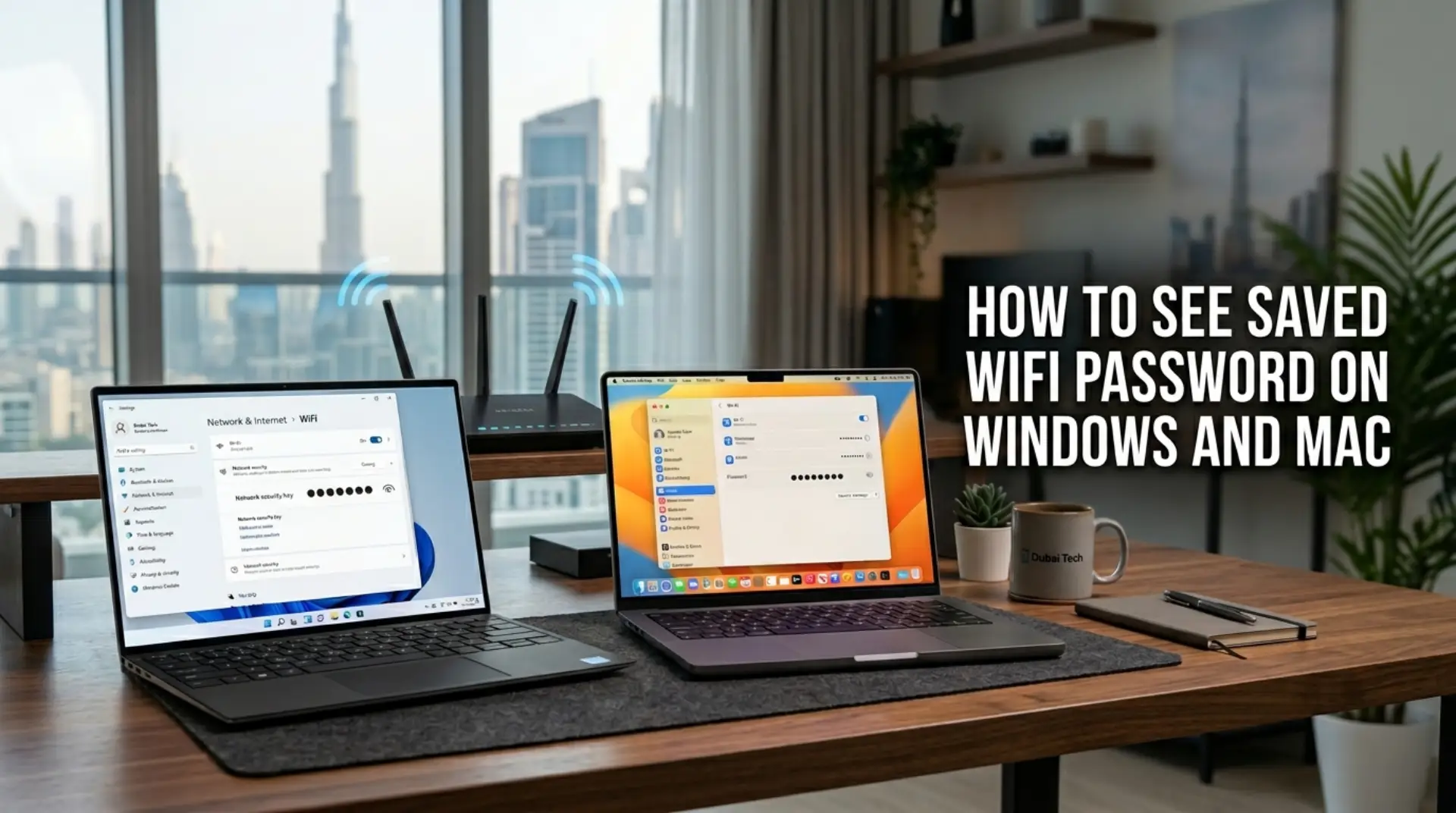
You only realize how important your wifi password is when a new phone, laptop, smart TV, gaming console, or guest device needs to connect and nobody remembers where the password was written. This often happens in homes, villas, apartments, offices, and shared spaces in Dubai, especially when the router was installed months ago or when the password was changed by a technician, landlord, or previous tenant.
The good news is that if your Windows laptop or Mac has connected to the network before, you may be able to view the saved wireless password without resetting the router. This guide explains simple, safe ways to find it, plus what to do if the password does not appear or your connection problems are bigger than just a forgotten login.
Before You Start: Make Sure It Is Your Network
A saved wireless password should only be viewed for a network you own, manage, or have permission to use. For example, it is fine to check the home network in your apartment, your villa router, your office WiFi, or a connection your family already uses.
Before checking the password, make sure:
- You are using a trusted computer.
- You have permission to access that network.
- You are not sharing the password with anyone you do not know.
- You understand that anyone with the password can connect devices and use bandwidth.
This matters because a weak or widely shared password can affect internet speed, connected devices, and overall WiFi performance. In small offices, it can also create security risks if unknown users join the network.
How to See Saved WiFi Password on Windows 11
Windows 11 makes it fairly easy to view the password for a network saved on your device. Microsoft’s current guidance says you can view the password from the Wi-Fi profile page, and saved networks can also be checked through Manage known networks.
Follow these steps:
- Click the Start button.
- Open Settings.
- Go to Network & internet.
- Select Wi-Fi.
- Click the network you are connected to, or go to Manage known networks.
- Choose the saved network.
- Find Wi-Fi network password.
- Click Show.
Windows may ask you to verify your identity before showing the password. This is normal and helps protect your saved network details.
This method is useful when you want to connect another device, share the password with a family member, or write it down before replacing a phone, laptop, or router.
How to See Saved WiFi Password on Windows 10
On Windows 10, the steps may look slightly different depending on the update version, but you can usually find the password through network settings.
Try this method:
- Open Control Panel.
- Go to Network and Internet.
- Click Network and Sharing Center.
- Select your active WiFi network name.
- Click Wireless Properties.
- Open the Security tab.
- Tick Show characters.
The password should appear in the network security key field.
If you are not currently connected to that network, you may need to use the saved network method through Windows settings or a command-line method. However, most home users should start with the normal settings method because it is safer and easier.
Another Windows Method: Use Command Prompt
If the regular settings screen does not show the password, Windows users can sometimes view saved network details through Command Prompt. Use this only on your own computer and your own saved networks.
Open Command Prompt as administrator and type:
netsh wlan show profiles
This shows the WiFi profiles saved on your laptop.
Then type:
netsh wlan show profile name=”Network Name” key=clear
Replace Network Name with your actual WiFi name. Look for Key Content under the security settings. That is the saved wireless password.
This method can be helpful for remote workers, gamers, or small business owners who have several saved networks, such as home WiFi, office WiFi, guest WiFi, and mobile hotspot connections.
How to See Saved WiFi Password on Mac
On newer versions of macOS, Apple provides a simple way to find saved Wi-Fi passwords through the Passwords app. Apple’s guide says you can open the Passwords app, choose Wi-Fi in the sidebar, select a network, and reveal the password by hovering over the hidden password dots.
Here is the simple version:
- Open the Passwords app on your Mac.
- Unlock it using Touch ID or your Mac user password.
- Click Wi–Fi in the sidebar.
- Select the saved WiFi network.
- Hover over the hidden password dots to reveal it.
This is one of the easiest options for Mac users, especially if the network was saved recently.
How to Copy a Saved WiFi Password on Mac
Some Mac users can also copy a saved password from the WiFi settings. Apple explains that on macOS Ventura or later, you can go to System Settings, open Network, choose Wi-Fi, open Advanced, and use the More button beside a known network to copy the password.
Use these steps:
- Click the Apple menu.
- Open System Settings.
- Select Network.
- Click Wi-Fi.
- Scroll down and open Advanced.
- Find the saved network.
- Click the More button beside it.
- Choose Copy Password.
You can then paste it into a note, message, or setup screen. Be careful where you paste it, especially on a shared office computer.
Mac Keychain Access Method
If you are using an older Mac or cannot find the password in the newer settings, Keychain Access may help. Apple’s Keychain Access tool stores passwords, certificates, and secure login items on Mac.
Follow these steps:
- Press Command + Space.
- Type Keychain Access.
- Open the app.
- Search for your WiFi network name.
- Double-click the network.
- Tick Show password.
- Enter your Mac login password if asked.
If the network was saved correctly, the password should appear. This method is especially useful for older macOS versions.
What If the Saved Password Does Not Show?
Sometimes the password will not appear even if the device has connected before. This can happen for several reasons.
The most common causes include:
- The network profile was removed.
- The laptop was reset or cleaned.
- The router password was changed after the device connected.
- You are using a guest network with limited access.
- This computer is managed by a company or an administrator.
- The saved password is stored under another user account.
In a Dubai apartment or shared villa, this often happens when a tenant changes the router settings, a landlord replaces the router, or a technician creates a new network name during setup.
If you cannot find the saved password, do not keep guessing. Too many failed attempts can waste time and make troubleshooting harder.
When You Should Check the Router Instead
If no device shows the saved password, the next option is to check the router. Many routers have a sticker on the back or bottom with the default network name and password. However, this only works if the password was never changed.
You can also log in to the router settings if you have admin access. Usually, this requires opening a browser and entering the router login address. From there, the wireless settings may show or allow you to change the network password.
Be careful here. Router settings can affect connected devices, internet speed, guest networks, parental controls, mesh WiFi, and security settings. If you change the wrong option, some devices may disconnect.
For homes and small businesses, it is better to contact a professional wifi service if you are unsure about router login, modem settings, or advanced network troubleshooting.
Is a Forgotten Password Causing Slow WiFi?
A forgotten password is annoying, but it may also point to a larger WiFi management issue. For example, if too many people know the password, unknown devices may be using your bandwidth. Bandwidth simply means the amount of internet capacity available for your devices.
When too many phones, TVs, cameras, laptops, and gaming consoles are connected, you may notice:
- Slow browsing
- Video buffering
- Online game lag
- Weak signal in bedrooms
- Internet drops during calls
- Smart devices disconnecting
- Poor speed even near the router
In some cases, the issue is not the password itself but network congestion, signal interference, or outdated firmware. Firmware is the internal software that helps your router work properly. If it is old, your router may not perform well or may have security weaknesses.
Security Tips After Finding the Password
Once you find the saved password, use it wisely. Do not send it in open group chats or write it where visitors can see it.
For a secure network, follow these simple tips:
- Use a strong password with letters, numbers, and symbols.
- Avoid using your name, phone number, villa number, or business name.
- Change the password if too many people know it.
- Create a guest network for visitors.
- Remove unknown connected devices from router settings.
- Update router firmware when needed.
- Use strong encryption, such as WPA2 or WPA3 if your router supports it.
Encryption protects the data moving between your device and router. In simple words, it helps stop outsiders from easily reading your network traffic.
Call a WiFi Repair Technician
You can safely find a saved password yourself in most cases. However, you may need a wifi repair technician if the problem is connected to router setup, weak coverage, or repeated disconnections.
Call a professional if:
- You cannot access the router login page.
- Your WiFi password keeps changing unexpectedly.
- Devices connect but have no internet.
- Your villa or apartment has dead zones.
- Mesh WiFi is not working properly.
- Internet speed is much lower than your plan.
- Your office network needs guest access and secure device separation.
- You need a stronger Wi-Fi signal without randomly buying a wifi booster.
A wifi booster can help in some homes, but it is not always the right solution. Sometimes the better fix is router placement, mesh configuration, channel adjustment, or bandwidth optimization. Bandwidth optimization means organizing the network so that important devices get smoother performance.
For remote workers, gamers, families, and small businesses, this can make a real difference in video calls, streaming, online meetings, and daily work.
Final Thoughts
Finding a saved wireless password on Windows or Mac is usually simple if your device has connected to the network before. Windows users can check network settings or the Command Prompt, while Mac users can use the Passwords app, WiFi settings, or Keychain Access.
Still, a password is only one part of a healthy home or office network. If your internet is slow, devices keep disconnecting, or your router settings are confusing, the real issue may be signal coverage, router configuration, connected devices, or network security.
For basic password recovery, follow the steps above. For bigger WiFi problems in a Dubai home, villa, apartment, or small business, professional network troubleshooting can save time and prevent more connection issues later.
FAQs
How do I see a saved WiFi password on Windows?
On Windows 11, go to Settings > Network & Internet> Wi-Fi, select your network, and choose Show next to the saved network password. You may need to confirm your identity before Windows reveals it.
Can I find a WiFi password on Windows if I am not connected?
Yes, if the network profile is still saved on your laptop. You can check Manage known networks or use Command Prompt with the netsh wlan show profiles command to view saved network details.
How do I find a saved WiFi password on Mac?
Open the Passwords app, unlock it, click Wi-Fi, and select the saved network. You can then reveal or copy the password, depending on your macOS version and security settings.
Why can’t I see my saved WiFi password?
The password may not show if the network profile was deleted, the router password changed, or the computer is managed by an administrator. It may also be saved under a different user account.
Is it safe to share my home WiFi password?
Only share it with people you trust. If guests need access, create a separate guest network so your main devices, work laptop, smart cameras, and office systems stay better protected.
Will changing my WiFi password disconnect all devices?
Yes, devices using the old password will disconnect. After changing it, you must reconnect phones, laptops, smart TVs, gaming consoles, printers, and other connected devices with the new password.
Can a weak WiFi password slow down my internet?
Indirectly, yes. If too many unknown users connect to your network, they can use up bandwidth and reduce internet speed. A strong password helps keep unwanted devices off your network.
When should I call a professional WiFi service?
Call a professional if you cannot access router settings, have weak signals, repeated internet drops, mesh WiFi issues, or slow speeds across multiple devices. A technician can test coverage, router settings, and signal interference properly.
Leave a Reply