
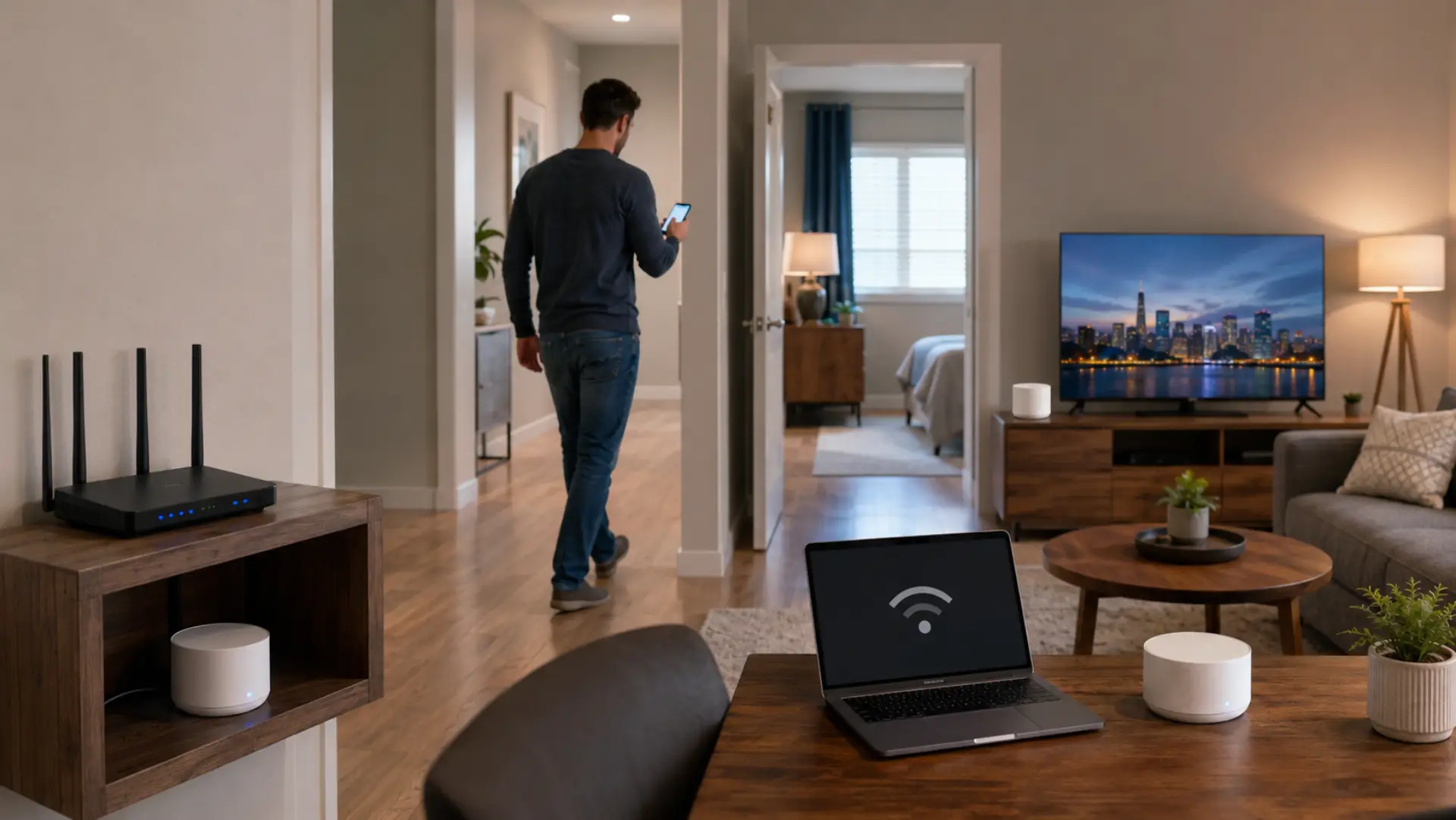
WiFi roaming happens when your phone, laptop, tablet, or smart device moves between a router, mesh node, extender, or access point while staying connected to the same home network. Device-specific WiFi problems can also affect how phones, laptops, TVs, printers, and cameras move between wireless points. When this process does not work properly, you may notice weak signals, unstable calls, buffering, or devices staying connected to the wrong wireless point even when a stronger signal is nearby.
Key Takeaways
- WiFi roaming problems usually happen when a device does not move smoothly between routers, mesh nodes, extenders, or access points.
- Poor router placement, weak signal overlap, interference, outdated devices, and wrong settings are common causes.
- A mesh WiFi system can help, but only when the nodes are placed and configured correctly. How many mesh nodes you need depends on home size, floors, wall material, and weak coverage areas.
- If the internet speed is fine near the main router but poor in other rooms, the problem is likely inside the home wireless setup.
- Professional testing may be needed when disconnections, weak signals, or device movement problems continue after basic fixes.
What WiFi Roaming Means
WiFi roaming allows your device to move from one wireless point to another without manually disconnecting and reconnecting. A proper home WiFi setup should be planned so devices can move between rooms without losing stability. In a well-planned home network, your device should automatically connect to the strongest available signal as you move between rooms, floors, or outdoor areas.
This is especially important in larger apartments, villas, and homes with more than one router or mesh node. If the system is not planned correctly, devices may stay connected to a weak signal for too long, which creates WiFi issues even when the internet service itself is working fine.
Common Signs of WiFi Roaming Problems
A common sign is when your phone remains connected to an upstairs router while you are downstairs near a stronger mesh node. The device may show signal bars, but apps load slowly, calls freeze, or streaming quality drops. Full signal bars can be misleading, so run a WiFi speed test in each important room.
You may also notice:
- Video calls cutting out while walking between rooms
- Smart TVs buffering in certain areas
- Phones switching late between access points
- Smart cameras going offline for short periods
- Devices working well in one room but poorly in another
- Internet feeling unstable even when the router is online
These signs often point to weak WiFi coverage, poor node placement, or device connection behavior rather than a full internet outage.
Why Devices Stay Connected to Weak Signals
Most phones, laptops, and smart devices decide for themselves when to leave one wireless point and join another. Your router can help guide the process, but the final decision is usually made by the device.
This means a device may stay connected to a weak signal if it still considers that signal usable. The result can be slow loading, unstable video calls, or short delays before the device connects to the better signal nearby. WiFi connected but no internet can also appear when a device joins WiFi but cannot communicate properly.
A poor WiFi handoff can happen when routers or mesh nodes are placed too close together, too far apart, or blocked by thick walls. The device may not know when to move, or it may switch too late.
Router and Mesh Placement Problems
Router placement plays a major role in smooth wireless movement. If your mesh nodes or access points are placed incorrectly, your device may struggle to move between them.
Common placement mistakes include:
- Placing routers inside cabinets
- Keeping mesh nodes behind TVs
- Installing nodes too close to thick concrete walls
- Putting access points too far apart
- Placing routers near microwaves or metal objects
- Adding too many nodes in a small area
A proper setup needs balanced signal overlap. The signal should not be too weak between wireless points, but it should also not overlap so heavily that devices become confused.
Same WiFi Name vs Different WiFi Names
Using one WiFi name across the home is usually better when your router, mesh system, or access points are designed to work together. This allows devices to move around without manually selecting a different network.
Different WiFi names can give you more control, but they can also make WiFi switching less smooth. For example, you may need to manually connect to the upstairs or downstairs network each time you move around.
For most homes, a single properly configured network name works better. However, the equipment must support smooth network switching; otherwise the same name alone may not solve the problem.
Extenders vs Mesh WiFi Systems
Basic WiFi extenders can improve signal reach, but they do not always manage device movement well. Some extenders create separate networks, while others repeat the same name without proper coordination.
Mesh WiFi systems are usually better for homes where people move between rooms while using calls, streaming, gaming, or smart devices. Mesh nodes are designed to work together as one system, which makes roaming more stable when the setup is planned correctly.
However, adding more mesh nodes does not always improve performance. Too many nodes can create interference, while poor placement can still cause connection drops.
Settings That Can Affect WiFi Roaming
Modern routers and mesh systems may include advanced settings that help devices move between wireless points more smoothly. These settings can improve performance, but only when adjusted carefully.
Useful settings may include:
- Band steering
- Access point steering
- Minimum signal strength controls
- Fast transition support
- Separate 2.4 GHz and 5 GHz controls
- Firmware updates
- Channel optimization
Wrong settings can create a WiFi issue instead of fixing one. If steering is too aggressive, devices may disconnect often. If it is too weak, devices may hold onto poor signals for too long.
Why Some Devices Struggle More Than Others
Not every device handles wireless movement the same way. New phones and laptops usually manage signal changes better, while older smart TVs, printers, cameras, and low-cost smart devices may struggle.
A phone may move smoothly between mesh nodes, while a printer may show WiFi missing or appear offline. This does not always mean the whole network is broken. It may mean that one device has weaker wireless hardware or outdated software.
Device age, firmware version, power-saving mode, and wireless adapter quality can all affect roaming performance.
How to Fix WiFi Roaming Issues at Home
Start by checking where the problem happens. If it only happens in one room, hallway, floor, or corner, the cause is likely signal placement or interference.
Try these fixes:
- Restart the router, extender, and mesh nodes
- Move mesh nodes away from walls, TVs, and cabinets
- Keep nodes at a moderate distance from each other
- Update router and device firmware
- Remove unused extenders that may interfere
- Test the connection near each wireless point
- Use one network name if your system supports it properly
- Avoid placing routers near metal objects or appliances
If slow WiFi happens only while moving around the home, the internet line may not be the main problem. The issue may be how your home wireless system is handling device movement.
When the Internet Provider Is Not the Problem
Many users think their internet provider is at fault when devices disconnect or slow down while moving around the house. In many cases, the service line is working correctly, but the wireless setup inside the home is not distributing the signal properly.
You can test this by checking internet speed near the main router. If the speed is stable there but weak in other rooms, the problem is likely inside your home network.
A wired speed test can also help. If the wired connection is stable but WiFi disconnecting happens in certain areas, the router placement, mesh layout, or interference needs attention.
When to Call a WiFi Technician
You should call a WiFi technician if the problem continues after restarting equipment, improving placement, and checking basic settings. A professional can test signal strength, interference, device behavior, and access point placement across the home.
This is especially useful in large villas, multi-floor apartments, smart homes, or offices where WiFi not working in certain rooms affects daily use. A technician can find the real network issue and improve the full WiFi connection without unnecessary equipment changes.
FAQs
Why does my phone stay connected to weak WiFi?
Your phone decides when to leave one wireless point and connect to another. If the old signal is still usable, it may stay connected even when a stronger signal is nearby. This can make the internet feel slow even though your router is working.
Why does WiFi drop when I walk between rooms?
This usually happens when the signal overlap between routers, mesh nodes, or extenders is not balanced. Your device may lose quality before it reaches the next strong signal area. Better placement can reduce drops while moving around the home.
Is mesh WiFi better for roaming at home?
Mesh WiFi is usually better for larger homes because the nodes are designed to work together. It helps devices move between rooms more smoothly than basic extenders. Placement still matters because poorly placed mesh nodes can cause weak performance.
Should I use the same WiFi name for all routers?
Using the same WiFi name is usually better when your devices are part of a proper mesh or access point system. It helps phones and laptops move around without manual reconnecting. If the equipment is not configured correctly, the same name alone may not fix the problem.
Why does one device have problems while others work fine?
Different devices handle wireless movement differently. Newer phones and laptops often switch better than older TVs, printers, or cameras. Updating device software and checking placement can help improve stability.
Can router placement fix WiFi roaming problems?
Yes, router and node placement can make a big difference. Moving equipment away from cabinets, TVs, thick walls, and metal objects can improve signal quality. Better spacing between nodes helps devices move more smoothly.
Why does my WiFi work near the router but not in other rooms?
This usually means the main internet connection is working, but the wireless signal is not reaching all areas properly. Walls, distance, and interference can weaken performance in other rooms. A better router location or mesh setup may solve the problem.
When should I get professional WiFi help?
Get help if disconnections, weak signals, or device movement problems continue after basic fixes. A technician can test your full home layout and find the exact cause. This is useful for villas, large homes, smart devices, and work-from-home setups.
Leave a Reply