
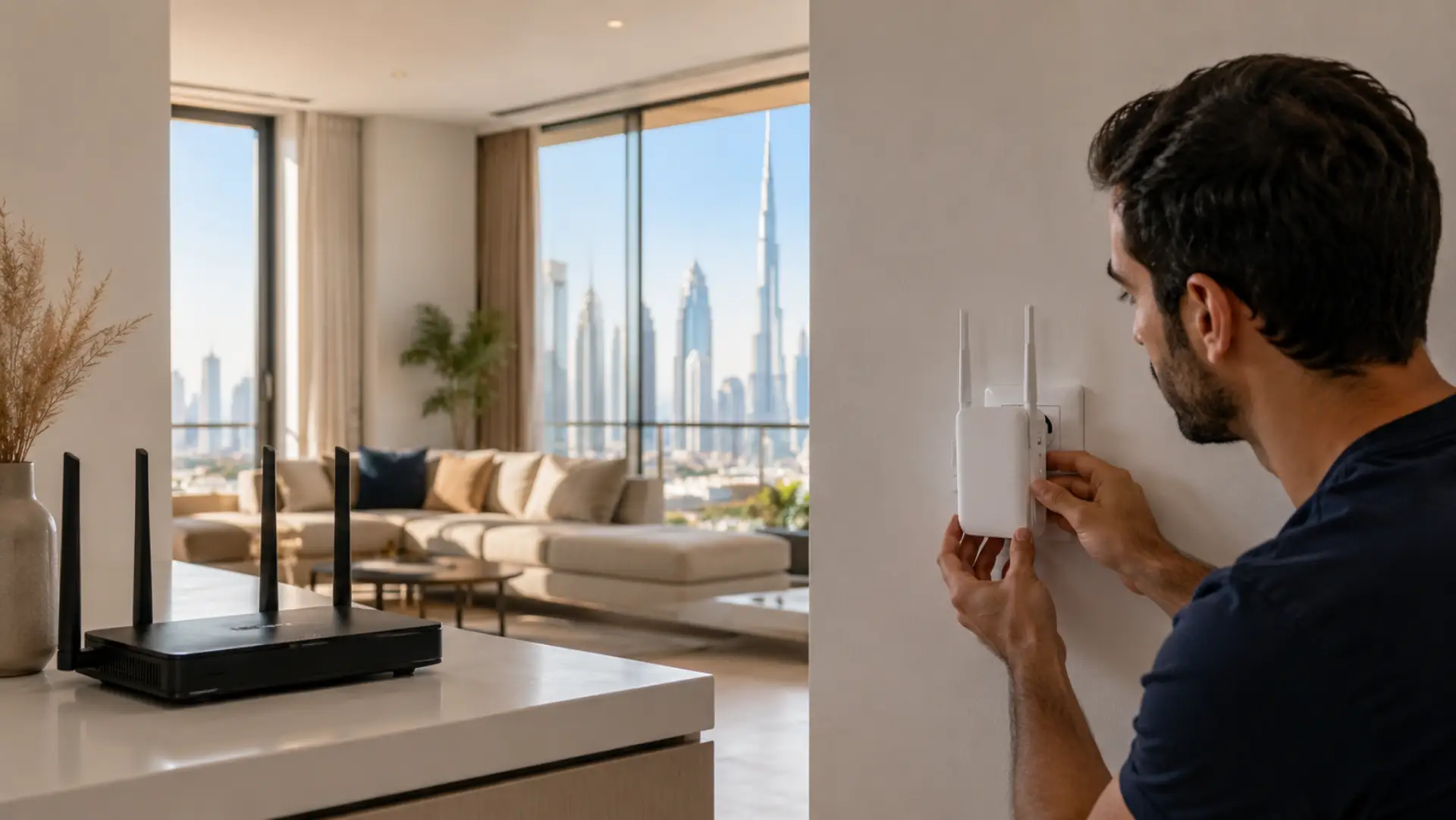
A correct Netgear WiFi extender setup helps Dubai homes improve weak wireless coverage in rooms where the router signal does not reach properly. It is useful for bedrooms, upper floors, balconies, majlis areas, home offices, and smart TV corners where the connection becomes slow or unstable. If the weak area is upstairs, you may need to get WiFi upstairs with better placement, mesh, or an access point.
The main purpose is simple: connect the extender to your existing router, place it in the right location, and let it repeat the signal into weaker areas. The setup is easy, but the final result depends on router health, password accuracy, signal strength, and placement.
Quick Setup Summary
Start the setup with the extender plugged into a power socket near your main router. This is also recommended in a WiFi extender setup guide because close-range pairing reduces setup errors. Wait until the power light becomes stable before connecting it. After setup is complete, move it to a middle point between the router and the weak area.
For most homes, the setup can be done in two ways. You can use the WPS button if your router supports it, or you can complete the process manually through a browser. Both methods work, but the extender must receive a strong router signal during setup.
Why Dubai Homes Need Better WiFi Extension
Many Dubai apartments and villas have concrete walls, long corridors, glass partitions, thick doors, and rooms far from the main router. These conditions can reduce WiFi coverage and create areas where internet speed drops. Weak areas are often WiFi dead zones where the router signal cannot reach clearly.
A Netgear WiFi extender is designed to help in these weak zones by repeating the existing wireless network. It does not create a new internet connection or increase your internet package speed. It only helps carry the available connection farther when the router alone cannot cover the full home.
What to Check Before Setup
Before starting the WiFi extender setup, confirm that your main router is already working properly. If the router has no internet, unstable speed, or frequent disconnections, the extender may repeat the same problem.
You should keep your main WiFi name and password ready. Use the correct password during setup because a wrong password can make the extender appear connected while internet access still fails.
Also, do not begin setup from the weak-signal room. Keep the extender near the router first, complete the connection, and then move it to a better location.
Setup Method 1: Using the WPS Button
The WPS method is the fastest option if your router has a working WPS button. Plug the extender near the router and wait for the power light to become steady.
Press the WPS button on the extender, then press the WPS button on the router. Wait until the extender shows a successful connection through its indicator lights. On many Netgear models, the router link light helps show whether the connection is strong enough.
Once connected, move the extender to a suitable location between the router and the weak area. A range extender should not be placed inside a complete dead zone because it still needs a clean signal from the main router.
Setup Method 2: Manual Browser Setup
Manual setup is useful when your router does not support WPS or when WPS is turned off. Connect your phone, laptop, or tablet to the extender’s temporary network, often shown as a Netgear setup network.
Open a browser and go to the extender setup page. Follow the on-screen steps, select your home WiFi network, and enter the router password carefully. After setup, the extender may create a new extended network name.
Some users keep a separate extender name so they know when they are connected to the extended network. Others prefer using the same WiFi name for easier movement around the home.
Best Placement After Setup
Placement is the most important part of a successful setup. The extender should sit between the main router and the area with weak internet, but it should not be too far from the router.
For apartments, a hallway, central socket, or open room often works best. For villas, a stair landing, upstairs hall, or middle room may help extend coverage to nearby areas. Large layouts often create WiFi dead spots in Dubai villas where one extender may not be enough.
Keep the extender away from microwaves, metal cabinets, thick concrete corners, cordless phone bases, water tanks, and the back of TVs. These objects can weaken the WiFi signal and reduce extender performance.
How to Test the Extended Network
After setup, test the connection in the room where WiFi was weak before. Open websites, stream a video, join a video call, and check smart TV performance.
If the connection feels more stable and loading improves, the setup is working. If speed is still poor, move the extender closer to the router and test again.
A Signal extender performs best when it receives a stable signal first. If it is placed too far away, it may repeat a weak connection instead of improving it.
Common Setup Issues and Fixes
If the extender connects but there is no internet, restart both the router and extender. Then check that the correct WiFi password was entered during setup.
If the setup page does not open, make sure your phone or laptop is connected directly to the extender’s network, not the main router network. You can also try another browser or clear the browser cache.
If the extender keeps disconnecting, the placement may be poor. Move it closer to the router and avoid blocked corners. A wifi booster cannot work properly if the signal reaching it is already too weak.
When an Extender May Not Be Enough
A Netgear extender is suitable for one or two weak areas, but it may not fix every layout. Large villas, multi-floor homes, outdoor areas, and homes with many connected devices may need a stronger network design.
If weak areas remain after correct setup and placement, mesh WiFi or wired access points may be a better option. These solutions are more reliable for full-home coverage, especially where thick walls or long distances affect the connection.
You should also check whether your router is old, overloaded, or placed badly. Sometimes the issue is not the extender, but the router reaching its WiFi limit because of distance, interference, or too many devices.
Final Setup Checklist
Keep the extender near the router during setup. Use WPS if available, or complete manual setup through the browser. Enter the correct home WiFi password and wait until the connection is confirmed.
Move the extender to a middle location, test the weak area, and adjust placement if needed. Keep it in an open socket where it can receive a strong router signal.
For Dubai homes, correct placement is often more important than buying another device. A properly installed extender can improve coverage, but it must be matched to the home layout and signal problem.
FAQs
How do I set up a Netgear WiFi extender at home?
Plug the extender near your router, wait for the power light to become stable, and connect it using WPS or the manual browser method. After setup, move it to a middle location between the router and the weak area. Do not place it directly inside a dead zone.
Why is my Netgear extender connected but has no internet?
This can happen because of a wrong WiFi password, weak router signal, router internet issue, or poor extender placement. Restart the router and extender first, then reconnect using the correct network details. If the problem continues, move the extender closer to the router.
Where should I place a Netgear extender in a Dubai villa?
Place it between the router and the weak area, such as a stair landing, central hallway, or open room. Avoid placing it behind walls, TVs, or metal objects. For large villas, one extender may not be enough for full coverage.
Does a Netgear extender increase internet speed?
A Netgear extender does not increase the speed from your internet provider. It improves wireless reach by repeating the router signal into areas where the connection is weak. If placed correctly, it can make internet use feel faster in rooms with poor coverage.
Why is the Netgear setup page not opening?
The setup page may not open if your device is connected to the main router instead of the extender network. Connect directly to the extender’s temporary network and try again. You can also use another browser or restart the extender.
Is WPS setup better than manual setup?
WPS is faster and easier when both the router and extender support it. Manual setup is better when WPS is disabled or unavailable. Both methods can work well if the extender is close to the router during setup.
Can one Netgear extender cover a full Dubai home?
One extender may help a small apartment or one weak section of a home. In larger villas or multi-floor layouts, one extender may not cover every area properly. Mesh WiFi or wired access points may be better for full-home coverage.
Should I use the same WiFi name for the extender?
Using the same name can make the network easier to use, but some devices may stay connected to the weaker signal. A separate extender name helps you choose the stronger connection manually. The best option depends on your home layout and device behavior.
Leave a Reply