
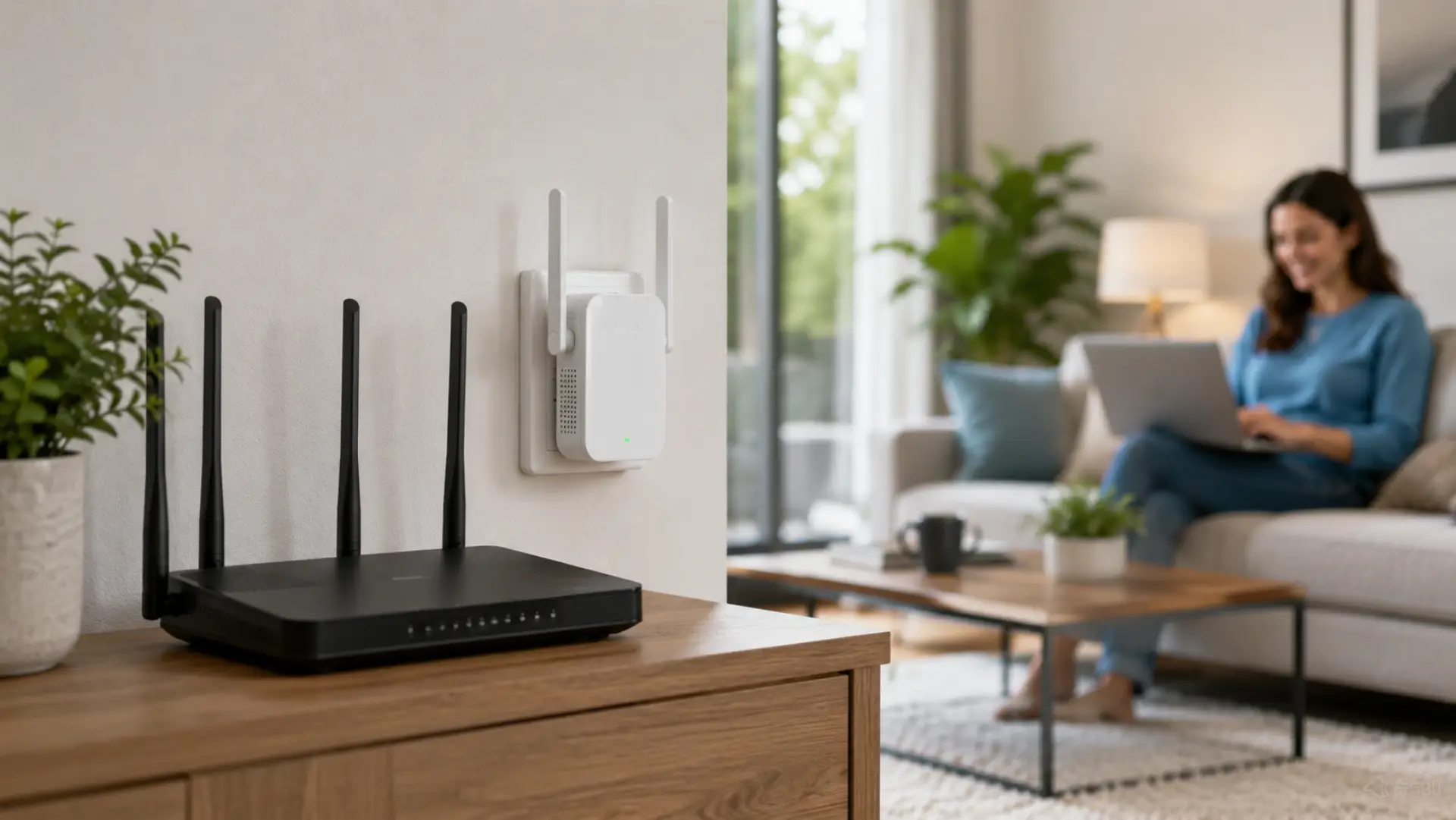
A WiFi extender helps carry your existing wireless network farther into rooms where the connection is weak, unstable, or unavailable. To set it up correctly, place it near the router first, pair it using WPS or the setup page, move it to the right midpoint location, and test the connection before using it permanently. A full WiFi extender setup guide can help confirm pairing, placement, testing, and router connection steps.
Connecting an extender is not difficult, but the result depends on the router status, placement, distance, network name, password accuracy, and device compatibility. A poor setup can make the network look stronger while still causing weak speed, dropped devices, or unstable performance.
What a WiFi Extender Actually Does
A WiFi extender receives the wireless network from your main router and rebroadcasts it to nearby areas. It does not create a new internet service. If the router signal is weak, it is better to boost your WiFi signal first before adding another device. It depends on the strength and quality of the signal it receives from the router.
A range extender works best when it is placed where the existing network is still strong enough to repeat. If you install it too far from the router, it may connect but deliver weak performance.
Some users call the same device a WiFi booster, but the setup principle is the same: the device must receive a clean signal first before it can extend it properly.
Check Your Router Before Starting
Before starting the WiFi setup, make sure the main router is working correctly. If the router itself is unstable, the extender will repeat the same problem in other rooms. Common causes of slow WiFi should be checked before blaming the extender.
Check these points first:
- The router is powered on and connected to the internet.
- The internet or WAN light is normal.
- Your phone or laptop can browse the internet near the router.
- The router password is correct.
- The extender is compatible with your router’s network band.
The goal is to improve WiFi signal, not just create another network name. A clean source connection is more important than the extender brand.
Place the Extender Near the Router First
For the first setup, plug the extender into a wall socket close to the router. Do not place it in the weak room at the beginning. Most extenders need to pair with the router while the signal is strong.
Place it in the same room as the WiFi router during setup. After pairing is complete, you can move it to a better location between the router and the weak coverage area.
A clean Router setup starts with short-distance pairing, correct login details, and a stable power source.
Method One: Connect Using the WPS Button
WPS is the easiest method if both your router and extender support it. It allows both devices to pair without manually entering the WiFi password.
Press the WPS button on the router first. Within about two minutes, press the WPS button on the extender. Wait until the extender light becomes solid or shows a successful connection status.
If the light keeps blinking, turns red, or fails to connect, move the extender closer and try again. Some routers disable WPS for security reasons, so the manual method may be needed.
Method Two: Connect Through a Browser or Mobile App
Manual setup is better when WPS is not available or when you want more control over the network name and password.
Plug in the extender close to the router and connect your phone or laptop to the extender’s temporary network. Open the setup address shown on the extender label or user guide. Select your main home network, enter the correct password, and save the settings.
Extender setup should be done slowly because one wrong password, wrong band, or incorrect network selection can cause failed pairing.
Use the Correct Network Name
Some extenders create a separate network name, while others copy your main network name. Both options can work, but they behave differently.
Using the same name can make roaming easier because devices may switch automatically. Using a separate name makes it easier to know whether your device is connected to the router or extender.
Your WiFi connection should remain stable when you move between rooms. If your phone stays connected to the weaker network, disconnect and reconnect or restart the device.
Move the Extender to the Right Location
After pairing, unplug the extender and move it to a midpoint location. The best position is not inside the dead zone. A WiFi coverage checker can help find the midpoint where the extender still receives a usable router signal. It should be between the router and the weak area, where it still receives a strong enough signal.
The router connection must be stable at the extender’s location. If the extender shows a weak or red indicator light, move it closer to the router.
Avoid placing the extender behind furniture, inside cabinets, near microwaves, beside thick walls, or close to metal objects. These can reduce performance even when setup is successful.
Test the Extended Network Properly
After moving the extender, test the network in the room where you need better coverage. Open websites, stream a video, make a video call, and check whether devices stay connected.
An Internet setup with an old modem, outdated router, or poor service line may still feel slow even after installing an extender. In that case, the extender is not the only issue.
A signal extender is most useful when the main problem is distance or blocked wireless reach, not when the internet plan itself is overloaded.
Common Mistakes to Avoid
The most common mistake is placing the extender inside the room where the network is already very weak. The extender cannot repeat a strong connection if it receives a poor one.
Another mistake is pairing the extender with the wrong network band. The 2.4 GHz band usually reaches farther, while the 5 GHz band is faster at shorter distances. Choose based on your room layout and device needs.
Do not reset the router unless needed. A common mistake is trying to connect router hardware again before confirming whether the extender password, placement, or network band is the real issue.
When a WiFi Extender Is the Right Choice
A WiFi extender is a good choice for small to medium spaces where one or two rooms have weak reception. It can help bedrooms, home offices, balconies, hallways, and upstairs corners where the router signal does not reach well.
It is also useful when you want better WiFi coverage without changing the main router or installing cables.
However, an extender is not always the best fix. Large homes, thick walls, multi-floor layouts, and many connected devices may need a mesh system or wired access points instead.
When an Extender May Not Solve the Problem
If your network has slow WiFi near the router, an extender will not fix the root cause. It will only repeat the same weak performance farther away.
If the whole home has slow internet, check the service plan, modem, router age, connected devices, and possible provider issues before buying extra hardware.
Every router also has a WiFi limit based on speed, coverage, processing power, and the number of devices it can manage. Adding an extender does not upgrade those limits.
Should You Set It Up Yourself or Call a Professional?
You can set up a WiFi extender yourself if the router is working, the home layout is simple, and you only need better coverage in one nearby room. WPS or app-based setup is usually enough for basic use.
Professional setup is better when the home has several weak zones, thick walls, multiple floors, smart home devices, office equipment, or repeated connection drops. A technician can test signal strength, choose the best location, reduce interference, and decide whether an extender, mesh system, or access point is the correct solution.
Final Setup Checklist
Before you finish, confirm these points:
- The extender is paired with the correct router network.
- The password was entered correctly.
- The extender is not placed inside a dead zone.
- The indicator light shows a strong connection.
- Your devices connect without repeated drops.
- Speed and stability are better in the target room.
- The extender firmware is updated if the app shows an update.
A correctly installed WiFi extender should improve usable coverage, not just add another network name.
FAQs
Why is my WiFi extender not connecting to the router?
Your extender may not connect because it is too far from the router, the password is wrong, WPS failed, or the router band is not compatible. Move the extender closer, restart both devices, and repeat the setup using the manual browser or app method if WPS does not work.
Where should I place a WiFi extender after setup?
Place it between the router and the weak area, not inside the room where the signal is already poor. The extender should still receive a strong signal from the router so it can repeat the connection properly.
Should my extender use the same WiFi name as my router?
It can use the same name or a separate name. The same name makes automatic roaming easier, while a separate name helps you clearly choose the extended network when needed.
Why is my extender connected but the internet is still slow?
This usually happens when the extender is too far from the router, the router itself is slow, too many devices are connected, or the internet service has a problem. Test speed near the router first before blaming the extender.
Can I connect a WiFi extender without WPS?
Yes, most extenders can be connected through a browser setup page or mobile app. You connect to the extender’s temporary network, choose your main router network, enter the password, and save the settings.
Does a WiFi extender increase internet speed?
A WiFi extender does not increase the speed of your internet plan. It mainly extends coverage into weak areas, so devices can get a more usable connection where the original router signal is poor.
How do I know if my extender is placed correctly?
Check the extender indicator light, test browsing speed, and move around the target room with your phone or laptop. If the light shows a weak signal or the connection keeps dropping, move the extender closer to the router.
Is a mesh system better than a WiFi extender?
A mesh system is usually better for larger homes, multiple floors, and several weak areas. A WiFi extender is more suitable for fixing one or two nearby coverage gaps without replacing the whole network.
Leave a Reply