
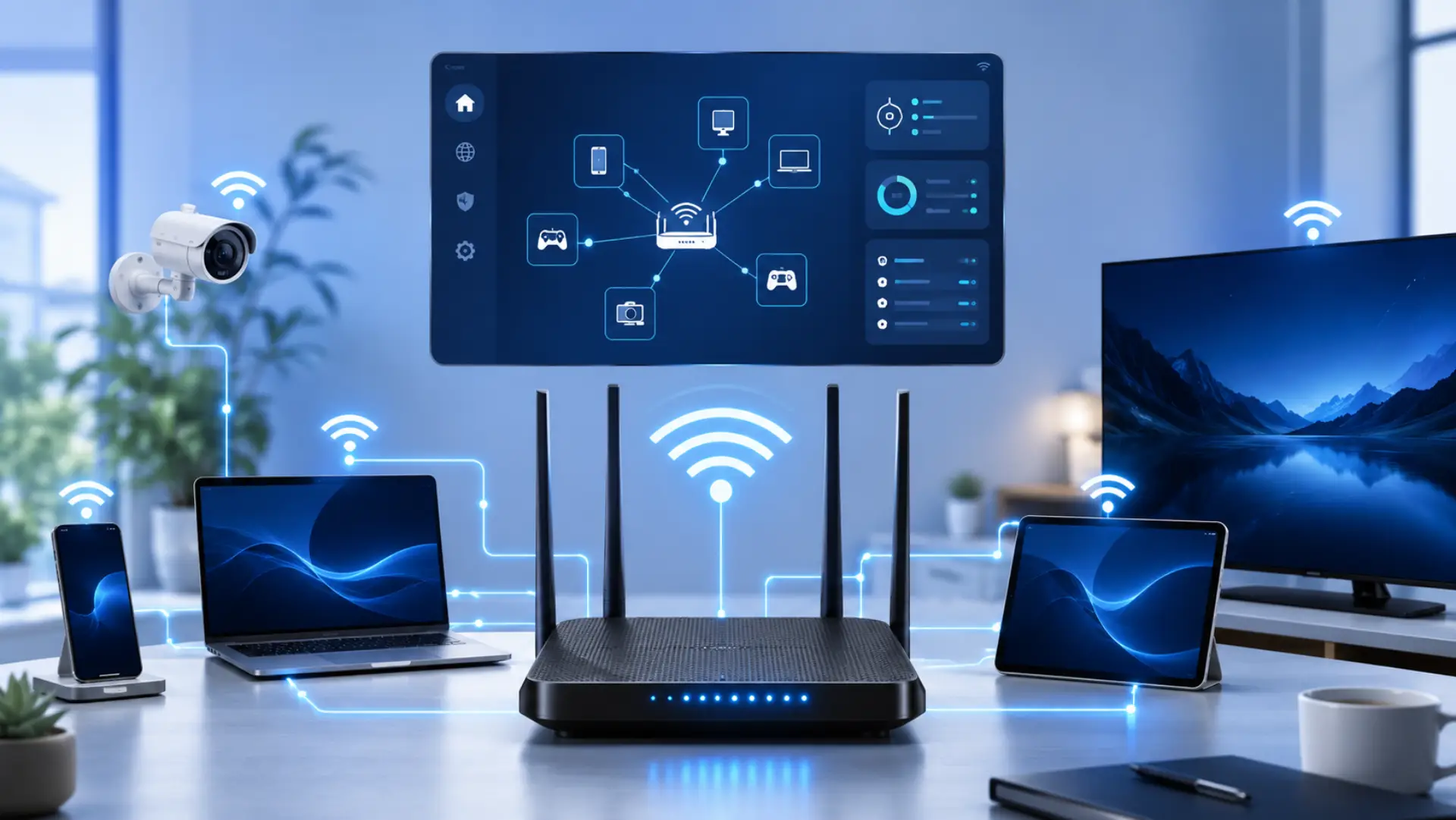
Slow internet, buffering, or sudden speed drops can happen when too many devices are using the same network. The quickest way to confirm this is to check connected devices on WiFi through your router or its official app. This helps you see every phone, laptop, smart TV, camera, or unknown device currently linked to your connection.
Why Checking Your WiFi Devices Matters
Your WiFi speed is shared between all active devices. If an unknown phone, laptop, or smart gadget is connected without permission, it can slow down browsing, streaming, gaming, and video calls.
Checking your device list also helps you protect your home network. Many people only notice the issue when the internet becomes slow, but regular checking can help you catch unwanted access earlier.
A proper device check can help you understand your WiFi network devices, remove anything suspicious, and keep your connection more stable.
Check Through Your Router Settings
The most reliable place to see connected devices is your router admin panel. Your router keeps a list of active devices with details such as device name, IP address, and MAC address.
Open a browser on your phone or computer while connected to the same WiFi. Type your router IP address in the address bar. Most home routers use:
- 192.168.1.1
- 192.168.0.1
- 10.0.0.1
If these do not work, check the sticker on your router or look for “Default Gateway” in your device network settings.
After the router page opens, enter the admin username and password. These details are usually printed on the router label unless you changed them before.
Once you are inside the router dashboard, look for a section named:
- Connected Devices
- Attached Devices
- Device List
- Client List
- Wireless Clients
- DHCP Clients
This section shows the devices currently using your network. You may see phones, laptops, tablets, smart TVs, gaming consoles, CCTV cameras, printers, or smart speakers.
Use Your Router App
Many modern routers come with an official mobile app. This is often easier than opening the admin panel in a browser.
Router apps usually show active devices in a section called “Devices,” “Clients,” or “Network Map.” Some apps also let you pause internet access, rename devices, or block suspicious users.
This method is useful if you want a simple way to monitor your WiFi from your phone without entering router settings every time.
Identify Unknown Devices Carefully
Sometimes a device may appear with a clear name, such as “Samsung TV” or “iPhone.” Other times, it may show as “Unknown,” “Android,” or only a model number.
Before blocking a device, confirm whether it belongs to your home. Check your phones, laptops, TVs, cameras, and other smart devices one by one. You can also turn off a device and refresh the router list to see which name disappears.
The MAC address is helpful here. Every device has a unique MAC address, and you can compare it with the one shown inside your router dashboard. This prevents you from accidentally blocking your own device.
What to Do If You Find an Unknown User
If you confirm that a device does not belong to you, change your WiFi password first. This is the safest way to disconnect unwanted users because every device will need the new password to reconnect.
Use a strong password with uppercase letters, lowercase letters, numbers, and symbols. Avoid simple passwords like your phone number, name, address, or “12345678.”
After changing the password, reconnect only trusted devices. If your router has a block option, you can also block the suspicious MAC address, but a password change is still the stronger fix.
Secure Your WiFi After Checking Devices
After removing unknown users, secure your network so the same issue does not happen again.
Use WPA2 or WPA3 security in your router settings. These are safer options for most home networks. Avoid WEP because it is old and weak.
Turn off WPS if you do not use it. WPS can make connections easier, but it may also create security risks on some routers.
You can also create a guest network for visitors. This way, guests can use the internet without getting access to your main home network.
Keep your router firmware updated when updates are available. Router updates can improve performance and fix security issues.
When Should You Check Your Device List?
You should check your WiFi device list when your internet becomes slow, your data usage increases, or you notice devices disconnecting randomly. It is also a good idea to check after guests use your WiFi, after changing your router, or when moving into a new home.
For normal home use, checking once a month is enough. If you have many smart devices or share WiFi with several people, checking more often can help keep the network clean.
When You Need a WiFi Technician
Most users can check connected devices themselves, but some WiFi issues need expert help. If unknown devices keep appearing, speed stays slow, or router settings are difficult to manage, a WiFi technician can check your security, signal coverage, and router setup.
Call a WiFi technician if:
- Unknown devices keep reconnecting
- WiFi is slow with few devices connected
- Signals are weak in some rooms
- Devices disconnect often
- You cannot access router settings
- Password change does not fix the issue
FAQs
How can I see who is connected to my WiFi?
Log in to your router admin panel or open your router app. Go to the connected device list to see names, IP addresses, and MAC addresses of active devices.
What is the best way to check devices connected to WiFi?
The router admin panel is the best method because it gives the most accurate list directly from your router.
Can I check WiFi-connected devices from my mobile phone?
Yes, you can use your router app or open the router login page from your phone browser while connected to the same network.
How do I find devices connected to my router?
Open the router dashboard, log in with admin details, and check sections such as Device List, Client List, Wireless Clients, or DHCP Clients.
How do I know who is using my WiFi without permission?
Compare every listed device with the devices in your home. If a device name or MAC address does not match anything you own, it may be an unauthorized user.
Is it possible to check WiFi users without a router app?
Yes, you can open your router IP address in a browser and view the connected device list from the admin panel.
Why does my router show unknown devices?
Some devices do not show proper names. Smart TVs, phones, cameras, or IoT devices may appear as unknown or with only a model number.
Can I remove someone from my WiFi network?
Yes. Change your WiFi password to disconnect all users, then reconnect only trusted devices. You can also block a device from router settings if your router supports it.
Will changing the WiFi password remove all connected users?
Yes, changing the password disconnects current users. Only devices with the new password can connect again.
How often should I check connected devices on my network?
Check whenever your speed drops, data usage looks unusual, or after guests use your WiFi. For most homes, once a month is enough.
Final Thoughts
Checking how many devices are connected to your WiFi network is a simple way to protect your speed and security. Start with your router dashboard or official router app, review each device carefully, and remove anything you do not recognize. If you find an unknown user, change your WiFi password, use WPA2 or WPA3 security, and keep your router settings updated.
Leave a Reply