
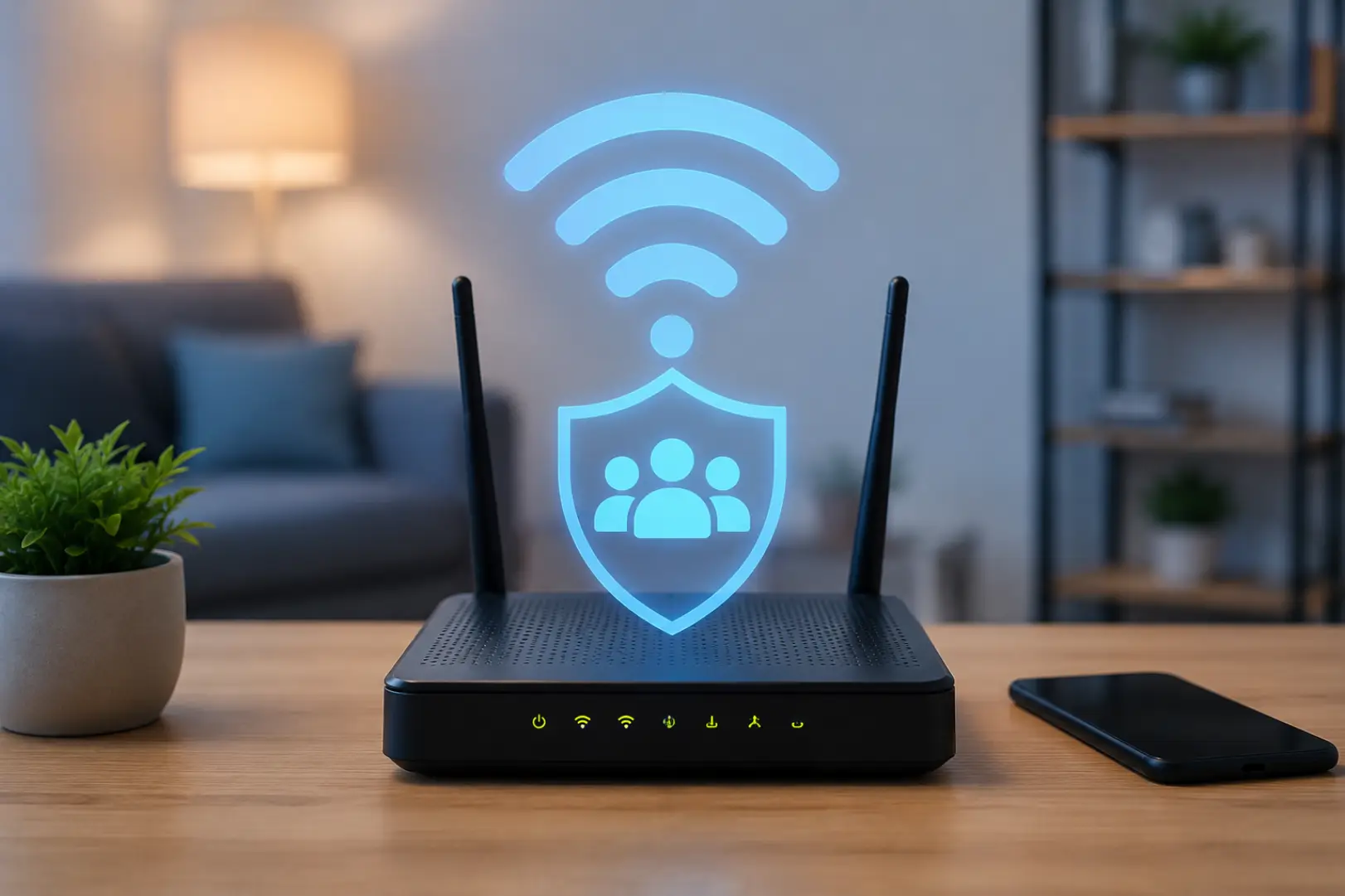
A Guest WiFi Setup creates a separate wireless connection for visitors, customers, temporary users, or smart devices. Instead of sharing the password for your main connection, you provide access through an isolated network with its own name, password, permissions, and usage limits. A guest WiFi network is useful when visitors need internet access without joining your main home network. This can improve privacy and access control, but its effectiveness depends on the modem or router features and how correctly the network is configured.
What Is a Guest WiFi Connection?
A guest wireless connection is a separate access point created through a modem-router or standalone router. It allows visitors to use the internet without giving them direct access to the primary wireless network. A secure network setup helps separate trusted devices from guest users and temporary access.
In most configurations, connected guests can browse websites, use messaging applications, stream content, and access online services. However, they cannot normally communicate with computers, printers, storage drives, security cameras, or other devices connected to the main network.
A guest connection separates temporary users from trusted devices. It provides internet access while reducing the risk of visitors reaching private files, shared equipment, or administrative settings.
How Does Guest Access Work on a Modem?
A compatible modem-router broadcasts an additional wireless name alongside the primary connection. The administrator creates a separate password and chooses which permissions should apply to connected users. Properly configured WiFi guest access allows the administrator to control who can connect, when the connection is available, and which local resources visitors are permitted to use.
Depending on the device, the administrator may be able to:
- Enable or disable guest access
- Create a separate wireless name
- Add password protection
- Limit connection speed
- Set an access schedule
- Restrict the number of users
- Prevent access to local devices
- Block specific websites or services
- Automatically disable access after a set period
The exact controls depend on the modem model, internet provider, firmware, and administrative interface. Some provider-supplied devices offer only basic controls, while advanced routers may provide bandwidth management, isolation, content filtering, and usage reporting.
Guest access works by placing temporary users on a separate wireless segment. The modem controls what those users can reach and whether they can communicate with devices outside that segment.
Main Benefits of Guest WiFi Setup
Better Protection for Personal Devices
A properly isolated guest connection prevents visitors from reaching trusted devices connected to the main network. This is especially useful in homes containing work laptops, network storage, printers, cameras, smart televisions, and home automation systems.
Sharing the primary password can expose more than internet access. A connected device may discover local equipment, open shared folders, send print jobs, or attempt to reach device management pages.
A separate connection supports stronger WiFi Security by limiting what temporary users can see and access.
The main security benefit is separation. Even when a guest device is infected or poorly protected, network isolation can reduce its ability to communicate with trusted equipment.
No Need to Share the Main Password
Visitors receive a separate password instead of the credentials used by household members or employees. The guest password can be changed without reconnecting every trusted device. Separate credentials provide convenient guest internet access while keeping the primary wireless password private and restricted to trusted users.
This is valuable when access is provided to:
- Friends and relatives
- Contractors
- Delivery personnel
- Short-term tenants
- Customers
- Event attendees
- Temporary employees
Using separate credentials also reduces the chance that the main password will be stored, forwarded, or reused by people who no longer require access.
Easier Control Over Temporary Users
Many modem-router interfaces allow administrators to decide when guest access is available. It may be enabled only during office hours, family gatherings, rental stays, customer appointments, or special events.
Some devices also allow a maximum number of connections. This prevents too many visitors from joining simultaneously and using excessive bandwidth.
Guest access makes temporary connections easier to manage because the administrator can change, pause, schedule, or remove access without affecting trusted users.
Bandwidth Management
A guest connection can prevent visitors from consuming all available internet capacity when bandwidth controls are supported. Administrators may limit download speed, upload speed, or the total number of active devices. A WiFi speed test should be done before and after enabling guest access to compare performance.
This can help protect important activities such as:
- Video meetings
- Cloud backups
- Online classes
- Business applications
- Security camera uploads
- Online gaming
- High-quality streaming
Without limits, several guest devices downloading large files or streaming high-resolution video may affect everyone using the connection.
Useful for Small Businesses
Shops, salons, clinics, waiting rooms, cafés, and small offices can provide internet access without placing customers on the same connection as payment terminals, staff computers, printers, or business storage.
A carefully planned Network Setup should separate public access from systems that process confidential, financial, operational, or customer information.
Business owners should not assume that creating a second wireless name automatically provides complete protection. Client isolation, firewall rules, firmware updates, and secure administrative credentials are also important.
Improved Privacy for Visitors
Network separation protects both the owner and the visitor. Guests do not need to join a connection containing personal computers, family devices, workplace equipment, or shared folders.
Some routers also provide client isolation, which prevents one visitor’s device from communicating with another visitor’s device. This is particularly helpful in public-facing environments where users do not know each other.
Easier Access for Smart Devices
Some households place smart bulbs, plugs, speakers, appliances, or other internet-connected products on a separate wireless connection. This can reduce their exposure to sensitive computers and storage devices.
However, this approach does not work for every product. Some smart devices need to communicate directly with a phone, hub, television, or controller on the main connection. Isolation may prevent discovery or control unless the router supports more advanced rules.
A separate connection can contain less-trusted smart devices, but compatibility must be tested. Devices requiring local communication may stop working when complete isolation is enabled.
Drawbacks of Guest WiFi Setup
Reduced Speed When Many Guests Connect
A separate wireless name does not create additional internet capacity. All users still share the speed supplied by the internet plan.
When many visitors connect at the same time, trusted users may experience slower downloads, buffering, higher latency, or unstable video calls. Bandwidth limits can reduce this problem, but basic modems may not include them.
Limited Features on Provider-Supplied Modems
Internet provider equipment often includes fewer controls than dedicated routers. The modem may allow administrators to change the name and password but not control speed, schedules, device isolation, or local access.
Some devices also apply the same radio channels and hardware resources to both connections. Adding another wireless name may slightly increase management overhead, although the effect is normally small on modern equipment.
Possible Configuration Errors
A second wireless connection is only safer when it is configured properly. Common mistakes include:
- Allowing access to local devices
- Using a weak password
- Leaving the connection permanently open
- Keeping outdated modem firmware
- Reusing the main administrative password
- Enabling remote administration unnecessarily
- Failing to test network isolation
A poorly configured Guest Network may give users more access than the owner expects.
The largest risk is assuming that the feature is secure by default. Administrators should verify isolation, password protection, firmware status, and local-access settings after activation.
More Connections Can Increase Wireless Congestion
Both the primary and visitor connections normally use the same wireless radios. In busy buildings, apartments, offices, or shared properties, additional wireless traffic can contribute to congestion.
The number of wireless names is usually less important than the number of active devices and the amount of data being transferred. However, older modem-router hardware may struggle when many users connect across multiple networks.
Some Devices May Not Work Correctly
Wireless printers, casting devices, media players, smart hubs, and shared storage often rely on local device discovery. Guests may be unable to print, cast a presentation, control a speaker, or access a shared screen when isolation is enabled.
Temporarily disabling isolation may solve the connection problem, but it also reduces protection. A safer option is to connect approved devices to the main connection or create controlled access rules on equipment that supports them.
Additional Management
The administrator must maintain another password, review connected devices, install firmware updates, and confirm that access rules remain correct.
In a business environment, the connection may also require an acceptable-use notice, content restrictions, session limits, or periodic password changes. These responsibilities can become difficult when relying on basic consumer equipment.
Is Guest WiFi Secure?
A separate connection is generally safer than sharing the main wireless password, but it is not automatically secure. Protection depends on encryption, isolation, modem firmware, password strength, firewall rules, and administrative settings.
Use WPA2 or WPA3 encryption where available. Avoid open access unless there is a controlled login system, and do not use outdated WEP security.
Guest access improves protection by separating users, but it does not replace secure passwords, updated firmware, firewalls, device protection, or responsible network administration.
How to Set Up Guest Access on a Modem
The exact process varies by manufacturer, but most compatible devices use similar steps.
Access the Modem Administration Page
Connect to the modem through WiFi or an Ethernet cable. Open a browser and enter the local administration address shown on the modem label, provider instructions, or device manual.
Sign in using the administrator credentials. Change the default administrator password before adjusting wireless settings.
Locate the Wireless Guest Settings
Open the wireless, advanced wireless, or access-control section. Look for an option labelled router guest network, guest access, additional SSID, visitor access, or secondary wireless connection.
Enable the feature for the required frequency band. Some modems allow separate guest connections for 2.4GHz and 5GHz.
Create a Clear Network Name
Use a name that visitors can recognise without revealing private information. Avoid including a full personal name, property number, business system name, or other sensitive details.
The name should clearly distinguish visitor access from the primary connection.
Add Strong Encryption
Select WPA2-Personal, WPA3-Personal, or a supported mixed mode for older devices. Create a strong password that is different from the primary wireless and modem administrator passwords.
A secure WiFi Setup should never rely on easily guessed details such as a phone number, address, company name, or simple number sequence.
Disable Local Network Access
Turn off any setting that allows guests to access the local network, intranet, shared folders, connected storage, or private devices.
Enable client isolation when visitors should also be prevented from communicating with one another.
Apply Speed and Time Limits
Set reasonable upload and download limits when available. Create an access schedule or automatic timeout if the connection is only required during specific hours.
These controls can protect performance and prevent unused access from remaining active.
Save and Test the Connection
Connect a phone or laptop to the new wireless name. Confirm that internet browsing works and then test whether the device can reach:
- The modem administration page
- Shared computers
- Network storage
- Printers
- Security cameras
- Smart home controls
- Other connected guest devices
The internet should work, while restricted local resources should remain unavailable.
A secure configuration requires more than enabling a second wireless name. The administrator must add encryption, disable local access, apply suitable limits, and test the results from a connected device.
Recommended Settings
For most homes and small workplaces, the following configuration provides a practical balance between access and protection:
- Use WPA2 or WPA3 encryption
- Create a unique password
- Disable local network access
- Enable client isolation in public environments
- Limit speed when many users may connect
- Set a maximum device count
- Enable access only when needed
- Keep modem firmware updated
- Disable remote administration unless required
- Review the connected-device list regularly
Do not use the visitor password as the modem administrator password. Administrative access should remain restricted to trusted users and devices.
When Guest Access May Not Be Enough
A basic modem feature may be insufficient for hotels, schools, large offices, clinics, shared buildings, or businesses handling sensitive information. These environments may require dedicated access points, virtual LANs, managed firewalls, captive portals, monitoring, and centrally controlled permissions.
A separate SSID alone does not guarantee complete network separation. Advanced environments should use equipment capable of enforcing firewall rules between public, employee, operational, and management systems.
Should You Enable It?
Guest access is useful when visitors regularly need internet connectivity but should not join the trusted network. It is also beneficial for temporary workers, customers, short-term renters, events, and selected smart devices.
It may be unnecessary when visitors are rare or when the modem lacks proper isolation controls. In that situation, upgrading to a more capable router may be safer than relying on a basic secondary connection.
Enable guest access when temporary users need internet but do not need access to trusted devices. Confirm that the modem supports genuine isolation before depending on it for privacy or business protection.
FAQs
Does guest access slow down the main connection?
It can reduce performance when several guests use large amounts of data.
Both connections share the same internet plan and modem hardware.
Speed limits and device limits can help protect important activities.
Can guests see devices on the main network?
They should not be able to when local access is disabled correctly.
Some modems enable local communication unless the administrator changes it.
Always test access to printers, storage, cameras, and computers after setup.
Should guest access have a password?
Yes, password protection is recommended for homes and most businesses.
Use WPA2 or WPA3 encryption with a unique, difficult-to-guess password.
An open connection can attract unknown users and increase security risks.
Can I use guest access for smart home devices?
Yes, but some products require communication with phones, hubs, or controllers.
Full isolation may prevent device discovery, casting, automation, or remote control.
Test each product before permanently moving it to the separated connection.
How often should the guest password be changed?
Change it when access is no longer required or has been widely shared.
Businesses and rental properties may benefit from regular password changes.
The primary password does not need to change when guest credentials are updated.
Is a guest connection completely secure?
No wireless connection is completely secure against every possible threat.
Separation reduces exposure but still requires encryption and updated firmware.
Trusted devices should also use firewalls, updates, and secure account passwords.
Can I limit how long guests stay connected?
Many modern modem-routers provide schedules, session limits, or automatic timeouts.
Basic provider equipment may only include an on-and-off control.
Check the device interface or manual to confirm which options are supported.
What should I do if my modem has no guest option?
A compatible standalone router or managed access point can add this function.
Choose equipment supporting isolation, WPA2 or WPA3, and bandwidth controls.
Place the provider modem in bridge mode only when supported and configured correctly.
Final Assessment
A Guest WiFi Setup is a practical way to provide internet access without sharing the primary wireless credentials or exposing trusted devices unnecessarily. Its main advantages are improved separation, easier password management, better control over temporary users, and optional bandwidth limits.
The drawbacks include shared internet capacity, possible compatibility problems, limited controls on basic modems, and the risk of incorrect configuration. For reliable protection, use strong encryption, disable local access, update the modem, apply suitable limits, and test the connection before allowing regular use.
Leave a Reply