
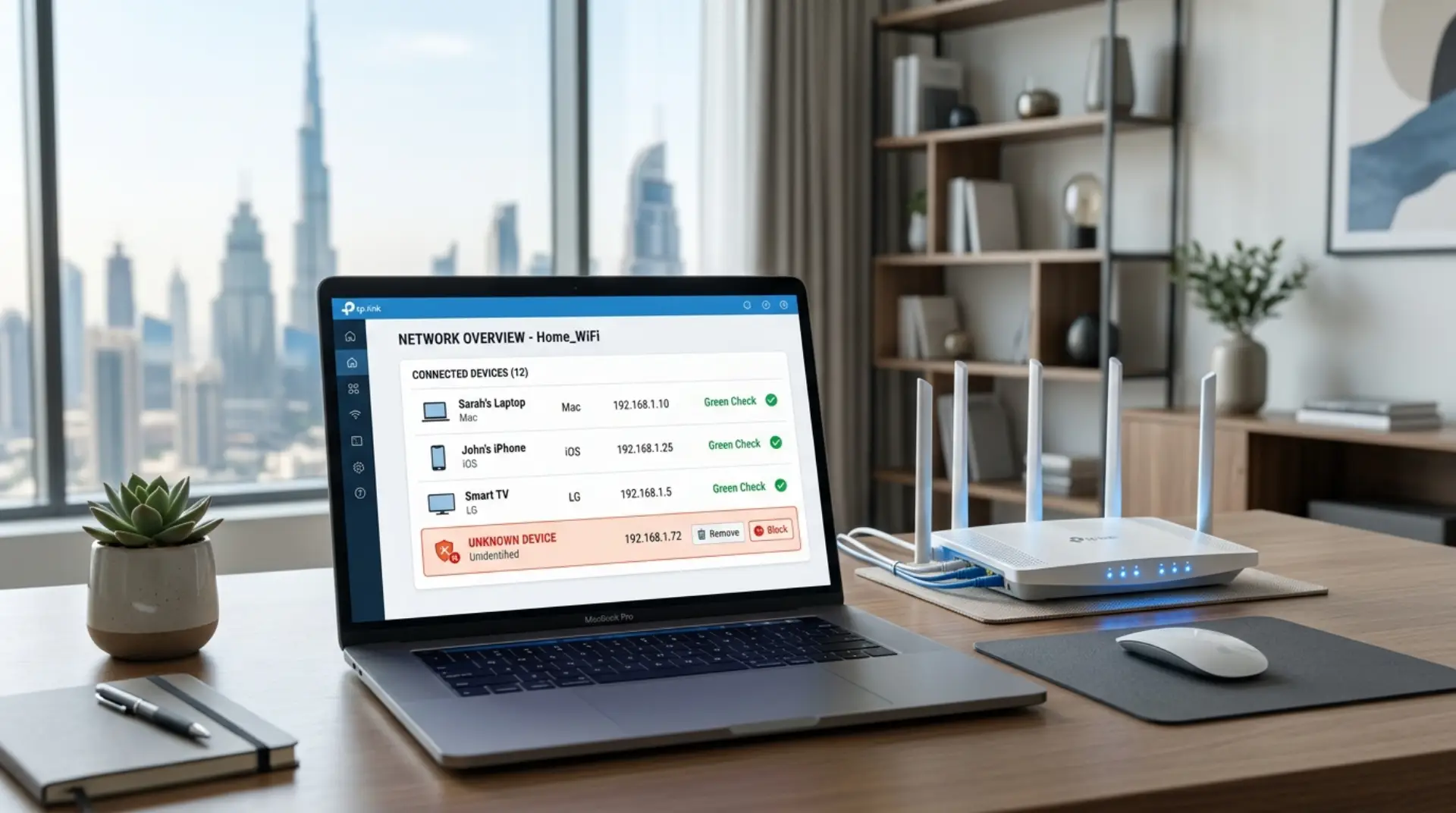
A strange device on your WiFi can feel like someone has a spare key to your home network. Maybe your internet speed suddenly drops, your video calls freeze, or your router app shows a phone, laptop, or “unknown device” you do not recognize. If you want to remove Unknown Devices on wifi, the good news is that you can usually handle it yourself with a few safe router settings before calling a professional.
For homes, apartments, villas, remote workers, gamers, families, and small businesses in Dubai, this is more than a small technical issue. An unwanted device can slow your connection, use your bandwidth, create security risks, and make network troubleshooting harder. The key is to confirm what the device is, block it properly, and secure your network so it does not return.
First, Do Not Panic: “Unknown” Does Not Always Mean Hacker
Before you block everything you do not recognize, understand one thing: routers are not always great at naming devices clearly. Your iPhone may appear as “Apple device,” your smart TV may show as a random code, and a printer may appear only as a long MAC address.
Common devices that may look unknown include:
- Smart TVs
- CCTV cameras
- WiFi boosters
- Gaming consoles
- Smart plugs
- Doorbell cameras
- Printers
- Guest phones
- Office laptops
- Mesh WiFi nodes
However, if the device is using a lot of data, appears at odd times, or remains connected after you disconnect your own gadgets, it deserves attention.
Check Connected Devices from Your Router or WiFi App
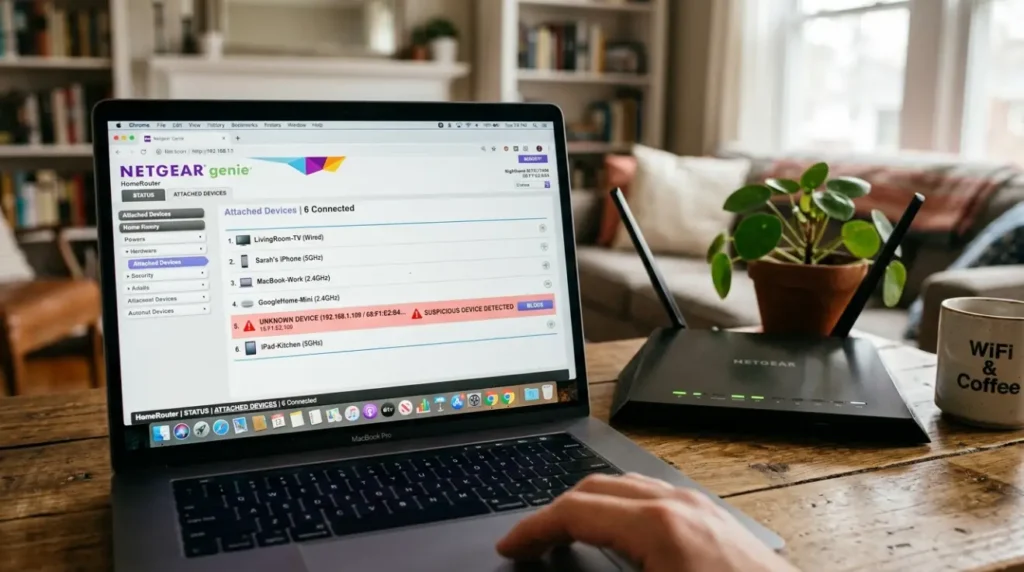
Most modern routers and mesh WiFi systems have an app or web dashboard where you can see connected devices. This is usually the best starting point.
Open your router app or enter the router login address in your browser. Common router login addresses include:
- 192.168.1.1
- 192.168.0.1
- 10.0.0.1
You may find the login details on the back of your modem or router. Once inside, look for sections like “Connected Devices,” “Client List,” “Attached Devices,” “Network Map,” or “Device Management.”
Check the device name, IP address, MAC address, connection type, and activity level. If your router shows whether the device is connected through 2.4GHz, 5GHz, or Ethernet, that can also help you identify it.
Identify the Device Before Blocking It
Blocking the wrong device can cause problems. For example, you may accidentally disconnect your security camera, office printer, or mesh WiFi booster. A simple method is to turn off your own devices one by one and refresh the connected devices list.
Start with phones, laptops, smart TVs, and gaming consoles. When a device disappears from the router list, you have identified it. If the unknown device remains after turning off everything you recognize, it may be a neighbor’s device, an old guest device, or something connected without permission.
For small businesses, check with staff before removing devices. A payment terminal, shared printer, or CCTV recorder may appear with a strange name but still be important for daily work.
Change Your WiFi Password Immediately
The fastest way to remove unwanted devices from your network is to change your WiFi password. When you change the password, all devices are disconnected and must reconnect with the new password.
Choose a strong WiFi password that is difficult to guess. Avoid names, phone numbers, apartment numbers, business names, or simple words. A better password uses a mix of letters, numbers, and symbols.
For example, instead of using something weak like:
“Dubaiwifi123”
Use something stronger like:
“BluePalm!74Net#Secure”
After changing the password, reconnect only the devices you trust. This gives you a clean starting point and helps you notice if the unknown device returns.
Use Router Settings to Block the Unknown Device
Many routers allow you to block a device directly from the connected devices page. The option may be called “Block,” “Deny Access,” “Blacklist,” “Access Control,” or “MAC Filtering.”
A MAC address is a unique hardware address used by network devices. Blocking the MAC address stops that specific device from connecting again. However, this is not perfect because some devices can use private or randomized MAC addresses, especially modern phones. Still, it is useful for basic home WiFi security.
To block a suspicious device:
- Log in to your router or WiFi app.
- Open the connected devices list.
- Select the unknown device.
- Choose Block, Deny, or Add to Blacklist.
- Save the router settings.
- Restart the router if needed.
After blocking it, monitor your connected devices list for a day or two. If the same device keeps returning under a new name, changing the WiFi password and improving security settings is more effective.
Make Sure Your WiFi Uses Strong Encryption
Encryption protects the data moving between your devices and router. In simple words, it helps stop outsiders from easily reading or joining your network.
Go to your wireless security settings and choose WPA2-Personal or WPA3-Personal if your router supports it. Avoid older security types like WEP or open networks because they are much easier to break.
For most homes and small offices, WPA2 is still safe when used with a strong password. WPA3 is better if all your devices support it. If older smart devices cannot connect after switching to WPA3, use WPA2/WPA3 mixed mode if available.
Update Router Firmware for Better Security
Firmware is the built-in software that runs your router. Like phone or laptop software, router firmware needs updates to fix bugs, improve WiFi performance, and patch security issues.
Check your router dashboard for a “Firmware Update,” “Software Update,” or “System Update” option. Some routers update automatically, while others need manual approval.
This step is especially important if your router is old, provided by an internet company years ago, or has never been updated. Outdated router software can cause slow WiFi, connection drops, weak security, and device detection issues.
Turn Off WPS If You Do Not Use It
WPS is a button-based connection feature that lets devices join WiFi without typing the password. It sounds convenient, but it can also make your network less secure if left on unnecessarily.
If your router has WPS enabled, turn it off from the router settings. Most users do not need it. Manually entering the WiFi password is safer and gives you better control over who connects.
Create a Guest Network for Visitors
If guests, tenants, customers, or workers often ask for WiFi access, do not give them your main WiFi password. Create a guest network instead.
A guest network keeps visitors separate from your personal devices, office computers, printers, and smart home equipment. You can also change the guest password more often without reconnecting your own devices.
For villas, shared apartments, and small offices, this is one of the easiest ways to maintain a secure network without making WiFi inconvenient for everyone.
Check Whether Slow WiFi Is Really Caused by Unknown Devices
An unknown device can affect internet speed, but it is not the only reason your WiFi may feel slow. Other common causes of slow WiFi include weak signal coverage, old routers, poor modem placement, too many connected devices, network congestion, and signal interference from walls or nearby networks.
Latency is another issue many gamers and remote workers notice. It means the delay between your device and the internet server. Even if your internet speed looks fine, high latency can make games lag, video calls stutter, and online tools feel slow.
If you remove unknown devices but the problem continues, check your router placement, WiFi channel, mesh setup, and bandwidth usage. A WiFi booster may help in some homes, but in larger villas or offices, a properly planned mesh WiFi system usually performs better.
When Should You Call a WiFi Repair Technician?
You can safely change passwords, block devices, update firmware, and review connected devices yourself. But some cases need professional help.
Contact a WiFi repair technician or professional WiFi service if:
- Unknown devices keep returning after password changes
- Your router settings are confusing or locked
- You have a large villa, office, or multi-floor setup
- WiFi cameras, printers, or smart devices keep disconnecting
- Internet drops happen even after basic troubleshooting
- Your mesh WiFi or booster setup is not working properly
- You need a secure network setup for a small business
A technician can inspect the modem, router settings, WiFi signal strength, router placement, device load, and possible signal interference. For businesses, professional network troubleshooting can also improve security, bandwidth optimization, and long-term WiFi performance.
Simple Habits to Keep Your WiFi Secure
Once your network is clean, keep it that way. Change your WiFi password occasionally, especially after tenants move out, staff leave, or guests use the network for a long time.
Also, rename devices inside your router app when possible. For example, change “Unknown Android” to “Living Room TV” or “Office Printer.” This makes future checks much easier.
Avoid sharing your main password casually. Use a guest network, keep router firmware updated, and review connected devices every few weeks. These small habits can prevent bigger WiFi problems later.
Final Thoughts
Removing an unknown device from your home WiFi is not only about speed. It is about privacy, control, and keeping your network safe. Start by identifying the device, then change your WiFi password, block suspicious connections, update router firmware, and use stronger security settings.
For most homes and small businesses, these steps are enough. However, if unknown devices keep coming back or your internet speed remains poor, it may be time to get expert help. A professional WiFi service can find the real issue, improve coverage, secure your router settings, and make your network stable again.
FAQs
How do I know if an unknown device is connected to my WiFi?
Log in to your router app or router dashboard and open the connected devices list. Look for device names, MAC addresses, IP addresses, and activity levels. If you do not recognize a device, turn off your own gadgets one by one to identify it.
What is the fastest way to remove an unknown device from WiFi?
The fastest method is to change your WiFi password. This disconnects all devices from the network. After that, reconnect only your trusted phones, laptops, smart TVs, cameras, and office devices.
Can I block a device without changing my WiFi password?
Yes, many routers allow you to block a device through Access Control, MAC Filtering, or a blacklist feature. This can stop a specific device from reconnecting. However, changing the password is safer if you suspect someone knows your WiFi password.
Why does my router show devices as unknown?
Routers often show generic names because some devices do not share clear names. Smart TVs, printers, CCTV cameras, WiFi boosters, and phones with private addresses may appear as unknown. Always verify before blocking anything important.
Can unknown devices slow down my internet speed?
Yes, an unwanted device can use bandwidth and reduce internet speed, especially if it streams video, downloads files, or runs updates. Still, slow WiFi can also be caused by weak signals, old routers, signal interference, or network congestion.
Should I turn off WPS on my router?
Yes, if you do not use WPS, it is better to turn it off. WPS allows easier device connection, but it can reduce network security. Using a strong WiFi password and manually connecting devices is usually safer.
Is a guest network safer for visitors?
Yes, a guest network is safer because it keeps visitor devices separate from your main home or office network. It is useful for guests, tenants, customers, and temporary workers. You can change the guest password without affecting your personal devices.
When should I call a professional WiFi technician?
Call a technician if unknown devices keep returning, your router settings are locked, internet drops continue, or your home has weak coverage. A professional can check router settings, modem issues, mesh WiFi setup, WiFi booster placement, and overall network security.
Leave a Reply