
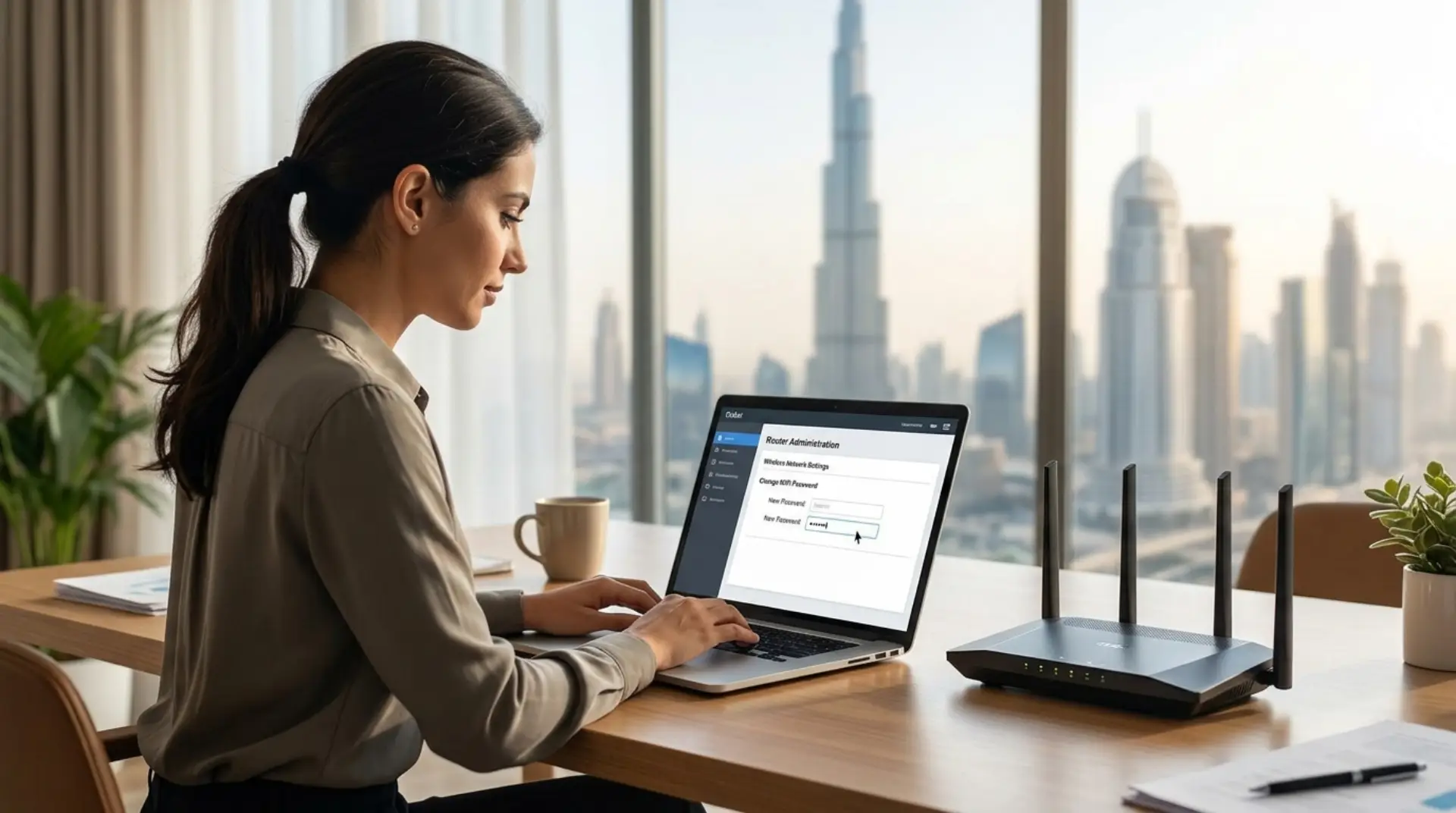
Is your internet suddenly slow, or do you suspect someone else is using your connection? For many homes and small businesses in Dubai, a weak or shared WiFi password can lead to slow speeds, security risks, and daily frustration. The good news is that changing it is usually simple, and you do not need to be a technical expert to do it safely.
Why Changing Your WiFi Password Matters
Your wireless network is like the front door to your internet connection. If too many people have access, your speed may drop, your data may be exposed, and your devices may become more vulnerable.
In Dubai, many users share the internet with family members, staff, tenants, guests, or office visitors. Over time, the password may spread without you knowing. This can create problems such as slow browsing, buffering, weak video calls, and unstable smart home devices.
Changing your password helps you:
- Remove unknown users from your network
- Improve home or office internet performance
- Protect personal and business data
- Stop neighbors or old guests from connecting
- Reduce the risk of router misuse
For small businesses, this is even more important. A shared or weak password can affect payment systems, office laptops, printers, cameras, and customer WiFi access.
When Should You Change Your WiFi Password?
You do not need to change your password every week, but there are clear signs that it may be time.
You should update it if your internet speed drops without a clear reason, your router shows unknown connected devices, or you recently shared the password with visitors, staff, or contractors. It is also smart to change it after moving into a new apartment, villa, shop, or office.
In addition, change it if your current password is too simple. Passwords like “12345678,” “password123,” or your mobile number are easy to guess. A secure password protects your connection and makes network troubleshooting easier when internet problems appear.
Before You Start: Things You Need
Before changing the password, make sure you have a few basic details ready. This will save time and help avoid mistakes.
You will need:
- Your router’s admin username and password
- A phone, laptop, or desktop connected to the network
- The router IP address, often printed on the router label
- The new password you want to use
- Access to your ISP app, if available
In Dubai, many routers are provided by internet companies such as Etisalat by e& or du. Some users can change wireless settings through the provider’s app, while others may need to log in to the router directly.
How to Change Your WiFi Password from the Router Page
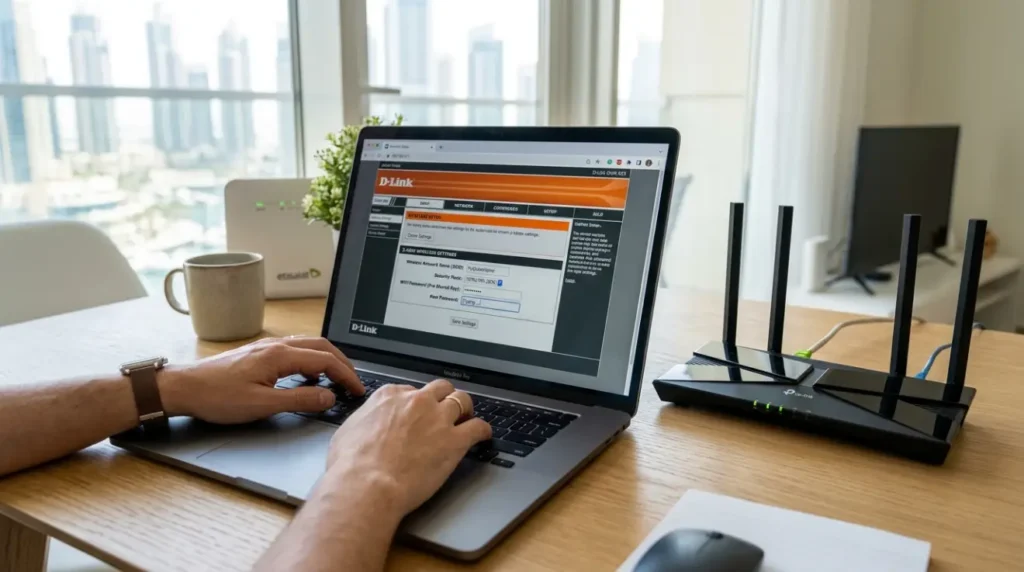
The most common way to change your wireless password is through the router’s admin page. This works for many home and office routers.
Step 1: Connect to Your Network
First, connect your phone or laptop to the WiFi network you want to update. If WiFi is not working, connect a laptop to the router using a LAN cable.
This helps you access the router settings without relying on an unstable wireless signal.
Step 2: Open the Router Login Page
Open your browser and enter the router IP address in the address bar. Common router addresses include:
- 192.168.1.1
- 192.168.0.1
- 192.168.100.1
If none of these work, check the sticker on your router. You can also check your device’s network settings to find the default gateway.
Step 3: Log In to the Router
Enter the router admin username and password. These details may be printed on the router label, written in your installation documents, or provided by your internet service company.
Be careful here. The router admin password is not always the same as your wireless password. The admin login gives access to router settings, while the wireless password only connects devices to the internet.
Step 4: Find Wireless Settings
Once you are inside the router dashboard, look for a section named:
- Wireless
- WiFi Settings
- WLAN
- Network Settings
- SSID Settings
The exact name depends on the router model. In most cases, you will see your network name and password field in this area.
Step 5: Change the Password
Find the password, passphrase, or security key field. Delete the old password and enter a new one.
Choose WPA2 or WPA3 security if available. Avoid old security types, such as WEP, because they are not safe.
A strong password should include:
- At least 12 characters
- Uppercase and lowercase letters
- Numbers
- One or two symbols
- No personal names, phone numbers, or flat numbers
For example, a password like DubaiHome@7265Net is much stronger than mywifi123.
Step 6: Save and Reconnect Devices
After saving the changes, your devices will disconnect from the network. This is normal. Reconnect your phone, laptop, smart TV, cameras, printers, and other devices using the new password.
If you have many smart devices at home or in the office, make a list before changing the password. This helps you reconnect everything without missing important devices.
How to Change Your WiFi Password Using an ISP App
Some Dubai internet users can manage WiFi settings through their provider’s mobile app. This is often easier than logging in through a browser.
Open your internet provider’s app, go to internet or router settings, and look for WiFi name and password options. Update the password, save changes, and reconnect your devices.
This method is useful for users who are not comfortable with router dashboards. However, not every router or account supports full password control through the app.
If the app does not show WiFi settings, you may need to use the router login page or contact a professional wifi service provider.
Expert Tips for Choosing a Better WiFi Password
A good password should be easy for you to remember but hard for others to guess. Avoid using your name, business name, building name, phone number, or date of birth.
For homes, use a phrase with numbers and symbols. For example, you can combine a random word, place, and number pattern. For offices, avoid sharing the main network password with visitors. Instead, create a guest network.
A guest network keeps visitors separate from your main devices. This is helpful for small businesses, clinics, salons, cafés, and offices where customers or temporary staff need internet access.
Common Problems After Changing the Password
Sometimes, users change the password correctly but still face connection issues. Do not panic. Most problems are easy to fix.
If your device does not connect, forget the old network and reconnect using the new password. If the router page does not open, restart the router and try again. If your smart TV or printer fails to connect, check whether it supports the same WiFi band.
Many older devices work better on 2.4GHz, while newer phones and laptops can use 5GHz. The 2.4GHz band has better range, while 5GHz is usually faster at shorter distances.
If your internet remains slow even after changing the password, the issue may not be password-related. You may need network troubleshooting to check signal strength, router placement, cable quality, connected devices, or bandwidth optimization.
When to Call a WiFi Repair Technician in Dubai
Changing a password is simple for many users, but in some cases, they need expert help. If you run a small business, have multiple routers, use WiFi extenders, or rely on cameras and POS systems, an incorrect setting can cause downtime.
A wifi repair technician can help if:
- You cannot access the router page
- The admin password is unknown
- Devices keep disconnecting
- WiFi works in one room but not another
- Your office network has weak coverage
- Internet speed drops during meetings or video calls
- You need a secure guest WiFi setup
A technician can also check router placement, channel interference, latency, and overall network health. This is useful when the problem is deeper than a password change.
How Often Should You Update Your WiFi Password?
For homes, changing the password every 6 to 12 months is usually enough. However, change it sooner if you shared it with many people or noticed unknown devices.
For businesses, it is better to update access when staff leave, after office relocation, or after giving temporary access to vendors. If you offer guest WiFi, keep it separate from your main business network.
This simple habit can protect your internet, improve performance, and make future troubleshooting easier.
Final Thoughts
Changing your WiFi password in Dubai is one of the easiest ways to improve network security and remove unwanted users. Whether you manage a home connection or a small business network, the process usually takes only a few minutes.
However, if slow speed, weak signals, or connection drops continue after the change, the real issue may be with router settings, coverage, interference, or wiring. In that case, professional wifi service and proper network troubleshooting can save time and prevent repeated internet problems.
FAQs
How do I change my WiFi password in Dubai?
You can change it by logging in to your router admin page through a browser. Enter the router IP address, log in with admin details, open wireless settings, update the password, and save changes. You can also use your internet provider’s app if it supports WiFi settings.
What is the default router IP address?
Common router IP addresses are 192.168.1.1, 192.168.0.1, and 192.168.100.1. If these do not work, check the label on your router or your device’s network settings. The default gateway usually shows the correct router address.
What should I do if I forgot my router admin password?
First, check the sticker on the router or your internet installation documents. If the password was changed and you do not know it, contact your provider or a wifi repair technician. A factory reset may work, but it can erase important settings.
Will changing my WiFi password disconnect all devices?
Yes, all connected devices will disconnect after the password is changed. You will need to reconnect phones, laptops, TVs, printers, cameras, and smart devices manually. This is normal and helps remove unwanted users from your network.
What is a strong WiFi password?
A strong password has at least 12 characters and includes letters, numbers, and symbols. Avoid names, phone numbers, birthdays, and simple words. A strong password should be easy for you to remember but hard for others to guess.
Why is my internet still slow after changing the password?
The issue may be a weak signal, router placement, too many devices, old cables, or interference from nearby networks. Password changes remove unwanted users, but they do not fix every speed problem. Proper network troubleshooting may be needed.
Should I use 2.4 GHz or 5 GHz WiFi?
Use 2.4GHz for better range and older devices. Use 5GHz for faster speed when you are close to the router. Many Dubai homes and offices use both bands to balance speed and coverage.
Do small businesses need a separate guest WiFi network?
Yes, a guest network is highly recommended for small businesses. It gives visitors internet access without exposing office devices, printers, cameras, or business systems. It also improves security and makes access easier to manage.
Leave a Reply