
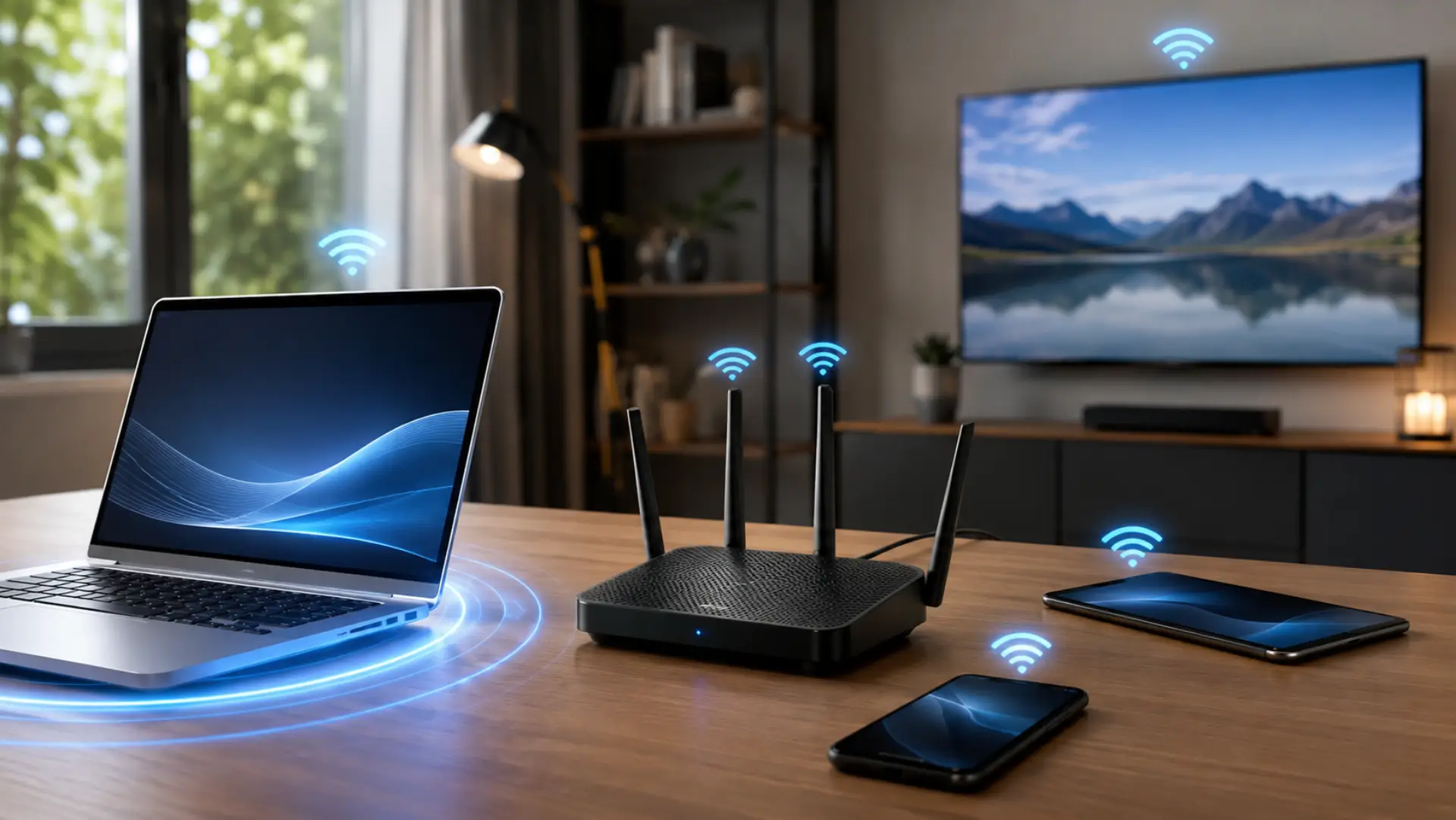
If you want to prioritize a device on WiFi, the goal is to give one phone, laptop, tablet, computer, smart TV, or gaming console a stronger share of your network when many devices are using the internet at the same time. This can help important devices stay faster and more stable during video calls, online classes, streaming, gaming, or work.
Many people think slow internet always means the router or internet provider is the problem. In many cases, an internet slow on one device issue comes from the phone, laptop, tablet, or computer itself. In reality, one device can be slow while other devices work fine because of weak signal strength, old network settings, background apps, a crowded wireless band, or limited router control. This guide explains how device priority works and how to set it correctly.
Quick Answer: What Does Device Priority on WiFi Mean?
Device priority means your router gives one selected device better treatment when the network is busy. It does not create extra speed from your internet plan.
It simply helps the most important device get a stronger and more stable connection first.
Why You May Need to Prioritize One Device
You may need to prioritize one device if your video calls freeze, online games lag, streaming buffers, or your work laptop becomes slow when other people are using the same network. A home or office router shares the same connection between every phone, laptop, tablet, camera, smart TV, and computer.
When too many users are active at once, one wifi device may not get enough network resources. Setting device priority can reduce lag and make the selected device perform better during busy hours.
How Device Priority Works on a Router
Most modern routers include a feature called QoS, which means Quality of Service. QoS should be adjusted carefully through safe router settings, especially if you are changing bandwidth or traffic controls. Some routers may call it wifi priority, device priority, traffic control, or bandwidth control. The feature lets you choose which device or activity should receive better handling when the network is under pressure.
For example, you can give priority to a work laptop over a smart TV, or to a gaming console over a phone downloading updates. This is useful when your total connection is limited and every device is trying to use data at the same time.
How to Prioritize a Device Through Router Settings
Open your router admin page by entering the router IP address in your browser. Common router addresses include 192.168.1.1 or 192.168.0.1, but your router label or service provider app may show the correct one.
Log in using your router username and password. Then go to the WiFi settings or advanced network section. Look for QoS, device priority, bandwidth control, or traffic management.
After that, select the device you want to give higher priority. Save the changes and restart the router if needed. Once saved, your router should handle that device before less important traffic when the network becomes busy.
Simple Steps to Give One Device Higher Priority
First, connect the device to your home or office WiFi network. Then open the router admin panel or mobile router app.
Find the list of connected devices and identify the phone, laptop, tablet, or computer you want to prioritize. Choose the device and open its priority settings.
Select high priority, top priority, or a similar option. Save the changes and test the connection again.
Use the Router App If Available
Many modern routers have a mobile app that makes this process easier. Instead of logging in through a browser, you can open the router app, choose the device, and mark it as high priority.
During a new wifi setup, it is a good idea to name your devices clearly. Clear device names also make a new router setup checklist easier to follow in homes, villas, and offices. For example, rename devices as “Office Laptop,” “Gaming PC,” “Smart TV,” or “John’s Phone.” This makes it easier to choose the right device later.
Why Internet Can Be Slow on Only One Device
If the internet is slow on only one phone, laptop, tablet, or computer while other devices work fine, the problem may be linked to that device instead of the whole network.
The device may be far from the router, connected to a weak signal, using old software, running background updates, or using a VPN. It may also have saved old network data that causes connection issues.
Sometimes the device is connected to a slower wireless band, while other devices are connected to a better one. For example, a laptop may use 5 GHz, while a phone may stay on 2.4 GHz in a crowded area.
Check Signal Strength Before Changing Priority
Before you change anything advanced, move the slow device closer to the router. If the connection improves near the router, the issue is probably signal range, walls, or interference.
If the device stays slow even near the router, check for updates, restart the device, forget and reconnect to WiFi, and test another browser or app. This helps confirm whether the problem is with the device or the network.
How Router Bands Affect Device Performance
Most routers use 2.4 GHz and 5 GHz bands. The 2.4 GHz band covers longer distances but is often crowded. The 5 GHz band is usually faster but works best at shorter ranges.
A device on the wrong band can feel slow even when the router is working properly. If your router allows band selection, connect important devices to the band that gives the best balance of range and speed.
When Device Priority Helps the Most
Device priority helps when many people are using the network at the same time. It is useful for work calls, online gaming, online classes, video streaming, smart TVs, and office systems.
It is also helpful when your internet speed is not very high and several devices are sharing the same connection. In this case, priority control can make the most important device feel more stable.
When Device Priority Will Not Fix the Problem
Device priority cannot fix every issue. If your internet plan is too slow for your home or office usage, priority control may only give a small improvement.
It also will not repair damaged cables, old routers, weak router placement, service provider faults, or device hardware issues. If every device is slow, the issue is more likely with the router, modem, or service line.
Manage Bandwidth for Better Results
Some routers allow you to limit or control WiFi bandwidth for certain devices. This can stop one device from using too much data during downloads, updates, or streaming.
For example, you can stop a smart TV or backup device from taking too much network power while your work laptop stays stable. This is useful in homes, villas, and offices where many devices stay online all day.
Restart the Router After Changing Settings
After changing device priority, restart the router if the setting does not apply immediately. A simple restart can refresh the network and apply the new configuration properly.
Also, restart the device you prioritized. Then reconnect it to WiFi and test browsing, video calls, streaming, or downloads again.
Prioritize a Laptop on WiFi?
Yes, you can prioritize a laptop if your router supports device priority or QoS. Open the router control panel, find the laptop in the device list, and set it to high priority. This can help the laptop stay stable during work, meetings, or file uploads.
Prioritize a Phone on WiFi?
Yes, you can prioritize a phone if it appears in your router’s device list. This is useful when the phone is used for video calls, business apps, or online meetings. Make sure the phone has a strong signal before changing router controls.
Does Prioritizing a Device Increase Total Speed?
No, device priority does not increase the total speed of your internet plan. It only gives one selected device better access when the network is busy. If the full connection is too slow, you may still need a better plan or router upgrade.
Why Is One Device Slow but Others Are Fast?
One device may be slow because of a weak signal, old software, background apps, VPN use, or the wrong network band. Other devices may be closer to the router or connected through a stronger wireless path. Testing the slow device near the router can help confirm the real cause.
Use QoS for Gaming?
Yes, QoS can help gaming devices by reducing lag when other users are streaming or downloading. Set your gaming console or PC as a high priority in your router panel. For best results, use a strong WiFi signal or a wired connection.
Can Too Many Devices Slow WiFi?
Yes, too many devices can slow down WiFi because they share the same network connection. Streaming, downloads, cloud backups, and updates can all affect performance. Managing device priority can help important devices stay smoother.
What Is the Best Device to Prioritize?
Prioritize the device that needs the most stable connection. This may be a work laptop, business computer, gaming console, smart TV, or online class tablet. Do not give high priority to every device, because that reduces the benefit.
Improve WiFi Performance at Home?
Place the router in a central area, reduce interference, update router firmware, and remove unused devices. Use device priority only for important phones, laptops, computers, or smart TVs. These small changes can help improve WiFi speed without replacing everything.
Extra Tips for Better Device Performance
Keep your router in an open area, away from thick walls, metal objects, cordless phones, and microwave ovens. Router placement has a big effect on performance.
Update your router firmware when updates are available. Old firmware can cause security and performance problems.
Remove devices you no longer use. Old phones, cameras, printers, and smart gadgets can stay connected and use network resources.
Change the WiFi password if unknown users are connected. Unwanted users can reduce performance and create security risks.
Check the selected router device list carefully before applying priority, especially if several devices have similar names.
When to Call a WiFi Technician
Call a WiFi technician if one important device stays slow after you check the signal strength, restart the router, update the device, and adjust the priority. The issue may be linked to router placement, interference, configuration, or weak coverage.
You should also get expert help if your whole home, villa, or office has poor coverage, frequent disconnections, or unstable WiFi speed, even near the router. A technician can test the signal, inspect the router, and recommend the right solution.
Final Thoughts
Learning how to manage device priority is useful when one phone, laptop, tablet, or computer needs a stronger connection than others. It helps your router handle important tasks more smoothly when the network is busy.
However, priority control works best when the router, device, signal, and service connection are already in good condition. If the issue continues after basic checks, the problem may need deeper network testing.
FAQs
How do I prioritize a device on my WiFi router?
Log in to your router admin page or router app. Find QoS, device priority, or bandwidth control. Select the device, choose high priority, and save the setting.
Why is my WiFi slow on only one device?
One device may be slow because of a weak signal, old software, background apps, or saved network errors. Other devices may be closer to the router or using a better band. Restart the device and test it near the router first.
Does device priority make WiFi faster?
Device priority does not increase your full plan speed. It helps one selected device perform better when the network is busy. If all devices are slow, check the router or internet service.
Can I prioritize my work laptop over other devices?
Yes, most modern routers allow you to give a work laptop higher priority. This can help during video calls, uploads, and online meetings. Make sure the laptop has a strong signal before testing.
Can I prioritize a smart TV for streaming?
Yes, you can set a smart TV as a high priority if streaming keeps buffering. This helps the TV get better handling during busy network use. If buffering continues, check signal strength and router distance.
Why does my phone have slow WiFi but my laptop is fast?
Your phone may be connected to a weaker band, farther from the router, or affected by background apps.The laptop may have a stronger wireless adapter.Forget the network on the phone and reconnect to test again.
Should I prioritize every device on my router?
No, you should only prioritize the most important devices.If every device is set to high priority, the feature becomes less useful.Choose work, gaming, streaming, or study devices first.
What should I do if device priority does not work?
Restart the router and the selected device after saving changes.Check router placement, signal strength, and firmware updates.If the issue continues, a WiFi technician can inspect the setup.
Leave a Reply