
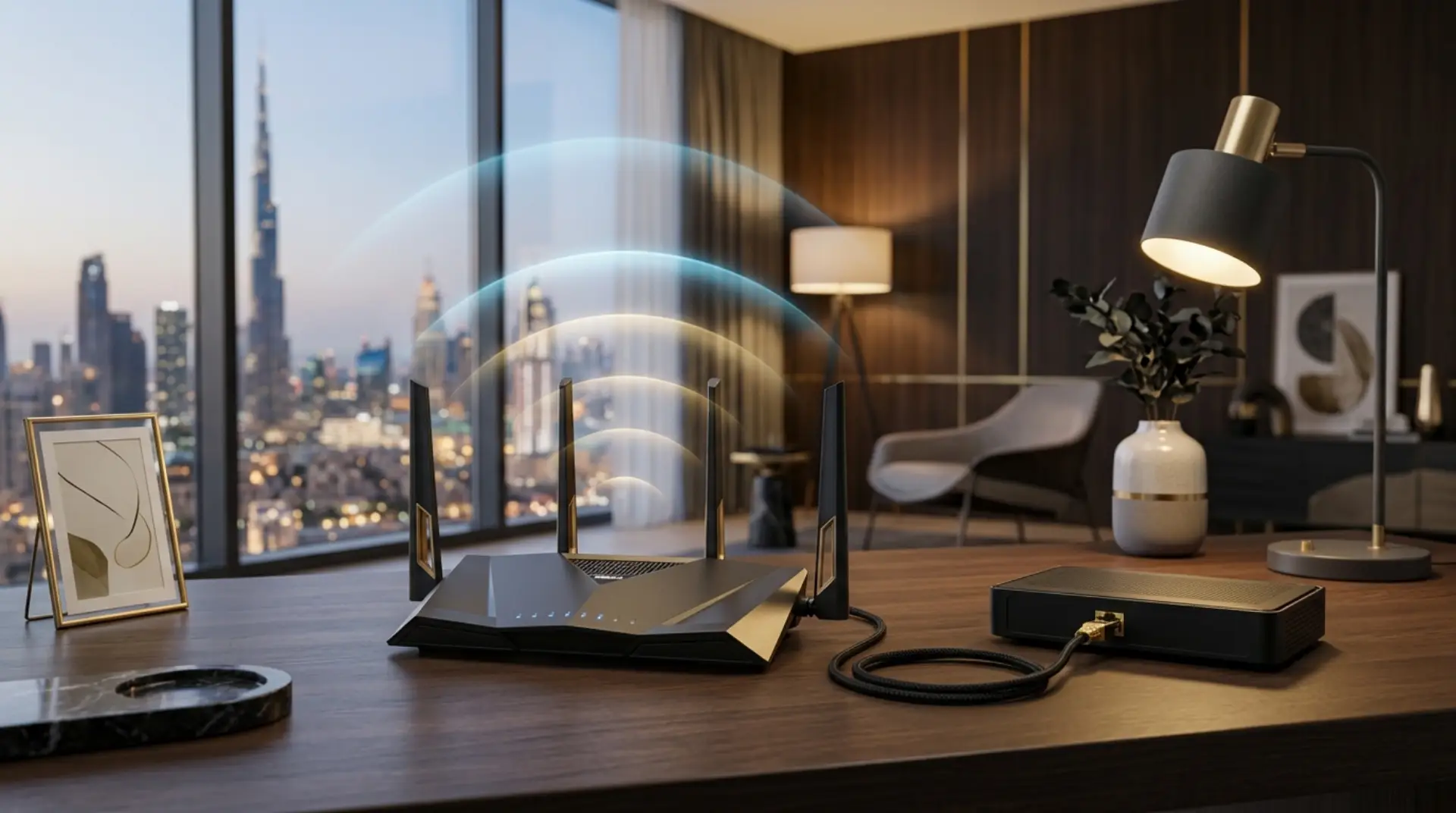
A new internet connection can quickly become frustrating when the modem lights are blinking, the router is not showing WiFi, or your devices say “connected without internet.”If you are unsure what each light means, understanding the router lights’ meaning can help you quickly identify whether the modem, router, or internet line is causing the issue. Many home and business users in Dubai face this problem after changing routers, moving homes, or upgrading their internet plan.
To install the modem and router together, connect the internet line to the modem, then connect the modem to the router using an Ethernet cable. Power on the modem first, then the router. After that, log in to the router settings, set your WiFi name and password, and test the connection on your devices.
The good news is that the setup is usually simple when the modem and router are connected in the right order. With the correct cables, basic router configuration, and proper placement, you can build a stable home internet setup without confusion.
Before You Start
Before touching any cable, check what equipment you have. Some homes in Dubai use a separate modem and router, while others use a single modem-router device from the internet provider. At this stage, knowing the basic modem vs router difference helps you understand which device brings internet into the home and which device creates the WiFi network.
You will usually need:
- Modem or ONT device
- WiFi router
- Ethernet cable
- Power adapters
- Internet account details if required
- Laptop or phone for router setup
Also, check whether your internet provider has already activated the line. If the service is not active, even a perfect modem router connection will not give you internet.
Install Modem and Router Together
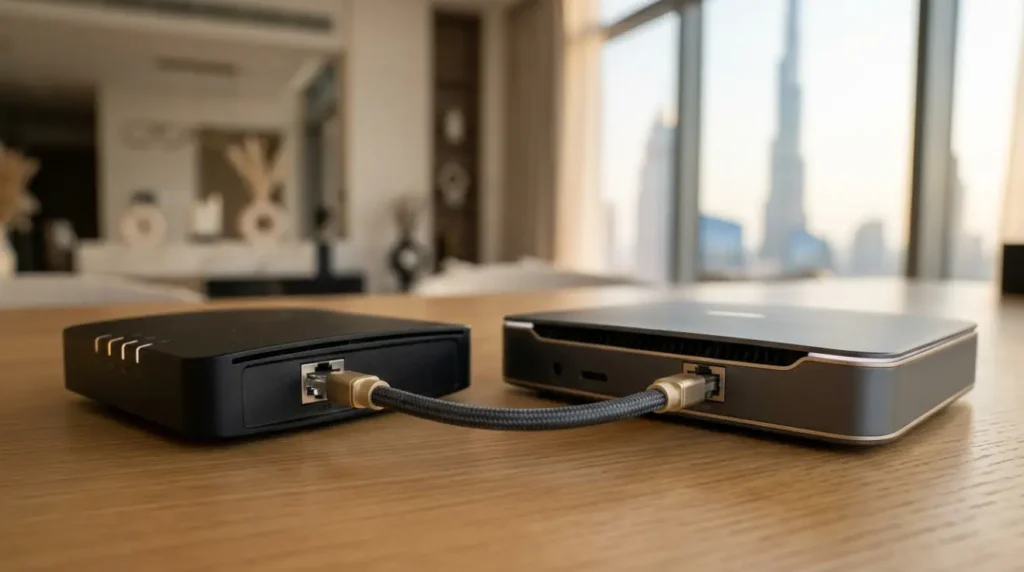
The correct order matters. Many connection problems happen because users turn everything on at once or plug the cable into the wrong port.
First, connect the main internet cable to your modem or fiber ONT. This may be a fiber cable, coaxial cable, or Ethernet wall socket, depending on your building and provider.
Next, plug in the modem power adapter and turn it on. Wait until the main internet or online light becomes stable. This may take a few minutes.
After that, connect one end of an Ethernet cable to the modem’s LAN port. Connect the other end to the router’s WAN or Internet port. This is the most important step when you connect the router to the modem.
Finally, power on the router and wait until the WiFi and internet lights appear.
Check the Cable Ports
A router usually has one WAN port and several LAN ports. The WAN port is often a different color and may be labelled “Internet.”
The Ethernet cable from the modem must connect to the WAN port on the router. If you plug it into a LAN port by mistake, your WiFi may appear, but the internet may not work.
For wired devices, such as smart TVs, desktop computers, or office printers, use the router’s LAN ports after the router is online.
Set Up the Router
Once the physical connection is ready, the next step is router configuration. Most routers allow setup through a mobile app or a web browser.
Connect your phone or laptop to the router’s default WiFi name. You can usually find this name and password on a sticker under the router.
Then log in to your router admin page through the browser or mobile app to continue the setup. During setup, you may need to choose your internet connection type. In many UAE home connections, the router may detect settings automatically. However, some setups may need PPPoE login details from the provider.
Now, create a new WiFi name and password. Choose a name that is easy to recognize, especially if you live in an apartment building with many nearby networks.
Use a strong password with letters, numbers, and symbols. As a result, your network stays safer from unwanted users.
Best WiFi Placement
WiFi router installation is not only about cables. Placement also affects speed and coverage.
Place the router in an open area, not inside a cabinet or behind a TV. Thick walls, mirrors, metal shelves, and kitchen appliances can weaken the signal.
For apartments, a central location usually works best. For villas or larger offices, one router may not be enough. In that case, mesh WiFi, access points, or additional network cabling may be needed.
Also, avoid placing the router directly on the floor. A shelf or table gives better coverage across the room.
Test the Connection
After you set up modem and router, test the connection before assuming everything is fine.
First, connect your phone to WiFi and open a few websites. Then test another device, such as a laptop or smart TV.
If a wired internet is needed, connect a computer directly to the router using an Ethernet cable. This helps confirm whether the issue is with the WiFi signal or the main internet connection.
You should also test the speed near the router and then in other rooms. If the speed drops sharply in bedrooms, meeting rooms, or upstairs areas, the issue may be coverage rather than the modem and router setup.
Common Setup Problems
Even when the steps are correct, small issues can stop the internet from working.
WiFi Shows but No Internet
This usually means the router is broadcasting WiFi, but it is not getting internet from the modem. Check the Ethernet cable between the modem and router. Also, restart the modem first, then the router.
Wrong WAN Settings
Some internet connections need a specific login or VLAN setting. If the router is new or bought from outside the UAE, it may not match your provider’s settings automatically.
Old Router
An old router can slow down your internet, even if your package is fast. For example, a high-speed fiber plan will not perform well with an outdated router that supports older WiFi standards.
Weak Signal
If the internet works near the router but not in other rooms, the modem router connection is probably fine. The issue is more likely router location, wall thickness, or poor WiFi coverage.
Home and Business Setup
For home users, the goal is usually simple: stable WiFi for phones, TVs, gaming, and video calls. A clean setup with one good router may be enough for a small apartment.
However, businesses need a more planned setup. Offices, clinics, shops, and warehouses often require stronger coverage, secure guest WiFi, and proper router configuration.
In addition, business networks may need separate WiFi for staff and customers. This improves security and keeps work devices away from public access.
For Dubai offices, it is also important to place access points correctly, especially in glass-partitioned spaces, retail areas, and multi-room layouts.
When to Get Help
You can handle a basic home internet setup yourself if the provider line is active and the router settings are simple.
However, professional help is useful when:
- The router does not detect internet
- You need WiFi in a villa or large office
- Devices keep disconnecting
- Speed is much lower than expected
- You need cable management or access points
- You are unsure about router configuration
In these cases, WiFiFix.ae can help with WiFi router installation, modem and router setup, troubleshooting, and network support across Dubai/UAE.
Contact Us
Get quick WiFi, router, and network support in Dubai
FAQs
How do I connect modem and router correctly?
Connect the internet line to the modem first. Then use an Ethernet cable from the modem’s LAN port to the router’s WAN or Internet port. Turn on the modem first, wait for stable lights, and then turn on the router.
Can I use any router with my modem?
In many cases, yes, but the router must support your internet speed and provider settings. Some UAE connections may need specific login details or configuration. If the router is not compatible, the WiFi may show, but the internet will not work.
Why is my router connected but there is no internet?
This usually happens because the modem is not online, the Ethernet cable is in the wrong port, or the router settings are incorrect. Restart both devices in the right order and check the WAN connection before changing advanced settings.
Do I need a modem and router separately?
It depends on your connection. Some providers give a single modem-router device, while others provide a modem or ONT and require a separate WiFi router. Separate devices often give better WiFi control and coverage.
Where should I place my WiFi router?
Place it in a central, open location away from walls, metal objects, and appliances. For villas and larger Dubai homes, one router may not cover every room, so mesh WiFi or access points may be better.
How long does modem and router setup take?
A basic setup can take a few minutes if the internet line is active and the router detects settings automatically. However, advanced router configuration, office networks, or weak coverage issues may take longer to fix properly.
Can WiFiFix.ae install my router in Dubai?
Yes, WiFiFix.ae can help with router setup, WiFi installation, modem router connection checks, and internet troubleshooting for homes and businesses in Dubai/UAE.
Summary
Learning how to install modem and router together helps you avoid common internet problems and get a cleaner, more stable connection. The key steps are simple: connect the modem first, link the router through the WAN port, configure WiFi settings, and test your devices.
If the setup still fails or your WiFi coverage is weak, professional support can save time and prevent repeated connection issues.
Leave a Reply