
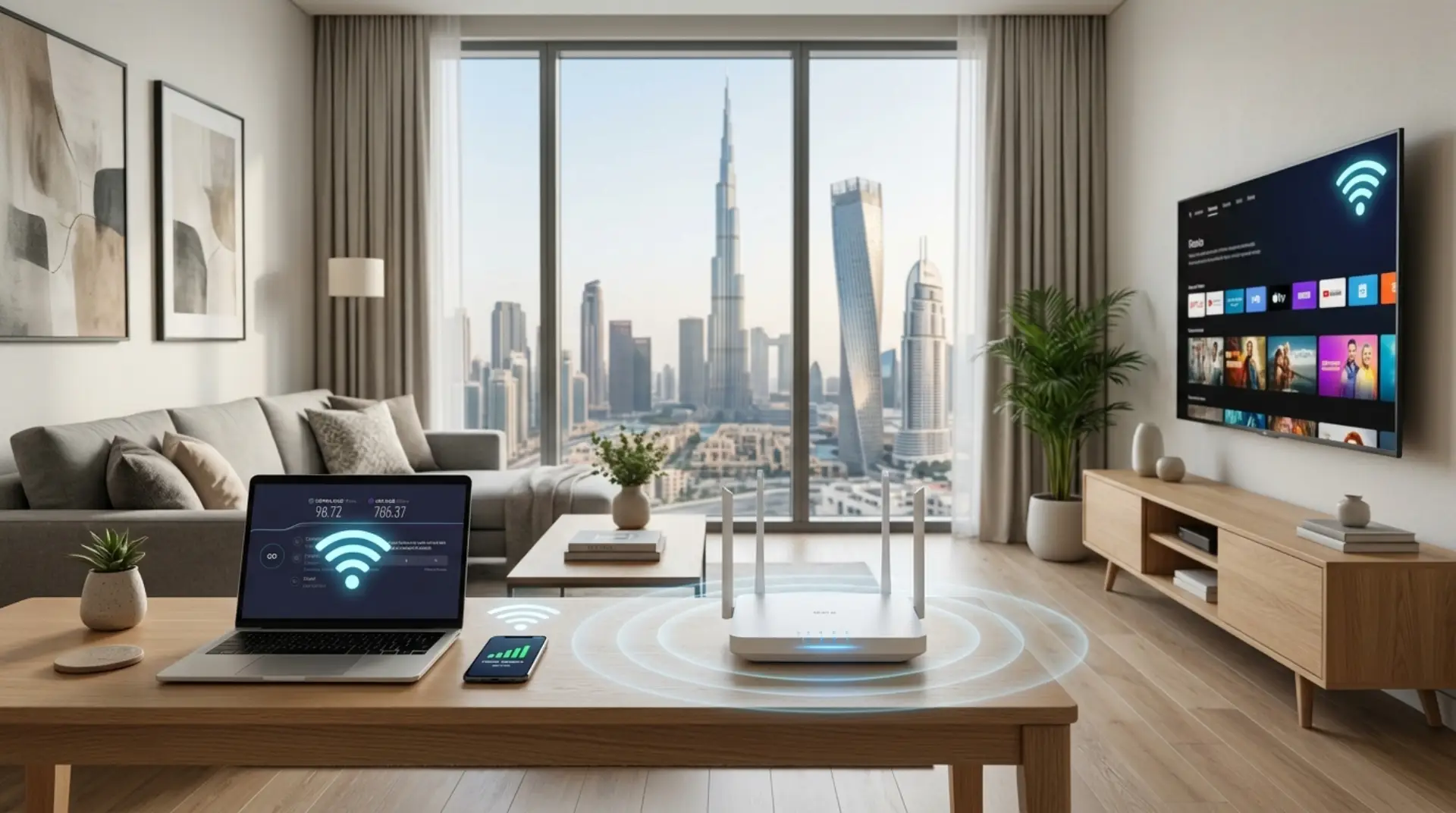
Slow WiFi can make everything harder. A video call freezes, Netflix keeps buffering, your laptop takes forever to load pages, and even your smart TV feels useless. The frustrating part is that your internet plan may be fast, but your home WiFi still performs badly.
The good news is that many WiFi speed problems can be fixed without changing your internet provider. In most Dubai and UAE homes, slow WiFi is usually caused by router placement, signal interference, outdated equipment, too many connected devices, or poor setup.
To improve WiFi speed at home, place your router in a central open area, restart it regularly, reduce connected devices, use the 5GHz band for nearby devices, update router firmware, run a home wifi speed test, and upgrade to a mesh WiFi system if your home has weak coverage areas.
For larger villas, offices, or apartments with thick walls, a professional WiFi setup can also help remove dead zones and improve overall signal strength.
Why Your Home WiFi Feels Slow
Before changing settings, it helps to understand the real issue and the common causes of slow WiFi before upgrading your router or internet package. Slow WiFi does not always mean your internet package is bad.
Sometimes, your internet speed from the provider is fine, but the WiFi signal inside your home is weak. This means your router receives good internet, but your phone, laptop, or TV cannot get a strong wireless connection.
Common causes include:
- Router placed in a corner or cupboard, which is one of the common router setup mistakes that cause slow WiFi
- Thick concrete walls
- Too many devices connected at once
- Old router or outdated firmware
- Signal interference from nearby networks
- Weak coverage in bedrooms, kitchens, or upper floors
- Devices connected to the wrong WiFi band
In Dubai apartments, signal interference is common because many nearby flats have their own routers. On the other hand, in villas, the main problem is often distance and wall thickness.
Place Your Router in the Right Location
Router placement is one of the easiest ways to increase WiFi speed and boost your internet without changing your provider. Many people keep the router near the main socket, inside a cabinet, behind the TV, or close to the floor. However, these spots often block the signal.
Place your router:
- In a central area of the home
- On a shelf or table, not on the floor
- Away from thick walls
- Away from metal objects
- Away from microwaves and cordless phones
- In an open space, not inside a closed cabinet
For example, if your router is near the entrance but most of your usage happens in the living room and bedrooms, the signal has to travel through several walls. As a result, speed drops before it reaches your devices.
A small change in position can often make a big difference.
Restart Your Router the Right Way
Restarting your router sounds basic, but it can fix many temporary WiFi problems. Routers handle multiple devices, background traffic, and network requests all day. Over time, performance can become unstable.
To restart properly:
- Turn off the router.
- Unplug it from the power.
- Wait for 30–60 seconds.
- Plug it back in.
- Wait until all lights become stable.
Avoid restarting it every few minutes because that may create more connection issues. However, restarting once every week or two can keep the network fresh.
Use the Best WiFi Band
Most modern routers offer two main WiFi bands: 2.4GHz and 5GHz. Some newer routers also support 6GHz. Choosing the right band can help improve wifi speed in different parts of your home.
The 2.4GHz band reaches farther, but it is usually slower and more crowded. It works well for smart home devices, printers, and rooms far from the router.
The 5GHz band is faster but has a shorter range. Laptops, phones, smart TVs, gaming consoles, and streaming devices should be near the router.
If your router shows two WiFi names, such as “HomeWiFi” and “HomeWiFi_5G,” connect nearby devices to the 5G network for better speed.
improve wifi speed
To improve wifi speed, use 5GHz for high-demand devices and keep 2.4GHz for basic devices. This reduces congestion and gives your important devices a stronger connection.
For example, connect your smart TV, laptop, and phone to 5GHz when you are close to the router. Then keep smart bulbs, cameras, and older devices on 2.4GHz.
Run a Home WiFi Speed Test
A home WiFi speed test helps you understand whether the problem is your internet provider, your router, or your WiFi coverage.
First, run a speed test near the router. Then run another test in the bedroom, kitchen, balcony, or home office. If the speed is high near the router but low in other rooms, your issue is WiFi coverage, not the internet package.
home wifi speed test
A home wifi speed test should be done in different rooms, not just one place. This gives you a clear picture of where the signal is strong and where it becomes weak.
When testing, make sure:
- No large downloads are running
- Your device is connected to WiFi, not mobile data
- You test near the router and far from the router
- You repeat the test at different times of day
If the speed changes a lot between rooms, you may need better router placement, a mesh system, or professional WiFi optimization.
Reduce the Number of Connected Devices
Every connected device uses part of your network. Phones, tablets, laptops, smart TVs, gaming consoles, cameras, smart speakers, and home automation devices can all affect performance.
Even when you are not actively using them, some devices update apps, sync files, or run background services.
To reduce network load:
- Disconnect unused devices
- Turn off WiFi on old phones or tablets
- Pause updates during work or calls
- Remove unknown devices from your WiFi
- Change your WiFi password if many people know it
This is especially helpful for families, shared apartments, and small businesses where many users connect to the same router.
Secure Your WiFi Network
An unsecured or weakly protected network can slow down your connection. If neighbors or unknown users connect to your WiFi, they may use your bandwidth without you knowing.
Use a strong password that is hard to guess. Avoid simple passwords like your phone number, apartment number, or “12345678.”
Also, use WPA2 or WPA3 security if your router supports it. This helps protect your network and keeps unwanted users out.
In addition, change the default router admin password. Many people only change the WiFi password but leave the router login details unchanged.
Update Your Router Firmware
Your router has software inside it called firmware. Manufacturers release updates to improve performance, fix bugs, and improve security.
If your router is outdated, it may not handle modern devices well. Therefore, checking for firmware updates can help improve performance.
You can usually update firmware through the router admin page or mobile app. However, if you are not comfortable changing router settings, it is better to ask a WiFi support technician.
A wrong setting can sometimes affect your entire home network.
Move High-Usage Devices Closer to the Router
Some devices need more speed than others. A smart bulb does not need much bandwidth, but a 4K TV, gaming console, or work laptop needs a strong connection.
If possible, keep high-usage devices closer to the router. For fixed devices like TVs and gaming consoles, consider using an Ethernet cable.
A wired connection is usually faster and more stable than WiFi. It is ideal for:
- Gaming consoles
- Smart TVs
- Desktop computers
- CCTV recorders
- Office workstations
- Video conferencing setups
This simple step can also reduce pressure on your WiFi network.
Check for Signal Interference
WiFi signals can be affected by many household items. Thick walls, mirrors, metal shelves, baby monitors, microwaves, Bluetooth devices, and neighboring WiFi networks can all interfere with your signal.
In Dubai apartment buildings, many routers operate close to each other. As a result, your WiFi may compete with nearby networks.
Changing the WiFi channel can help. Many routers have an auto-channel option, but sometimes manual adjustment works better.
If you notice slow speed during evening hours, it may be due to both network congestion and higher internet usage in your building.
Upgrade Old Router Equipment
If your router is several years old, it may not support modern speeds or newer WiFi standards. Even if your internet package is fast, an old router can limit performance.
Signs you may need a new router include:
- Frequent disconnections
- Weak signal in nearby rooms
- Slow speed even near the router
- Router becomes hot often
- No 5GHz support
- Poor performance with multiple devices
For homes with many connected devices, a modern dual-band or tri-band router can improve stability. For larger villas, a single router may not be enough.
Use Mesh WiFi for Large Homes
A WiFi extender may help in some cases, but it is not always the best solution. Many extenders reduce speed because they repeat the signal instead of creating a strong unified network.
A mesh WiFi system is usually better for larger homes, villas, duplex apartments, and offices. It uses multiple units placed around the property to create smoother coverage.
Mesh WiFi is useful when:
- Bedrooms have weak signal
- WiFi drops upstairs
- The router is far from main rooms
- You have thick walls
- You need coverage in a garden or majlis
- Your home office needs stable internet
For UAE villas, mesh systems are often the most practical way to improve home wifi speed across all rooms.
home wifi speed
Your home wifi speed depends on more than your internet plan. Router quality, placement, wall thickness, device type, and network setup all affect the final speed you get on your phone or laptop.
That is why two people with the same internet package can have very different WiFi performance at home.
Prioritize Important Devices
Some routers allow you to prioritize certain devices. This feature is often called QoS, or Quality of Service.
With QoS, you can give more priority to work laptops, video calls, gaming, or streaming. This is helpful when several people use the internet at the same time.
For example, if someone is downloading large files while another person is on a Zoom call, QoS can help keep the call stable.
This feature is useful for:
- Remote workers
- Online classes
- Gaming
- Video meetings
- Small offices
- Home businesses
However, the settings depend on your router model.
How to Improve WiFi Speed on Laptop
Laptops can have WiFi problems even when phones work fine. This may happen because of outdated drivers, weak WiFi adapters, background apps, or power-saving settings.
how to improve wifi speed on laptop
To understand how to improve wifi speed on laptop, start by checking whether the issue happens only on the laptop or on all devices.
Try these steps:
- Restart the laptop and router
- Move closer to the router
- Connect to the 5GHz network
- Update the WiFi driver
- Close background downloads
- Turn off VPN temporarily
- Forget and reconnect to the WiFi network
- Check laptop power settings
- Use Ethernet for important work
If your laptop is old, a USB WiFi adapter may also improve performance. For business users, this can be a quick fix for unstable video calls and slow cloud access.
Avoid Overloading Your Internet Plan
Sometimes, the WiFi setup is fine, but the internet plan is too limited for your usage.
For example, a basic plan may struggle if several people are streaming, gaming, attending online classes, using cloud backups, and running smart devices at the same time.
Think about your daily usage. If your home has many users, you may need a higher-speed plan. However, upgrade your plan only after checking router placement, coverage, and device issues.
Otherwise, you may pay more and still face the same WiFi problems.
When Home Users Should Get Professional Help
Many WiFi issues can be fixed with simple steps. However, some problems need expert testing.
Professional WiFi support can help when:
- You have dead zones in several rooms
- WiFi drops during work calls
- Your villa needs full coverage
- Mesh WiFi needs proper placement
- Business devices need stable internet
- You are unsure how to configure the router
- Speed test results are confusing
A WiFi technician can test signal strength, identify weak areas, adjust router settings, recommend equipment, and set up a stable network.
For Dubai and UAE homes, this is especially useful in large villas, multi-floor homes, and offices with many connected devices.
Contact Us
Get quick WiFi, router, and network support in Dubai
How to Improve WiFi Speed for Small Businesses
Small businesses need stable WiFi for staff, customers, payment systems, POS devices, cameras, and cloud apps. Slow WiFi can affect productivity and customer experience.
For offices, salons, clinics, cafés, and shops, the setup should be planned properly. One basic router may not be enough.
Business users should consider:
- Separate guest WiFi
- Strong router security
- Mesh or access point setup
- Device priority for work systems
- Proper cabling for fixed devices
- Regular network checks
- Secure passwords for staff access
Also, business networks should avoid sharing one simple password with everyone forever. Changing access details regularly improves security.
how to improve wifi speed
If you are wondering how to improve wifi speed, start with the simple fixes first: move the router, test speed in different rooms, reduce connected devices, and use the right WiFi band.
If those steps do not solve the problem, then consider router upgrades, mesh WiFi, or professional network setup.
Common Mistakes That Slow Down WiFi
Many WiFi problems come from simple setup mistakes. These are easy to miss because the internet still works, just not very well.
Avoid these common mistakes:
- Keeping the router inside a TV cabinet
- Using the same router for too many years
- Placing mesh units too far apart
- Using weak WiFi passwords
- Ignoring firmware updates
- Connecting all devices to 2.4GHz
- Using cheap extenders in large homes
- Not testing speed in different rooms
Fixing even one or two of these mistakes can make your connection feel much better.
FAQs
Why is my WiFi slow even with a fast internet plan?
Your internet plan may be fast, but your WiFi signal can still be weak inside the home. Poor router placement, thick walls, interference, and old equipment can reduce the speed that reaches your devices. Test near the router and in other rooms to find the real issue.
What is the best way to improve WiFi speed at home?
The best way to improve WiFi speed at home is to place the router centrally, use 5GHz for nearby devices, reduce connected devices, and test your speed in different rooms. For large homes, mesh WiFi may be needed for better coverage.
How often should I restart my router?
Restarting your router once every week or two is usually enough for most homes. It can clear temporary issues and refresh the connection. However, if you need to restart it every day, there may be a deeper router, line, or setup problem.
Does a WiFi extender improve speed?
A WiFi extender can improve coverage in small areas, but it may reduce speed if placed poorly. For larger homes or villas, a mesh WiFi system is usually a better option because it creates stronger and smoother coverage across multiple rooms.
How do I know if my router is too old?
Your router may be too old if it disconnects often, does not support 5GHz, overheats, or gives slow speed even when you are nearby. If many devices are connected in your home, upgrading to a modern router can improve stability.
Why is my laptop WiFi slower than my phone?
Your laptop may have outdated WiFi drivers, background downloads, power-saving settings, or an older wireless adapter. To fix it, update the driver, connect to 5GHz, restart the laptop, and close apps using the internet in the background.
Can professional WiFi setup help in Dubai villas?
Yes, professional WiFi setup can help a lot in Dubai villas because large spaces, thick walls, and multiple floors often create dead zones. A technician can test signal strength and install the right router, access points, or mesh system for full-home coverage.
Summary
Slow WiFi is annoying, but it is often fixable. Start with simple steps like moving your router, restarting it, using the right WiFi band, reducing connected devices, and running a home wifi speed test in different rooms.
If the problem continues, your home may need better equipment, mesh WiFi, or expert setup. With the right approach, you can improve WiFi speed at home and enjoy a stronger, smoother connection for work, streaming, gaming, and everyday use.
Leave a Reply