
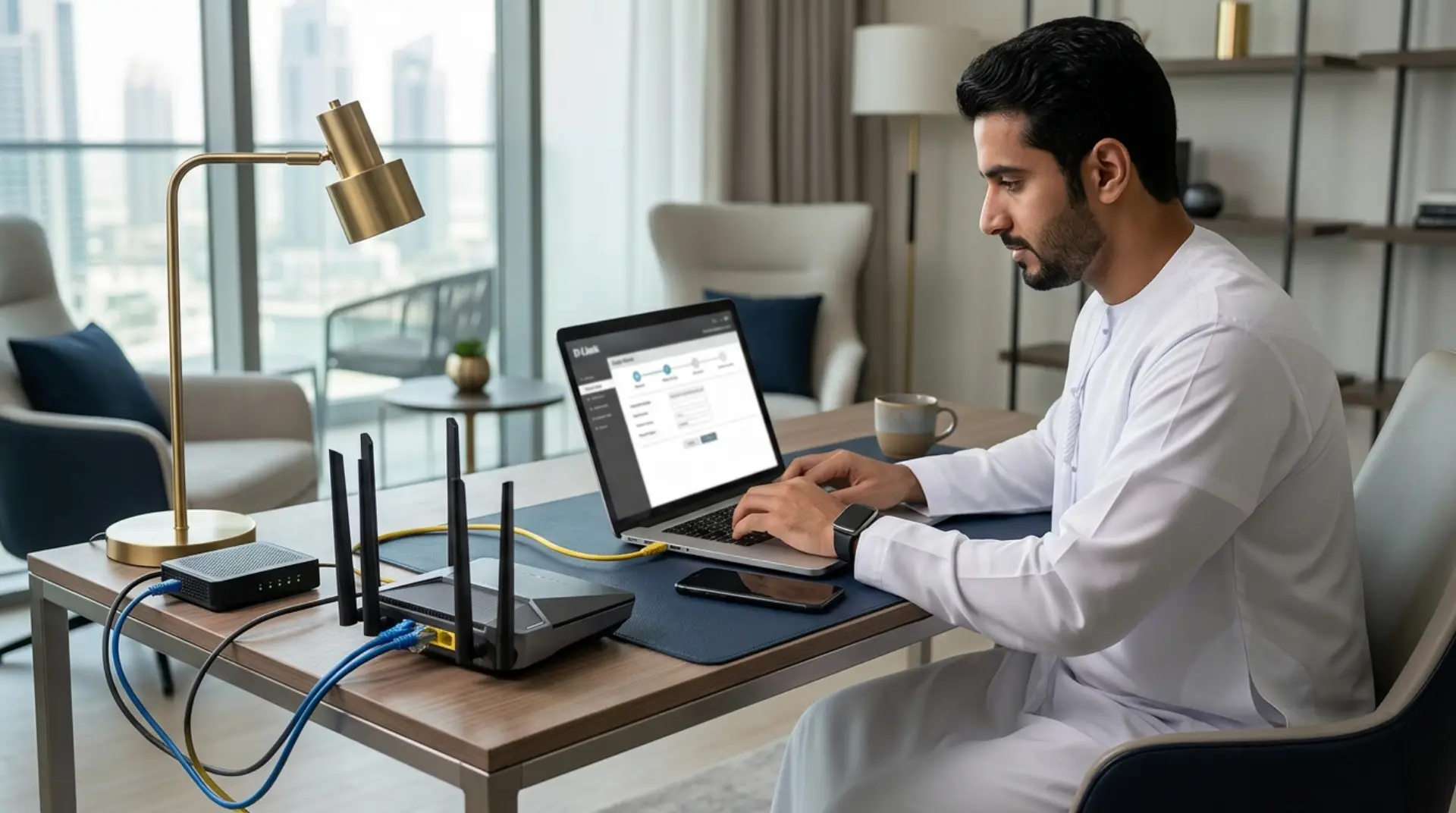
A D-Link router should make your internet simple, not stressful. However, many users in Dubai face the same issues after buying or resetting a router: no internet, weak WiFi, wrong login settings, password confusion, or devices not connecting.
For D-Link router setup, connect the router to your modem, open the router login page, enter the internet settings from your ISP, create a WiFi name and password, then save and restart the router. For better performance in Dubai homes and offices, also adjust placement, security, and WiFi channel settings.
If your router lights are blinking but your internet is not working, the problem is usually in the setup. This D-Link router setup guide explains the process in a simple way, whether you are setting up WiFi at home, in an apartment, shop, office, or villa.
Before You Start
Before opening the router settings, check the basics first. A lot of setup problems happen because one cable is loose or connected to the wrong port.
Make sure you have:
- D-Link router power adapter
- Internet modem or fiber ONT
- Ethernet cable
- ISP username and password, if required
- Laptop or mobile phone
- Default router login details
Usually, the internet cable from the modem goes into the WAN or Internet port on the D-Link router, especially when you understand the basic difference between a modem and router. Your computer can connect through WiFi or a LAN cable.
Also, avoid placing the router inside a cabinet or behind a TV. In UAE apartments and villas, thick walls, mirrors, and closed rooms can reduce WiFi strength quickly.
D-Link Router Setup Steps
The D-Link router setup process is not very difficult, but each step must be done correctly. Here is a simple method that works for most D-Link WiFi routers.
1. Connect the Router
Turn off your modem and D-Link router first. Then connect an Ethernet cable from the modem’s LAN port to the router’s WAN port.
Now power on the modem and wait until it is fully stable. After that, turn on the D-Link router. This helps the router detect the internet connection properly.
2. Connect to the Router
Use a laptop or mobile phone and connect to the default D-Link WiFi network. You can usually find the default WiFi name and password on the sticker under the router.
If you are using a laptop, connecting through a LAN cable is even better because it avoids disconnection during setup.
3. Open the Login Page
Open a browser and enter the router’s default IP address to access the router admin page. Many D-Link routers use addresses like 192.168.0.1 or 192.168.1.1.
Once the login page opens, enter the admin username and password. If the router is new, the default details may be printed on the router label.
If the page does not open, check whether your device is connected to the D-Link router network, not mobile data or another WiFi.
4. Run the Setup Wizard
Most D-Link routers include a setup wizard. This is useful for beginners because it guides you step by step.
The wizard may ask for your internet connection type. In many UAE connections, the router may detect the settings automatically. However, some ISPs may require PPPoE details or VLAN settings.
If you do not know these details, avoid guessing. Wrong settings can stop the internet from working even when all cables are correct.
D-Link Router Configuration

D-Link router configuration includes more than just making the internet work, so it is important to change router settings safely. You also need to secure the WiFi, improve coverage, and configure the router for your space.
Start with the WiFi name. Choose a simple network name that is easy to recognize. For example, you can use a home name, office name, or floor name.
Next, create a strong WiFi password. Avoid using mobile numbers, building names, or simple words. A strong password protects your network from unwanted users.
For security mode, choose WPA2 or WPA3 if available. This gives better protection than older security options.
WiFi Settings That Matter
A proper D-Link WiFi router setup depends on your home or office layout. For example, a small apartment may work fine with one router, while a villa may need access points or mesh coverage.
Check these settings:
- 2.4GHz WiFi: Better range, useful for smart TVs and older devices
- 5GHz WiFi: Faster speed, better for streaming and video calls
- Channel selection: Helps reduce interference from nearby routers
- Guest network: Useful for visitors or customers
- Admin password: Protects router settings from changes
In busy Dubai buildings, many WiFi networks can overlap. As a result, your speed may drop even if your internet package is fast. Changing the WiFi channel can help reduce interference.
Common Setup Problems
Even after following a D-Link router setup guide, problems can still happen. The good news is that most issues have simple causes.
No Internet After Setup
If WiFi connects but there is no internet, check the WAN cable first. Then, confirm the internet connection type in the router settings.
Also, restart both the modem and router. In some cases, the modem needs time to assign internet access to the new router.
Login Page Not Opening
If the router login page does not open, your device may not be connected to the router. Turn off mobile data on your phone and try again.
You can also check the default gateway from your device settings. This usually shows the correct router IP address.
Weak WiFi Signal
Weak WiFi is common in larger Dubai apartments, villas, and offices. Move the router to a central, open location.
If the signal is still poor, you may need an extra access point, a WiFi extender, or a mesh system. However, placing extenders randomly can make the network worse, so proper planning matters.
Home and Office Setup
For home users, the main goal is stable WiFi for phones, TVs, gaming, video calls, and smart devices. Therefore, router placement and password security are very important.
For business users, the setup needs more care. Offices, clinics, shops, and warehouses may need separate networks for staff, guests, CCTV, POS systems, and printers.
In addition, businesses should avoid sharing one weak password across all devices. A properly configured network is easier to manage and safer for daily operations.
When to Reset the Router
A reset can help when the router has the wrong settings, forgotten login details, or repeated connection problems. However, resetting removes all saved configuration.
After a reset, you must complete the D-Link router setup again from the beginning. This includes internet settings, WiFi name, WiFi password, and security options.
Before resetting, check whether the issue is with the router, modem, ISP line, or device. Otherwise, you may reset the router and still face the same problem.
When You Need Expert Help
You may need professional support if the router setup page is not opening, the internet settings are unclear, or the WiFi coverage is poor across rooms.
WiFiFix.ae helps with D-Link router setup, D-Link router configuration, internet troubleshooting, router placement, WiFi extension, and home or business network support in Dubai and across the UAE.
This is especially useful when you have multiple rooms, many connected devices, CCTV, smart home systems, or office users who need stable internet all day.
Contact Us
Get quick WiFi, router, and network support in Dubai
FAQs
How do I set up a D-Link router?
Connect the router to your modem using the WAN port, log in to the router page, choose the internet connection type, and set your WiFi name and password. Save the settings and restart the router if needed.
Why is my D-Link router connected, but no internet?
This usually happens because of wrong internet settings, a loose WAN cable, or a modem connection issue. Restart the modem and router, then check whether your ISP requires PPPoE or special configuration.
What is the default IP for D-Link router setup?
Many D-Link routers use 192.168.0.1 or 192.168.1.1. However, it can vary by model. If it does not work, check the router label or your device’s gateway address.
Can I set up a D-Link router with my phone?
Yes, you can set up many D-Link routers using a phone browser or app. Make sure your phone is connected to the router WiFi and mobile data is turned off during configuration.
How do I change my D-Link WiFi password?
Log in to the router admin page, open wireless settings, and update the WiFi password. After saving, reconnect all devices using the new password.
Is one D-Link router enough for a villa in Dubai?
It depends on the villa size, wall thickness, and router location. Many villas need access points or mesh WiFi for full coverage, especially across floors and outdoor areas.
Why does my D-Link WiFi keep disconnecting?
Disconnections can happen due to interference, outdated firmware, weak signal, overheating, or wrong channel settings. Check placement first, then review WiFi settings or get the router tested.
Summary
D-Link router setup becomes much easier when you follow the right order: connect cables, open the login page, enter internet settings, secure the WiFi, and adjust coverage settings.
However, if the setup still feels confusing or your WiFi remains unstable, WiFiFix.ae can help with fast router setup, troubleshooting, and network support for homes and businesses in Dubai and the UAE.
Leave a Reply