
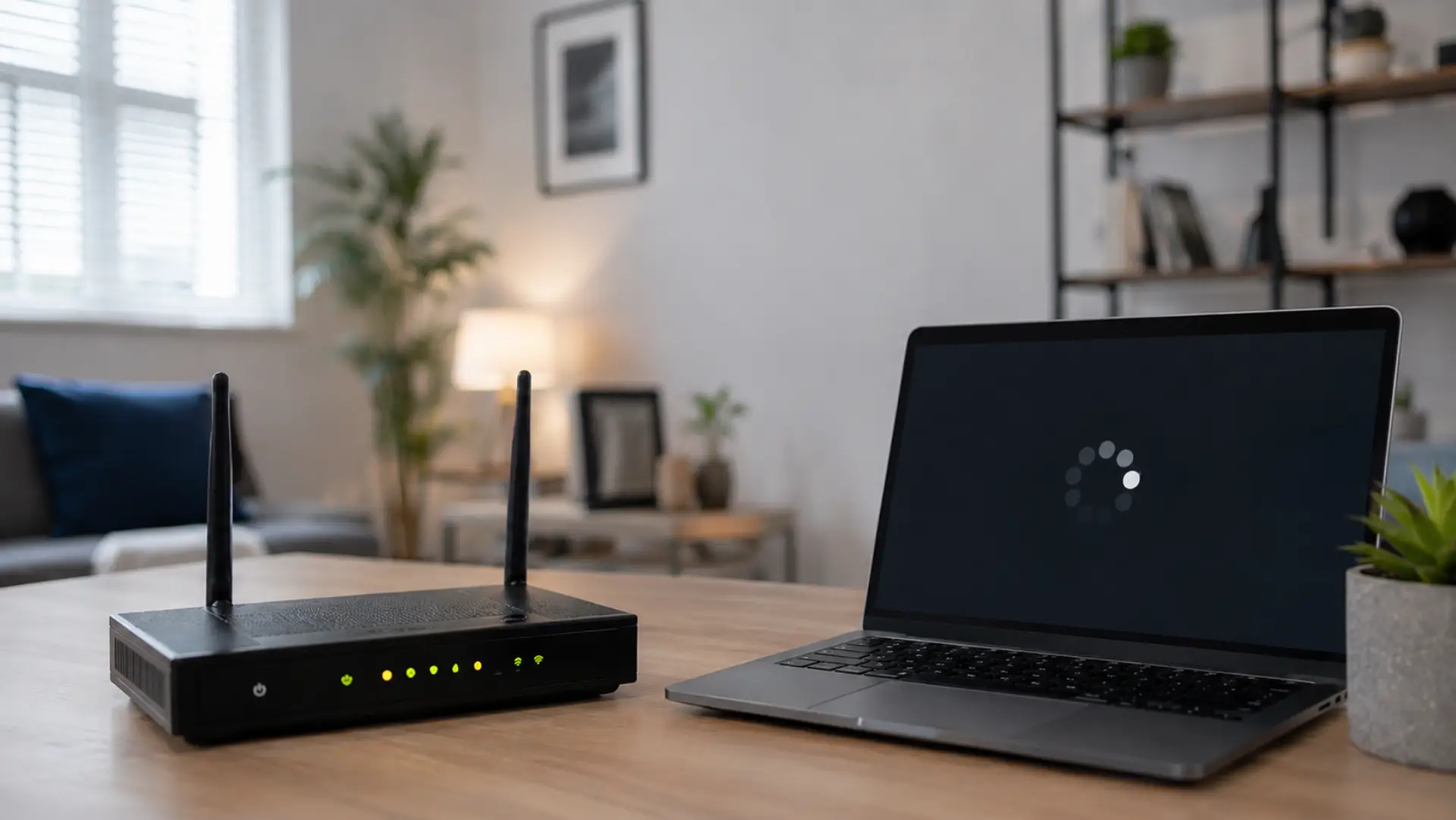
When your internet keeps dropping, it can interrupt video calls, office work, online classes, gaming, streaming, and normal browsing. In most homes, this happens because of router glitches, poor signal coverage, loose cables, outdated firmware, overloaded devices, or a service fault from the internet provider. These symptoms often overlap with common causes of slow WiFi, such as signal strength, placement, router load, or interference.
A reconnecting problem does not always mean your plan is too slow. Sometimes the main service is active, but the router, modem, device, or wireless setup is not stable enough to hold a reliable connection.
First Check If the Drop Happens on One Device or All Devices
Start by checking whether the problem happens on only one phone or laptop, or on every device in the house. If only one device disconnects or slows down, it may be closer to an internet slow on one device problem than a full network fault. This simple test helps you find the right direction quickly.
If only one device disconnects, the problem is usually device settings, software, or wireless adapter behavior. If all devices disconnect at the same time, the issue is more likely linked to the router, modem, cable line, or internet provider.
Restart the Modem and Router in the Right Order
A modem or router can develop temporary errors after running for many days. Restarting both devices often clears stuck network sessions and restores a cleaner connection.
Turn off the modem first, then the router. Understanding the modem vs router difference helps you restart and troubleshoot the correct device first. Wait about 60 seconds. Turn the modem back on and wait until its lights become stable. After that, turn the router on again. This order is important because the modem should connect to the provider before the router starts sharing the network.
Check Router Placement and WiFi Coverage
If your WiFi keeps disconnecting, your router location may be the main reason. WiFi becomes weaker when it passes through thick walls, closed cabinets, metal objects, mirrors, tile, concrete, or long distances. Rooms with repeated drops may be WiFi dead zones, especially in villas, thick-wall apartments, or multi-floor homes.
Place the router in an open and central area, away from the floor and away from electronic interference. A poor wifi signal can cause repeated reconnecting even when your internet service itself is working.
Inspect All Network Cables
A loose or damaged cable can create a hidden internet dropping problem. Check the power cable, Ethernet cable, fiber box cable, and any coaxial or wall connection if your setup uses one.
Ethernet cables should click properly into the port. Coaxial cables should be tight. A cable can look connected but still move slightly and cause an internet drop when the router or modem is touched.
Check for Provider Outages
Sometimes the issue is not inside your home. Your provider may have a local outage, line maintenance, or signal problem in your area.
Check your provider app, account portal, or support line. If the modem internet light turns red, keeps blinking, or goes off during the drop, the problem may be outside your router and should be reported as an internet issue.
Reduce Network Load from Too Many Devices
A busy home network can become unstable when many devices are streaming, downloading, gaming, video calling, or backing up files at the same time. This can affect wifi performance and make the network feel unreliable.
Disconnect unused devices, pause large downloads, and test the network again. If the drops reduce, your router may be overloaded or your plan may not have enough bandwidth for the number of active users.
Test Near the Router
Move close to the router and test again. If the internet works better near the router but drops in another room, the issue is coverage, distance, or a weak signal.
This is common in larger homes, apartments with thick walls, or rooms far from the main router. In that case, a mesh system, access point, or better router placement can improve home WiFi stability.
Check for Crowded WiFi Channels
In apartments and busy buildings, many routers may use the same wireless channel. This can create interference and make the wifi connection unstable.
If your router allows it, log in to the router settings and switch the WiFi channel or set it to auto channel selection. This can help reduce interference and improve stability in crowded areas.
Update Router Firmware
Outdated router firmware can cause bugs, security issues, and random disconnections. Log in to your router admin panel and check for firmware updates.
If your router comes from your internet provider, they may update it automatically. If you bought your own router, you may need to update it manually from the router settings page.
Stop Devices from Auto-Switching Networks
Some phones and laptops automatically switch between saved networks, mobile data, 2.4 GHz, 5 GHz, or mesh nodes. This can look like a sudden wifi disconnect.
Forget old networks you no longer use and connect manually to your main network. If your router has separate 2.4 GHz and 5 GHz names, test both and keep the device on the one that gives better stability.
Check Device Updates and Network Settings
If one laptop or phone has the issue, restart that device and install system updates. On Windows, update the network adapter driver and run the built-in network troubleshooter.
If the problem continues, reset network settings only after saving your WiFi password. This can fix a device-based wifi issue, but it also removes saved network settings from that device.
Check Background Apps and Security Software
Cloud backup tools, software updates, VPN apps, and security programs can sometimes interrupt the network or use too much bandwidth in the background.
Open the task manager or device settings and check which apps are using the network. If disconnecting happens during updates, backups, or VPN use, pause those apps and test again.
Review Router Logs
Many routers keep a basic log of network errors, restarts, blocked activity, and connection failures. These logs can help identify a repeated network problem.
Log in to your router admin panel and look for system logs, event logs, or internet status logs. If the same error appears again and again, it may point to a modem fault, cable issue, firmware bug, or provider-side problem.
When Slow Speed Is Part of the Problem
Run a speed test near the router and compare it with your plan. If your internet speed is much lower than expected, test at different times of the day.
If you also face slow internet on wired devices, the fault may not be wireless. It could be a modem signal issue, an overloaded provider line, damaged cable, or service plan limitation.
When You Need a Better WiFi Setup
If your current router cannot cover the full house, keeps overheating, or disconnects when many users are online, it may not be strong enough for your usage.
A proper setup can fix an unstable internet experience by improving router placement, channel settings, device handling, and coverage. For larger homes, one router may not be enough.
When Should You Call a WiFi Expert?
Call a WiFi expert if the same problem returns after restart, cable check, speed test, firmware update, and router placement changes. A technician can test signal strength, modem stability, cable quality, router settings, and room-by-room coverage.
Professional help is also useful when online meetings, gaming, smart cameras, or work devices disconnect often. This avoids guessing and helps solve the real WiFi problem faster.
FAQs
Why does my internet keep dropping and reconnecting?
Your internet may drop because of modem errors, router overload, weak coverage, damaged cables, outdated firmware, device settings, or provider outages. First, check whether the drop happens on one device or all devices. That tells you whether to focus on the device or the full network setup.
Why does my WiFi disconnect but come back again?
WiFi can disconnect and reconnect when the device loses a stable wireless link. This may happen because of poor router placement, interference, distance, crowded channels, or auto-switching between networks. Moving closer to the router helps confirm if coverage is the issue.
Can loose cables cause internet drops?
Yes, loose or damaged cables can cause repeated disconnections. Ethernet cables should lock firmly into the port, and modem cables should be tight. Even a slightly loose cable can pass a signal sometimes and then drop when it moves.
How do I know if the problem is my router or provider?
If all devices disconnect together and the modem internet light changes, the issue may be from the provider or modem line. If the modem stays stable but WiFi devices drop, the router or wireless setup is more likely the problem.
Should I restart my modem or router first?
Restart the modem first, then the router. The modem should reconnect to the internet provider before the router starts sharing the network again. This order gives the network a cleaner restart and avoids connection conflicts.
Can too many devices make my internet unstable?
Yes, too many active devices can overload a basic router or use more bandwidth than your plan can handle. Streaming, gaming, downloads, video calls, and smart devices running together can make the network unstable during busy hours.
Why does my internet drop in only one room?
If the problem happens in one room, the signal may be too weak there. Distance, walls, doors, furniture, and interference can reduce wireless strength. A better router location, mesh system, or access point can help fix that area.
When should I replace my router?
Replace your router if it is old, overheats, has poor coverage, cannot handle your devices, or keeps disconnecting after basic troubleshooting. If the modem and provider line are stable, a better router can improve reliability.
Leave a Reply