
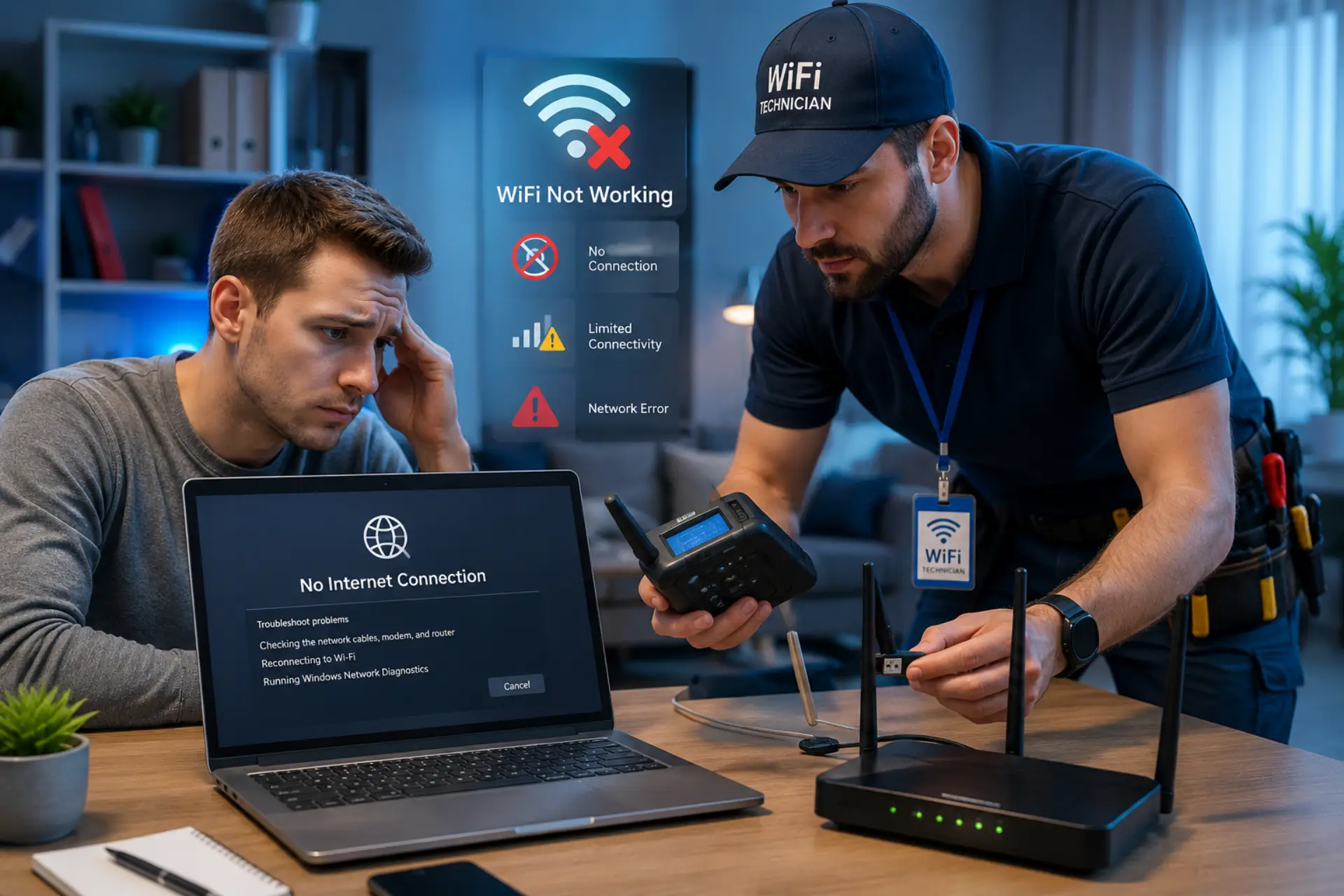
If your wifi adapter not working, it usually means your system is unable to detect or use the wireless network adapter properly. This can stop internet access completely, even if your WiFi router is working fine. The issue is mostly caused by driver errors, disabled settings, or system misconfiguration rather than hardware failure.
Below is a clear step-by-step troubleshooting method designed for quick fixes and search snippet visibility.
Step 1: Check If the WiFi Adapter Is Enabled
First, confirm whether your adapter is turned on in Windows. A wifi adapter disabled state is one of the most common reasons for no internet access.
Open Network Connections or Device Manager and look for your wireless adapter. If it is disabled, enable it manually. If it disappears again, Windows power settings may be turning it off automatically, which should be adjusted.
Step 2: Restart Network Devices
Many wifi adapter not connecting issues are temporary and fixed by a simple restart.
Turn off your computer, restart your router, and then reboot your device. This refreshes IP settings, clears temporary glitches, and re-establishes communication between your system and network hardware.
Step 3: Reinstall or Update WiFi Driver
Driver issues are the most common reason for wifi adapter troubleshooting cases.
Open Device Manager, uninstall the wireless adapter, and restart your system. Windows will reinstall a fresh driver automatically. If that does not work, install the latest driver from your device manufacturer for better stability.
Step 4: Reset Network Settings
If the adapter is still not working, a network reset often solves hidden configuration errors.
This step removes corrupted network profiles, fixes IP conflicts, and restores default adapter behavior. After reset, reconnect your WiFi manually and test the connection.
Step 5: Fix Wireless Adapter Missing Issue
If your wireless adapter missing from Device Manager, the system is not detecting it properly.
First, enable “Show hidden devices” and scan for hardware changes. If it still does not appear, reinstall chipset and WiFi drivers. In rare cases, BIOS settings may disable the adapter, so checking system firmware settings is also important.
Step 6: Test Hardware or External Adapter
If nothing works after software fixes, test the adapter on another device. This helps confirm whether the issue is software or hardware-related. If it fails on multiple systems, the adapter may need replacement.
Why Your WiFi Adapter Stops Working
A WiFi adapter may stop working due to:
- Corrupted or outdated drivers
- Windows update conflicts
- Adapter accidentally disabled
- USB or hardware connection issues
- Network services not running properly
- Power saving settings turning it off
Understanding the root cause helps you apply the correct fix quickly.
WiFi Technician Service (When You Need Expert Help)
If the problem continues even after basic fixes, it may be a sign of a deeper system or hardware issue. In such cases, getting professional help can save time and prevent further system errors.
A trained wifi technician can quickly identify whether the issue is related to software settings, drivers, or the internal network component. They use proper diagnostic tools to find the exact cause instead of relying on guesswork.
This service is especially useful when the issue keeps coming back, the device is not detecting the network hardware, or normal troubleshooting steps no longer work.
In more serious cases, the technician can also check for hardware faults and suggest repair or replacement if needed, ensuring your device works smoothly again.
FAQs
Why is my WiFi adapter not working on Windows?
A wifi adapter not working issue on Windows usually happens due to driver corruption, system updates, or incorrect network settings. In many cases, the adapter is still physically fine but Windows fails to load it properly. You should first check Device Manager to confirm if the adapter is detected, then update or reinstall the driver. Running Windows network reset also helps restore normal functionality.
What should I do if my wifi adapter is disabled?
When your wifi adapter disabled problem appears, it means Windows has turned off the network device either manually or through power settings. Go to Network Connections or Device Manager and enable it again. If it keeps disabling automatically, update the driver and disable power-saving options that allow Windows to turn off the adapter. This usually restores stable connectivity.
Why is my wifi adapter not connecting to any network?
A wifi adapter not connecting issue often occurs due to corrupted saved WiFi profiles, incorrect passwords, or router-side issues. Forget the network and reconnect fresh to remove stored errors. Restarting your router and checking IP configuration can also help. If the problem continues, resetting network settings usually fixes hidden connection conflicts.
What is the best wifi adapter troubleshooting method?
Effective wifi adapter troubleshooting starts with basic steps like restarting your PC and router, then checking whether the adapter is enabled. After that, update or reinstall the wireless driver to fix software-related issues. If needed, perform a network reset to clear corrupted settings. This step-by-step approach solves most adapter problems without technical support.
Why is my wireless adapter missing from Device Manager?
A wireless adapter missing issue usually indicates driver failure, hidden hardware, or BIOS-level disable settings. First, enable “Show hidden devices” in Device Manager and scan for hardware changes. If it still doesn’t appear, reinstall the official driver from your laptop or adapter manufacturer. In rare cases, the hardware itself may be faulty and require replacement.
Leave a Reply