
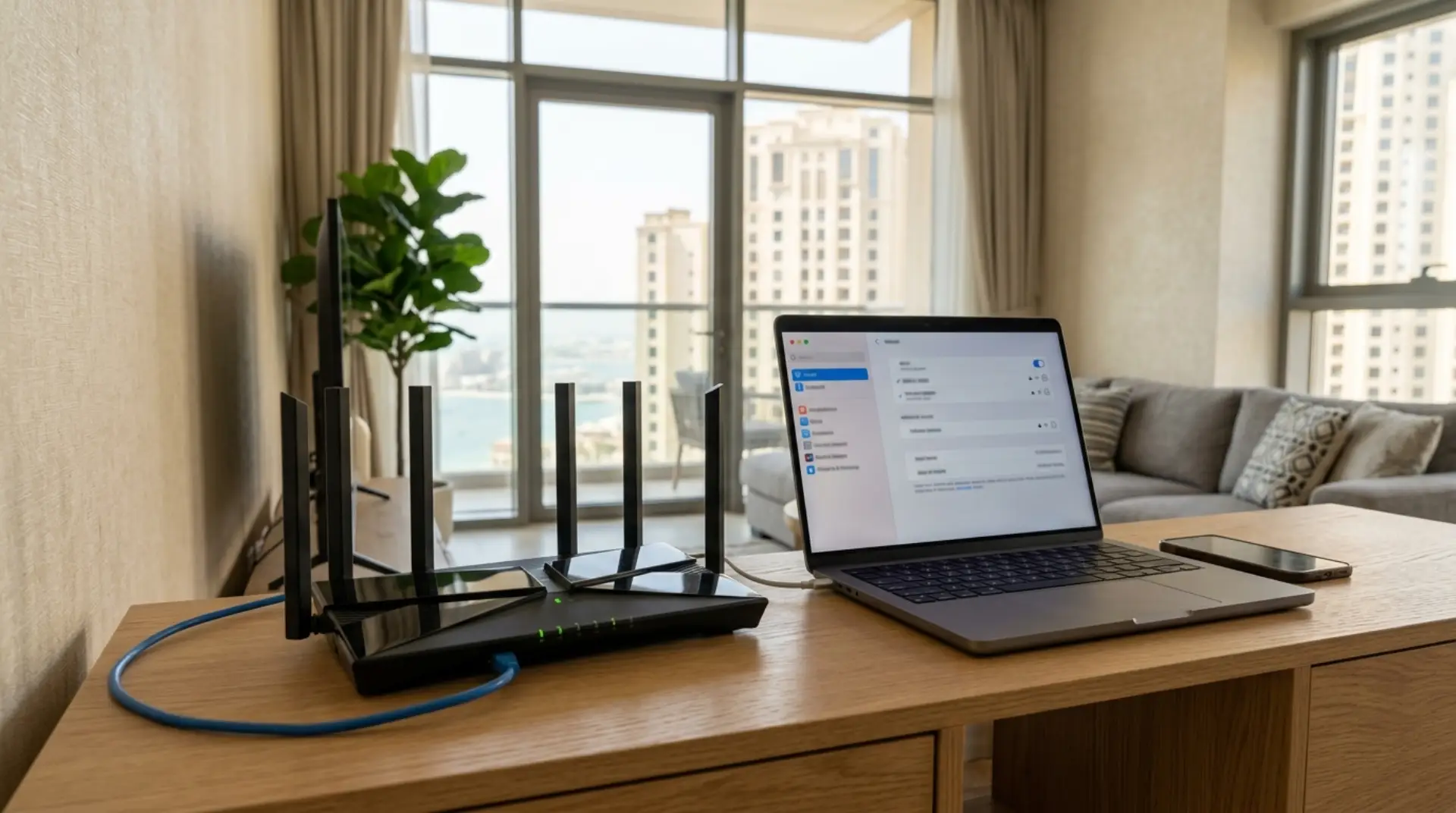
Your internet may be working near the TV, but the bedroom keeps dropping calls. The kids are gaming, your laptop freezes during a Zoom meeting, and your smart doorbell refuses to connect after a password change. In many Dubai apartments, villas, and small offices, these problems are not always caused by the Etisalat line itself. Often, the router setup, router placement, WiFi password, connected devices, or old router settings are the real issue.
If you need to reset Etisalat router settings, it is important to understand what kind of reset you actually need. A quick restart is safe and often fixes minor issues. A factory reset is more serious because it removes your WiFi name, password, router login settings, guest WiFi, and any custom network setup. If your main issue is only a forgotten or weak WiFi password, you may not need a full reset; you can simply change Etisalat WiFi password through the router settings instead.
What We Offer
Before You Reset: Know the Difference Between Restart and Factory Reset
Many home users press the reset button too quickly. Before doing that, check what problem you are trying to solve.
A restart simply turns the router off and back on. It clears temporary glitches, refreshes the connection, and can fix slow WiFi, minor internet drops, or modem/router freezing.
A factory reset returns the router to its original settings. This can help when you forgot the router login password, change router settings incorrectly, or need to remove old configurations after moving into a new apartment or villa. However, it also removes your WiFi name, WiFi password, guest network, bandwidth control rules, and any secure network settings you added.
Try this first:
Unplug the router and modem from power, wait 30–60 seconds, then plug the modem in first. Wait until the modem lights are stable, then plug in the router. Give the network a few minutes to reconnect before testing the internet speed.
Use a factory reset only if a normal restart does not solve the problem or if you need to fully reconfigure the router.
How to Reset Etisalat Router Safely
To reset an Etisalat router, find the small reset button or pinhole on the back or bottom of the router. You may need a paperclip or SIM ejector tool.
Press and hold the reset button for about 10–15 seconds until the router lights start blinking or restart. Release the button and wait several minutes. The router will reboot and return to default factory settings.
After the reset, you may need to set up the router again. This usually includes:
Setting a new WiFi name
Creating a strong WiFi password
Logging into the router admin page
Checking internet connection status
Reconnecting phones, laptops, TVs, gaming consoles, and smart devices
Recreating guest WiFi if needed
Adjusting basic router settings for security and wifi performance
Do not turn off the router while it is resetting. Interrupting the process may cause setup issues or require professional network troubleshooting.
If your Etisalat router is connected to a separate modem or ONT box, avoid unplugging cables randomly. Take a photo of the cable layout before making changes, especially in villas, offices, or homes with wall-mounted network cabinets.
What a Proper Router Setup Should Include
A proper router setup is more than just plugging in the device and choosing a WiFi name. For good wifi performance, your home network should be secure, stable, and suitable for your property layout.
A good setup should include a clear WiFi name, a strong wifi password, updated firmware, secure encryption, and correct router placement. Firmware is the router’s internal software. Keeping it updated can improve stability, security, and compatibility with newer phones, laptops, and smart devices.
Encryption protects your WiFi from unauthorized access. For most home users, WPA2 or WPA3 encryption is recommended when available. Avoid old security modes such as WEP because they are weak and unsafe.
For families, tenants, remote workers, gamers, and small businesses, a clean network setup should also separate main devices from guest devices where possible. This helps protect private files, work laptops, cameras, and smart home systems.
A professional wifi service usually checks the full setup, not just the router. This includes the modem, cable connections, WiFi coverage, signal interference, bandwidth usage, and connected devices.
Best Router Placement for Dubai Apartments, Villas, and Small Offices
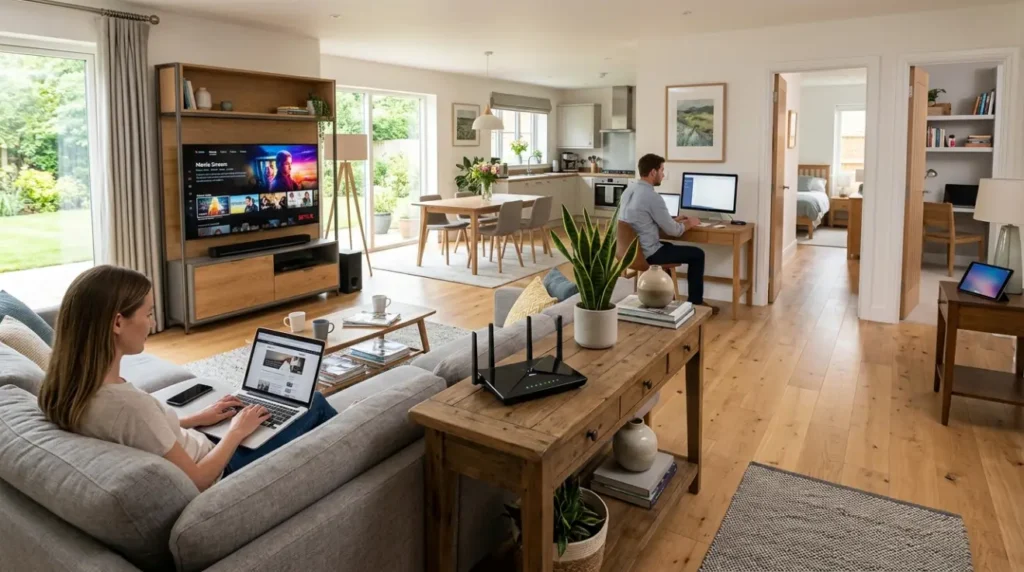
Router placement has a major effect on internet speed and signal strength. Many causes of slow wifi come from poor placement rather than the internet package itself.
In apartments, place the router in a central location, preferably in the living area or hallway. Avoid hiding it inside a TV cabinet, behind thick walls, near metal shelves, or next to kitchen appliances. Concrete walls, mirrors, and large furniture can weaken the signal.
In villas, one router may not cover every floor or outdoor area. Thick walls, staircases, majlis rooms, maid’s rooms, garages, and garden spaces often need extra access points, mesh WiFi, or a properly installed wifi booster. A wifi booster can help in some cases, but placing it too far from the main router will only repeat a weak signal.
In small offices, keep the router away from printers, electrical panels, cordless phones, and crowded corners. If several people use video calls, cloud files, POS systems, and shared printers, bandwidth optimization may be needed. This means organizing available bandwidth so that important devices or tasks get smoother performance.
For better wifi signal increase, place the router higher than floor level, keep it open, and avoid placing it near the modem if the modem is inside a closed cabinet.
Router Login and Safe Router Settings
After you reset the Etisalat router settings, you may need to access the router login page. The login details are often printed on a label on the router. Some routers use a local address such as 192.168.1.1 or a similar gateway address.
Once logged in, change the default admin password if the router allows it. This is different from your WiFi password. The admin password controls access to router settings, while the WiFi password lets devices connect to the network.
Safe router settings include:
Using WPA2 or WPA3 encryption
Changing default admin login details
Creating a strong WiFi password
Disabling WPS if you do not use it
Keeping firmware updated
Using guest WiFi for visitors
Checking unknown connected devices
Avoiding unnecessary port forwarding
Be careful with advanced settings such as DNS, VLAN, bridge mode, firewall rules, and port forwarding. Wrong changes can break internet access, reduce security, or affect smart devices. If you are not sure what a setting does, do not change it without guidance from a wifi repair technician.
How to Create a Guest WiFi Network
A guest WiFi network gives visitors internet access without giving them access to your main home or office network. This is useful in apartments, villas, shared homes, holiday rentals, salons, clinics, and small businesses.
To create guest WiFi, log in to the router settings and look for “Guest Network,” “Guest WiFi,” or “Wireless Guest Access.” Turn it on, choose a simple network name, and create a separate password.
Use a different password from your main WiFi password. If available, turn on guest isolation. This prevents guest devices from seeing your private connected devices, such as laptops, printers, cameras, smart TVs, and storage drives.
Guest WiFi also helps with smart devices. Some users connect smart bulbs, plugs, speakers, and cameras to a separate network to keep the main network cleaner and more secure. This is especially helpful when many devices are always online and may create network congestion. Network congestion means too many devices are using the connection at the same time, which can slow down browsing, gaming, and video calls.
Why WiFi Becomes Slow or Keeps Dropping
There are many causes of slow wifi, and not all of them require a router reset.
Common causes include poor router placement, weak signal, old firmware, too many connected devices, signal interference, incorrect router settings, damaged cables, modem issues, or a weak WiFi channel. Signal interference means another device or nearby network is disturbing your WiFi signal. This is common in apartment towers where many routers are close together.
Gaming and video calls are also affected by latency. Latency is the delay between your device and the server. Even if the internet speed looks good, high latency can cause lag, freezing, and delayed responses during gaming or meetings.
Check these items before blaming the internet line:
Run an internet speed test near the router and again in the problem room.
Restart the router and modem.
Disconnect unused devices.
Check if one device is downloading large files.
Move closer to the router and test again.
Check whether only WiFi is slow or wired internet is also slow.
Look for unknown connected devices.
Update router firmware if available.
If wired internet is stable but WiFi is weak, the problem is likely coverage, interference, or router placement. If both wired and WiFi connections are unstable, the modem, line, router, or service configuration may need deeper network troubleshooting.
WiFi Signal Increase, Boosters, and Bandwidth Control
For better wifi signal increase, start with placement before buying extra equipment. A router in the wrong spot will still perform badly even with a high-speed plan.
If one room has weak signal, a wifi booster may help, but it must be placed where it can still receive a strong signal from the router. For larger villas or multi-floor homes, mesh WiFi or wired access points are usually better than cheap repeaters.
Bandwidth control can help if one person’s downloads, gaming, or streaming affects everyone else. Some routers allow you to prioritize work laptops, gaming consoles, or video calls. This can improve wifi performance during busy hours, especially for families and remote workers.
Also review your connected devices. Old phones, unused tablets, smart appliances, cameras, and guest devices may stay connected in the background. Removing unnecessary devices can reduce network congestion and make the secure network easier to manage.
What You Can Fix Yourself and When to Call a Technician
Most users can safely restart the router, reset the WiFi password, create guest WiFi, move the router, reconnect devices, and check basic router settings. These steps often solve slow internet, weak signal, and basic setup problems.
Call a wifi repair technician or professional wifi service if the router keeps resetting, the modem lights show errors, the router login does not work, WiFi drops every day, mesh WiFi is not roaming properly, or some rooms have no usable signal after basic fixes.
You should also get help if you manage a small business, shared villa, rental apartment, or home office where stable internet is important. A technician can test cable points, modem health, router configuration, WiFi channels, signal strength, latency, and bandwidth usage.
FAQs
Will resetting my Etisalat router delete my WiFi password?
Yes. A factory reset usually removes your custom WiFi name and WiFi password. You will need to set them again after the reset.
How often should I reset my Etisalat router?
You should not factory reset it regularly. Restarting the router occasionally is fine, but factory reset should only be used when settings are broken, login details are lost, or setup needs to be cleared.
Why is my WiFi slow after resetting the router?
The router may be using default settings, poor WiFi channels, weak encryption, or a basic WiFi name and password. Router placement and connected devices can also affect internet speed.
Can I reset the router without affecting the modem?
Yes, if the router and modem are separate devices. However, avoid changing cables unless you know where each one goes.
Is guest WiFi safer than sharing my main WiFi password?
Yes. Guest WiFi helps protect your private devices and keeps visitors separate from your main secure network.
Should I use a WiFi booster in a villa?
A wifi booster may help small weak spots, but larger villas usually need mesh WiFi or wired access points for better coverage.
What is the safest WiFi password?
Use a long password with a mix of words, numbers, and symbols. Avoid names, phone numbers, apartment numbers, and easy guesses.
When should I call a professional for WiFi problems?
Call a professional if internet drops continue, signal is weak in several rooms, gaming lag is high, router settings are confusing, or the modem/router setup keeps failing.
Final Check Before You Reset
Before you reset the Etisalat router settings, restart the modem and router, check placement, test internet speed near the router, and review connected devices. If you still have slow WiFi, weak signals, internet drops, or router setup problems, a proper inspection can save time and prevent repeated resets. For simple issues, careful settings and better placement may be enough. For ongoing problems, contact a qualified wifi repair technician who can check the full network instead of guessing.
Leave a Reply