
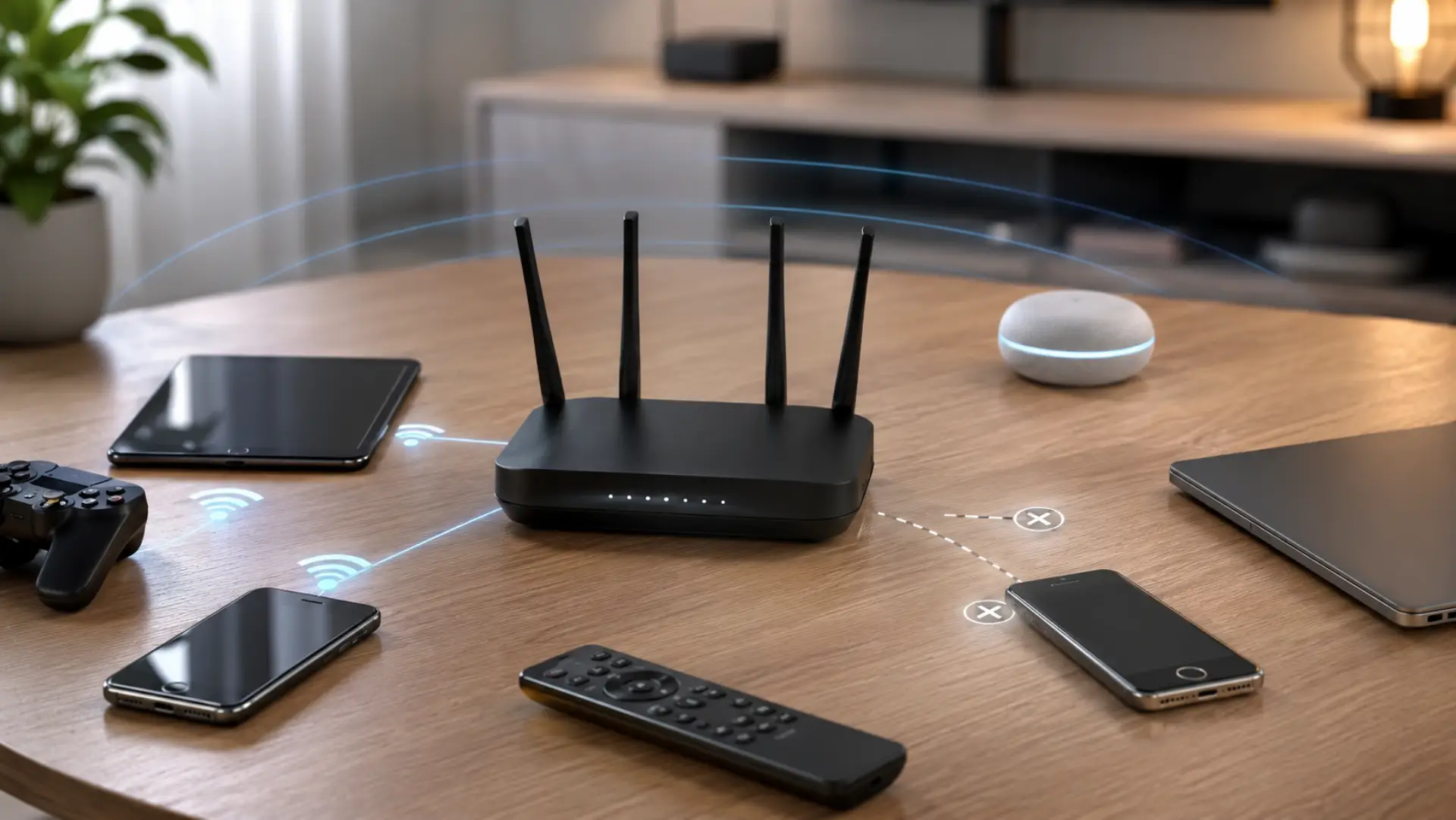
How to remove Old devices from Router settings helps keep your home network cleaner, safer, and easier to manage. Safe router settings help you manage old devices without breaking the main WiFi connection. Over time, phones, laptops, tablets, smart TVs, cameras, and guest gadgets may stay saved on your router even after they are no longer used. Removing or blocking these entries can reduce confusion, improve control, and help you spot anything that should not be on your WiFi.
What Does Removing Devices from a Router Mean?
Removing a device from your router means disconnecting, blocking, or clearing a saved device entry from the router’s control panel. In most homes, the router stores details of old devices that have connected before, even if they are not currently active.
This does not delete anything from the phone, laptop, or smart device itself. It only changes how that device appears or connects to your network. Some routers allow you to remove inactive entries, while others only let you block a device, forget it, or change the WiFi password so it cannot reconnect.
Why You Should Remove Devices from Your Router
You should remove unused devices from your router to keep your network organized, secure, and easier to monitor. A clean router panel makes it simpler to identify connected devices and understand which gadgets are actually using your internet.
This is especially useful if you recently changed phones, replaced laptops, moved into a new home, shared your WiFi with guests, or noticed slow internet. Too many saved entries can make it harder to know what belongs to your home and what needs attention.
Removing unused entries can also help you quickly spot unknown devices that may be using your WiFi without permission.
Before You Start: Know What You Can and Cannot Remove
Not every router works the same way. Some routers let you delete inactive devices from the device list, while others only allow blocking, pausing, or changing access permissions.
In many cases, a router will show two types of devices:
Active devices are currently connected to your WiFi or wired network.
Inactive devices connected in the past but are not using the internet right now. Inactive entries do not always slow the network, but active unknown devices can affect WiFi performance.
If your router does not have a delete option, the best solution is usually to block the unwanted device or change your WiFi password. After changing the password, only devices with the new password can reconnect.
Step 1: Log In to Your Router Admin Panel
To remove a device, you first need router access through the router admin page or mobile app. Most routers can be opened by entering the router IP address into a browser, such as 192.168.1.1 or 192.168.0.1.
You may also find the login details on the router label, service provider app, or setup guide. After opening the login page, enter the admin username and password. This is not always the same as your WiFi password.
Once logged in, you can view your network controls and check which devices are linked to the router.
Step 2: Open the Device or Client Section
After logging in, look for a section named Devices, Clients, Attached Devices, Network Map, LAN Devices, or Wireless Clients. The wording depends on the router brand.
This area shows each WiFi device that is currently connected or has connected before. You may see the device name, IP address, MAC address, connection type, signal level, or last active time.
Common device names may appear clearly, such as “iPhone,” “Samsung TV,” or “HP Laptop.” Some may appear as random letters or numbers, which can make identification harder.
Step 3: Identify the Device You Want to Remove
Before removing anything, confirm that the device does not belong to your home. Check the device name, brand, MAC address, or last connection time. If you are unsure, compare the router entry with the network details shown on your phone, laptop, TV, or smart home device.
This step matters because removing the wrong entry may disconnect an important device such as a security camera, work laptop, printer, smart doorbell, or home automation hub.
For better accuracy, turn off the suspected device and refresh the router page. If the entry disappears from the active list, you have likely found the correct device.
Step 4: Remove, Block, or Forget the Device
If your router has a delete, remove, or forget option, select the device and confirm the action. This may clear the saved entry from the router panel.
If there is no delete option, use the block, deny, pause, or blacklist feature. This is often the most reliable way to remove devices from active use because it prevents them from connecting again.
On some routers, you may need to open access control, parental controls, MAC filtering, or security settings to block a specific device.
Step 5: Change the WiFi Password If Needed
Changing the WiFi password is the strongest option when you want to remove multiple unwanted devices at once. Once the password is changed, all existing devices will disconnect until the new password is entered.
This is useful when you do not recognize several entries, shared your password with many people, or recently moved into a property where previous users may still know the network details.
After changing the password, reconnect only your trusted phones, laptops, TVs, and smart home equipment. This gives you a clean start.
Step 6: Review Your WiFi Settings
After removing unwanted entries, check your WiFi settings to make sure your network is secure. Use WPA2 or WPA3 security if available, create a strong WiFi password, and avoid using easy names or common passwords.
You should also update the router admin password if it is still using the default login. A strong admin password protects the control panel and stops others from changing your network setup.
If your router has guest WiFi, use it for visitors instead of sharing your main password.
How to Keep Your Router Device List Clean
Good device management helps prevent confusion later. Rename trusted devices inside the router panel if your router supports custom names. For example, rename entries as “Living Room TV,” “Office Laptop,” or “Ali Phone.”
Review the router panel every few weeks, especially if you often share your WiFi with guests or use many smart home devices. If a device name looks unfamiliar, check it before blocking it.
Keeping a clean list makes troubleshooting easier when internet speed drops, WiFi becomes unstable, or a new device fails to connect.
Common Router Options for Device Removal
Different routers use different controls, but the function is usually similar. Some routers offer a device manager inside the mobile app, where you can pause, rename, block, or remove a device with a few taps.
Other routers require browser login and manual control through the admin panel. Internet provider routers may have fewer options than advanced third-party routers, so changing the WiFi password may be the only complete removal method.
Mesh systems often make this easier because they show device history, signal quality, and connection location inside the app.
Can Removing Old Devices Improve Internet Speed?
Removing inactive entries does not usually increase speed by itself. However, blocking unwanted active network devices can help if they are using bandwidth in the background.
For example, an unknown phone, streaming device, camera, or gaming console may slow the network if it is downloading updates, streaming video, or syncing files. Removing or blocking that device can reduce load and improve performance for trusted users.
The main benefit is better control, cleaner monitoring, and improved security.
When You Should Not Remove a Device
Do not remove a device if you are unsure what it is. Some smart home products appear with unclear names, especially cameras, bulbs, plugs, printers, thermostats, and security systems.
Before blocking anything, check your home devices one by one. You can also disconnect a device from power, refresh the router page, and see which entry changes status.
If the device is important and you block it by mistake, you may need to unblock it from the router panel or reconnect it with the WiFi password.
Best Security Tips After Removing Devices
After removing unwanted devices, secure your router properly. Change your WiFi password, update the router admin password, enable strong encryption, and turn off WPS if you do not need it.
You should also keep router firmware updated. Firmware updates can improve security, fix bugs, and make the router more stable.
For homes with many users, create a guest network for visitors and keep your main network private for trusted devices only.
When to Get Professional WiFi Help
You may need help if the router panel does not show clear device names, unknown entries keep coming back, or you cannot access the admin page. A WiFi technician can identify devices, secure the router, update settings, and organize the network safely.
Professional help is also useful for villas, apartments, offices, and smart homes where many devices are connected, and the network needs proper control.
FAQs
How do I remove old devices from my router?
Log in to your router admin page or router app, open the devices or clients section, and select the device you want to remove. If your router does not offer a delete option, use block, pause, deny access, or change the WiFi password to stop the device from reconnecting.
Why are old devices still showing on my router?
Routers often save device history even after a phone, laptop, or smart device is no longer active. These entries may stay visible until the router clears its history, restarts, or you manually remove or block them through the admin panel.
Can I remove all devices from my router at once?
The easiest way to remove all devices at once is to change your WiFi password. This disconnects every wireless device, and only devices with the new password can reconnect. Make sure you have the router admin login before doing this.
What should I do if I see an unknown device on my WiFi?
First, check whether it belongs to a smart TV, camera, printer, phone, or guest device in your home. If you still do not recognize it, block it from the router panel and change your WiFi password for better security.
Does removing devices make WiFi faster?
Removing inactive device history will not directly increase speed. However, blocking active unwanted devices can improve performance if they were using bandwidth for streaming, updates, downloads, or background syncing.
Is it safe to block a device from my router?
Yes, it is safe if you are sure the device is not needed. If you block the wrong device, it may lose internet access until you unblock it or reconnect it. Always verify the device name or MAC address before blocking.
Can I remove devices using a router app?
Many modern routers and mesh systems allow device control through a mobile app. You can often view devices, rename them, pause access, block unwanted users, and check connection details without using a browser login.
Should I reset my router to remove old devices?
A full factory reset should be the last option because it removes your router settings and requires setup again. In most cases, changing the WiFi password or blocking unwanted devices is safer and easier than resetting the router.
Leave a Reply