
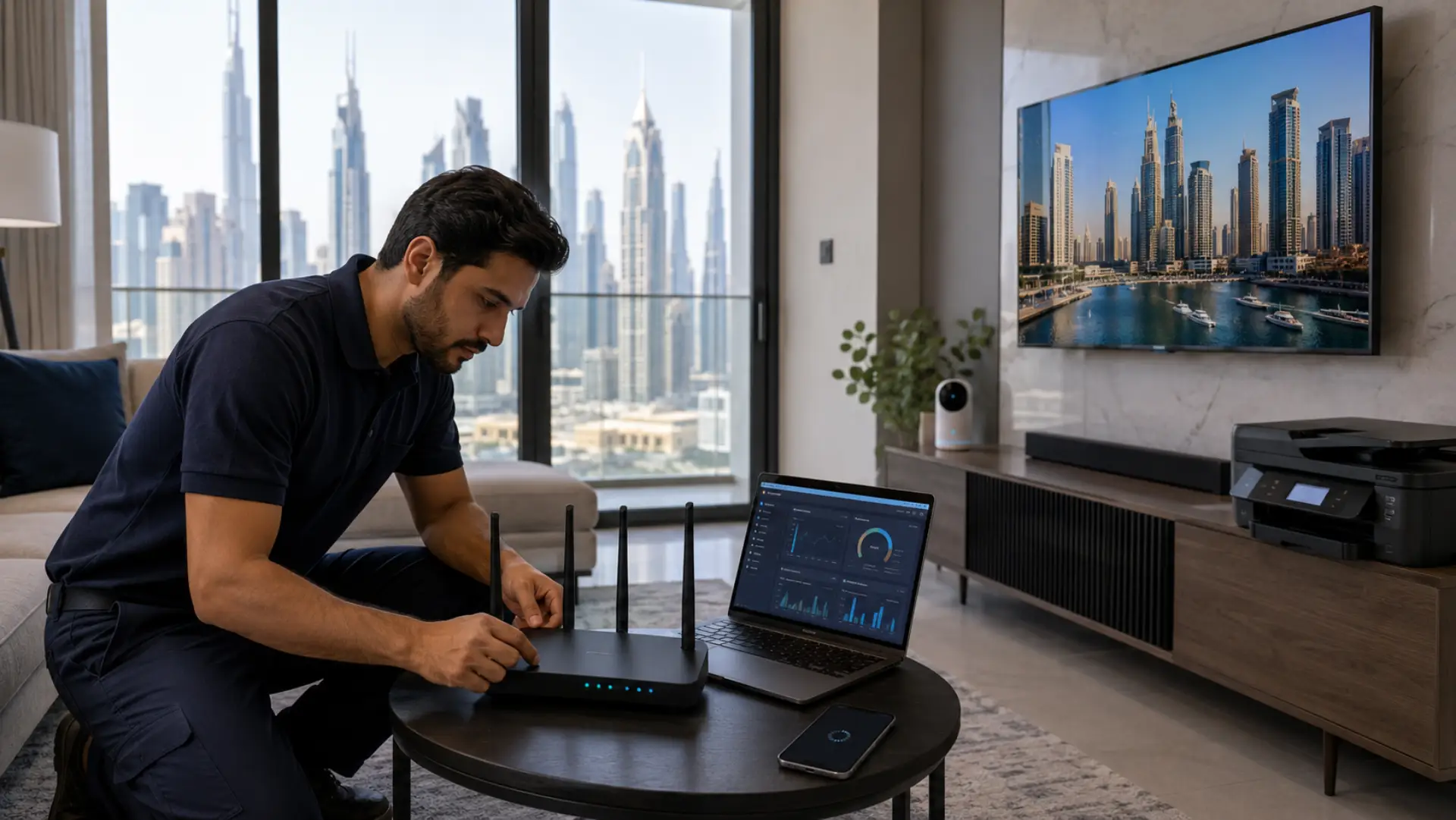
Device-specific WiFi problems happen when one phone, laptop, smart TV, printer, camera, or gaming console struggles online while other devices work normally. Sometimes the cause is simple, such as outdated software, saved network errors, or poor placement. But when the same WiFi issue keeps coming back after basic checks, a technician may be needed to test the device, router, and home network properly. A WiFi technician in Dubai may be needed to test the device, router, and home network properly.
What Device-Specific WiFi Problems Usually Mean
A device-specific problem means the internet is not failing across the whole home. Instead, one device may load slowly, drop offline, refuse to connect, or behave differently from other devices on the same network.
This can happen because every device handles wireless signals differently. A laptop may have an old wireless adapter, a phone may hold a corrupted saved profile, or a smart TV may struggle because it is too far from the router. If the WiFi connection fails only on one device, the issue often starts with that device, but it can still be linked to router compatibility or home layout.
Common Signs the Problem Is Limited to One Device
The clearest sign is that other devices work normally in the same area. If your phone streams smoothly but your laptop has slow WiFi, the fault is likely connected to the laptop, its wireless driver, or its saved connection profile.
Common signs include:
- One device connects slowly while others work fine
- WiFi disconnecting happens only on one phone, laptop, or TV
- WiFi not working on a printer, camera, or smart device
- The affected device cannot detect the home network
- The same password works on other devices
- The problem returns after every restart
These patterns show that the problem is not always a full internet outage.
Basic Checks to Try Before Calling for Help
Start with simple WiFi troubleshooting before assuming the device is faulty. Many device-level problems can be fixed without replacing equipment.
Try these steps first:
- Restart the affected device
- Forget the saved WiFi network and reconnect
- Enter the password again carefully
- Move the device closer to the router
- Check if the device works on another WiFi network
- Update the device software
- Restart the router once
- Test another device in the same room
You should also review the network settings on the affected device. Make sure airplane mode is off, the wireless adapter is enabled, and the device is not blocked by any security or parental control setting. If WiFi missing appears on a laptop or phone, the device may need a driver update, system repair, or hardware inspection.
When the Router or Signal May Still Be Involved
A single-device problem can still be affected by the router. Some older devices do not work well with newer security modes, crowded wireless channels, or certain router bands. A secure network setup helps balance device compatibility with safer WiFi protection.
The router or signal may be involved when:
- The device works near the router but fails in another room
- The problem happens only upstairs or behind thick walls
- The device connects to 2.4 GHz but not 5 GHz
- The router was recently changed or reset
- Other older devices also struggle sometimes
If the affected device only fails in bedrooms, upstairs areas, or far corners, a weak WiFi signal may be part of the cause. Poor placement, thick walls, and limited wifi coverage can make one device perform worse than others, especially if its wireless antenna is weaker. If the same device also shows slow internet results near the router, the issue may be inside the device rather than the signal path.
When You Should Call a Technician
You should call a WiFi technician when the same device keeps failing after restarts, reconnection, software updates, and password checks. Professional help is useful when the problem keeps repeating, and basic fixes only work for a short time.
Call for help if:
- One device drops again and again
- The device connects but performs very badly
- A laptop, TV, printer, or camera cannot stay online
- The problem started after router changes
- The device cannot find the correct network
- Video calls, streaming, or gaming fail only on one device
- Multiple resets do not solve the problem
A technician can test whether the fault comes from the device, router, access point, wiring, interference, or a wider network issue.
What a Technician Checks During a Visit
A proper inspection does not rely on guessing. The goal is to find the exact point where the connection fails.
A technician may check:
- Device wireless adapter condition
- Router signal strength
- Router placement
- Wireless channel congestion
- Security mode compatibility
- Router firmware
- Device software or driver status
- IP conflicts
- Blocked or restricted devices
- Home wifi setup and access point placement
For example, they may test whether the device works on 2.4 GHz but not 5 GHz, whether the router is blocking the device, or whether the home network layout needs adjustment.
Device Problems That Often Need Expert Support
Some device-specific problems are difficult to fix without proper tools. These issues often look like WiFi faults but may actually come from the device itself.
Examples include:
- Laptop wireless card failure
- Smart TV losing saved passwords
- Printer going offline repeatedly
- Security camera dropping after a few minutes
- Gaming console showing strict connection errors
- Phone connecting to WiFi but not loading pages
- Tablet working only when very close to the router
A technician can separate device faults from home network faults. This matters because replacing a router will not fix a damaged wireless adapter, and resetting a device will not solve poor router placement or interference.
Why Repeated Resets Are Not a Long-Term Fix
Resetting the router or device may work for a short time, but it does not solve the root cause. If the same device fails every few days, the problem needs proper diagnosis.
Repeated resets can also create new problems, such as:
- Lost saved WiFi passwords
- Disconnected smart home devices
- Changed router names
- Removed custom settings
- Printer or camera setup failure
- More confusion during future testing
A stable fix should identify whether the cause is signal strength, compatibility, device hardware, software, or router configuration.
How to Prevent Device-Specific WiFi Problems
Good maintenance helps reduce repeat problems and keeps devices connected more reliably.
Helpful prevention steps include:
- Keep phones, laptops, smart TVs, and routers updated
- Place the router in a central open area
- Avoid hiding the router inside cabinets
- Keep the router away from heavy electronics
- Use 2.4 GHz for far or older devices
- Use 5 GHz for newer devices near the router
- Restart the router occasionally, but not repeatedly
- Check device compatibility before changing router settings
For larger homes, a properly placed extender, mesh system, or access point can help maintain stable performance.
Final Advice
Device-specific WiFi problems should not be ignored when they keep returning. If one device repeatedly drops, slows down, or fails to connect while others work fine, start with basic checks first.
If those checks do not solve the problem, professional testing can save time and prevent unnecessary equipment replacement. A technician can check the device and network together, then apply the correct fix instead of relying on repeated resets.
FAQs
Why does only one device have WiFi problems?
Only one device may have problems because of outdated software, a damaged wireless adapter, saved connection errors, or poor compatibility with the router. The router can still be working normally for other devices. Testing the same device near the router helps confirm whether the cause is signal-related or device-related.
Should I replace my router if one device cannot connect?
You should not replace the router immediately if only one device cannot connect. First, restart the device, forget and reconnect to the network, and check for updates. If the problem remains after these steps, a technician can confirm whether the router or device is responsible.
Why does my laptop disconnect while my phone works fine?
A laptop may disconnect because of an old wireless driver, power-saving mode, adapter fault, or poor compatibility with the router band. Phones and laptops use different wireless hardware, so they may not perform the same. Updating the laptop and testing it close to the router can help narrow the cause.
Can a smart TV have a WiFi problem even if the internet is fine?
Yes, a smart TV can have its own wireless problem even when the internet is working for other devices. TVs often have weaker built-in wireless adapters than phones or laptops. If the TV works with an Ethernet cable or closer to the router, the cause may be signal strength or TV hardware.
When is professional WiFi help needed?
Professional help is needed when the same device keeps failing after basic fixes. It is also useful when the device connects but drops often, loads very slowly, or cannot find the network. A proper inspection can prevent unnecessary router replacement or repeated resets.
Can device-specific WiFi problems be caused by interference?
Yes, interference can affect one device more than others, especially if it has a weaker antenna or is placed behind walls, furniture, or electronics. Microwaves, cordless phones, Bluetooth devices, and neighboring routers can affect performance. Testing the device in different rooms can help reveal interference.
Why does my printer or camera keep going offline?
Printers and cameras often go offline because they are far from the router, use older wireless standards, or struggle after password and router changes. These devices may also fail when the signal is unstable. A stable placement and correct configuration usually solve the problem.
Is a factory reset a good solution for one-device WiFi problems?
A factory reset should be a last option, not the first step. It removes saved data and settings, but it may not fix hardware, router, or signal problems. Try simpler checks first, then use a reset only when the device settings are likely corrupted.
Leave a Reply