
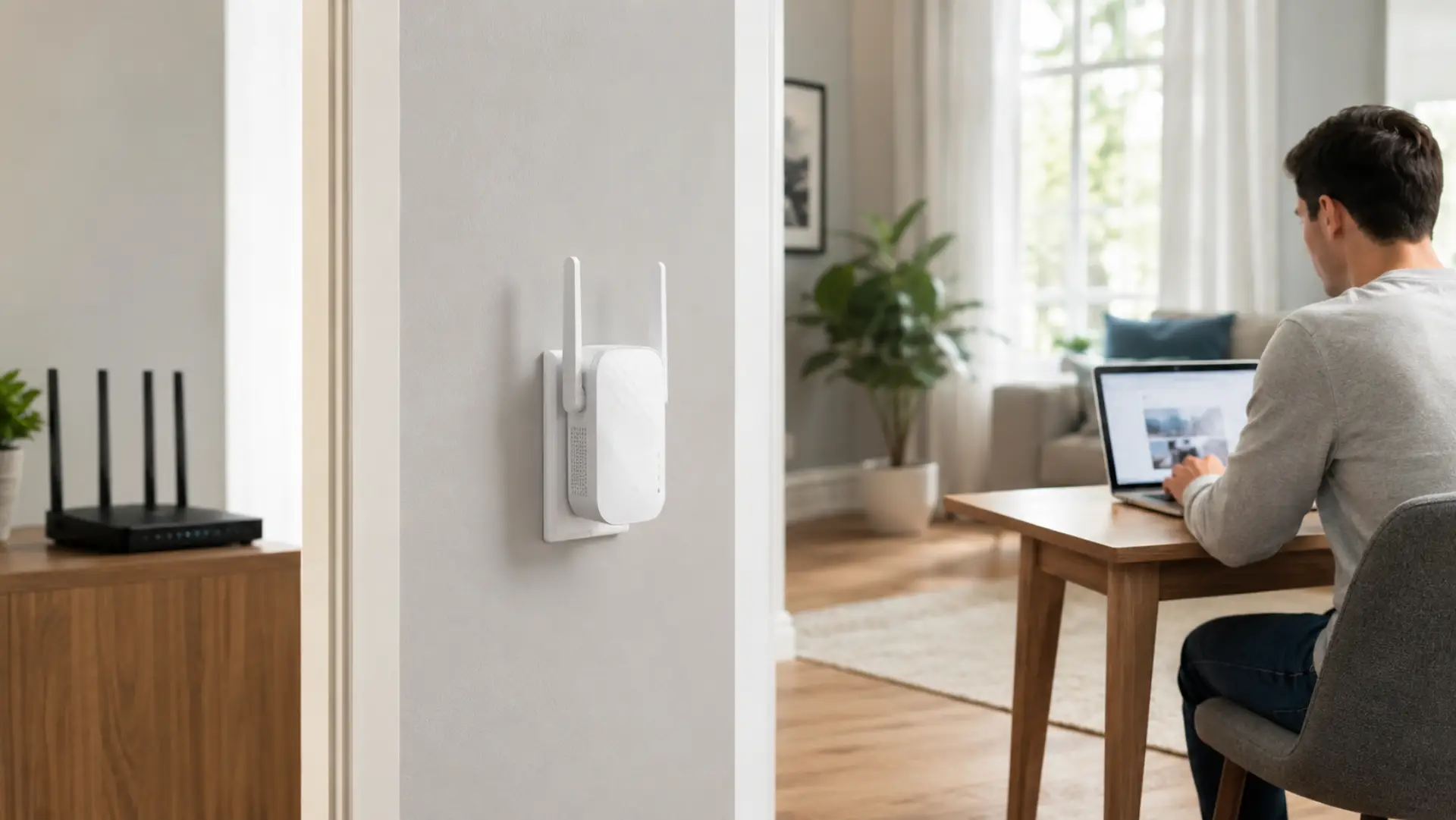
A TP-Link WiFi extender helps improve WiFi in rooms where the router signal becomes weak, slow, or unstable. It extends your existing network so devices can stay connected in areas with poor coverage. Poor coverage is often caused by WiFi dead zones where the router signal cannot reach properly.
For the best result, the extender must be set up correctly and placed where it can still receive a strong router signal. This guide explains the simple setup methods, placement tips, and common fixes for a stable connection.
Before You Start the Setup
Before starting the tp link wifi extender setup, make sure your main router is working properly. If the router already has poor internet speed, frequent disconnections, or incorrect wireless settings, the extender may repeat the same problem instead of fixing it. Common causes of slow WiFi should be checked before blaming the extender.
Place the extender close to the router during setup. This helps it detect the main network clearly and reduces connection errors. After setup is complete, you can move it to a better location between the router and the weak area. Extender placement matters because repeating a weak signal will not create strong coverage.
You should also know your main WiFi name and password before starting. If the password is typed incorrectly, the extender may appear connected but fail to provide internet access.
Best Setup Methods for a TP-Link Extender
The easiest method depends on your router, extender model, and comfort level. Most users can complete TP-Link WiFi setup through the Tether app or web browser. TP-Link router setup steps can also help when the router and extender need to work together properly. WPS is faster, but it depends on whether the router supports it and whether WPS is enabled.
A TP-Link range extender usually gives the best result when you configure it near the router first, confirm the connection, and then move it to a midpoint location. Avoid setting it up directly in the dead zone because it needs a usable router signal to repeat.
Method 1: Set Up with the TP-Link Tether App
The Tether app is usually the most user-friendly option for home users. Install the TP-Link Tether app on your phone, connect your phone to the extender’s default WiFi network, open the app, and follow the setup instructions.
During setup, choose your main router network, enter the router password, and create or confirm the extended network name. TP-Link’s user guide explains that the Tether app can be used to add a range extender and follow app instructions for setup.
After setup, check whether your phone or laptop connects to the extended network and loads websites normally. If the app cannot find your extender, restart the device, move it closer to the router, and scan again.
Method 2: Set Up Through a Web Browser
You can also set up the extender through the TP-Link extender setup page. You can log in to your router admin page to confirm WiFi name, password, and wireless settings before setup. Plug the extender near the router, connect your phone or laptop to the extender’s default network, then open a browser and enter tp linkrepeater.net or 192.168.0.254.
TP-Link states that the extender management page can be accessed through tplinkrepeater.net or 192.168.0.254, even when there is no internet connection on the extender yet.
Create a login password if asked, select your router’s WiFi network, enter the correct router password, and save the settings. Once the setup finishes, wait for the extender lights to stabilize before moving the device.
Method 3: Set Up with WPS
WPS is the fastest method when both the router and extender support it. Plug the TP-Link extender near the router, press the WPS button on the router, then press the WPS button on the extender within the required time window.
TP-Link’s WPS setup guidance says to press the WPS button on the host router first, then press the WPS button on the extender within 2 minutes. Some ISP routers may disable WPS, so this method may not work on every router.
If the WPS light does not turn stable, use the app or browser method instead. Manual setup is often more reliable because you can choose the correct network and confirm the password yourself.
Where to Place the Extender After Setup
After setup, do not leave the extender too close to the router unless that area is where you need better internet. The best location is usually halfway between the router and the weak room, where the extender can still receive a strong router signal.
If the extender is placed too far away, it may connect but repeat a weak connection. This can lead to slow browsing, buffering, or unstable video calls. A TP-Link WiFi booster works best when it receives a good signal before extending it.
Avoid placing the extender behind a TV, inside a cabinet, near thick walls, close to metal objects, or beside microwave ovens. These areas can reduce wireless performance and make the extended network less stable.
How to Check If the Extender Is Working
After completing the WiFi extender setup, connect your phone or laptop to the extended network and test it in the weak area. Open websites, stream a short video, or run a speed test to compare performance before and after setup.
A working range extender should improve usability in the weak room, not just show full bars. Full bars do not always mean high speed. The real test is whether pages load faster, calls stay stable, and devices remain connected.
If your extender has signal lights, use them as a placement guide. A stable signal light usually means the extender has a usable connection to the router. If the light shows poor signal, move the extender closer to the router.
Common Setup Problems and Fixes
If the extender does not connect, check the router password first. Many setup failures happen because of one wrong character, old saved passwords, or confusion between 2.4GHz and 5GHz network names.
If the setup page does not open, make sure your device is connected to the extender’s network, not the main router network. You can also try a different browser, clear the browser cache, or use the IP address instead of tplinkrepeater.net.
If the extended network connects but has no internet, restart the router and extender. Then reconnect the extender through the app or web page. Also make sure the main router internet is working before troubleshooting the extender.
When a TP-Link Extender Helps Most
A TP-Link extender is useful when one or two rooms have weak wireless access while the main router works fine in nearby areas. It is commonly used for bedrooms, study rooms, smart TVs, balconies, small offices, and corners where the router signal becomes weak.
An extender is not always the right solution for every home. If the whole property has poor performance, the router may be outdated, overloaded, or badly positioned. In larger homes, access points or mesh systems may provide better long-term results.
A Signal extender can improve WiFi coverage, but it cannot create speed that the router is not already receiving. If the router speed is poor near the router itself, fix the main internet or router problem first.
Important Settings to Review
After setup, check the extended network name, password, and band selection. Some users prefer the same network name as the router for easier roaming, while others prefer a separate name so they can choose the extender network manually.
If your router has separate 2.4GHz and 5GHz networks, connect the extender to the band that gives the best balance of range and speed. The 2.4GHz band usually reaches farther, while 5GHz can be faster at shorter distances.
Also check how many devices are connected. Every network has a practical WiFi limit, especially when many phones, laptops, cameras, smart TVs, and gaming devices are active at the same time.
When to Reset and Start Again
Reset the extender only when normal fixes do not work. A reset removes saved settings and returns the device to factory condition, so you will need to set it up again from the beginning.
Use a pin to press and hold the reset button until the lights change, then wait for the extender to restart. After that, reconnect through the app or browser and repeat the setup process.
Resetting is helpful when the extender was previously connected to another router, the setup password is forgotten, or the extended network keeps failing after multiple attempts.
When to Call a WiFi Technician
Call a WiFi technician if the extender connects but the speed remains poor, the setup page does not load, or the same weak area keeps losing connection. A technician can test router placement, signal strength, interference, device load, and cable or ISP issues.
Professional help is also useful for larger homes, villas, offices, or properties with thick walls. In these cases, the problem may need a better network layout instead of simply adding one extender.
FAQs
How do I set up a TP-Link WiFi extender?
You can set it up through the TP-Link Tether app, a web browser, or WPS. The app and browser methods are usually more reliable because you can select your router network and enter the WiFi password manually.
Why is my TP-Link extender not connecting to my router?
The most common reasons are an incorrect WiFi password, poor placement, disabled WPS, or weak router signal during setup. Move the extender closer to the router, restart both devices, and try the setup again using the app or web browser.
Where should I place my TP-Link extender?
Place it between your router and the weak area, but not inside the dead zone. The extender must receive a stable signal from the router before it can extend that signal to another room.
Can I use a TP-Link extender without WPS?
Yes, you can use the Tether app or browser setup method without WPS. Manual setup is often better because it lets you choose the correct WiFi network and confirm the password during installation.
Why does my extender show full bars but still have slow speed?
Full bars only show the connection between your device and the extender. If the extender itself is receiving a weak signal from the router, the internet can still feel slow even when your device shows strong WiFi.
Should the extender use the same WiFi name as the router?
It can use the same name or a different name depending on your preference. A separate name gives you more control, while the same name can make roaming easier if your router and extender support it well.
Does a TP-Link extender increase internet speed?
An extender does not increase the internet speed coming from your service provider. It helps improve access in weak areas by extending the router’s wireless signal, but the final speed depends on router quality, placement, distance, and interference.
When should I reset my TP-Link extender?
Reset it when you cannot access the settings, forgot the login password, changed routers, or the extender keeps failing after normal troubleshooting. After resetting, you must complete the setup again through the app, browser, or WPS.
Leave a Reply