
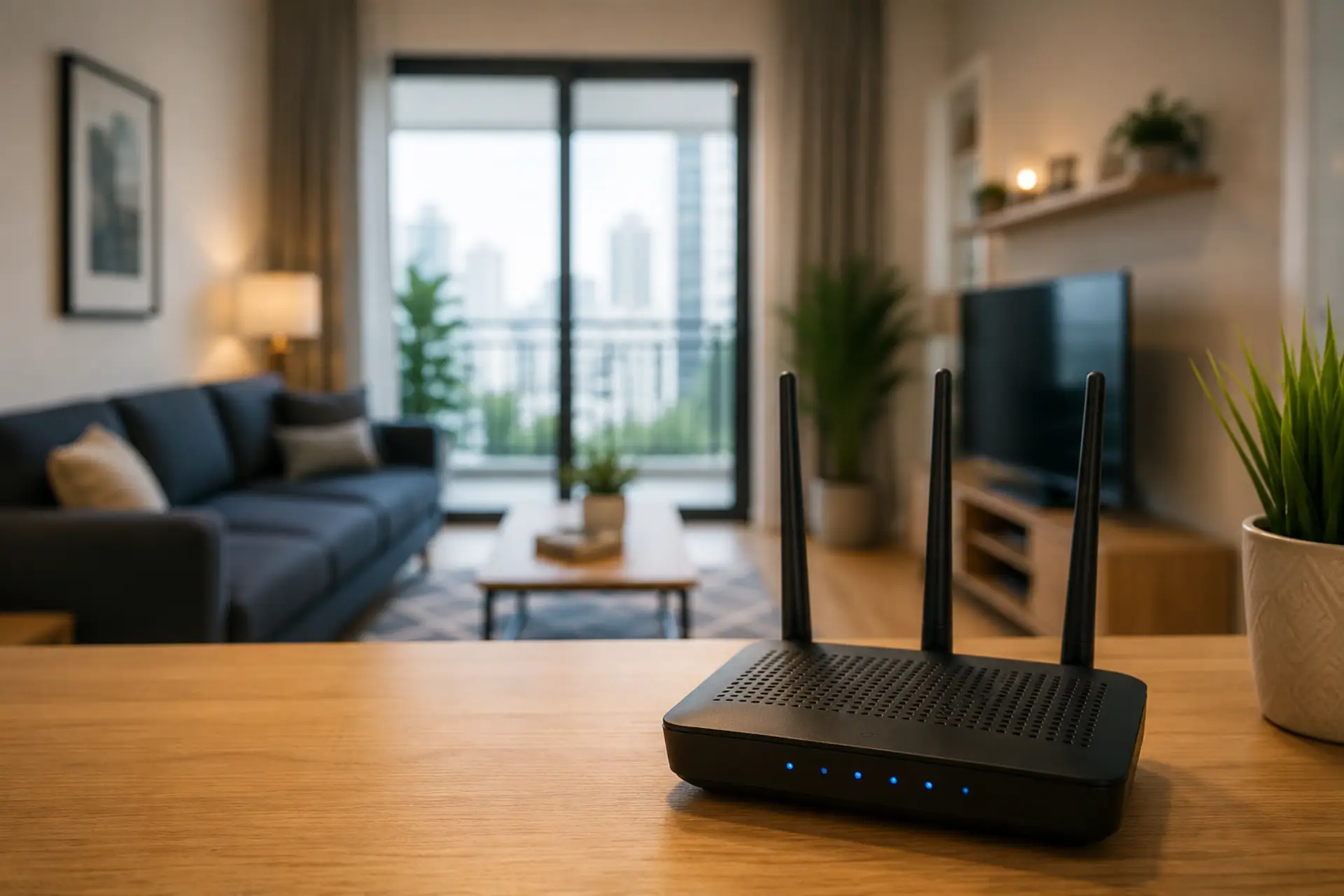
To extend WiFi coverage in an apartment, start with the basics: place the router in a central open area, reduce signal blockage, avoid interference, test your speed in different rooms, and use the right device only when needed. These basic steps are also useful when you want to boost your WiFi signal before buying extra equipment. Apartments often have walls, neighbors’ networks, mirrors, appliances, and compact layouts that can weaken the WiFi signal even when the internet plan is fast.
Key Takeaways
- The best way to improve apartment WiFi is to fix the router position before buying extra devices. Good router placement is usually the first step when weak rooms appear inside an apartment.
- A central, open, raised location usually gives better WiFi coverage across rooms.
- Thick walls, metal objects, mirrors, and appliances can reduce WiFi range.
- A WiFi extender helps small weak zones but may not solve full-apartment coverage problems.
- Mesh WiFi is better for larger apartments, thick walls, or multiple rooms with weak reception.
- Slow WiFi can happen even with a fast plan if the router is blocked or overloaded.
- Testing internet speed in each room helps identify where the signal drops.
- A proper WiFi setup should match the apartment size, layout, device count, and usage needs.
Why WiFi Gets Weak in Apartments
Apartment WiFi often becomes weak because the signal has to pass through walls, doors, furniture, and nearby electronic devices. Unlike an open space, an apartment usually has compact rooms, corners, shared walls, and several neighboring networks competing in the same area. Weak rooms may become WiFi dead zones when the signal cannot reach them properly.
The problem is not always the internet provider. In many cases, the connection becomes unstable because the router is placed too low, hidden inside a cabinet, kept near a TV, or positioned at one end of the apartment. When the signal has to travel through too many barriers, some rooms receive poor coverage while others work fine.
A weak wifi conection can also happen when too many devices use the same network at once. Phones, laptops, smart TVs, gaming consoles, cameras, and smart home devices all share available bandwidth. If the router is old or poorly positioned, performance drops faster.
Start With Better Router Placement
Correct router placement is the first step before adding any booster or extra device. Better placement can also improve WiFi performance without changing the internet plan first. Keep the router near the center of the apartment so the signal can spread more evenly. A hallway, living room shelf, or open central area usually works better than a bedroom corner or closed cabinet.
Place the router higher than floor level. A table, wall shelf, or media console with open space around it is better than the floor. Avoid putting it behind a large TV, inside a drawer, under a desk, or beside thick furniture.
For better performance, keep the router away from:
- Microwave ovens
- Cordless phones
- Bluetooth speakers
- Large mirrors
- Metal shelves
- Fish tanks
- Thick concrete walls
- Closed wooden cabinets
A small change in position can improve WiFi signal quality without spending money.
Reduce WiFi Interference Around the Router
WiFi interference is common in apartments because many nearby homes use their own networks. When too many routers operate on the same channel, your connection may become unstable, especially during evening hours when more people are online.
Keep the router away from electronics that create signal noise. Microwaves, baby monitors, wireless cameras, and Bluetooth devices can affect performance when they are too close. If your router supports both 2.4 GHz and 5 GHz bands, use 5 GHz for nearby devices that need speed and 2.4 GHz for devices farther away.
The 2.4 GHz band travels farther but is more crowded. The 5 GHz band is faster but has a shorter reach. Choosing the right band helps balance speed and coverage across the apartment.
Test Speed in Every Room
Before changing equipment, test internet speed near the router and then in each room. This helps you understand whether the issue is your internet plan, your router, or poor signal reach.
Start by testing close to the router. Then test in the bedroom, kitchen, balcony area, and any room where the connection feels weak. If speed is strong near the router but drops in another room, the problem is likely signal coverage. If speed is poor everywhere, the issue may be with the router, provider, or network settings.
Testing also helps you avoid buying the wrong solution. A bigger plan will not fix poor wireless coverage if the signal cannot reach the room properly.
Use a WiFi Extender for Small Dead Zones
A WiFi extender can help when one small area has weak coverage, such as a bedroom, study corner, or balcony. It works by receiving the existing signal and repeating it farther into the apartment.
For best results, place the extender halfway between the router and the weak area. Do not place it inside the dead zone itself. If the extender receives a poor signal, it will repeat a poor signal.
An extender is useful for simple coverage gaps, but it is not always the best option for larger apartments. It can also create slower speeds if placed badly or if the main router is already weak.
Use Mesh WiFi for Larger Apartments
Mesh WiFi is a better option when multiple rooms have weak coverage. A mesh system uses more than one unit to create a smoother network across the apartment. Instead of depending on one router alone, the mesh units work together to spread coverage more evenly.
Mesh is helpful when the apartment has thick walls, long hallways, many connected devices, or a weak signal in more than one room. It is also easier for users who want one network name across the home without manually switching between connections.
For apartments with heavy streaming, gaming, work calls, and smart devices, mesh can provide a more stable experience than a single router or basic repeater.
Improve Settings for Better Coverage
A few basic settings can help you improve WiFi signal quality. Update the router firmware, restart the router regularly, and check whether your router is using a crowded channel. Many modern routers choose channels automatically, but older models may need manual adjustment.
Use separate names for 2.4 GHz and 5 GHz if devices keep connecting to the wrong band. Keep close devices like smart TVs, laptops, and gaming consoles on 5 GHz when possible. Use 2.4 GHz for devices farther away or those that do not need high speed.
A clean WiFi setup should have a strong password, updated firmware, correct band selection, and a router placed in an open location. These basics often fix common apartment signal issues.
Know the WiFi Limit in Your Apartment
Every router has a WiFi limit based on hardware strength, antenna design, frequency band, and how many devices it can handle. A small basic router may work for a studio or one-bedroom apartment, but it may struggle in a larger unit with thick walls and many connected devices.
If the router is several years old, it may not support modern speeds or heavy device usage. Upgrading to a newer router can help when the existing one cannot manage current usage. However, upgrading only makes sense after checking placement, interference, and room-by-room speed first.
When a WiFi Booster Makes Sense
A WiFi booster can help when the main issue is weak reach in a specific area. It is useful for small coverage gaps, but it should not be treated as a fix for every network problem.
Use a booster when the main router already performs well nearby and only one area needs help. If the whole apartment has weak performance, a better router or mesh system is usually more effective.
Avoid placing boosters too far from the router. They need a clean signal to repeat, so placement matters more than the device itself.
Fix Slow Internet Before Replacing Devices
Slow internet can come from many causes: poor router position, outdated hardware, provider issues, too many connected devices, weak signal, or background downloads. Replacing equipment without checking the cause may waste money.
Restart the router, disconnect unused devices, check cable connections, and test speed near the router. If the speed is fine near the router but weak in other rooms, focus on coverage. If speed is poor everywhere, contact the provider or inspect the router.
A strong apartment network depends on both good service and good wireless distribution. One without the other can still create problems.
Apartment WiFi Coverage Checklist
Use this simple checklist to improve wifi coverage across your apartment:
- Move the router to a central open area.
- Keep it raised and visible.
- Avoid cabinets, corners, and floors.
- Move it away from appliances and metal objects.
- Test speed in each room.
- Use 5 GHz for nearby high-speed devices.
- Use 2.4 GHz for farther devices.
- Add an extender only for small weak spots.
- Choose mesh for larger apartments or multiple weak rooms.
- Upgrade the router if it is old or overloaded.
When to Get Expert Help
If you have tried placement changes, speed tests, restarts, and basic settings but still face weak coverage, expert help may be useful. A technician can check signal strength, channel congestion, router condition, cable issues, and device load.
Professional help is especially useful when your apartment has thick concrete walls, multiple dead zones, smart home devices, gaming needs, or work-from-home video calls. The goal is not just stronger signal bars, but stable coverage where you actually use the connection.
FAQs
How can I extend WiFi coverage in an apartment?
You can extend WiFi coverage in an apartment by placing the router in a central open area, keeping it raised above the floor, and removing objects that block the signal. If one room still has weak coverage, a WiFi extender can help, while mesh WiFi is better for larger apartments or multiple weak areas.
Where should I place my router for better apartment coverage?
The best place for a router is usually near the center of the apartment in an open and raised position. Avoid placing it inside cabinets, behind TVs, near mirrors, beside metal objects, or close to appliances because these can weaken the signal and reduce coverage.
Why is my WiFi strong near the router but weak in another room?
This usually happens because distance, walls, furniture, or WiFi interference block the signal before it reaches that room. Testing speed in different areas helps confirm whether the issue is coverage, router position, or the internet service itself.
Is a WiFi extender useful in an apartment?
A WiFi extender is useful when only one small area has weak signal, such as a bedroom, balcony, or study corner. It should be placed between the router and the weak area, not inside the dead zone, because it needs a strong signal to repeat properly.
Is mesh WiFi better than a WiFi extender?
Mesh WiFi is usually better when several rooms have weak coverage or when the apartment has thick walls and many connected devices. A WiFi extender is a cheaper option for one weak spot, but mesh gives smoother and more stable coverage across the apartment.
Can slow WiFi happen even with a fast internet plan?
Yes, slow WiFi can happen even when your internet speed plan is good. Poor router placement, signal blockage, old hardware, too many connected devices, or WiFi interference can make the connection feel slow inside the apartment.
How do I reduce WiFi interference in an apartment?
You can reduce WiFi interference by keeping the router away from microwaves, Bluetooth devices, cordless phones, metal shelves, and large mirrors. Using the correct WiFi band also helps, with 5 GHz working better near the router and 2.4 GHz reaching farther areas.
When should I upgrade my apartment WiFi setup?
You should upgrade your WiFi setup if your router is old, drops connections often, overheats, or cannot handle your current devices. If weak signal appears in several rooms, mesh WiFi or a stronger router may be a better long-term solution.
Leave a Reply