
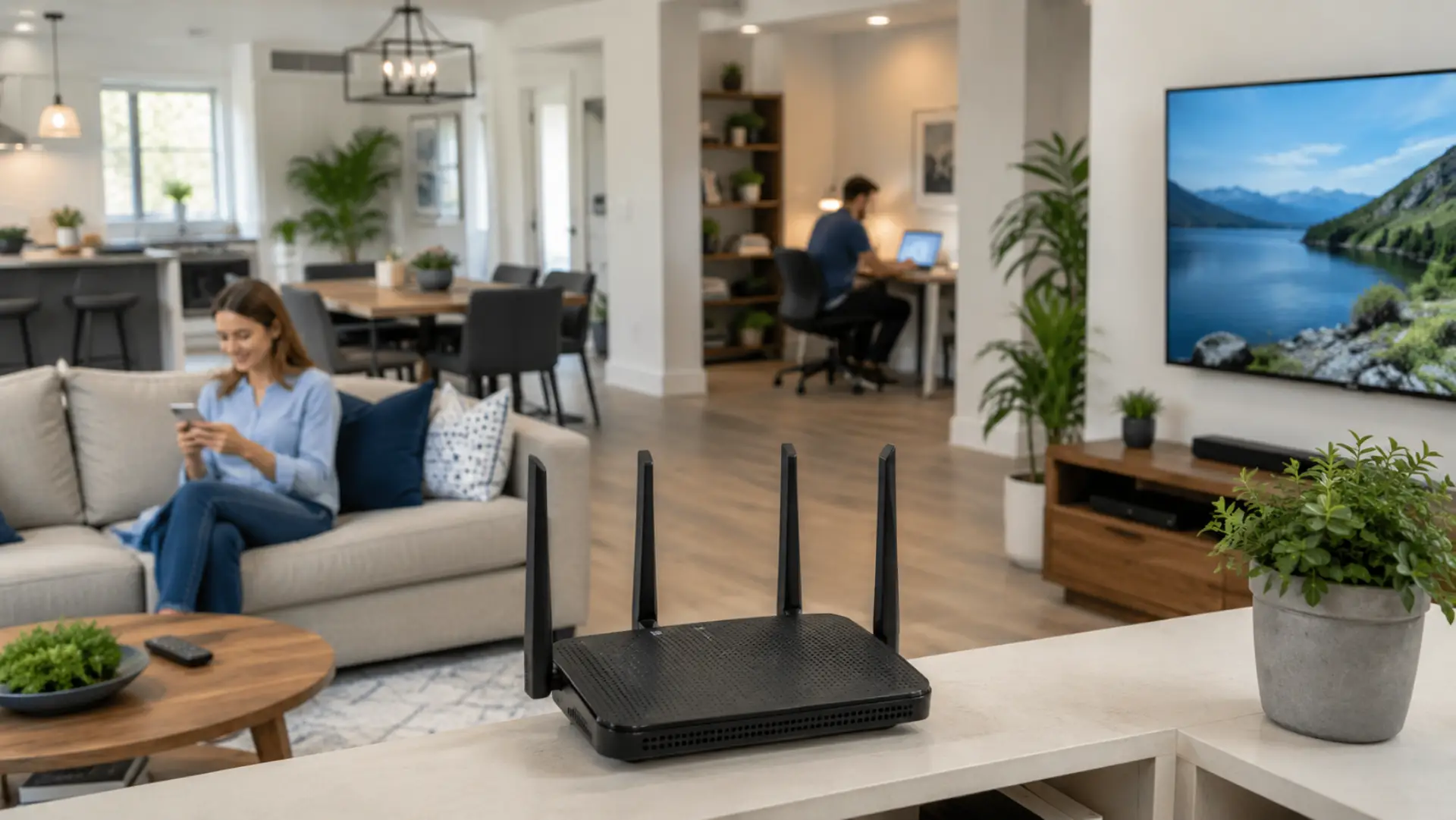
To increase WiFi range at home, start by checking where your connection becomes weak and why the signal is not reaching properly. In many homes, poor WiFi range is caused by bad router location, thick walls, device overload, outdated equipment, or interference from nearby electronics. If the issue is limited to certain rooms, it may be similar to WiFi dead zones where the signal cannot reach properly. A weak WiFi signal does not always mean your internet plan is slow. It can also point to poor wifi coverage, a hidden network issue, or a setup problem inside the home.
The goal is to improve the signal in the rooms you use most, such as bedrooms, living areas, upstairs spaces, home offices, and smart TV zones. Before buying extra devices, fix the basic setup first. Better placement, cleaner surroundings, updated router settings, and the right support device can make your home connection more stable and reduce daily problems like buffering, dropped calls, and slow browsing.
Place the Router in a Central Open Area
Good router placement is one of the most important steps for improving home coverage. Keep the router in a central area, not inside a cabinet, under a desk, behind a TV, or near metal objects. Poor location is one of the router setup mistakes that can reduce range, even with a fast internet plan. The signal spreads better when the router is open, raised, and away from heavy barriers.
For most homes, the best location is near the middle of the house, slightly elevated, and away from corners. If the router is placed at one end of the home, the far side may receive a weak or unstable connection even when the internet plan is fast.
Avoid placing the router near microwaves, cordless phones, baby monitors, Bluetooth-heavy areas, and large appliances. These can reduce performance and make the connection unstable.
Understand the Natural Signal Limit
Every router has a WiFi limit. The signal becomes weaker as it travels through walls, floors, doors, glass, furniture, and appliances. Concrete walls, mirrors, metal shelves, and large fish tanks can block or reflect the signal more than normal furniture. Thick walls and heavy materials may require steps to boost WiFi signal through walls before adding extra equipment.
This is why a room close to the router may work well while another room feels slow or disconnected. Distance alone is not the only problem. The type of material between your device and router matters just as much.
If your home has multiple floors, thick walls, or a long layout, one router may not be enough to cover every area properly.
Reduce Interference Around the Router
WiFi interference can make your signal weaker even when the router is working properly. Interference can also cause internet speed drops when nearby networks and devices overload the wireless environment. Nearby routers in apartments, smart devices, cordless equipment, Bluetooth speakers, and electronic appliances can all affect performance.
A crowded 2.4 GHz band can cause slow browsing and random drops. The 5 GHz band is usually faster, but does not travel as far through walls. Many modern routers automatically choose the best band, but older routers may need manual channel adjustment.
If your connection becomes worse during busy evening hours, the problem may be network congestion from nearby homes or too many connected devices inside your own home.
Use the Right Frequency Band
Most modern routers support both 2.4 GHz and 5 GHz networks. The 2.4 GHz band reaches farther and works better through walls, but it may be slower. The 5 GHz band gives better speed at shorter distances, but it loses strength faster.
For rooms far from the router, 2.4 GHz may be more stable. For streaming, gaming, video calls, and devices near the router, 5 GHz may perform better. Choosing the right band can improve your wifi speed without changing your internet plan. Correct band selection, placement, and device checks can increase WiFi speed without changing the package first.
If your router supports band steering, it may move devices between bands automatically. If not, you can test both bands and keep each device connected to the one that works best.
Keep the Router Updated
An outdated router can create weak performance, security risks, and random connection drops. Firmware updates can improve stability, fix bugs, and help the router handle devices more efficiently.
Log in to your router settings and check for firmware updates from the official manufacturer panel. Do not download update files from unknown websites. If your router is very old and no longer receives updates, replacing it may be better than trying to repair repeated connection problems.
Old routers may also struggle with modern phones, smart TVs, cameras, laptops, and home automation devices.
Remove Physical Blockages
A router should not be hidden behind furniture or placed inside a closed cabinet. Even small placement mistakes can reduce WiFi signal quality.
Keep the router away from walls, metal frames, mirrors, large speakers, and thick wooden furniture. Raise it on a shelf or table instead of keeping it on the floor. Point external antennas vertically unless the manufacturer recommends a different position.
If your router has multiple antennas, adjusting them slightly can help cover different areas of the home.
Check Connected Devices
Too many connected devices can affect performance, especially on older routers. Phones, laptops, smart TVs, cameras, printers, gaming consoles, and smart home devices all share bandwidth.
When many devices are streaming, downloading, or updating at the same time, you may experience slow internet even if the signal looks strong. This is common when multiple devices on WiFi affect speed and network performance during heavy household use. Check your router device list and disconnect unknown or unused devices.
You should also change your WiFi password if you suspect unauthorized access. A secure network helps protect performance and privacy.
Add a WiFi Extender Only When Needed
A WiFi booster can help in small areas where the signal is weak but still available. It works by repeating the existing signal to reach a nearby room.
However, boosters are not always the best solution. If the original signal reaching the booster is already poor, the repeated signal may also be weak. Place the extender halfway between the router and the weak area, not inside the dead zone.
For larger homes, villas, and multi-floor properties, a mesh system or access point is usually more reliable than a basic extender.
Use a Mesh System for Larger Homes
A mesh system is useful when one router cannot cover the full house. It uses multiple nodes to spread the connection more evenly across rooms, floors, and corners.
Mesh systems are better for homes with several bedrooms, thick walls, upstairs areas, outdoor sitting spaces, or long hallways. They also help reduce dead spots without forcing users to manually switch networks.
For better results, place mesh nodes where they can still receive a healthy signal from the main unit. A node placed too far away may not perform well.
Install an Access Point for Stronger Coverage
A wired WiFi access point is one of the strongest solutions for large homes or areas with heavy walls. It connects back to the main router through an Ethernet cable and broadcasts a fresh signal in another part of the house.
This option is better than repeating a weak wireless signal. It is useful for upstairs rooms, home offices, gaming rooms, outdoor areas, and extensions where wireless repeaters do not work well.
If your home already has Ethernet wiring, adding an access point can be a clean and stable way to improve coverage.
Test the Signal Before Buying Equipment
Before replacing your router or buying extra devices, test your connection in different rooms. Stand near the router and check the speed. Then test again in the weak area.
If the speed is good near the router but poor in another room, your problem is likely coverage-related. If the speed is poor even beside the router, the issue may be with the internet line, modem, router hardware, or service plan.
This simple test helps separate a wireless problem from a full network issue.
Fix Common Home WiFi Problems
A common wifi issue starts with one weak room, then becomes more noticeable as more devices connect. Restarting the router may help temporarily, but repeated problems need proper checking.
Look for these signs:
- Signal drops in the same rooms every day
- Video calls freeze away from the router
- Smart TVs buffer in specific areas
- Phones switch to mobile data indoors
- Devices connect but pages load slowly
- Speed is strong near the router but weak farther away
If you have slow WiFi at home, do not only upgrade your internet package. First, check signal coverage, device load, router age, interference, and placement.
Improve Signal Strength Safely
To increase WiFi signal, avoid random advanced settings unless you understand what they do. Changing channels, bands, security modes, or DNS settings without knowing the effect can create more problems.
Use WPA2 or WPA3 security where available. Keep your router password strong. Avoid leaving the network open. Restart the router occasionally, but do not reset it unless you know your login details and setup information.
A stable home setup should give a strong WiFi signal in the areas where you work, stream, study, and use smart devices most often.
When You Should Replace the Router
A router may need replacement if it is old, overheats, drops connections often, cannot handle modern devices, or has a very short signal range compared with the size of your home.
You should also consider replacement if firmware updates are no longer available or if the router only supports older wireless standards. Newer routers can manage more devices, offer better security, improve bands, and provide stronger performance.
Do not replace equipment blindly. Confirm whether the issue is caused by coverage, speed, interference, wiring, or router hardware first.
When to Call a WiFi Technician
Professional help is useful when you have dead zones, repeated disconnections, poor upstairs coverage, speed drops, or a wifi conection problem that does not improve after basic checks.
A wifi technician can test signal levels, inspect router location, check cabling, review device load, identify interference, and recommend whether you need mesh, an access point, router replacement, or better configuration.
This is especially helpful in large homes, villas, apartments with thick walls, and properties where smart TVs, cameras, work devices, and gaming systems all depend on stable wifi coverage.
FAQs
How can I increase WiFi range at home quickly?
You can increase WiFi range quickly by moving your router to a central, open, and slightly higher position. Keep it away from cabinets, thick walls, metal objects, appliances, and corners. After changing the position, restart the router and test the signal again in the rooms where the connection was weak.
Why is my WiFi strong in one room but weak in another?
WiFi becomes weak in some rooms because the signal loses strength when it passes through walls, floors, furniture, glass, metal, or concrete. A room near the router may work well, while a far room may struggle. This usually means the router position, home layout, or coverage setup needs improvement.
Does a WiFi extender really help?
A WiFi extender can help when the weak area still receives some signal from the main router. It should be placed between the router and the low-signal room, not inside the dead zone. If the area has almost no signal, a mesh system or wired access point is usually a better solution.
Is mesh WiFi better than a booster?
Mesh WiFi is usually better for larger homes, multiple floors, and areas with several weak spots. It spreads the connection more evenly and allows devices to move between rooms with fewer drops. A booster is more suitable for one small weak area near the main router.
Can thick walls reduce WiFi range?
Yes, thick walls can reduce WiFi range because wireless signals become weaker when they pass through dense materials. Concrete, brick, stone, mirrors, and metal surfaces can block or reflect the signal. In homes with heavy walls, mesh nodes or access points may be needed for stronger coverage.
Why is my internet slow even with full WiFi bars?
Full WiFi bars only show that your device has a strong local connection to the router. They do not always mean your internet speed is good. Slow performance can still happen because of too many connected devices, router limits, service line problems, or bandwidth-heavy activity.
Should I upgrade my router to improve coverage?
You should consider upgrading your router if it is old, overheats, drops connections often, or no longer receives firmware updates. A newer router can handle more devices and provide better wireless performance. However, check placement, interference, and signal barriers first before replacing the router.
What is the best solution for large homes?
The best solution for large homes is usually a mesh WiFi system or wired WiFi access points. One router may not cover every room, floor, hallway, or outdoor area properly. A planned setup gives more reliable coverage than placing random extenders around the house.
Final Advice
The best way to increase WiFi range is to improve the setup before spending money. Start with router location, remove nearby interference, test weak rooms, check connected devices, and update the router. If the signal still does not reach important areas, use mesh or a wired access point for a more reliable long-term solution.
A better WiFi setup should not only reach farther. It should stay stable, secure, and strong where your family actually uses the internet every day.
Leave a Reply