
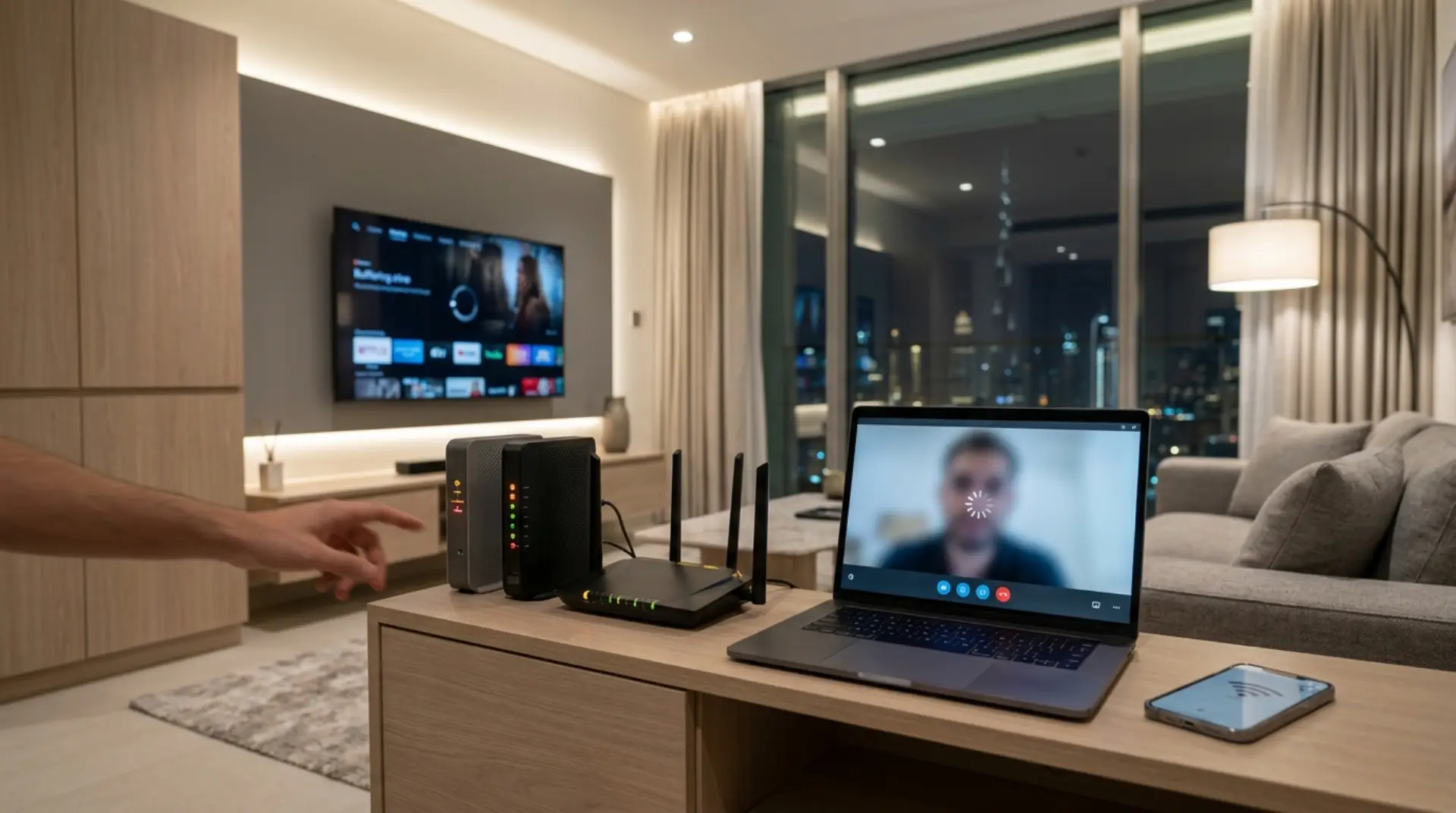
Your Zoom call drops in the middle of a meeting, the smart TV keeps buffering, and your phone shows full WiFi bars but no internet. Then you look at the router and see lights blinking, turning orange, or staying red. At that moment, understanding router lights meaning can save you from guessing whether the problem is your internet provider, modem, router, WiFi signal, or setup. If the lights suggest a settings issue, you may also need to check the router login IP address so you can access the router dashboard safely.
Router status lights are small indicators, but they tell a useful story. They show whether your device has power, whether the modem is online, whether WiFi is broadcasting, and whether connected devices are using bandwidth.
Router Lights Meaning: Check the Symptom First
Start with what you notice at home before changing router settings.
If all devices lose internet at the same time, check the modem or the internet light first. If WiFi works near the router but not in bedrooms, the issue is more likely coverage, placement, or signal interference. If only one laptop or phone has problems, the router may not be the main cause.
A steady power light usually means the router is on. If the power light is off or flickering, check the socket, adapter, and power cable. A WiFi light means the wireless signal is active. A LAN or Ethernet light shows that a wired device, such as a gaming console, smart TV, desktop PC, or office printer, is connected.
Quick troubleshooting checks:
- Restart the modem first, then the router.
- Wait a few minutes for lights to settle after rebooting.
- Check whether the internet light is red, orange, blinking, or off.
- Test internet speed near the router and again in a far room.
- Make sure the modem cable is connected to the router WAN port.
- Check if wired devices work while WiFi devices fail.
This simple check helps separate modem problems from WiFi router lights, meaning and home coverage issues.
Blinking Router Lights Meaning: Slow Blink, Fast Blink, and Solid Lights
Not every blinking light means something is wrong. The meaning of router blinking lights depends on the light label and how it blinks.
A slow, steady blink usually means the device is trying to connect, boot up, update, or establish a signal. This is normal for a short time after restarting the router or modem. But if the same light keeps blinking slowly for too long, the device may be stuck trying to connect.
Fast or random blinking is often normal on WiFi and LAN lights. It usually means data is moving between your router and connected devices. Streaming, video calls, gaming, cloud backups, and CCTV cameras can all make lights blink quickly.
A solid light normally means that function is active and stable. For example, a solid internet light usually means the router has a working internet connection. A solid WiFi light usually means wireless broadcasting is enabled.
Router Light Symbols, Colours, and Modem Lights Meaning
Most router light symbols are similar, even if brands use different labels.
Power shows electricity is reaching the device. Internet, WAN, or globe icons show the router’s link to the modem or provider network. WiFi or WLAN shows wireless broadcasting. LAN or Ethernet shows wired device activity. WPS is used for quick pairing, although using a WiFi password is safer for most homes.
For modem lights meaning, look for labels such as DSL, Fibre, PON, LOS, Online, or Internet. A red LOS light on a fibre box or ONT usually suggests signal loss from the service line. If the modem is not online, restarting only the router will not fix the issue.
Light colours also matter:
Green or white usually means the function is working normally.
Yellow or amber may mean the device is starting, updating, or using a lower-speed wired connection.
Red or orange often points to an error, no internet signal, an authentication issue, or service fault.
Blue can mean different things depending on the model. On some devices, it shows pairing or setup mode. On others, it may mean the internet connection is active.
Because colours vary by brand, always read the label beside the LED before assuming the fault.
Dubai WiFi Problems: Placement, Interference, Villas, and Apartments
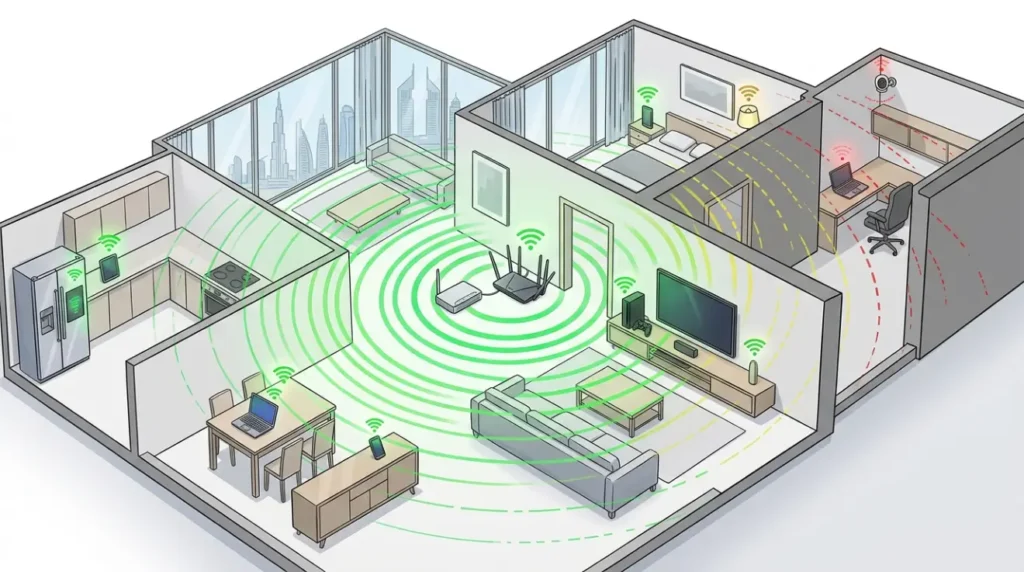
Poor router setup is one of the most common causes of slow wifi. Many Dubai homes place routers behind TVs, inside cabinets, near mirrors, beside thick walls, or close to electrical devices. This weakens the signal and causes internet drops even when the internet plan is fast.
Dubai apartments often suffer from signal interference because many nearby flats use routers on similar channels. Signal interference means wireless signals are disturbed by nearby networks, appliances, concrete walls, Bluetooth devices, or electronics.
Villas have a different problem. One router near the entrance or living room rarely covers upstairs bedrooms, outdoor areas, maids’ rooms, extensions, and majlis spaces properly. Villa residents usually need better coverage planning, such as mesh wifi or wired access points, instead of relying on one powerful router.
For a real wifi signal increase, the router should be placed in an open, central area, away from metal objects, thick walls, and heat sources.
Safe Router Settings, Guest WiFi, and Password Practices
Some router settings are safe for users to change, while others should be left alone unless you understand networking.
Safe settings users can usually change:
- WiFi network name
- WiFi password
- Guest WiFi network
- Automatic firmware updates
- 2.4 GHz and 5 GHz names
- Basic parental controls
- Device list review
Firmware is the router’s internal software. Keeping it updated can improve security and WiFi performance.
A guest WiFi network is a separate network for visitors, tenants, staff, or customers. It lets guests use the internet without accessing your main secure network. This is helpful for privacy, smart devices, home offices, and small businesses.
To enable guest WiFi, open your router login page or router app, go to wireless settings, find Guest Network, turn it on, create a separate name, and set a strong password.
Use WPA2 or WPA3 encryption where available. Encryption protects data between your device and router. Do not disable firewall, encryption, NAT, DHCP, or advanced security features unless you know exactly what they do.
Connected Devices, Bandwidth, and Causes of Slow WiFi
Every connected device uses part of your bandwidth. Bandwidth is the amount of data your internet connection can handle at one time. Phones, laptops, smart TVs, gaming consoles, cameras, smart doorbells, tablets, and office systems all compete for the same connection.
Network congestion occurs when too many devices or heavy activity use the network simultaneously. For example, one person gaming, another streaming 4K video, CCTV uploading footage, and laptops syncing cloud files can all reduce internet speed.
Latency is also important. Latency means delay. High latency causes gaming lag, frozen video calls, and delayed voice, even if speed test results look fine.
A wifi booster can help if one room has a slightly weak signal and the booster is placed where the router signal is still strong. It will not help much if the modem has signal loss, the router is overloaded, or the booster is placed inside a dead zone.
Warning signs that need a wifi repair technician:
- Red LOS, DSL, fibre, or internet light on the modem
- Router restarts again and again
- WiFi works in one room but fails across the home
- Smart cameras, locks, or doorbells keep disconnecting
- Gaming ping remains high despite good speed
- Office WiFi affects POS, CCTV, printers, or staff laptops
- You are unsure which device is the modem, router, ONT, or booster
A professional wifi service can check signal strength, interference, modem status, bandwidth usage, router placement, and secure network setup.
FAQs
Why is my router’s Internet light blinking?
A blinking internet light can mean the router is trying to connect or data is moving. If it keeps blinking slowly and there is no internet, check the modem, WAN cable, and provider signal.
Is it normal for WiFi lights to blink?
Yes, WiFi lights often blink when devices are sending or receiving data. Streaming, gaming, video calls, and downloads can make WiFi lights blink quickly.
What does a red router light mean?
A red light usually means an error, a failed internet connection, or a service issue. Check whether the red light is on the router, modem, fibre box, or ONT.
Why do I have WiFi but no internet?
Your device may be connected to the router, but the router may not be connected to the internet. Check the modem lights, the internet light, and the WAN cable.
What does the LAN light mean?
The LAN light shows that a wired device is connected by Ethernet. A blinking LAN light usually means data is moving between that device and the router.
Can router placement cause slow WiFi?
Yes. Walls, cabinets, mirrors, metal, distance, and interference can weaken WiFi. In Dubai apartments and villas, poor placement is a common cause of slow WiFi.
Should I use guest WiFi at home?
Yes, guest WiFi is useful for visitors, smart devices, tenants, and home offices. It helps keep your main secure network private.
When should I call a WiFi technician?
Call a technician if the internet drops daily, the modem lights show red, coverage is poor across a villa, or business devices keep disconnecting. These issues often need proper network troubleshooting.
What to Check Next Before Calling a WiFi Repair Technician
If the power light is off, check the electricity and the adapter. If the internet light is red or off, check the modem and WAN cable. If WiFi lights are on but bedrooms have a weak signal, check placement, interference, and coverage.
For Dubai apartments, look for channel interference and bad router location. For villas, check whether one router is being forced to cover too much space. For families, gamers, remote workers, and small businesses, review connected devices, guest WiFi, password safety, and bandwidth usage before upgrading the internet plan.
Leave a Reply