
If your internet speed has dropped or you suspect someone else is using your connection, it’s time to take control. An Etisalat WiFi password change is one of the simplest ways to secure your network, remove unauthorized users, and improve overall performance.
Many users try to access their router settings but get confused with login pages or technical options. If you’ve ever faced this issue, you’re not alone. While the process is simple, even a small mistake can lead to connection problems. That’s why some users prefer to get help from reliable WiFi support services in the UAE to avoid complications and save time.
Why You Should Change Your Etisalat WiFi Password
Your WiFi password is the key to your network. If it stays unchanged for a long time, it increases the risk of unauthorized access.
When unknown devices connect to your network, your speed slows down, and performance becomes unstable. Changing your password helps you remove unwanted users, improve speed, and protect your data.
If your internet is still slow after updating your password, it may be a deeper issue that requires a WiFi troubleshooting expert to fix properly.
Before You Start
Before changing your password, make sure your device is connected to the WiFi and your router is powered on. You will also need your router login credentials, which are usually printed on the back of the device.
If you are unable to access the router panel, it’s better to get router setup and configuration support rather than resetting settings incorrectly.
How to Change Etisalat WiFi Password
Access the Router Login Page
Open your browser and enter 192.168.1.1 in the address bar. This will take you to the router settings page.
If the page does not open, it may be due to a network issue. In such cases, a home WiFi repair service can quickly resolve the problem.
Log in to Your Router
Enter your username and password. Most routers use “admin” as the default login.
If the login fails, avoid repeated attempts as it may lock the system. Instead, contact a WiFi technician near you who can safely access your router.
Open WiFi Settings
After logging in, go to the wireless or WiFi settings section. This is where your network name and password are managed.
Change the Password
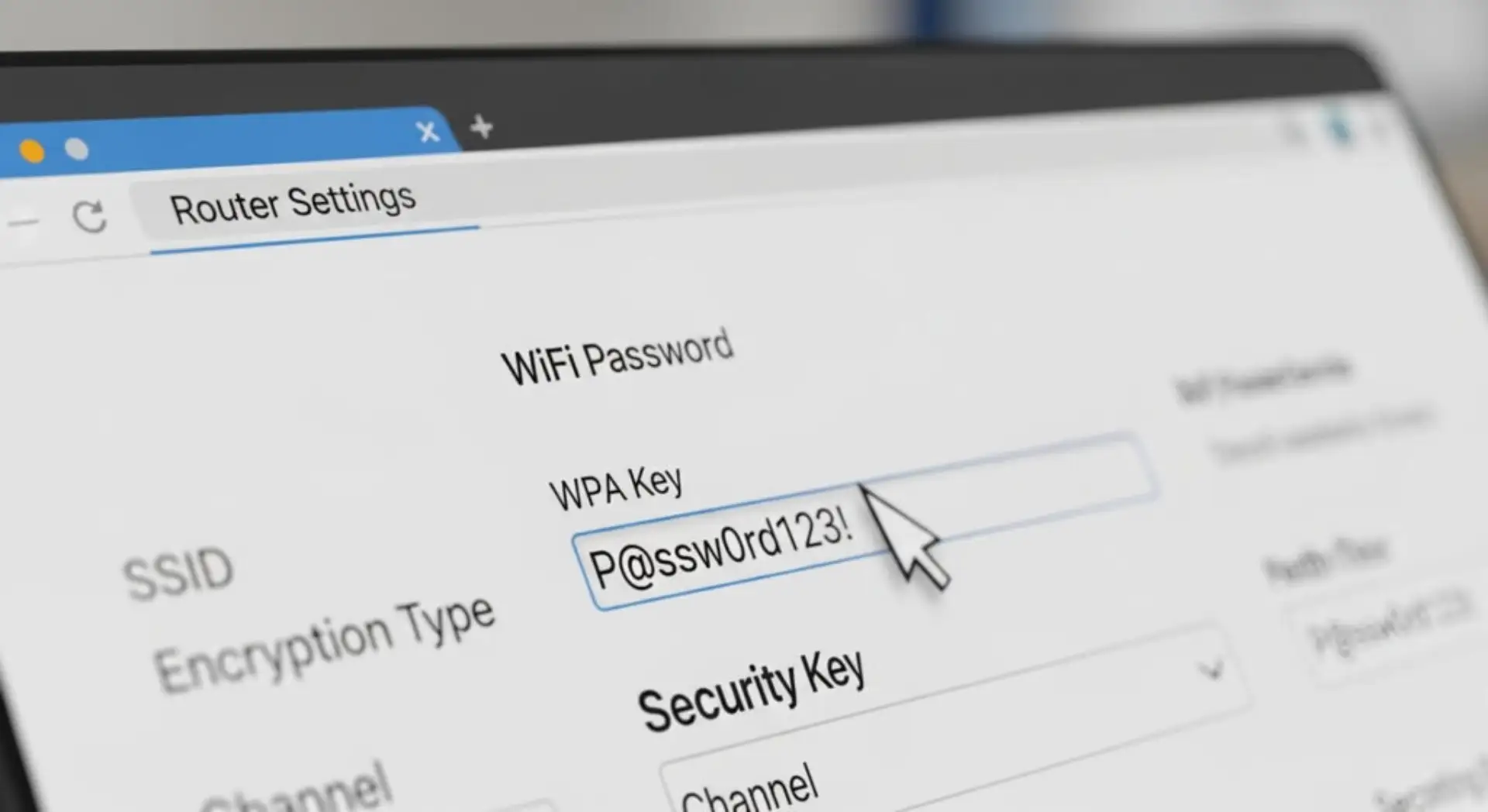
Locate the field labeled “WPA Key” or “Security Key”. Enter your new password and make sure it is strong enough to protect your network.
This step is commonly known as the Etisalat WiFi password change process.
Save Changes and Restart
Click on Save or Apply. Your router will restart, and your new password will be active.
Reconnect Devices
Reconnect all your devices using the new password. If devices fail to connect, you may need assistance with the WiFi network setup to resolve configuration issues.
Common Problems and Solutions
Sometimes users encounter issues when changing their Wi-Fi password. If the router page doesn’t open, try alternative IP addresses like 192.168.0.1 or 192.168.1.254.
If you forget your router login details, you can reset the router by pressing the reset button for about 10–15 seconds.
If your internet connection stops working after changing the password, restart your router and reconnect all devices. If the issue continues, consider using an internet repair service for a quick solution.
Improve Your WiFi Performance
Changing your password is only one step toward better performance. Router placement, interference, and outdated settings can also affect your connection, leading to slow internet speeds or weak signals in certain areas of your home.
Keeping your router in a central location and avoiding obstacles can help improve signal strength and overall coverage. You can also apply simple techniques to boost internet speed and reduce network congestion for better performance. For more advanced improvements, you may need a home internet repair service to fully optimize your network.
FAQs
How to change Etisalat WiFi password using a mobile?
You can open your browser on mobile, go to 192.168.1.1, log in to your router, and change the password from the wireless settings.
What is the default Etisalat router login?
Most routers use “admin” as both username and password, but it may vary depending on the device.
Why is my internet slow even after changing the password?
This could be due to network congestion, router issues, or poor signal strength. A WiFi troubleshooting expert can identify the exact problem.
Can I change the WiFi password without logging in?
No, you must access the router settings to change your WiFi password
When should I contact a WiFi technician?
If you cannot access router settings, forget login details, or face connection issues, it’s best to contact a WiFi technician near you.
Need Help Fixing Your WiFi?
If you’re still facing issues or don’t want to deal with complicated router settings, professional help can save you time and effort.
At wififix.ae, you can get expert solutions for router setup, password changes, slow internet, and signal problems. Whether your WiFi is not working or your speed is inconsistent, a skilled WiFi technician near you can quickly diagnose and fix the issue.
Instead of struggling with technical settings, let professionals handle your network so you can enjoy a fast and stable internet connection without interruptions.
Conclusion
Now you understand how to change the Etisalat WiFi password and secure your network effectively. This simple step can improve speed, protect your data, and prevent unauthorized access.
If you run into any issues during the process or want a hassle-free solution, getting help from a WiFi support service provider in the UAE is always a smart choice.
Leave a Reply