
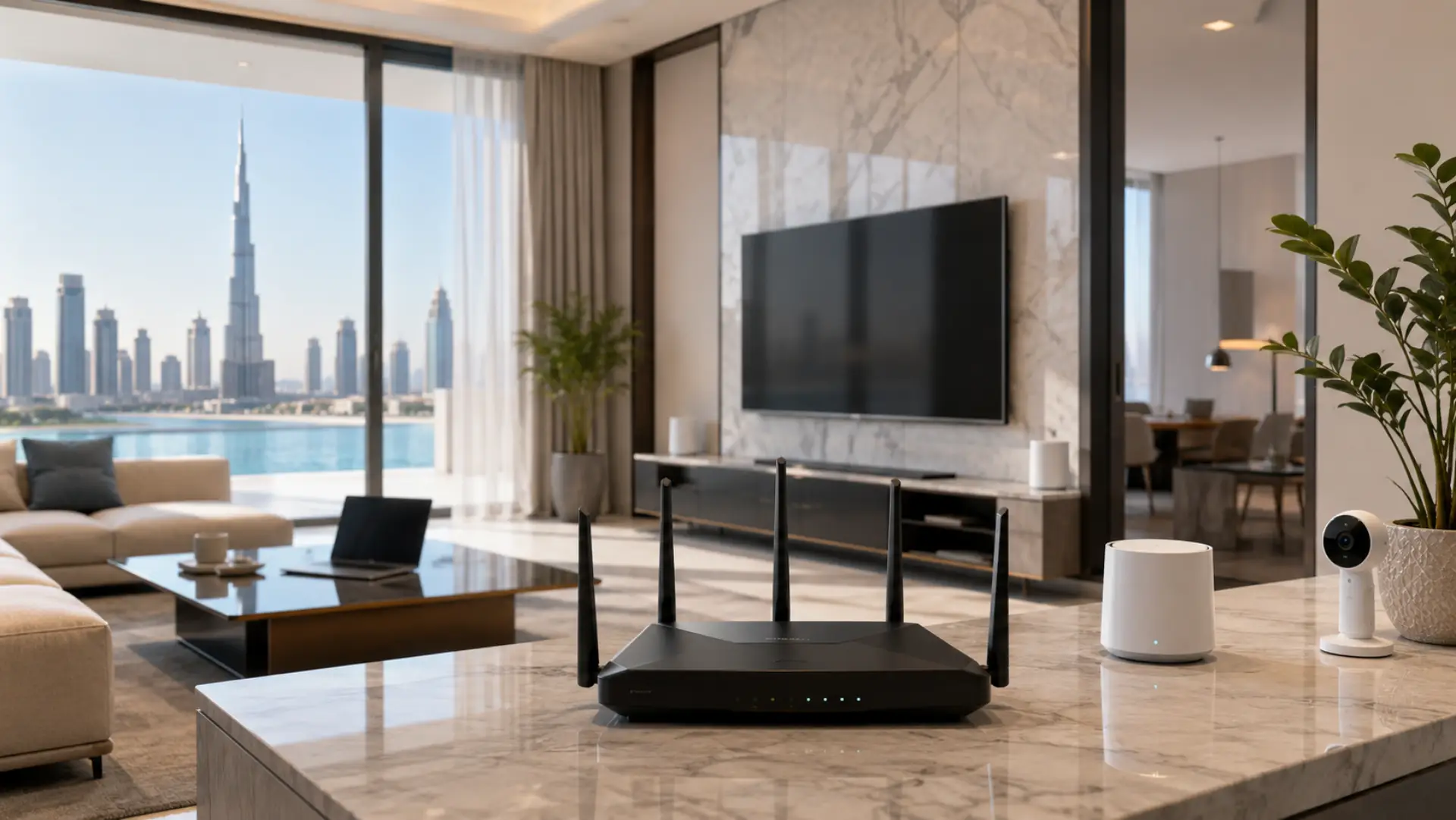
A proper WiFi 6 setup helps Dubai homes achieve faster wireless speeds, better device performance, and more stable coverage across rooms. A full-home WiFi coverage plan helps make sure faster wireless speeds reach every important room. It is especially useful in apartments, villas, and smart homes where many phones, laptops, TVs, cameras, and work devices connect simultaneously.
WiFi 6 Setup Checklist
- Check your internet speed with a wired connection before changing router settings. A WiFi speed test should be done near the router and again in different rooms after setup.
- Choose a router or mesh system based on home size, wall thickness, and floor layout.
- Place the router in a central, open, and elevated area for better signal reach.
- Use strong WiFi security with a unique password and WPA2 or WPA3 protection.
- Update the router firmware before testing final performance.
- Keep mesh nodes close enough to receive a strong signal from the main router.
- Test speed and stability in bedrooms, living areas, home offices, and balconies.
- Remove unknown connected devices after setup.
- Check 2.4GHz and 5GHz performance for different device types.
- Confirm that video calls, streaming, gaming, and smart devices work smoothly.
What Is WiFi 6?
WiFi 6 is a newer wireless standard built to handle more connected devices with better efficiency. Multiple devices on WiFi can affect speed and network performance when the router cannot manage traffic properly. It improves how data moves between your router and devices, especially when several users are online at once.
For Dubai homes, this matters because many properties use fast fiber internet but still face weak wireless coverage, interference, or poor room-to-room performance.
When Homes Need WiFi 6
A WiFi 6 router is useful when your internet plan is fast, but your wireless speed still feels slow. It can also help if video calls drop, streaming buffers, or gaming becomes unstable when multiple devices are connected. An unstable internet connection should be checked if drops happen across several rooms and devices.
WiFi 6 is most helpful in homes with smart TVs, security cameras, work laptops, tablets, phones, and smart home systems running together.
Check Your Internet Speed Before Setup
Before upgrading, test the speed coming from your internet provider. Connect a laptop directly to the modem or main router with an Ethernet cable and run a speed test.
If the wired speed is already low, the issue may be with the internet plan, provider line, or modem. If wired speed is good but wireless speed is weak, your WiFi system needs improvement. Common causes of slow WiFi include weak signal, poor placement, interference, router load, and outdated firmware.
Choose the Right Setup for Your Home Layout
A small apartment may only need one strong router placed correctly. A large villa, duplex, or multi-floor home usually needs a mesh system or wired access points for better coverage.
The right choice depends on wall thickness, floor count, room distance, and where the main internet point is located. Buying a powerful router alone will not fix coverage if the layout needs multiple access points.
Place the Router Correctly
Router location has a major effect on WiFi 6 performance. Place it in a central, open, and elevated area instead of inside a cabinet, behind a TV, or near thick concrete walls.
A poor router setup can weaken the signal before it reaches bedrooms, home offices, or majlis areas. Avoid placing the router near metal shelves, mirrors, microwaves, cordless phones, or electrical panels.
Configure Network Settings Properly
During WiFi setup, use a clear network name and a strong password. Enable WPA2 or WPA3 security if available, and avoid using weak passwords or personal details in the network name.
Most homes can use one network name for both 2.4GHz and 5GHz bands. This makes it easier for devices to connect automatically, but advanced users may separate bands for better control.
Use the Right Band for Each Device
The 2.4GHz band gives longer reach but lower speed. It is suitable for smart cameras, doorbells, sensors, and devices far from the router.
The 5GHz band gives faster speed but covers a shorter distance. It is better for streaming, online meetings, gaming, and laptops used near the router.
Add Mesh Nodes Carefully
For villas and larger homes, mesh nodes should be placed where they still receive a strong signal from the main router. If a mesh node is too far away, it may extend a weak connection instead of improving coverage.
Place nodes in open areas between the router and weak rooms. Do not hide them behind furniture, inside cabinets, or next to large appliances.
Secure Your WiFi 6 Network
For home WiFi, security is part of performance. Unknown users or unsecured smart devices can slow down the network and create privacy risks.
Use a strong password, update the router firmware, disable unused guest networks, and remove devices you do not recognize. A secure network stays cleaner, faster, and easier to manage.
Test Coverage After Installation
After setup, test speed and stability in every important room. Check bedrooms, living areas, home offices, balconies, and any space where the internet is used daily.
For Dubai WiFi environments, nearby apartment networks can create interference. If speeds change heavily from room to room, router placement, channel settings, or mesh positioning may need adjustment.
Common WiFi 6 Setup Mistakes
The most common mistake is placing the router where it is convenient instead of where it performs best. Another mistake is using old cables, outdated firmware, or badly positioned mesh nodes.
WiFi 6 will not fix every issue automatically. The setup must match the home layout, internet speed, and number of connected devices.
When Professional Setup Is Better
Professional help is useful when the home has dead zones, multiple floors, CCTV cameras, smart devices, thick walls, or structured cabling. It is also helpful when speed is good near the router but poor in other rooms.
A proper WiFi 6 installation checks placement, coverage, interference, device load, security, and testing across the full home.
FAQs
Is WiFi 6 worth it for Dubai homes?
Yes, WiFi 6 is worth it if your home has many connected devices or a fast internet plan. It helps reduce congestion and keeps performance more stable. The results are best when placement and configuration are done correctly.
Does WiFi 6 increase internet speed?
WiFi 6 can improve wireless performance, but it does not increase the speed of your internet package. Your maximum speed still depends on your provider’s plan. It mainly helps your devices use the available speed more efficiently.
Do I need mesh WiFi with WiFi 6?
Mesh is useful for large villas, multi-floor homes, or rooms far from the main router. A single router may work well in a small apartment. The home layout decides whether mesh is necessary.
Why is my WiFi 6 slow after setup?
WiFi 6 can be slow if the router is badly placed, the firmware is outdated, or mesh nodes are too far apart. Old devices and interference can also reduce performance. Testing each room helps find the exact issue.
Should I separate 2.4GHz and 5GHz networks?
Most homes can keep one network name for easier device switching. Separate networks are useful when you want to control which devices use each band. The best option depends on your devices and coverage needs.
Can old devices connect to WiFi 6?
Yes, most older devices can still connect to a WiFi 6 network. However, they will not get the full WiFi 6 benefits. Newer devices perform better because they support the newer standard.
Where should the router be placed?
Place the router in a central, open, and elevated location. Avoid cabinets, corners, thick walls, metal objects, and electronics that cause interference. Good placement can improve coverage without extra equipment.
Is professional WiFi 6 setup necessary?
It is not always necessary for small apartments. It is useful for villas, large homes, smart homes, CCTV systems, and repeated dead-zone issues. Professional setup helps avoid weak coverage and poor network design.
Leave a Reply