
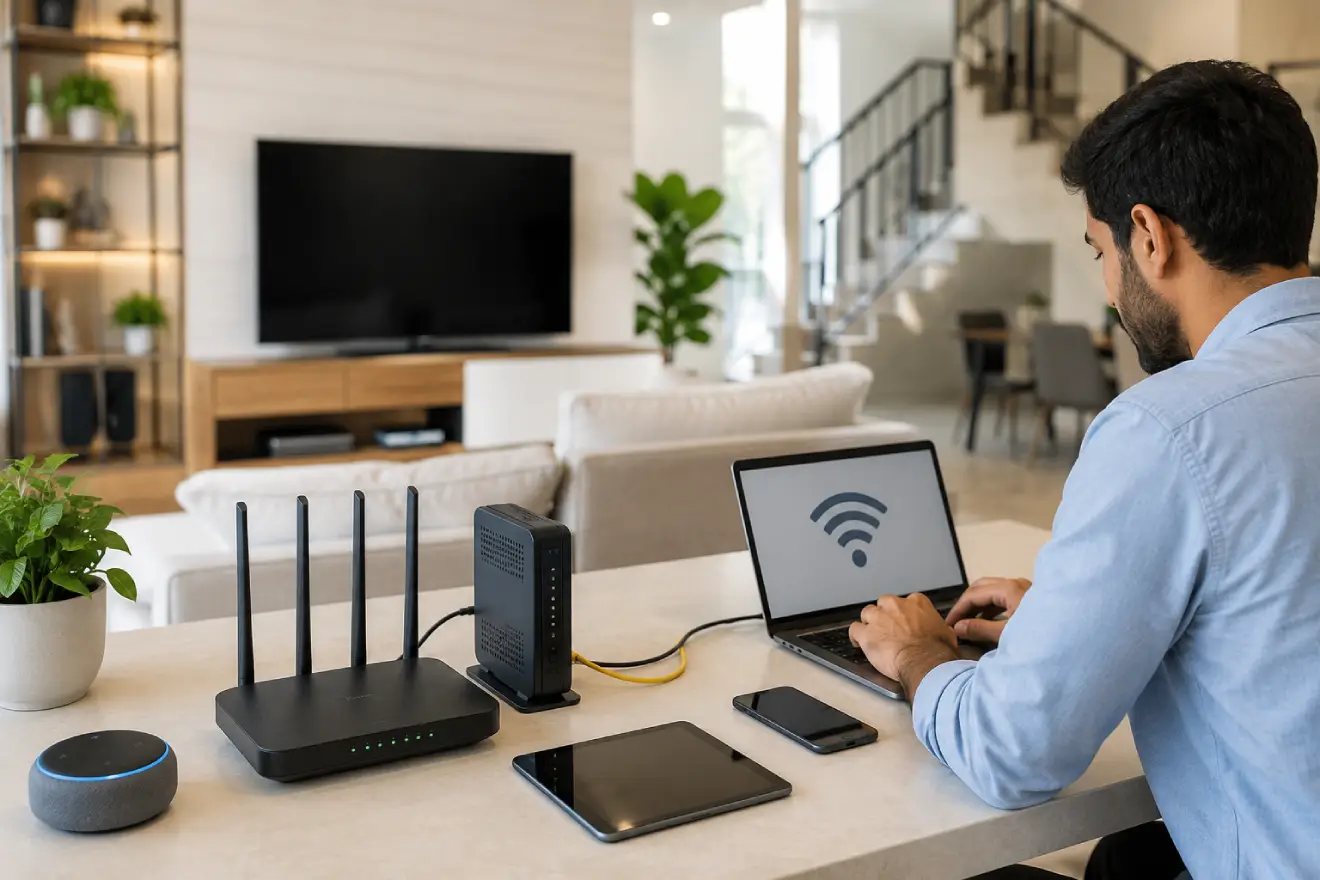
A proper WiFi setup in a new house helps every room get stable internet, better speed, and fewer connection problems from the beginning. A router setup Dubai checklist can help confirm the basic setup steps before connecting all home devices. The best way to set up WiFi is to choose the right internet plan, place the router correctly, secure the network, test coverage, and add extra access points or mesh devices if the house is large.
New House WiFi Setup Checklist
Before setting up your home network, make sure the main internet service is active, the router is placed correctly, and every important room is tested for signal strength. A good checklist helps you avoid weak coverage, poor speed, unstable smart devices, and security mistakes after moving into a new house.
Confirm these key points before completing the setup:
- Internet service is active and stable.
- Router is placed in an open central position.
- Network name and password are secure.
- WPA2 or WPA3 security is enabled.
- Coverage is tested in all key rooms.
- Weak areas are fixed with better placement or added access points.
- Important devices are connected and tested.
- Guest network is created if needed.
- Router firmware is updated.
- Speed test results match realistic expectations. A WiFi speed test should be done near the router and again in different rooms.
Start With the Right Internet Plan
Before connecting any router, choose an internet plan that matches your home size and daily usage. A small apartment with basic browsing and streaming needs less speed than a villa with smart TVs, cameras, gaming consoles, laptops, and many phones.
For a new home, check how many people will use the connection, how many devices will stay online, and whether you need strong upload speed for video calls, cloud backups, or security cameras. A good internet setup should support both current devices and future smart home additions.
Choose the Best Router for Your Home
The router controls how your wireless signal reaches different areas of the house. A basic router may work in a small flat, but larger homes often need a stronger router, mesh system, or wired access points. A mesh WiFi vs router comparison can help decide whether one router is enough for the new house.
Look for a router that supports modern WiFi standards, dual-band or tri-band performance, strong security options, and enough capacity for multiple devices. If your internet provider gives a standard router, test it first, but do not assume it can cover the whole house.
Place the Router in a Central Location
Router placement has a major effect on signal strength. Keep the router near the center of the home, away from thick walls, metal cabinets, mirrors, cordless phones, microwave ovens, and closed cupboards.
Avoid placing the router on the floor or behind a TV. These are common router setup mistakes that can weaken signal across the home. A raised, open position gives the signal a better path through the house. If the router is installed near the main entry point but most rooms are far away, coverage problems may appear even if your internet speed is good.
Connect and Activate the Router
After your service is active, connect the modem or fiber box to the router using the correct Ethernet cable. Power on the devices and wait for the connection lights to become stable.
Open the router settings using the provider app or router login page. Follow the setup steps carefully, including network name, password, security mode, and firmware updates. If your provider requires activation details, use only the information supplied by the service provider.
Set a Strong WiFi Name and Password
Use a simple network name that is easy to recognize but does not reveal private details such as your full address, phone number, or family name. Create a strong password with a mix of letters, numbers, and symbols.
Use WPA2 or WPA3 security when available. Avoid old security modes because they can make the network easier to access without permission. A secure password is important when setting up WiFi in a new house because neighbors, guests, and nearby devices may detect your network.
Test Coverage in Every Room
Once the network is active, test the connection in every important area of the house. Check bedrooms, living room, kitchen, office room, outdoor sitting area, and any place where you use smart devices.
Do not test only beside the router. Walk around with a phone or laptop and check speed, signal bars, video loading, and call stability. If one room has weak signal, the issue is usually distance, wall thickness, interference, or poor router position.
Fix Weak Signal Areas Early
If some areas have poor coverage, solve them before adding too many devices. Moving the router may fix the issue in smaller homes. In larger houses, a mesh system, wired access point, or additional network point may be needed.
Avoid relying on random boosters without checking the actual signal path. A poorly placed extender can repeat a weak signal and create more unstable performance. Good WiFi installation focuses on correct placement, clean cabling, and proper coverage planning.
Connect Smart Home Devices Carefully
New homes often include smart TVs, cameras, doorbells, printers, speakers, and appliances. Connect important devices one by one and check if they remain stable.
Keep high-use devices such as smart TVs, work laptops, and gaming consoles on the stronger band when possible. Devices that are far away or older may work better on a longer-range band. If the router app allows device management, label important devices so troubleshooting becomes easier later.
Use Wired Connections Where Needed
WiFi is convenient, but some devices perform better with Ethernet. A desktop computer, gaming console, smart TV, network storage device, or security system may benefit from a wired connection.
If your new house has network ports, test them during setup. Wired access points can also improve coverage more reliably than wireless repeaters, especially in multi-floor homes or villas with thick concrete walls.
Update Router Firmware
Router firmware updates can improve stability, security, and performance. Check for updates during the first setup and enable automatic updates if the router supports them.
Do not interrupt the router while it is updating. Keep the power stable and wait until the device restarts fully. Updated firmware helps prevent common connection issues and keeps the home network safer.
Separate Guest Access
Create a guest network if visitors often need internet access. A guest network lets people use WiFi without connecting to your main home devices.
This is useful in a new house because friends, workers, delivery support, or temporary guests may ask for access. Keep the guest password different from the main password and turn it off when it is not needed.
Check Speed After Setup
Run a speed test near the router first, then test again in different rooms. The result beside the router shows what the connection can deliver, while room-by-room testing shows how well the signal travels.
Small speed drops are normal over WiFi. Large drops, high ping, buffering, or disconnections mean the layout needs adjustment. Testing early helps you fix weak areas before the network becomes crowded with devices.
When to Call a Professional Technician
You should call a wifi technician if the router does not cover the full house, the connection drops in certain rooms, smart devices fail to connect, or the speed is much lower than the internet plan.
A professional can check signal strength, cable points, router placement, access point options, and interference. This is especially helpful in large homes, villas, multi-floor houses, or homes with many connected devices.
FAQs
What is the best way to set up WiFi in a new house?
The best way is to activate the internet service, place the router centrally, secure the network, and test coverage in every room. Large homes may need mesh WiFi or wired access points for stable coverage. Do not finish the setup until weak signal areas are checked and corrected.
Where should I place my router in a new house?
Place the router in an open, raised, and central area of the home. Avoid corners, closed cabinets, thick walls, metal objects, and electronic interference. Good placement helps the signal reach more rooms without extra equipment.
Do I need a mesh system for a new house?
You may need a mesh system if the house is large, has multiple floors, or has thick walls that block signal. A single router can work in smaller homes, but it may not cover every room evenly. Testing coverage first will show whether mesh is necessary.
Why is WiFi weak in some rooms after setup?
Weak WiFi usually happens because of distance, walls, poor router placement, or interference from nearby devices. Rooms far from the router or behind concrete walls often receive a weaker signal. Moving the router or adding an access point can improve coverage.
Should I use the same WiFi name for all devices?
Yes, using one main network name is fine for most homes, especially with modern routers or mesh systems. Some advanced users separate bands for better control, but it is not always needed. The main goal is stable coverage and easy device connection.
How many devices can a home WiFi network handle?
The number depends on your router, internet plan, and how heavily each device uses data. Phones and smart bulbs use less bandwidth, while TVs, cameras, and gaming devices need more. If many devices slow the network, upgrade the router or improve coverage.
Is Ethernet better than WiFi for a new house?
Ethernet is better for devices that need the most stable connection, such as gaming consoles, smart TVs, desktop PCs, and security systems. WiFi is better for phones, tablets, laptops, and portable devices. A mixed setup often gives the best home network performance.
When should I call a technician for WiFi setup?
Call a technician if the router cannot cover the house, devices keep disconnecting, or speed drops heavily in different rooms.
Professional testing can find weak spots, interference, and cabling issues.
This helps create a cleaner, more reliable network from the start.
Leave a Reply