
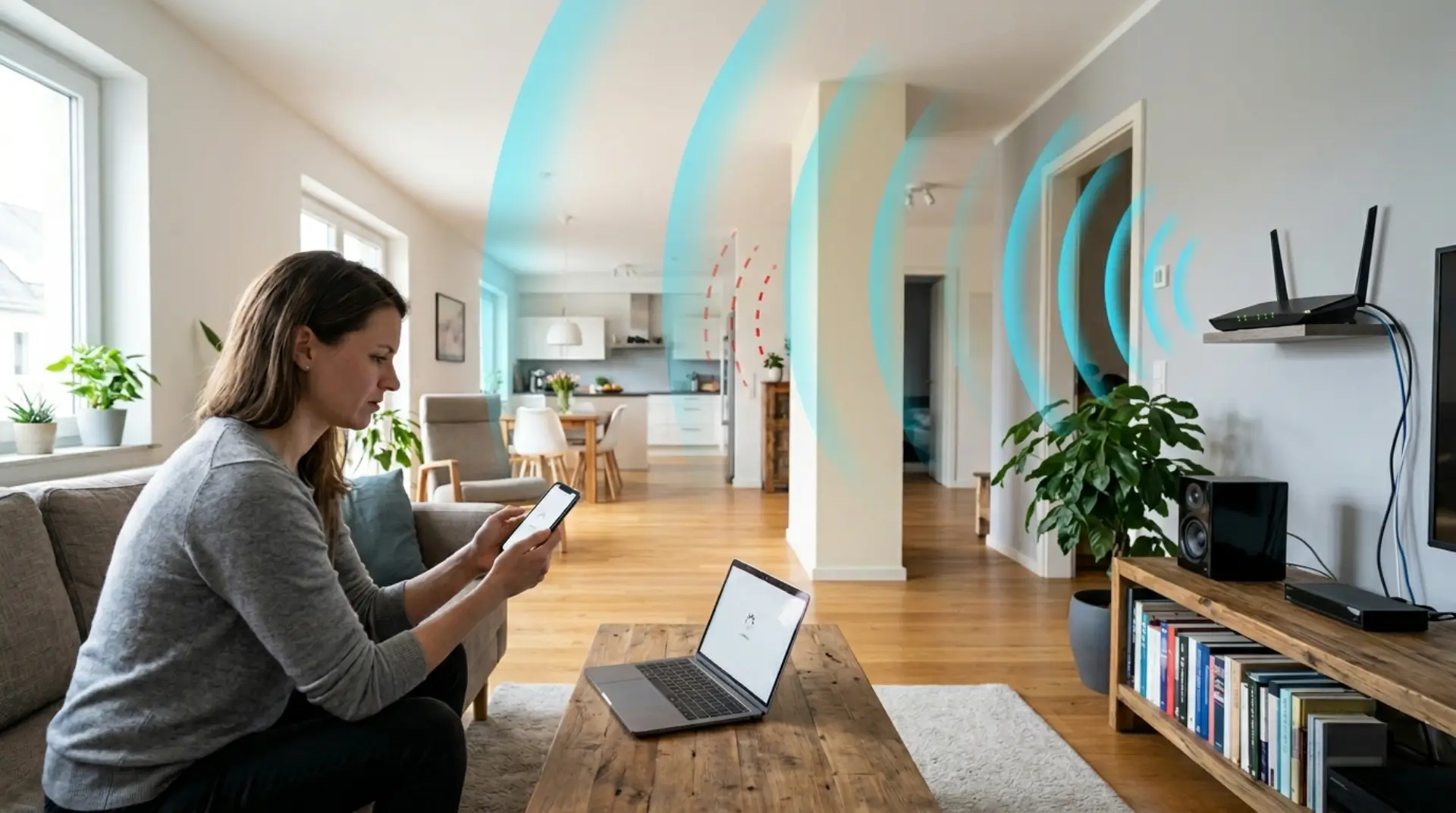
A slow WiFi connection is not always caused by your internet plan. Many times, the real problem is poor wireless coverage. Your internet may work perfectly near the router, but become weak in the bedroom, kitchen, upstairs room, basement, garage, or home office.
These weak-signal areas are called WiFi dead zones or WiFi dead spots. Some users may also call them an internet dead zone, especially when the internet works in one room but becomes slow or unstable in another area. The good news is that most wifi dead zones can be fixed with the right setup, better router placement, and a few practical network improvements.
If you are dealing with a weak WiFi signal, poor WiFi coverage, limited WiFi range, or a regular WiFi connection problem, this guide will help you understand the causes and the best ways to fix wifi dead zones. It is useful for normal home WiFi users, people wants home WiFi technician in Dubai, and customers using the du home wifi services.
What Does a WiFi Dead Zone Mean?
A WiFi dead zone is any area where your wireless signal becomes too weak to provide a stable internet connection. Your device may still show the WiFi name, but pages load slowly, video calls freeze, or the connection drops again and again.
You may have a WiFi dead zone if you notice:
- Video meetings freezing
- WhatsApp or WiFi calls are dropping
- Streaming apps buffering
- Smart TVs disconnecting
- Online games lagging
- Websites loading slowly
- Signal bars are dropping in one room
Strong speed near the router but poor speed in another area can also be a sign that you need to improve WiFi performance on your devices.
If the same room or corner always gives you trouble, your WiFi signal is not reaching that area properly.
Why WiFi Becomes Weak in Some Areas
WiFi works through wireless radio signals. These signals travel from your router to your devices. When distance, walls, furniture, metal objects, or other electronics block the signal, the connection becomes weaker.
Here are the most common reasons WiFi dead zones happen.
Thick Walls and Building Materials
Concrete, brick, plaster, and metal inside walls can reduce WiFi strength. This problem is common in older homes, villas, apartments, offices, and multi-floor buildings.
Router Placed in the Wrong Spot
A router placed in a corner, inside a cabinet, behind a TV, under a desk, or near the floor cannot spread the signal evenly across the home or office.
Large Furniture and Metal Objects
Wardrobes, mirrors, refrigerators, filing cabinets, metal shelves, and heavy furniture can block or reflect the signal before it reaches your device.
Interference from Other Devices
Microwaves, cordless phones, baby monitors, Bluetooth speakers, wireless cameras, and nearby WiFi networks can interfere with your signal.
Too Many Devices Connected
Phones, laptops, smart TVs, gaming consoles, cameras, smart speakers, and smart home devices all use network resources. Too many active devices can make the network feel slow and unstable, especially if you have not blocked unknown devices from your WiFi.
Old Router or Outdated Hardware
Older routers may not support modern WiFi standards or handle many connected devices properly. If your router is several years old, it may struggle to provide strong coverage. If your router is outdated, a proper router setup checklist can help you decide whether to adjust settings, reposition the router, or upgrade the device.
How to Locate WiFi Dead Zones
Before fixing the issue, you need to know where the weak areas are. You can check this manually or use simple WiFi testing tools.
1. Walk Through Your Space with Your Phone
Connect your phone to WiFi and slowly walk around your home or office. Watch the signal bars and test apps in different rooms.
Check areas such as:
- Bedrooms
- Kitchen
- Balcony
- Basement
- Upstairs rooms
- Garage
- Home office
- Rooms far from the router
If the signal drops or apps stop loading in a specific place, that area may be a dead zone.
2. Compare Internet Speed in Different Rooms
Check your WiFi speed fast to find slow internet issues. Test near the router, compare download, upload, and ping, then fix weak signal areas for smoother home or office WiFi in Dubai today easily now.
3. Use a WiFi Signal App
A WiFi analyzer app can show signal strength and nearby network congestion. These tools help you understand whether your router signal is weak or if nearby networks are causing interference.
4. Notice Real-Life Connection Problems
Sometimes, daily usage gives the clearest answer. If your video call always drops in one room or your smart TV always buffers in one area, that location needs better WiFi coverage.
Ways to Fix WiFi Dead Zones
1. Move Your Router to a Central Area
Router placement is one of the easiest fixes. If your router is placed in a corner or back room, the signal has to travel farther to reach the rest of the space.
Place the router:
- Near the center of your home or office
- In an open area
- Away from large furniture
- Away from thick walls
- Above floor level
- Outside closed cabinets
A better router position can improve coverage without buying any extra devices.
2. Place the Router Higher
WiFi usually performs better when the router is placed higher instead of on the floor. Put it on a shelf, table, or wall mount. Avoid placing it under furniture or inside a drawer.
A higher position gives the signal a cleaner path to spread across rooms.
3. Remove Signal Blockers Around the Router
Keep the router away from objects and electronics that can weaken or disturb the signal.
Avoid placing the router near:
- Microwave ovens
- Cordless phones
- Baby monitors
- Bluetooth speakers
- Metal cabinets
- Refrigerators
- Mirrors
- Large TVs
- Thick walls
An open router area helps the signal move more freely.
4. Use 2.4GHz and 5GHz Correctly
Most modern routers offer two WiFi bands: 2.4GHz and 5GHz. The 2.4GHz band reaches farther and works better through walls, but it may be slower.
The 5GHz band is faster and less crowded, but it has a shorter range. Use 2.4GHz for rooms far from the router, and use 5GHz when you are closer and want better speed; these settings are also useful when trying to increase WiFi speed without changing router.
5. Change the WiFi Channel
If you live in an apartment, a busy neighborhood, or an office building, nearby WiFi networks may be using the same channel. This can create congestion and make your signal unstable.
Check your router settings and choose a less crowded channel. Many routers can do this automatically. For 2.4GHz networks, channels 1, 6, and 11 are commonly used to reduce overlap.
6. Update Your Router Firmware
Routers also need software updates. Firmware updates can improve stability, security, and performance.
Log in to your router app or admin panel and check for updates. If your router supports automatic updates, turn them on.
7. Disconnect Devices You Do Not Use
Too many connected devices can slow down your network. Remove old phones, tablets, guest devices, and smart gadgets that are no longer needed.
Also, check your router’s connected device list. If you see unknown devices, change your WiFi password.
8. Use Ethernet for High-Priority Devices
Ethernet is more stable than WiFi. For devices that need reliable speed, use a wired connection when possible.
Ethernet is best for:
- Desktop computers
- Gaming consoles
- Smart TVs
- Work laptops
- Video meetings
- Large file uploads
This also reduces pressure on your wireless network.
9. Add a WiFi Extender for Small Weak Areas
A WiFi extender can help if one or two rooms have a weak signal. It receives your existing WiFi signal and rebroadcasts it to nearby areas.
Place the extender between the router and the dead zone. Do not place it inside the dead zone, because it needs a strong signal to repeat.
10. Install a Mesh WiFi System for Larger Coverage
A mesh WiFi system is a better option for large homes, multi-floor buildings, and spaces with several weak areas. It uses a main router and multiple satellite units to create wider coverage.
Mesh WiFi is useful when:
- Your home has multiple floors
- You have dead zones in several rooms
- You use many smart devices
- You work from home
- A normal extender is not stable enough
- You want smoother roaming between rooms
For full-home coverage, mesh WiFi is often more reliable than a single router.
11. Use Access Points for Offices or Large Properties
For offices, villas, warehouses, shops, clinics, and commercial spaces, wired access points are often the strongest solution.
An access point connects to the main router with Ethernet and creates a fresh WiFi signal in another area. It is usually more stable than a wireless extender.
This is a good option when many users need reliable internet at the same time.
12. Try Powerline Adapters Where Cabling Is Difficult
Powerline adapters use your electrical wiring to carry the internet from one room to another. One adapter connects near the router, and the second adapter connects in the room where you need better internet.
Powerline adapters can help when:
- Walls block WiFi badly
- Running an Ethernet cable is difficult
- A far room needs better internet
- You need a stable connection for a TV or a desktop
Performance depends on the quality of your electrical wiring.
13. Upgrade Your Old Router
If your router is old or weak, no placement trick may fully solve the problem. A modern router can handle more devices, faster speeds, and wider coverage.
Consider upgrading if:
- Your router is more than a few years old
- Devices disconnect often
- The speed is poor in many rooms
- Your internet plan is fast, but your WiFi feels slow
- You have many connected devices
- Your home or office is large
A modern WiFi 6 router or mesh system can make a big difference.
14. Get a Professional WiFi Survey
If you have tried several fixes and the problem remains, a professional WiFi survey can help. A technician can test signal strength, interference, router placement, wall blockage, cabling, and coverage gaps.
This is especially useful for:
- Large homes
- Offices
- Villas
- Warehouses
- Multi-floor buildings
- Smart homes
- Businesses with many users
A survey removes guesswork and helps you choose the right solution.
Quick Troubleshooting Order
Try these fixes in this order:
- Restart your router
- Move the router to a central area
- Place the router higher
- Remove nearby signal blockers
- Test 2.4GHz and 5GHz bands
- Change the WiFi channel
- Update router firmware
- Disconnect unused devices
- Use Ethernet for important devices
- Add a WiFi extender for small dead zones
- Use mesh WiFi for more extensive coverage
- Install access points for offices or large spaces
- Replace an old router
- Book a professional WiFi survey
Summary
WiFi dead zones are common, but they can usually be fixed with the right approach. Start with simple changes like moving your router, placing it higher, removing interference, updating firmware, and testing different WiFi bands.
If the issue continues, use a WiFi extender, mesh system, Ethernet connection, access point, or powerline adapter, depending on the size and layout of your space.
A strong WiFi setup should give you stable internet in every important area, whether you are working, streaming, gaming, browsing, or using smart devices.
FAQs
What is a WiFi dead zone?
A WiFi dead zone is an area in your home or office where the wireless signal becomes very weak or completely unavailable. It usually happens because of thick walls, a long distance from the router, metal objects, or electronic interference. You may notice slow loading, buffering, dropped video calls, or devices disconnecting in that spot.
What causes WiFi dead zones?
WiFi dead zones are often caused by poor router placement, thick concrete walls, large furniture, metal objects, and nearby electronic devices. Old routers, crowded WiFi channels, and too many connected devices can also make coverage weaker. These problems block or reduce the WiFi signal before it reaches every room.
How can I find a WiFi dead zone in my home?
To find a WiFi dead zone, walk around your home with your phone connected to WiFi and check where the signal drops. You can also run speed tests in different rooms and compare them with the speed near your router. A WiFi analyzer app can help identify weak signal areas and channel congestion more clearly.
How do I fix WiFi dead zones quickly?
To fix WiFi dead zones, start by moving your router to a central, open, and higher location. Keep it away from thick walls, metal objects, microwaves, and large furniture that can block the signal. You can also update the router firmware, change the WiFi channel, or use 2.4GHz for better range.
What is the best long-term solution for WiFi dead zones?
The best long-term way to fix WiFi dead zones is to use a mesh WiFi system or wired access points. Mesh WiFi works well for large homes and multi-floor spaces because it spreads coverage through multiple units. For offices or larger properties, wired access points usually provide stronger and more stable coverage.
Leave a Reply