
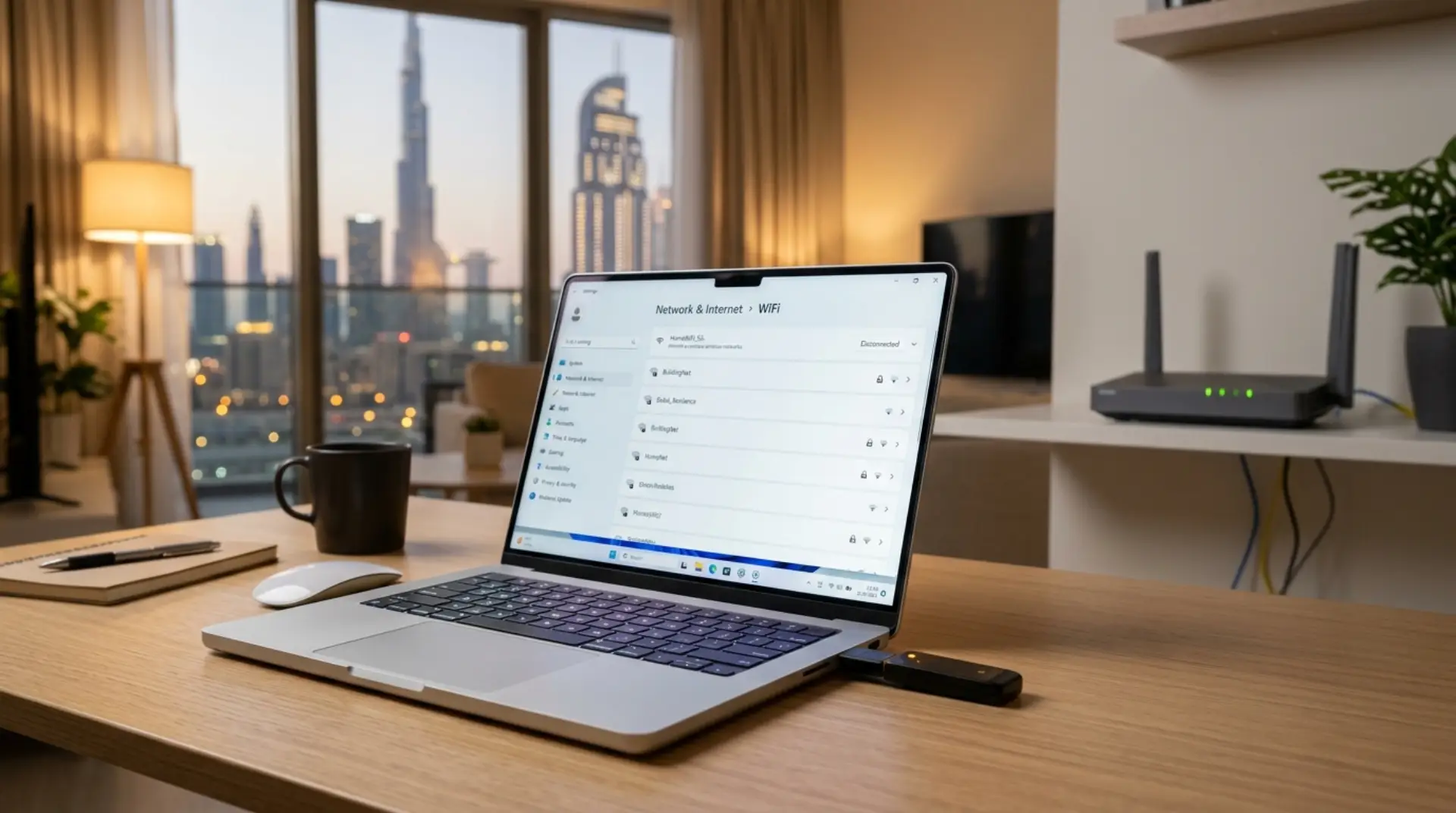
Your internet may be active, your router may be fine, but your laptop or desktop still refuses to connect to WiFi. Sometimes the WiFi option disappears completely. Other times, your device says no networks are available even when your phone connects without any problem.
When your WiFi adapter is not working, the problem is usually linked to the adapter, driver, USB port, or system network settings. If the issue seems related to the router instead, check router not connecting to internet. The good news is that you can check most of these things step by step before replacing anything.
If your WiFi adapter stops working suddenly, first restart your device and check whether the adapter is enabled. Then update or reinstall the WiFi adapter driver. If the WiFi adapter is not detected or not showing, check Device Manager, reset network settings, and test with another adapter if needed.
WiFi Adapter Not Working: Common Reasons
A WiFi adapter helps your device connect to wireless networks. In laptops, it is usually built in. In desktop computers, it may be a USB WiFi adapter or an internal network card.
When the wireless adapter stops working, your device may not detect WiFi at all. In some cases, the adapter appears but fails to connect.
Common causes include:
- Disabled WiFi adapter
- Outdated or damaged driver
- Windows update conflict
- USB port issue
- Faulty USB WiFi adapter
- Corrupt network settings
- Internal hardware fault
- Power-saving settings turning off the adapter
Before you assume the adapter is damaged, it is better to check the simple causes first. You can also compare symptoms with common causes of slow WiFi and how to fix them.
Check If the Adapter Is Enabled
Sometimes the adapter is not broken. It is only disabled.
On Windows, open Device Manager and look for Network adapters. Your wireless adapter may appear with names like WiFi, Wireless, WLAN, Realtek, Intel, TP-Link, or Broadcom.
If you see a small down arrow on the adapter, it may be disabled. Right-click it and select Enable device.
Also, check your laptop keyboard. Many laptops have a WiFi shortcut key. If it was pressed by mistake, the wireless adapter may turn off. In addition, make sure airplane mode is disabled.
This simple check often fixes the wireless adapter not working issue without any advanced troubleshooting.
Fix WiFi Adapter Driver Issues
A WiFi adapter driver issue is one of the most common reasons behind this problem. The driver allows your computer and adapter to communicate. If the driver is missing, outdated, or corrupted, WiFi may stop working.
To update the driver:
- Open Device Manager.
- Expand Network adapters.
- Right-click the WiFi adapter.
- Select Update driver.
- Restart your computer.
If updating does not work, try uninstalling the adapter driver. Then restart the device. Windows may install the driver again automatically.
However, if the wrong driver is installed, the issue may continue. In that case, you may need the correct driver for your laptop model, motherboard, or USB WiFi adapter.
What If the WiFi Adapter Is Not Detected?
If the WiFi adapter is not detected, it may not appear in Device Manager at all. This can happen after a system update, hardware fault, BIOS issue, or driver failure.
First, restart your computer. Then open Device Manager and click Scan for hardware changes. If the adapter appears again, reinstall the driver.
If the WiFi adapter is still not showing, check under Hidden devices in Device Manager. Sometimes Windows hides inactive or faulty hardware.
You should also check whether Bluetooth is working. In many laptops, WiFi and Bluetooth are part of the same internal card. If both stop working together, the internal wireless card may have a hardware problem.
USB WiFi Adapter Not Working
A USB WiFi adapter is easy to test because you can remove it and plug it in again. However, it can still fail due to a loose port, damaged adapter, or incorrect driver.
Start by unplugging the adapter and connecting it to another USB port. Avoid using a USB hub during testing because some hubs do not provide stable power.
Then check whether the adapter has a light. If the light does not turn on, the USB port or adapter may be faulty.
You can also test the adapter on another computer. If it does not work on any device, the USB WiFi adapter is likely damaged. On the other hand, if it works on another computer, your main device may have a driver or USB issue.
Reset Network Settings
If your adapter is visible but WiFi still does not work, your network settings may be corrupted. This can happen after VPN installation, antivirus changes, Windows updates, or repeated connection failures.
A network reset can remove old settings and reinstall network components.
On Windows, go to:
Settings > Network & Internet > Advanced network settings > Network reset
After the reset, your computer will restart. You will also need to reconnect to your WiFi network and enter the password again.
This is useful when the network adapter not working issue is caused by software settings instead of damaged hardware.
Check Power Settings
Windows may turn off the WiFi adapter to save power. This is more common on laptops.
To check this:
- Open Device Manager.
- Right-click your WiFi adapter.
- Select Properties.
- Open the Power Management tab.
- Uncheck Allow the computer to turn off this device to save power.
After that, restart your device and test the connection again.
This fix can help when WiFi disconnects often or the adapter disappears after sleep mode.
When the Adapter May Be Faulty
If the WiFi adapter not showing issue continues after driver updates, network reset, and basic checks, the adapter itself may be faulty.
Signs of a faulty adapter include:
- The adapter disappears repeatedly
- Device Manager does not detect it
- WiFi works only sometimes
- Bluetooth also stops working
- USB adapter works on other devices but not yours
- Built-in WiFi does not work even after reinstalling drivers
For laptops, the internal WiFi card may need replacement. For desktops, replacing the USB WiFi adapter or internal network card may solve the issue.
However, it is better to confirm the fault before buying new hardware.
Need Help Fixing Your WiFi Adapter in Dubai?
If you are in Dubai or anywhere in the UAE and your WiFi adapter is still not working, WiFiFix.ae can help check the real cause. The issue may be a driver fault, USB adapter problem, laptop WiFi card issue, or network setting error.
WiFiFix.ae can assist with:
- WiFi adapter troubleshooting
- Driver issue checking
- USB WiFi adapter setup
- Network adapter not working problems
- Laptop and desktop WiFi connection issues
- Home and office WiFi support in Dubai
The aim is to fix the exact issue instead of guessing or replacing parts unnecessarily.
Contact Us
Get quick WiFi, router, and network support in Dubai
FAQs
Why is my WiFi adapter not working?
Your WiFi adapter may not be working because it is disabled, the driver is damaged, or the adapter is not being detected by the system. Start by restarting your computer, checking Device Manager, and updating the WiFi driver.
How do I fix a WiFi adapter not detected issue?
Open Device Manager and scan for hardware changes. If the adapter appears, update or reinstall the driver. If it does not appear at all, the adapter may be disabled, faulty, or disconnected internally.
Why is my WiFi adapter not showing?
The WiFi adapter may not be showing due to a driver issue, Windows update problem, hidden device setting, or hardware fault. Check hidden devices in Device Manager and try reinstalling the correct driver.
What should I do if my USB WiFi adapter is not working?
Plug the USB WiFi adapter into another USB port and avoid using a hub. Then test it on another computer. If it fails everywhere, the adapter may be damaged and may need replacement.
Can a driver issue stop WiFi from working?
Yes, a WiFi adapter driver issue can stop your device from detecting or using WiFi. Updating, uninstalling, and reinstalling the driver can often solve the problem.
Why does my WiFi adapter keep disappearing?
This may happen because of power-saving settings, driver corruption, or a faulty adapter. Disable the power-saving option in Device Manager and reinstall the driver to test the issue.
When should I call a technician?
Call a technician if the adapter is not detected after driver fixes, the WiFi option keeps disappearing, or you are unsure whether the issue is software or hardware. A proper check can save time and prevent wrong replacement.
Summary
A WiFi adapter not working problem is usually linked to a disabled adapter, driver issue, USB fault, network reset requirement, or damaged hardware. Start with Device Manager, update the driver, test USB ports, and reset network settings.
If the issue still continues, WiFiFix.ae can help with focused WiFi adapter troubleshooting for laptops, desktops, homes, and offices in Dubai and across the UAE.
Leave a Reply