
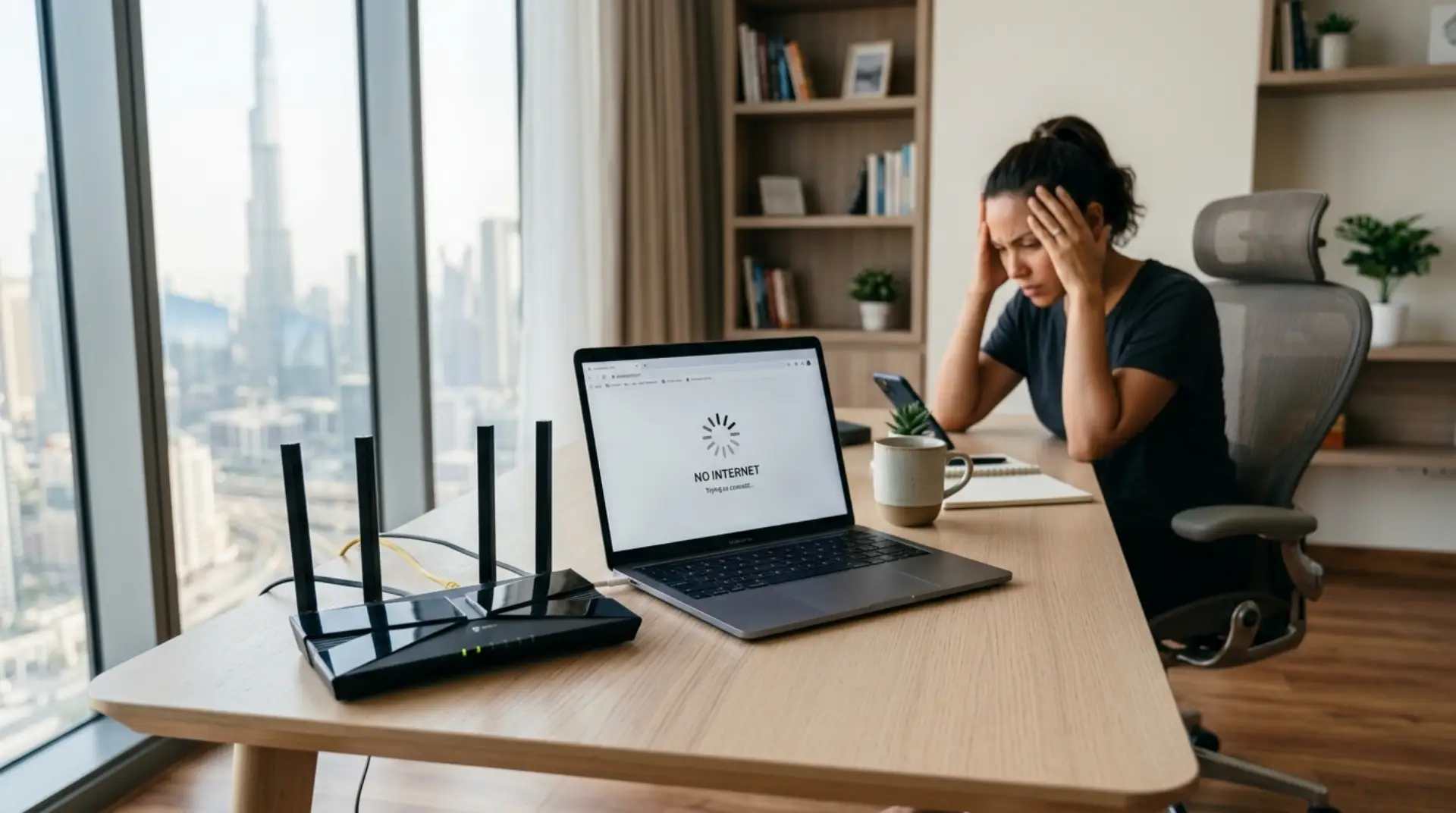
Your internet plan may be fast, but your WiFi can still feel slow if the router is not set up correctly. Many homes, offices, shops, and apartments in Dubai face this problem after installing a new router, changing an internet provider, or resetting the device.
The issue is not always the ISP. In many cases, causes of slow WiFi include slow browsing, buffering, weak signals, connection drops, and simple router setup mistakes. The good news is that most of these mistakes can be fixed with the right settings, better placement, and proper configuration.
Router setup mistakes that cause slow WiFi include poor router placement, using the wrong WiFi band, outdated firmware, weak channel settings, signal interference, old cables, and incorrect security settings. To fix slow WiFi, place the router centrally, update settings, reduce interference, use 5GHz where possible, and configure the router properly
Poor Router Placement
One of the biggest router placement mistakes is keeping the router in a corner, cabinet, storage room, or behind furniture. WiFi signals need open space. When the router is blocked by walls, metal objects, mirrors, or thick doors, the signal becomes weak.
In Dubai apartments and villas, concrete walls and large layouts can make this worse. As a result, one room may have strong WiFi while another room barely connects.
For better coverage:
- Keep the router in an open area
- Place it near the center of the home or office
- Avoid placing it near the floor
- Keep it away from metal cabinets and large appliances
- Do not hide it inside a closed cupboard
A small placement change can often improve WiFi coverage without changing your internet plan.
Using the Wrong WiFi Band
Modern routers usually offer 2.4GHz and 5GHz WiFi bands. Many users connect all devices to one band without knowing the difference.
The 2.4GHz band covers a longer distance, but it is often slower and more crowded. The 5GHz band is faster, but it works better at shorter distances.
This becomes one of the common router setup mistakes when smart TVs, laptops, gaming devices, and office systems are all connected to the wrong band.
A simple rule helps:
- Use 5GHz for streaming, video calls, gaming, and fast browsing
- Use 2.4GHz for smart devices, cameras, and rooms far from the router
Choosing the right band can also help you improve WiFi performance on any device, especially for streaming, video calls, and gaming. If your router supports both bands, give them separate WiFi names. This makes it easier to choose the right connection for each device.
Wrong Router Settings
Wrong router settings can quietly reduce your WiFi performance. Many routers use default settings after installation, but those settings are not always the best for your home or business.
For example, the WiFi channel may be crowded, the bandwidth may be limited, or old security modes may be active. In addition, some routers keep outdated network modes enabled, which can slow down newer devices.
Important settings to check include:
- WiFi channel selection
- Bandwidth mode
- Security type
- Router firmware
- DHCP settings
- Guest network settings
- Device limit settings
If these settings are not configured properly, your router may work, but not at full speed.
Ignoring WiFi Interference
WiFi interference issues are common in Dubai apartment buildings because many routers are working close to each other. Your neighbor’s WiFi, Bluetooth devices, cordless phones, baby monitors, microwave ovens, and smart home devices can all affect signal quality.
This does not always stop the internet completely. Instead, it causes slow loading, unstable video calls, random disconnections, and weak signals.
To reduce interference, keep your router away from:
- Microwave ovens
- TV units with many electronics
- Bluetooth speakers
- Cordless phone bases
- Thick walls and metal surfaces
- Other routers or access points
Also, changing the WiFi channel can help. A less crowded channel allows your router to send and receive signals more smoothly.
Keeping Old Router Firmware
Router firmware is the software inside your router. It controls performance, security, and network stability. However, many users never update it after installation.
Outdated firmware can create speed problems, connection bugs, and security risks. Some routers also perform poorly with newer devices unless the firmware is updated.
Check your router admin panel and look for a firmware update option. However, be careful while updating. If the router turns off during the update, it may stop working properly.
For business networks, it is better to let a network technician handle firmware updates and router configuration safely.
Using Weak or Old Cables
Sometimes the router is blamed, but the real problem is the cable. A damaged or low-quality Ethernet cable can reduce internet speed before WiFi even starts.
This is especially important when connecting the router to a modem, fiber ONT, switch, or access point. If the cable is old, loose, or not properly plugged in, your WiFi speed will suffer.
Check these cable points:
- Make sure the cable is connected to the correct WAN/Internet port
- Replace damaged or bent cables
- Use good-quality Ethernet cables
- Avoid very long cable runs without proper setup
- Check if the modem and router link light is stable
For offices, cafes, clinics, and retail shops, proper cabling matters even more because many devices depend on the same connection.
Too Many Devices on One Router
Another common WiFi setup mistake is using one basic router for too many devices. A small home router may work for a few phones and laptops, but it may struggle with smart TVs, cameras, printers, tablets, gaming consoles, and office systems.
When too many devices share one router, speed becomes uneven. Some devices may disconnect, while others may load slowly.
This problem is common in shared apartments, large villas, small businesses, and offices in Dubai.
Possible fixes include:
- Upgrading to a better router
- Adding WiFi extenders or access points
- Using a mesh WiFi system
- Separating business and guest networks
- Connecting fixed devices with Ethernet where possible
The right solution depends on the space size, number of users, and internet usage.
Bad Password and Security Setup
A weak WiFi password can also cause slow internet. If unwanted users connect to your network, they may use your bandwidth without permission.
Avoid using simple passwords like phone numbers, building names, or “12345678.” Also, do not keep the default router password printed on the router label.
Use a strong password with letters, numbers, and symbols. In addition, use modern security settings such as WPA2 or WPA3 if your router supports them.
A secure network is not only safer, but it also helps protect your internet speed.
Not Restarting After Setup Changes
Many users change router settings but do not restart the router properly. Some settings need a restart before they work correctly.
After changing WiFi name, password, channel, firmware, or security mode, restart the router and reconnect your devices. Also, restart the modem if needed.
However, frequent restarting is not a real fix. If you need to restart your router every day, there may be a deeper issue with the router, signal coverage, cable, or configuration.
How to Fix Slow WiFi
If your internet feels slow, start with a simple check before calling your ISP. First, test the speed near the router. Then test it in another room. If the speed drops sharply, the issue is likely WiFi coverage or interference.
Try these steps:
- Move the router to a better location
- Restart the router and modem
- Connect important devices to the 5GHz
- Change the WiFi channel
- Update router firmware
- Replace old cables
- Remove unknown connected devices
- Use access points or mesh WiFi for larger spaces
If the issue continues, professional troubleshooting can save time. WiFiFix.ae helps homes and businesses in Dubai with router setup, WiFi installation, internet troubleshooting, and network support.
FAQs
Why is my WiFi slow after router setup?
Your WiFi may be slow because of poor router placement, wrong WiFi band selection, old firmware, crowded channels, or interference from nearby devices. Check the router location, update settings, and test the speed near the router first.
What are the most common router setup mistakes?
Common router setup mistakes include placing the router in a corner, using default settings, ignoring firmware updates, choosing weak passwords, and connecting too many devices to one basic router. These issues can reduce speed and stability.
Can router placement affect WiFi speed?
Yes, router placement has a big impact on WiFi speed. Walls, cabinets, metal objects, and appliances can block signals. For better performance, place the router in an open, central, and elevated position.
How do I know if WiFi interference is the problem?
If your WiFi speed changes from room to room, drops at certain times, or disconnects randomly, interference may be the issue. Nearby routers, Bluetooth devices, microwaves, and thick walls can all affect signal quality.
Should I use 2.4GHz or 5GHz WiFi?
Use 5GHz for faster speeds near the router, such as streaming, gaming, and video calls. Use 2.4GHz for longer range or smart devices that are far from the router. Both bands are useful when configured properly.
Can a better router fix slow WiFi?
A better router can help if your current router is old, weak, or overloaded. However, setup, placement, cabling, and interference should also be checked because even a good router can perform badly if installed incorrectly.
When should I call a WiFi technician?
Call a technician if your WiFi stays slow after basic fixes, if your home or office has dead zones, or if you need router setup for multiple devices. A technician can test signal strength, settings, cabling, and coverage properly.
Summary
Router setup mistakes that cause slow WiFi are often simple but easy to miss. Poor placement, wrong router settings, interference, weak cables, outdated firmware, and too many connected devices can all reduce performance.
Start with the basics, then adjust the settings carefully. For Dubai homes and businesses, WiFiFix.ae can help with router setup, WiFi troubleshooting, installation, and network support so your connection works faster and more reliably.
Leave a Reply