
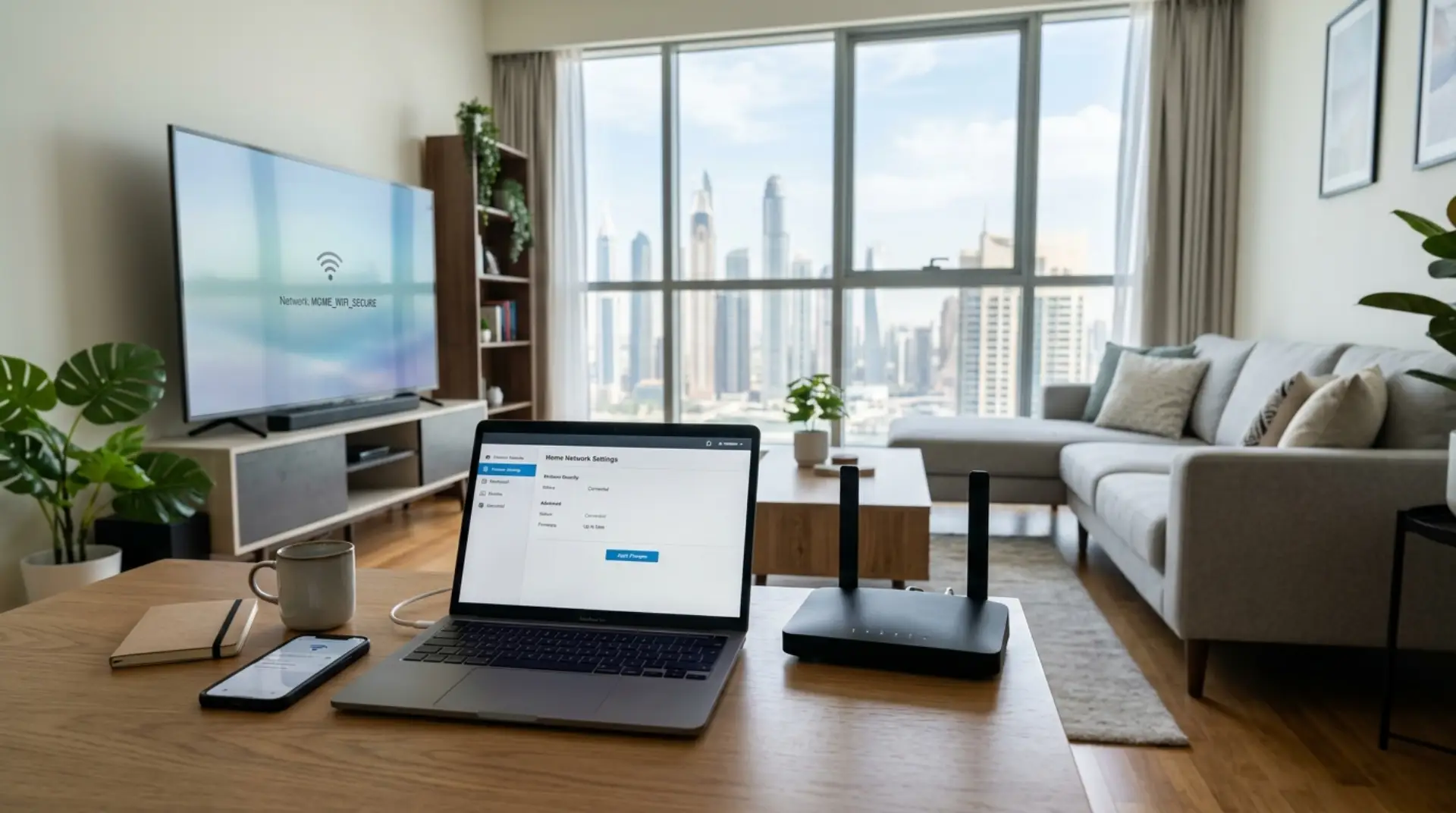
Your video call freezes in the middle of a meeting, the smart TV keeps buffering, your child’s tablet disconnects, and your phone shows full WiFi bars but slow internet speed. In many Dubai apartments and villas, these problems are not always caused by the internet provider alone. Sometimes the real issue is poor router placement, unsafe router settings, weak passwords, signal interference, too many connected devices, or an overloaded network. Learning how to change router settings safely can improve speed, privacy, security, weak signals, and device overload without creating bigger network problems.
Why Router Settings Matter in Dubai Homes and Small Businesses
Dubai properties create different WiFi challenges. In high-rise apartments, your router may compete with dozens of nearby WiFi networks from neighbors. This causes signal interference and network congestion, especially in busy areas where many routers use the same wireless channels.
In villas, the problem is often different. A router placed on the ground floor may not send a strong signal upstairs, across thick walls, or into outdoor areas. Families using smart TVs, phones, tablets, gaming consoles, cameras, and smart home devices may notice slower WiFi performance as more devices connect.
For home offices, stable video calls matter more than just high speed. For gamers, lower latency is often more important than download speed. For cafés, salons, clinics, and small offices, a secure customer WiFi network protects business systems from public access.
This is why a safe router setup is important. The right changes can improve coverage, privacy, and bandwidth control. The wrong changes can weaken your secure network or disconnect devices completely.
Place the Router Before Changing Advanced Settings
Before changing router settings, check where your router is placed. Many WiFi problems start from poor placement, not technical faults.
A router hidden behind a TV cabinet, placed near a microwave, kept inside a closed cupboard, or installed behind thick walls may struggle to deliver strong coverage. In apartments, place the router in a central, open area away from metal objects and large electronics. This helps reduce signal interference from other devices.
In villas, avoid keeping the router only in one far corner of the house. If bedrooms, home offices, or upstairs rooms have weak WiFi, the issue may be distance and wall blockage. A wifi signal increase may require better placement, a mesh WiFi system, or a properly installed access point.
For small businesses, avoid placing the router near the reception counter only because it is convenient. Think about where staff, customers, payment devices, cameras, and office computers actually need a stable connection.
Good router placement can improve wifi performance before you even log in to the router admin page.
Router Login and Safe Settings You Can Change Yourself
To access router settings, you usually need the router login address, username, and password. This information may be printed on the router label or provided by your internet service provider. Common router login addresses look like local numbers such as 192.168.1.1 or 192.168.0.1, but they vary by brand and provider.
Once logged in, change only the settings you understand. Safe settings most users can adjust include WiFi name, wifi password, guest WiFi, basic security mode, device list, parental controls, and restart options.
Be careful with advanced settings such as DHCP, DNS, NAT, bridge mode, firewall rules, port forwarding, and firmware updates. These can be useful, but incorrect changes may break your internet connection or expose your network.
Do not disable encryption, firewall protection, or router security features just to “make the internet faster.” A fast but unsecured network is risky. Anyone nearby could try to connect, use your bandwidth, or access devices if the network is poorly protected.
If you are doing Router Setup Dubai for a home office, gaming room, villa, or small business, write down the original settings before changing anything. This makes network troubleshooting easier if something goes wrong.
Guest WiFi: A Simple Setting That Protects Privacy
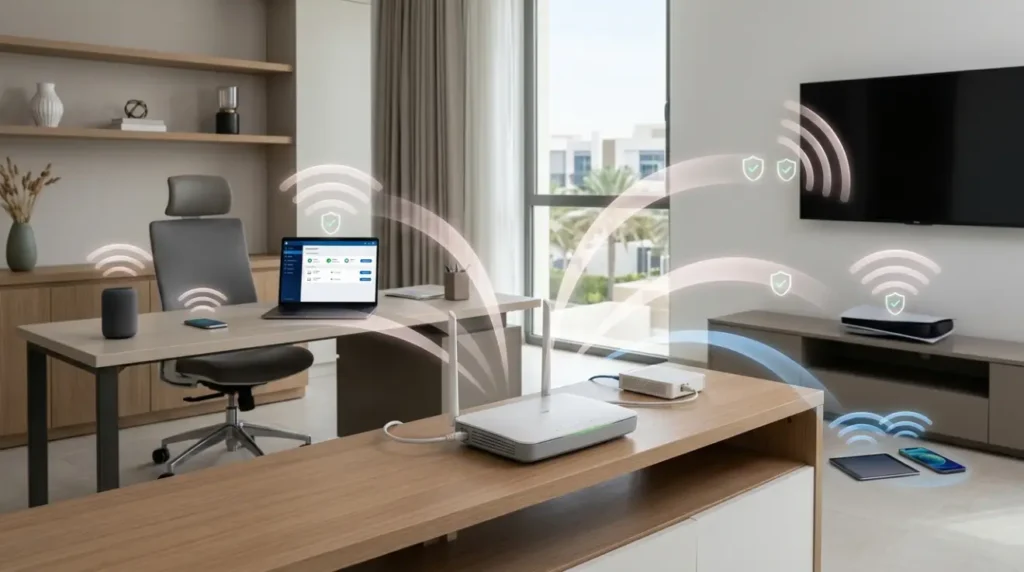
Guest WiFi is one of the most useful router settings for Dubai homes and businesses. It creates a separate WiFi network for visitors, customers, delivery staff, or temporary users.
In a family home, guest WiFi keeps visitors away from your private devices such as laptops, phones, smart TVs, cameras, and storage devices. In a small business, it allows customers to use WiFi without giving them access to office computers, printers, POS systems, or internal files.
Guest WiFi also improves control. You can set a different wifi password, limit access, turn the network off when not needed, or sometimes control bandwidth for guest users. This is helpful when too many connected devices are slowing down the main network.
How to Create Guest WiFi Through Router Settings
Log in to your router admin page and look for a section called Guest Network, Guest WiFi, Wireless Settings, or WLAN. Turn on the guest network and give it a clear name, such as “Home-Guest” or “Business-Customer-WiFi.”
Set a strong guest wifi password. Avoid using your main WiFi password. If available, turn on client isolation, which prevents guest devices from seeing each other or connecting to private devices on your main network.
For a business, avoid leaving the guest WiFi open without a password. Open networks may attract unwanted users and reduce internet speed. A secure guest network is better for privacy, control, and professional wifi service standards.
Strong WiFi Password and Secure Network Settings
A weak wifi password is one of the easiest ways for outsiders to enter your network. Avoid simple passwords like your phone number, villa number, business name, birth date, or “Dubai123.” These are easy to guess.
Use a long password with a mix of uppercase letters, lowercase letters, numbers, and symbols. A strong password should be easy for your family or team to store safely, but hard for others to guess.
For encryption, choose WPA2 or WPA3 if your router supports it. WPA3 is newer and stronger, but some older devices may only support WPA2. Avoid old security modes like WEP because they are unsafe.
Also, change the default router admin password if it is still the factory password. This is different from the WiFi password. The admin password protects access to router settings, while the WiFi password controls who joins the wireless network.
Keep firmware updated when possible. Firmware is the router’s internal software. Updates can improve security, stability, and sometimes wifi performance. However, do not turn off the router during a firmware update because it may damage the router software.
Manage Connected Devices, Bandwidth, and Slow WiFi Problems
Many Dubai homes now have more connected devices than people. Phones, laptops, smart TVs, tablets, gaming consoles, smart cameras, doorbells, speakers, and appliances all compete for bandwidth.
If the internet becomes slow at night, the problem may be device overload. Streaming 4K video, online gaming, cloud backups, video calls, and large downloads can use heavy bandwidth. A router with poor bandwidth optimization may struggle when many devices are active at the same time.
Log in to your router settings and check the connected devices list. Remove unknown devices by changing the WiFi password. Some routers also allow device blocking, parental controls, usage limits, or Quality of Service settings.
Quality of Service, often called QoS, can prioritize important activities such as video calls, gaming, or office systems. This can help remote workers and gamers reduce latency during busy hours.
Common causes of slow wifi and internet drops include signal interference, outdated modem or router hardware, too many connected devices, weak router placement, old firmware, damaged cables, ISP issues, and network congestion from nearby WiFi networks.
Restart, Replace, or Upgrade: Modem and Router Issues Explained
Restarting your modem and router can fix temporary internet drops, overheating, memory issues, or connection errors. Turn off the modem and router, wait around 30 seconds, then turn them back on. Let the modem connect first, then the router.
If you restart your equipment every day just to keep the internet working, something is wrong. The modem may be old, the router may be overloaded, the internet line may be unstable, or the setup may not match your property size.
A small router may work in a studio apartment but fail in a large villa. An old router may not handle modern smart homes with many connected devices. Small businesses may need better equipment than a basic home router, especially if they use customer WiFi, security cameras, cloud apps, or payment systems.
Replace or upgrade your router if it is very old, overheats often, drops connections, has limited coverage, does not support modern encryption, or cannot handle your internet speed package.
WiFi Booster vs Mesh WiFi: Which One Helps More?
A wifi booster can help extend the signal to a weak area, but it is not always the best solution. Boosters repeat the existing signal, so if they receive a weak signal, they may repeat a weak connection. This can improve coverage slightly but may reduce speed.
Mesh WiFi is usually better for larger apartments, villas, and multi-floor homes. A mesh system uses multiple units that work together to create smoother coverage across rooms and floors. It is helpful when you need stable video calls in a home office, better streaming in bedrooms, and a stronger signal upstairs.
For gamers, a wired Ethernet connection is still the best option when possible. If wiring is not practical, a properly placed mesh node may reduce latency better than a cheap booster.
For businesses, professional access points may be better than consumer boosters. They provide stronger control, better coverage planning, and more reliable wifi performance.
When to Call a WiFi Repair Technician or Professional WiFi Service
You can safely change basic router settings yourself, but some situations need a wifi repair technician. Contact a professional wifi service if internet drops continue after restarting equipment, if your villa has dead zones between floors, if your business needs separate staff and customer WiFi, or if router login settings are confusing.
Professional network troubleshooting is also useful when you have IP conflicts, modem issues, weak signal after upgrades, poor gaming latency, smart device connection failures, or unstable video calls in a home office.
A technician can test signal strength, check router placement, inspect cables, update firmware, configure secure network settings, separate guest WiFi, improve bandwidth control, and recommend the right mesh WiFi or access point setup.
For Dubai apartments, villas, and small businesses, the best setup is not always the most expensive one. It is the one that matches your property size, wall layout, number of users, connected devices, and daily internet needs.
FAQs
What router settings can I safely change myself?
You can usually change the WiFi name, wifi password, guest WiFi, security mode, parental controls, and connected device access. Avoid advanced settings unless you understand them or have support.
Why is my WiFi slow even after changing the password?
Slow WiFi may be caused by poor router placement, signal interference, too many connected devices, outdated firmware, bandwidth-heavy apps, or modem problems. A password change only removes unwanted users.
Should I use guest WiFi at home?
Yes. Guest WiFi protects your private devices by keeping visitors on a separate network. It is useful for families, tenants, shared apartments, and homes with smart devices.
What is the best WiFi security setting?
Use WPA3 if your router and devices support it. If not, WPA2 is still widely used and secure. Avoid WEP because it is outdated and unsafe.
Can changing router settings improve gaming latency?
Yes, in some cases. Better placement, fewer connected devices, QoS settings, and using Ethernet can reduce latency. However, ISP routing and network congestion can also affect gaming performance.
Is a WiFi booster enough for a villa?
Sometimes, but not always. A wifi booster may help one weak room, but mesh WiFi or wired access points are usually better for villas with multiple floors and thick walls.
How often should I restart my router?
Restarting once in a while is fine, especially after connection issues. If you must restart daily, the router, modem, cables, or internet line may need proper network troubleshooting.
When should I replace my router?
Replace your router if it is old, overheats, drops connections, cannot handle your internet speed, lacks secure encryption, or fails to support the number of devices in your home or business.
Get Safer, Faster, and More Reliable WiFi Support
Safely changing router settings can improve internet speed, privacy, security, coverage, and control. Start with simple steps: place the router correctly, use a strong Wi-Fi password, enable guest Wi-Fi, keep encryption active, check connected devices, and restart the modem and router as needed.
For apartments with crowded WiFi signals, villas with weak coverage between floors, gamers needing lower latency, families with many smart devices, and small businesses needing secure customer WiFi, basic settings may not be enough. When internet drops continue or the setup becomes confusing, professional wifi service can save time and prevent mistakes.
A trusted wifi repair technician can inspect your router setup, test signal strength, improve wifi signal, reduce network congestion, secure your network, and recommend the right upgrade for your property. Good WiFi is not only about speed. It is about stable coverage, safe access, and a network that works properly for the way you live or run your business.
Leave a Reply