
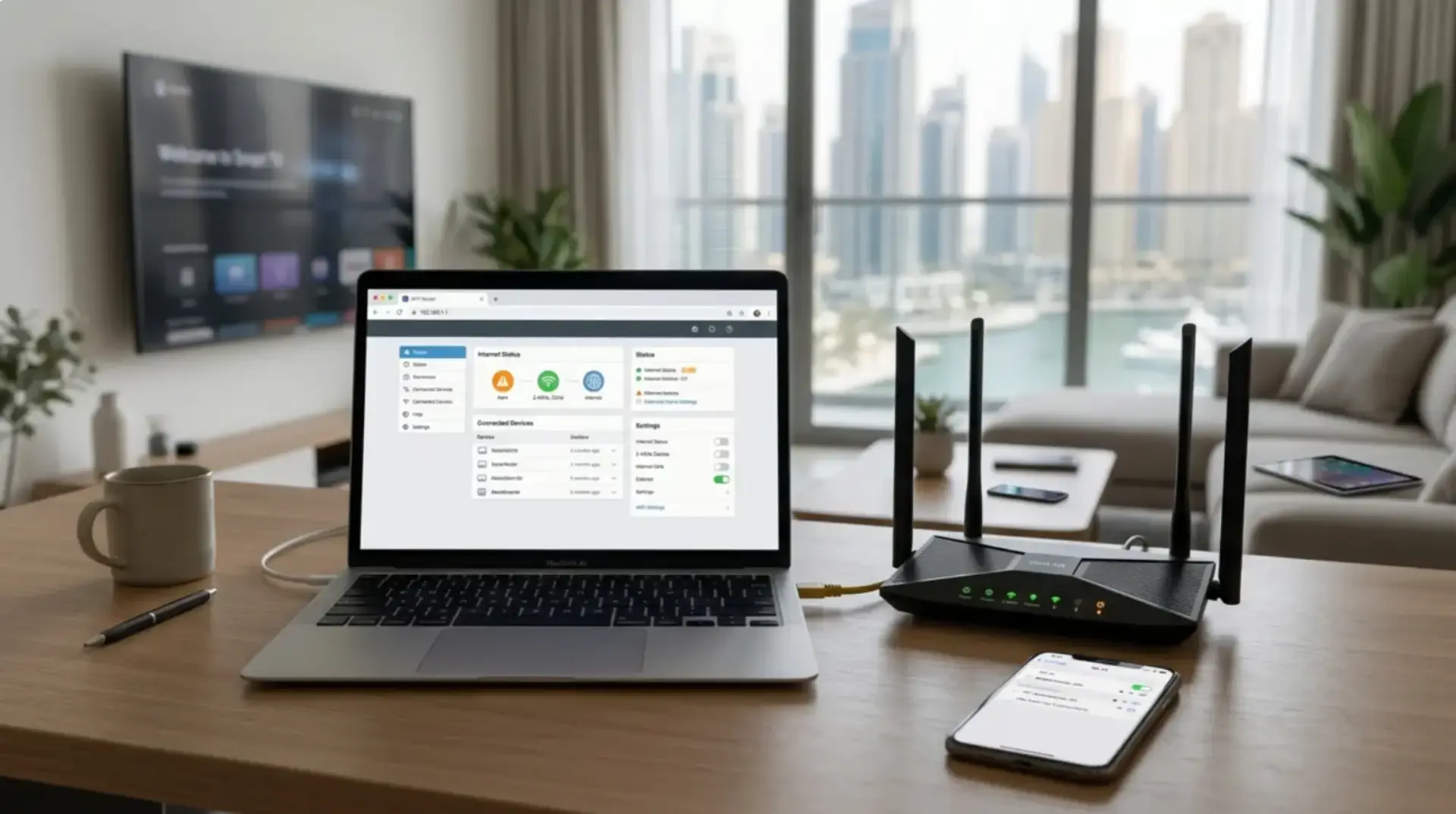
Your video call works fine in the living room, but the moment you move to the bedroom, the voice starts breaking. The smart TV buffers at night, gaming feels delayed, and guests keep asking for the WiFi password. Sometimes the internet drops even though the router lights look normal. In many Dubai homes, apartments, villas, and small offices, the problem is not always the internet package. It is often the router setup, placement, connected devices, or settings inside the router admin page.
The router admin page is where you manage your WiFi name, WiFi password, guest network, security settings, connected devices, and sometimes firmware updates. Logging in correctly can help you fix slow WiFi, improve privacy, and understand whether you need simple network troubleshooting or a professional WiFi service.
Common Signs Your Router Settings Need Attention
Before changing anything, look at the symptoms. Router problems usually show up in patterns.
You may need to check your router settings if:
- WiFi is strong near the router but weak in bedrooms or upstairs rooms.
- Internet speed drops at night when everyone is home.
- Video calls freeze even when the internet plan is fast.
- Gaming has high ping or delay.
- Smart TVs, cameras, or smart home devices often disconnect.
- Guests use the same WiFi password as your family or office devices.
- The modem shows internet, but WiFi devices still struggle.
- A WiFi booster was installed but did not improve coverage.
These are common causes of slow WiFi. Some are easy to fix through router login, while others need better coverage planning, especially in large villas or thick-wall apartments.
How to Log In to the Router Admin Page Safely
To access your router admin page, you usually need to be connected to the router’s WiFi or LAN cable. Open a browser and enter the router’s IP address. Common addresses include:
192.168.1.1
192.168.0.1
192.168.100.1
You can often find the correct address on a label under the router or in the router manual. Some internet providers also print router login details on the device sticker.
Basic steps:
- Connect your phone, laptop, or PC to the router WiFi.
- Open Chrome, Safari, Edge, or any browser.
- Type the router IP address in the address bar.
- Enter the admin username and password.
- Go to WiFi settings, wireless settings, security, or guest network settings.
Do not confuse your WiFi password with your router admin password. The WiFi password connects devices to the internet. The router admin password controls the router settings. If you changed the admin password and forgot it, do not reset the router immediately unless you know your internet provider settings. A full reset can remove important modem or ISP configuration.
Router Placement and Setup Problems That Cause Slow WiFi
Poor router placement is one of the biggest reasons for weak signals and internet drops. A router placed behind a TV cabinet, inside a cupboard, near metal objects, or close to thick walls cannot distribute the signal properly.
For better WiFi performance:
- Place the router in a central, open area.
- Keep it away from mirrors, metal shelves, microwave ovens, and cordless phones.
- Do not hide it inside closed cabinets.
- Raise it above floor level.
- Avoid placing it in one far corner of the apartment or villa.
Dubai apartments often suffer from signal interference, which means nearby networks and electronic devices disturb your WiFi signal. In high-rise buildings, dozens of routers may compete on the same wireless channels. This can cause slow browsing, buffering, and unstable connections even if your internet speed package is good.
Villas have a different problem. The router may work well in the living room but fail in bedrooms, majlis areas, upstairs rooms, outdoor spaces, or extensions. Large layouts need better coverage planning, not just a random WiFi booster.
Quick Troubleshooting Checks Before Changing Router Settings
Before making advanced changes inside the router admin page, do a few simple checks. These help you understand whether the issue is WiFi, modem, internet provider, or device-related.
Check these first:
- Restart the router and modem properly by unplugging them for 30 seconds.
- Test internet speed near the router and again in the weak-signal room.
- Check whether the issue happens on one device or all devices.
- Disconnect unused devices and test again.
- Use a LAN cable to test if the modem internet is stable.
- Check if the router feels very hot.
- Make sure cables are firmly connected.
- Look for red or blinking warning lights on the modem.
If the wired internet speed is good but WiFi is poor, the issue is likely router placement, router settings, interference, or coverage. If wired speed is also poor, the modem, provider line, or main internet connection may need inspection.
Router Settings You Can Safely Change
Inside the router admin page, there are a few settings most home users can safely adjust. These can help with privacy, bandwidth, and WiFi signal increase without risky changes.
Safe router settings to review:
- Change the WiFi name to something clear and simple.
- Set a strong WiFi password.
- Enable WPA2 or WPA3 encryption if available.
- Turn on guest WiFi for visitors.
- Update firmware if your router clearly offers an official update.
- Rename 2.4GHz and 5GHz networks if you want better control.
- Check connected devices and remove unknown users.
- Restart the router from the admin panel after changes.
A few technical terms are useful here. Encryption protects your WiFi so outsiders cannot easily read or access your network traffic. Firmware is the router’s internal software, and updates may fix bugs or security issues. Bandwidth is the amount of data your connection can handle at one time; too many devices can divide it and reduce performance.
Avoid disabling firewall, encryption, DHCP, or advanced security features unless you fully understand them. These settings help keep your secure network stable and protected.
Guest WiFi: Why It Helps Families, Visitors, and Smart Devices
A guest WiFi network is a separate WiFi access point created from your router. It lets visitors connect to the internet without giving them access to your main home or office network.
Guest WiFi is useful because it:
- Keeps your main WiFi password private.
- Reduces the risk of guests accessing shared files or devices.
- Helps separate smart TVs, cameras, and IoT devices.
- Makes your secure network easier to manage.
- Allows you to change guest access without disturbing family devices.
- Helps small businesses provide visitor WiFi safely.
To enable guest WiFi, log in to your router admin page and look for “Guest Network,” “Guest WiFi,” or “Wireless Guest.” Turn it on, create a separate network name, set a strong password, and enable encryption. Some routers also allow you to block guests from accessing local devices. Turn that option on if available.
For smart devices, a guest network can also help. Many cameras, plugs, TVs, and speakers do not need access to your main laptops or office systems. Keeping them separate improves privacy and makes network troubleshooting easier.
Connected Devices, Bandwidth, and Network Congestion
Many people blame the router when the real issue is network congestion. Network congestion happens when too many devices use the internet at the same time. A family may have phones, laptops, smart TVs, gaming consoles, cameras, tablets, and smart home devices all connected at once.
Heavy usage includes:
- 4K streaming
- Online gaming
- Cloud backups
- CCTV uploads
- Video meetings
- Large downloads
- Smart TV apps running in the background
This affects latency, which means delay. High latency causes gaming lag, slow video calls, and delayed responses even when the download speed looks acceptable.
Check the connected devices list inside the router settings. If you see unknown devices, change the WiFi password and reconnect only trusted devices. For better bandwidth optimization, move high-performance devices to 5GHz WiFi when close to the router, and keep basic smart devices on 2.4GHz if they need longer range.
WiFi Booster, Modem, or Professional WiFi Service?
A WiFi booster can help in small dead zones, but it is not a magic fix. If the booster receives a weak signal, it usually repeats a weak signal. That may show more WiFi bars but still give poor internet speed.
A WiFi booster may help when:
- One nearby room has weak signal.
- The main router signal is still decent near the booster location.
- You only need light browsing or basic coverage improvement.
A booster may not help when:
- The villa has multiple floors.
- Thick walls block signal.
- The router is badly placed.
- There are many connected devices.
- Gaming, video calls, or business work need stable speed.
- The modem or main internet line is unstable.
Modem/router problems often look different from normal WiFi issues. If all devices disconnect at the same time, modem lights turn red, the router restarts by itself, or wired internet also fails, the issue may be hardware, cabling, ISP line, or configuration.
Warning signs that require a WiFi repair technician:The
- Internet drops across the whole property.
- Router settings are confusing or locked by the provider.
- Multiple boosters are installed but WiFi is still poor.
- Smart cameras, POS systems, or office devices keep disconnecting.
- Villa coverage is weak across floors or outdoor areas.
- The router or modem overheats or restarts often.
- You need secure network setup for family, guests, or business devices.
- You are unsure which device is the modem, router, mesh node, or booster.
A professional WiFi service can test signal strength, interference, router placement, modem performance, bandwidth usage, and coverage gaps. For villas and small businesses, proper planning often works better than adding random devices.
FAQs
What is a router admin page?
A router admin page is the control panel for your router. It lets you manage WiFi name, WiFi password, guest network, security, connected devices, and other router settings. You usually access it through a browser using the router IP address.
Why can’t I log in to my router admin page?
You may be using the wrong IP address, wrong admin password, or you may not be connected to the router network. Some provider routers also have restricted access. Check the router label first before resetting anything.
Is the router admin password the same as the WiFi password?
No. The WiFi password connects your phone or laptop to the network. The router admin password opens the router settings. For security, both should be strong and should not be the same.
Can router settings improve internet speed?
Yes, router settings can improve WiFi performance if the issue is interference, weak security, unknown connected devices, poor channel selection, or bad network setup. However, they cannot fix a weak internet plan, damaged modem, or ISP line issue.
Should I enable guest WiFi at home?
Yes, guest WiFi is useful for visitors, smart devices, and privacy. It keeps your main network separate and helps protect personal laptops, office devices, and shared files from unnecessary access.
Does a WiFi booster increase internet speed?
A WiFi booster may improve signal reach, but it does not always increase internet speed. If placed in a weak-signal area, it may repeat a poor connection. For large villas, mesh WiFi or professional planning is usually better.
Why is WiFi worse in Dubai apartments?
Many Dubai apartments have nearby routers, thick walls, mirrors, and electronic interference. This creates signal interference and network congestion. Router placement and correct settings can make a noticeable difference.
When should I call a WiFi repair technician?
Call a WiFi repair technician if internet drops continue after basic checks, multiple rooms have weak coverage, your modem/router keeps restarting, or you need secure network setup for many devices. Professional testing saves time and avoids wrong equipment purchases.
What to Check Next Before You Change More Settings
Start with the basics: test speed near the router, check speed in the weak room, count your connected devices, and confirm whether wired internet is stable. Then log in to the router admin page and review WiFi password, encryption, guest WiFi, device list, and firmware.
If your apartment has interference, try better router placement and remove unknown devices. If your villa has dead zones, do not keep adding boosters without a plan. If the modem drops, the router overheats, or settings are unclear, it is safer to contact a professional WiFi service before changing advanced options.
Leave a Reply