
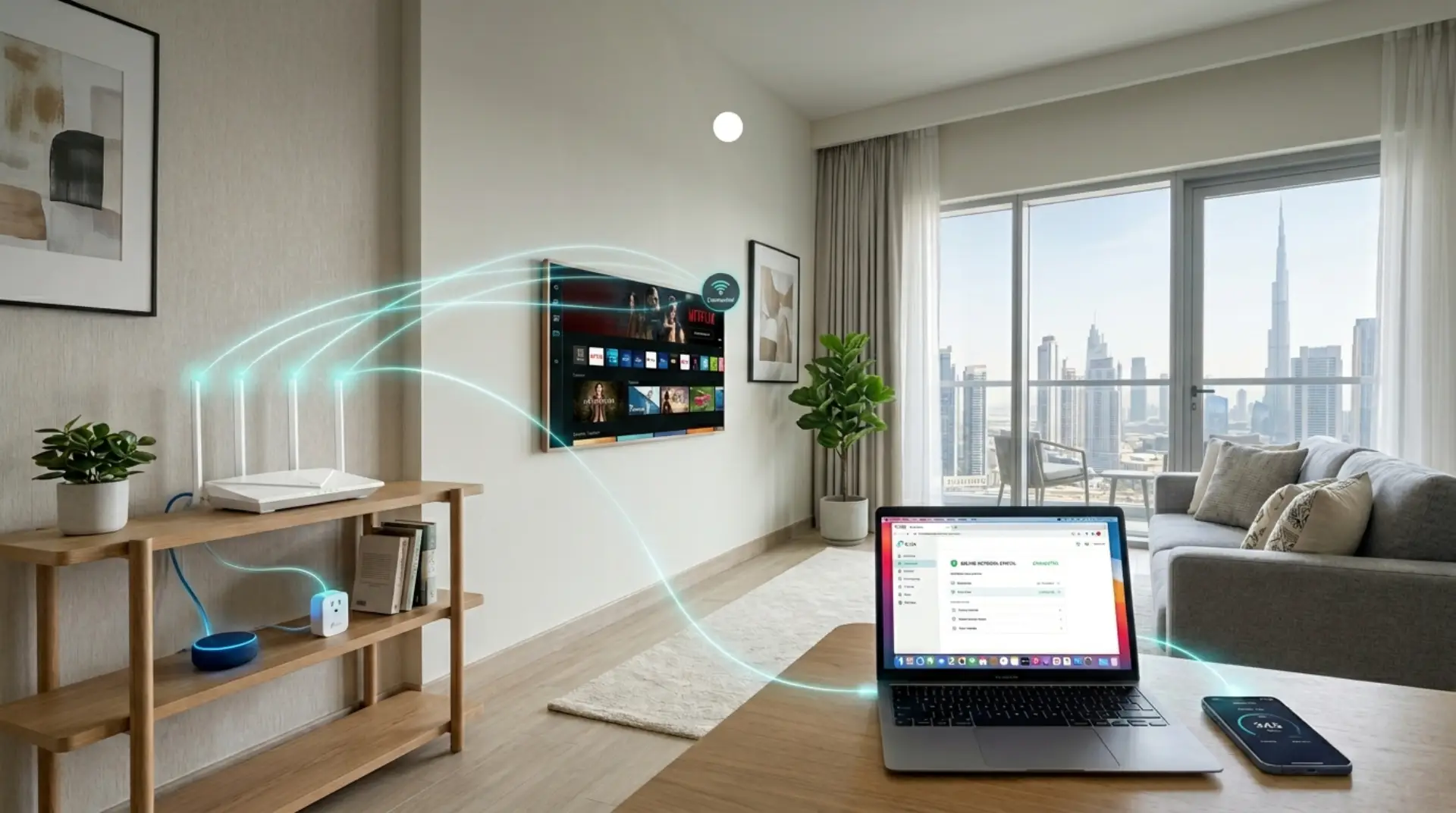
A router can look perfectly fine from the outside while causing daily problems inside your home. Video calls may freeze, gaming can feel delayed, smart cameras may disconnect, and some rooms may have weak WiFi. A proper router setup in Dubai is not just about connecting a modem and choosing a WiFi password.
A reliable home network depends on correct router placement, secure settings, stable internet configuration, and good WiFi coverage. This home router setup checklist explains the basic settings you should check, common causes of slow WiFi, and when a mesh system, extender, or professional router setup may be a better option for your apartment, villa, home office, or small business in Dubai.
Need Help With Router Setup in Dubai?
If your new router is not connecting properly, WiFi coverage is weak, or you are unsure about the correct internet and security settings, professional help can save time and prevent setup mistakes. WiFiFix provides router installation and WiFi configuration for homes and offices in Dubai, including router setup, signal testing, extender and mesh installation, and basic troubleshooting.
Start With the Right Router Placement
Before changing router settings, look at where the router is placed. Many WiFi problems in Dubai homes begin with poor placement, not a faulty internet plan.
In apartments, routers are often placed near the TV unit, behind cabinets, or close to thick walls. In villas, the router may sit in one corner while bedrooms, majlis areas, kitchens, or outdoor spaces get weak signals. This creates slow wifi, internet drops, and uneven coverage.
Place your router:
- In a central, open location
- Away from metal cabinets, mirrors, and thick walls
- Off the floor, ideally on a table or shelf
- Away from microwaves, cordless phones, and baby monitors
- Not hidden inside drawers or closed media units
Signal interference means something is blocking or disturbing your WiFi signal. Concrete walls, glass panels, metal décor, and nearby electronics can all reduce wifi performance. For larger homes, a wifi booster or mesh WiFi system may be needed, but placement should always be checked first.
Router Login and Basic Settings to Check
Most routers have a router login page where you can manage network settings. This is usually accessed through a browser by entering an address like 192.168.1.1 or the address printed on the router label.
The exact login address depends on the router brand and model. For TP-Link routers, for example, common access options include tplinkwifi.net, 192.168.0.1, and 192.168.1.1. Always check the router label or manufacturer instructions before changing advanced settings.
Once inside the router settings, check the basics carefully:
- WiFi network name
- WiFi password
- Security mode
- Connected devices
- Firmware update section
- Guest network settings
- Parental control or access control options
Firmware is the router’s internal software. Keeping it updated can fix bugs, improve security, and sometimes improve wifi performance. Do not reset or disable advanced settings randomly, especially firewall, encryption, or DHCP settings, unless you understand what they do.
A safe home setup starts with simple checks. Change the default router login password if it is still “admin” or printed on the box. This is different from your wifi password. The router login password protects the settings page, while the wifi password allows devices to connect.
TP-Link Router Setup in Dubai
TP-Link routers are widely used for home WiFi, but the correct setup depends on the router model and internet connection. Start by connecting the modem or fiber box to the router’s WAN or Internet port. Then connect your phone or laptop to the TP-Link WiFi and follow the TP-Link router setup process to configure the connection, WiFi name, password, and security settings.
Common TP-Link access options include tplinkwifi.net, 192.168.0.1, and 192.168.1.1. During setup, check the internet connection type, WiFi name, password, security settings, and router mode. Some connections may use Dynamic IP, while others may require PPPoE or another configuration.
Do not keep changing advanced settings randomly if the internet does not connect. Check the WAN cable, router mode, and internet provider requirements first.
Huawei ISP Router Setup
Huawei routers supplied by internet providers can use different login details and network settings depending on the connection. Before changing anything, check the router label and identify whether the Huawei device is being used as the main router, modem/router, or access point.
For a basic setup, connect the ISP line or modem to the correct port, connect your phone or laptop to the router, and open the router’s local configuration page. Set a strong WiFi name and password, check the internet connection status, and review the security settings.
If the router was supplied by your internet provider, avoid changing advanced WAN, PPPoE, or routing settings unless you know the required configuration. Incorrect changes can cause the internet connection to stop working.
Zyxel ISP Router Setup
Zyxel routers are also commonly used with ISP connections and may require provider-specific settings. Start by checking the power, Ethernet or fiber connection, and the correct Internet or WAN port. Then connect your device to the router and open its local configuration page.
During setup, check the internet connection status, WiFi name, password, security mode, and connected devices. If the Zyxel router is supplied by your ISP, keep the existing provider configuration unless you know exactly which settings need to be changed.
If WiFi works close to the router but becomes weak in other rooms, check router placement first. Larger homes may need a properly planned mesh WiFi system or wired access point rather than simply adding multiple extenders.
Create a Guest WiFi Network for Visitors and Smart Devices
A guest WiFi network is a separate WiFi connection for visitors, guests, and sometimes smart devices. It lets people use your internet without giving them access to your main home network.
For example, your main network may connect your laptops, phones, office files, printer, CCTV system, and smart TV. A guest network keeps visitors on a separate path, so they can browse the internet without reaching your private devices.
This matters for:
- Privacy: Guests do not connect to your main devices
- Security: Unknown phones and laptops stay separate
- Speed control: Some routers let you limit guest bandwidth
- Smart devices: Cameras, bulbs, and plugs can be isolated
- Small business use: Customers can get WiFi without accessing office systems
To create a guest WiFi network, log in to your router settings and look for “Guest Network,” “Guest WiFi,” or “Wireless Guest Access.” Turn it on, give it a simple name, and set a strong password. If there is an option called “Allow guests to access local network,” keep it disabled for better privacy.
A good guest network name can be simple, such as “Home-Guest” or “Office-Guest.” Avoid using personal names, flat numbers, or business passwords in the network name.
Use Strong Passwords and Secure Encryption
Weak passwords are one of the easiest ways to damage a secure network. A router should never use simple passwords like 12345678, family names, phone numbers, or building names.
Use a password that is:
- At least 12 characters long
- A mix of letters, numbers, and symbols
- Not used for your email, bank, or social accounts
- Different for main WiFi and guest WiFi
Encryption protects data as it moves between your devices and router. In simple words, it makes your connection harder to read or misuse. Use WPA2 or WPA3 security if your router supports it. Avoid old security modes such as WEP because they are outdated and unsafe.
Do not disable router firewall settings unless a professional wifi repair technician advises it for a specific reason. The firewall helps block unwanted access from outside your network.
For families, remote workers, and small businesses, secure network setup is especially important. One weak password can expose personal files, work systems, smart devices, or customer information.
Manage Connected Devices and Bandwidth
A home network can slow down when too many connected devices are active at the same time. Phones, laptops, tablets, smart TVs, gaming consoles, CCTV cameras, printers, Alexa devices, and smart lights all use network resources.
Bandwidth means the amount of internet capacity available for your devices. When many devices stream, download, update, or game at once, network congestion can happen. Network congestion means too much traffic is trying to move through the same connection.
Check the connected devices list inside your router settings. If you see unknown devices, change your wifi password and restart the router.
For better bandwidth optimization:
- Keep work laptops and video calls on the stronger WiFi band
- Move smart home devices to guest WiFi if possible
- Limit guest network speed if your router allows it
- Pause large downloads during video meetings
- Use an Ethernet cable for gaming consoles, PCs, or smart TVs when possible
Gamers should also check latency. Latency means the delay between your device and the server. Even if internet speed looks high, high latency can cause lag. Wired connections, better router placement, and fewer background downloads can improve gaming performance.
Fix Weak Signals, Internet Drops, and Slow WiFi Causes
Slow WiFi is not always caused by your internet provider. Many router setup issues happen inside the home.
Common causes of slow wifi include:
- Router placed too far from main rooms
- Too many connected devices
- Old router hardware
- Outdated firmware
- Thick walls or signal interference
- Wrong WiFi channel
- Overloaded 2.4GHz network
- Faulty modem or loose cables
- Poor mesh WiFi placement
If your internet drops often, check whether the issue affects all devices or only one. If only one phone or laptop has a problem, the device may need troubleshooting. If every device disconnects, the modem, router, or internet line may be the cause.
For wifi signal increase, try moving the router first. Then restart the modem and router properly. Turn off both devices, wait 30 seconds, turn on the modem first, then the router. This can clear temporary errors.
In apartments with many nearby networks, changing the WiFi channel may help. In villas, weak signals often need mesh nodes placed correctly, not randomly. A wifi booster can help in smaller dead zones, but it may not solve poor coverage in large homes if the main signal is already weak.
Before buying another device, check whether the problem is caused by router placement, interference, or incorrect configuration. Adding an extender to an already weak signal can sometimes produce poor results. For larger villas or multi-floor homes, a properly positioned mesh system or wired access point may provide more consistent coverage.
Dubai Home and Small Business Setup Examples
A router setup should match the space. A small apartment, villa, home office, and shop do not need the same network layout.
In a Dubai apartment, the main issue is often signal interference from neighboring WiFi networks. A dual-band router with proper channel settings can improve stability. Keep the router away from the kitchen and closed cabinets.
In a villa, distance is usually the bigger problem. One router may not cover all floors or outdoor sitting areas. A mesh WiFi system, wired access points, or professional wifi service may be better than using multiple cheap extenders.
In a home office, stability matters more than peak speed. Place the work desk near a strong signal area, use Ethernet when possible, and keep video call devices on the main secure network instead of guest WiFi.
In a small business, separate networks are important. Staff devices, customer WiFi, POS systems, printers, and cameras should not all sit on one open network. Guest WiFi with bandwidth control helps customers browse without slowing down work systems.
What You Can Do Yourself and When to Call a Technician
Many basic router setup tasks are safe for home users. You can change the WiFi name and password, enable guest WiFi, restart the modem and router, check connected devices, update firmware, and test WiFi coverage around your home.
However, professional router setup can be useful when the problem involves multiple devices, advanced network settings, poor coverage, or an ISP-provided router.
Call a professional WiFi technician when:
- Router login does not work
- Internet drops continue after basic troubleshooting
- Mesh WiFi keeps disconnecting
- WiFi is weak across multiple rooms or floors
- You cannot identify whether the modem or router is causing the problem
- Business devices need separate secure access
- Smart devices repeatedly fail to connect
- You are unsure about firewall, IP, DNS, WAN, or advanced router settings
A technician can check router placement, signal strength, cables, internet settings, and connected devices instead of relying on guesswork. For larger homes and offices, a router installation service in Dubai can also help determine whether you need an extender, a mesh WiFi system, or a wired access point.
The goal is not just faster WiFi. The goal is a stable, private, secure network that works every day.
Router Setup Checklist Before You Finish
Before you consider the setup complete, review these points:
- Router is placed in an open, central location
- Default router login password is changed
- Main WiFi has a strong password
- Guest WiFi is enabled for visitors
- WPA2 or WPA3 encryption is active
- Unknown connected devices are removed
- Firmware is updated
- Modem and router cables are secure
- Smart devices are organized properly
- Weak signal areas are tested
- Bandwidth-heavy devices are managed
- Router settings are backed up if available
- Internet connection type is correctly configured
- WiFi coverage has been tested in the main rooms
- Extender or mesh placement has been checked if needed
This checklist helps prevent future issues instead of only fixing problems after they appear.
FAQs
What is the best way to set up a router at home in Dubai?
Start by placing the router in a central, open location and connecting the modem or fiber box to the correct Internet or WAN port. Then configure the internet connection, WiFi name, password, and security settings. Test the WiFi in the main rooms of your home. Larger villas or multi-floor homes may need a mesh WiFi system or wired access points for better coverage.
How do I access my router settings?
Connect your phone, laptop, or computer to the router’s WiFi or Ethernet connection. Then open a browser and enter the router’s local login address shown on the router label or manufacturer instructions. The exact address varies by brand. If the login page does not open, check that your device is connected to the correct router.
How do I set up a TP-Link router?
Connect the modem or fiber box to the TP-Link router’s WAN port, connect your device to the router, and open tplinkwifi.net, 192.168.0.1, or 192.168.1.1. Then configure the internet connection, WiFi name, password, and security settings. For detailed instructions, see our TP-Link router setup and installation guide.
How do I set up a Huawei ISP router?
Huawei ISP routers can use different login details and internet settings depending on the provider and connection. Check the router label and provider instructions before changing advanced settings. Configure the WiFi name and password, confirm the internet connection, and avoid changing WAN or PPPoE settings unless the required configuration is known.
How do I set up a Zyxel ISP router?
Start by checking the power, WAN or Internet connection, and router cables. Connect a phone or laptop to the Zyxel router and access its local configuration page. Check the internet connection, WiFi name, password, and security settings. If the router was supplied by your ISP, avoid changing provider-specific settings without confirming the correct configuration.
Why is my WiFi slow in a Dubai apartment?
Slow WiFi can be caused by crowded wireless channels, poor router placement, thick walls, interference, outdated equipment, or too many connected devices. Moving the router to a central open location and checking the WiFi settings can help. If the problem continues, a better router, mesh system, or professional WiFi assessment may be needed.
Is a WiFi booster enough for a villa?
A WiFi booster can help with a small dead zone, but it may not be enough for a large villa or multi-floor home. Mesh WiFi or wired access points can provide more consistent coverage when the distance between rooms or floors is significant. Proper placement is important for either option.
Should smart devices use the main WiFi or guest WiFi?
Many smart devices can use a guest WiFi network, especially devices that only need internet access. Keeping smart devices separate can reduce access to your main network. However, devices that need to communicate with local computers, phones, or printers may need to remain on the main network.
When should I get professional router setup in Dubai?
Professional help is useful when router login does not work, internet drops continue, WiFi is weak across several rooms, mesh systems keep disconnecting, or you are unsure about advanced settings such as WAN, IP, DNS, firewall, or router mode. A technician can check the configuration, cables, signal coverage, and network layout.
Leave a Reply