
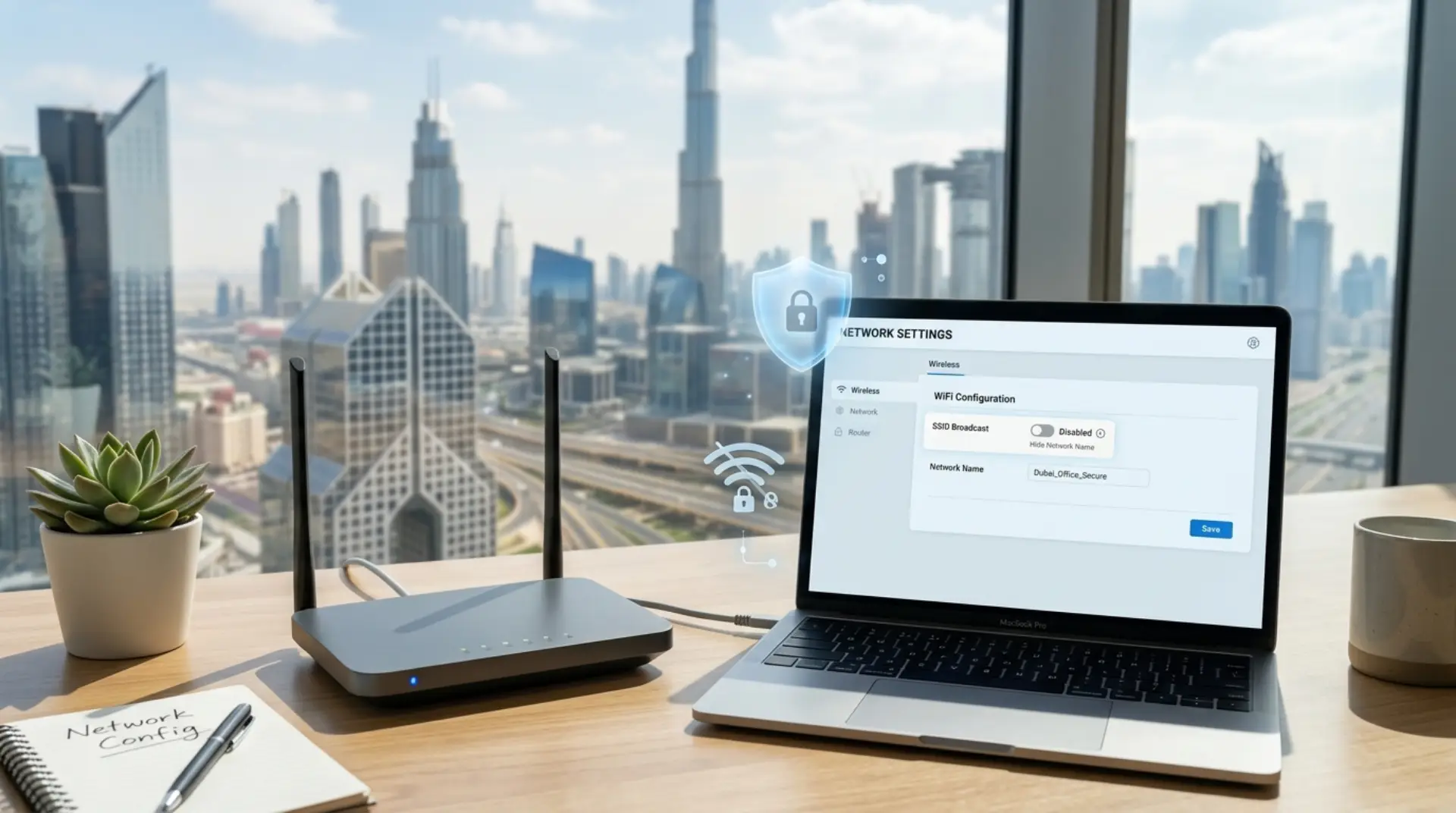
When your home or office WiFi keeps showing up on every nearby phone, laptop, smart TV, and gaming console, it can feel like your network is too visible to strangers, neighbors, or visitors. Many people search for hide wifi password, but the real setting you usually need is hiding your WiFi network name, also called the SSID. This does not make your internet invisible to experts, but it can reduce casual access attempts and give you more control over who connects.
What Does Hiding a WiFi Network Name Mean?
Your WiFi network name is the name people see when they open WiFi settings on their phone or laptop. For example, it might appear as “Home WiFi,” “Villa 22 Internet,” or your router brand name.
Hiding the network name means your router stops broadcasting that name publicly. As a result, your WiFi will not appear in the normal list of available networks. To connect, you must manually enter the exact network name and WiFi password.
This is useful when you want your network to look less obvious, especially in apartments, villas, shared buildings, small offices, or shops where many nearby users can see each other’s WiFi names.
Is Hiding Your WiFi Name the Same as Securing It?
No, hiding your WiFi name is not the same as fully securing your network. It only removes the network name from the public WiFi list. It does not block advanced scanning tools from detecting wireless activity.
For real protection, you still need:
- A strong WiFi password
- WPA2 or WPA3 encryption
- Updated router firmware
- Guest network for visitors
- Proper router settings
- Regular checking of connected devices
Think of hiding your WiFi name as closing the curtain, not locking the door. The door lock is still your password and security settings.
When Should You Hide Your WiFi Network Name?
Hiding your WiFi name can be helpful in some real situations. For example, if you live in a Dubai apartment building where many networks appear together, hiding your SSID can reduce random connection attempts. It can also be useful for small businesses that do not want customers or nearby shops constantly seeing the main office network.
It may help if:
- Unknown devices keep trying to connect
- Guests ask for the main WiFi instead of the guest network
- Your router name shows personal or business details
- You want a cleaner network setup
- You manage a small office, clinic, salon, or retail shop
However, if your main problem is slow internet speed, internet drops, weak coverage, or gaming lag, hiding the network name will not fix the root issue. In that case, you may need network troubleshooting, better router placement, a WiFi booster, or professional WiFi service.
How to Hide Your WiFi Network Name
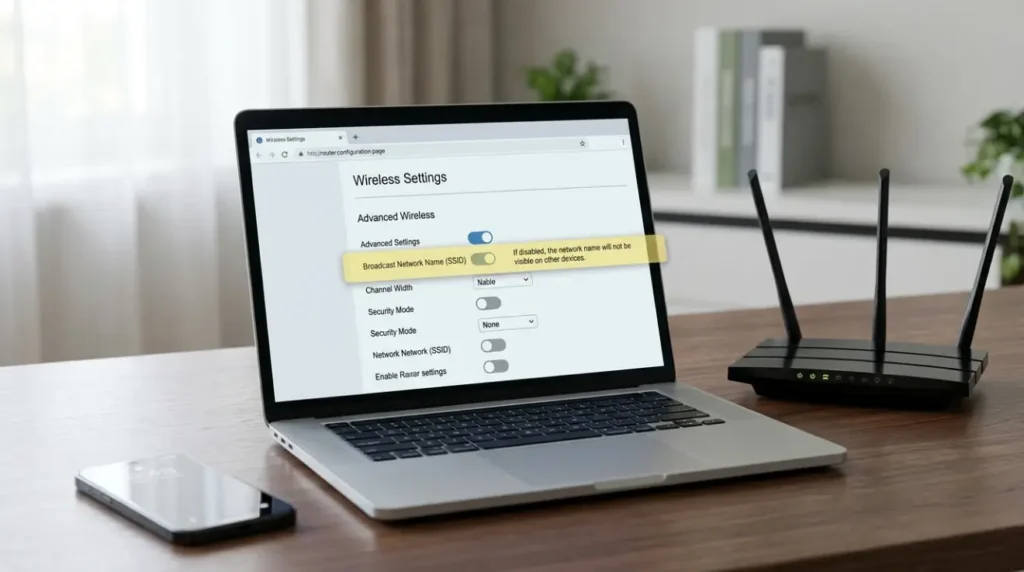
The exact steps depend on your router brand, but most routers follow a similar process.
Step 1: Connect to Your Router
First, connect your phone, laptop, or desktop to your WiFi network. It is better to use a laptop or desktop because router settings are usually easier to manage on a larger screen.
Open a browser and enter your router login address. Common addresses include:
- 192.168.1.1
- 192.168.0.1
- 192.168.100.1
You can usually find the router login address on the label under the router, inside your internet provider’s app, or in the router manual.
Step 2: Log In to Router Settings
Enter the router admin username and password. This is not always the same as your WiFi password. Many users confuse the two.
The router admin login controls settings. The WiFi password only connects devices to the wireless network.
If you never changed the router admin login, check the sticker on the router. For security, change the default admin password after logging in.
Step 3: Find Wireless or WiFi Settings
After logging in, look for a section called:
- Wireless Settings
- WiFi Settings
- WLAN
- Basic Wireless
- Network Settings
- SSID Settings
Different routers use different wording, but the setting is usually under WiFi or wireless options.
Step 4: Disable SSID Broadcast
Look for an option such as:
- Enable SSID Broadcast
- Broadcast Network Name
- Hide SSID
- Visibility Status
- SSID Visibility
To hide the WiFi name, disable SSID broadcast or enable “Hide SSID.” Save the changes.
Your router may restart for a few seconds. After that, your WiFi name will stop appearing in the normal available networks list.
Step 5: Reconnect Your Devices Manually
Once the network name is hidden, some devices may disconnect. To reconnect, choose the option to add a network manually.
You will need to enter:
- Exact WiFi network name
- Security type, usually WPA2 or WPA3
- WiFi password
Be careful with capital letters, spaces, and symbols. Hidden networks require the exact SSID.
What Can Go Wrong After Hiding Your WiFi Name?
Hiding your WiFi name is simple, but it can create small problems if you are not prepared.
Some smart TVs, printers, cameras, and smart home devices do not connect smoothly to hidden networks. In addition, family members may struggle to reconnect if they do not know the exact network name.
Gamers and remote workers should also be careful. If your device keeps searching for a hidden network, it can sometimes reconnect slower after restart or sleep mode. This may not affect everyone, but it can be annoying when you need a stable connection for meetings, calls, or online gaming.
If your internet speed is already unstable, solve the causes of slow WiFi first. Common causes include signal interference, weak router placement, too many connected devices, network congestion, or outdated firmware.
Better Security Tips Than Only Hiding Your WiFi
If your goal is a secure network, focus on the settings that actually protect your connection.
Use a strong WiFi password with a mix of letters, numbers, and symbols. Avoid names, mobile numbers, villa numbers, shop names, or simple words.
Turn on WPA2 or WPA3 encryption. Encryption protects the data moving between your device and router. If your router still uses WEP, it is outdated and should be replaced or reconfigured.
Create a guest network for visitors. This keeps guests away from your main devices, files, printers, and business systems.
Also, check connected devices every few weeks. If you see an unknown device, change the WiFi password and restart the router.
Will Hiding WiFi Improve Internet Speed?
Usually, no. Hiding the WiFi name does not increase bandwidth, improve router power, or remove physical obstacles. If your speed is slow, the issue is likely related to signal strength, router placement, device load, interference, or your internet plan.
For better WiFi performance, place the router in a central open area. Avoid hiding it inside cabinets, behind TVs, near thick walls, or close to microwave ovens. In large villas or multi-floor homes, a single router may not be enough. A mesh WiFi system or WiFi booster may help with coverage.
For small businesses, bandwidth optimization can also help. This means managing how internet capacity is shared between video calls, POS systems, guest WiFi, cloud apps, and staff devices.
When Should You Call a WiFi Repair Technician?
You can hide your WiFi network name yourself if you can access the router login. However, you should contact a WiFi repair technician or professional WiFi service if your router settings are locked, your internet keeps dropping, or devices fail to reconnect after changes.
Professional help is also useful when you need:
- Router setup for home or office
- Mesh WiFi installation
- WiFi signal increase in large spaces
- Secure guest network setup
- Internet speed testing
- Modem and router troubleshooting
- Smart device connectivity support
This is especially important for Dubai villas, apartments, offices, restaurants, clinics, and small businesses where stable WiFi is needed every day.
Final Thoughts
Hiding your WiFi network name can make your network less visible, but it should not be your only security step. It is useful for privacy and reducing casual attention, yet strong passwords, updated router settings, encryption, and proper device management matter much more.
If you only want fewer people to see your network, hiding the SSID is fine. But if you are dealing with slow WiFi, weak signals, internet drops, gaming lag, or too many connected devices, look deeper into your setup. A secure network should also be stable, fast, and easy for your own devices to use.
FAQs
Does hiding my WiFi name make it completely invisible?
No, hiding your WiFi name only stops it from appearing in the normal WiFi list. Advanced tools can still detect wireless activity. For real security, use a strong password, WPA2 or WPA3 encryption, and updated router firmware.
Can I hide my WiFi network from my neighbors?
Yes, you can hide your WiFi network name from the standard list your neighbors see on their devices. However, this does not block technical detection. It mainly reduces casual visibility and random connection attempts.
Will my devices still connect after I hide the WiFi name?
Most phones, laptops, and tablets can connect to a hidden network manually. You must enter the exact network name, security type, and WiFi password. Some smart devices may have trouble connecting to hidden networks.
Is hiding SSID better than changing the WiFi password?
No, changing the WiFi password is more important for security. Hiding the SSID only removes the network name from view. A strong password actually helps stop unauthorized users from connecting.
Why can’t I find the hide SSID option in my router?
Some routers use different names for the same setting. Look for “SSID Broadcast,” “Network Visibility,” “Broadcast Network Name,” or “Hide Network.” If your provider has locked router settings, you may need support from your internet provider or a WiFi technician.
Can hiding WiFi fix slow internet speed?
No, hiding WiFi does not normally improve internet speed. Slow WiFi is usually caused by a weak signal, router placement, interference, too many connected devices, or network congestion. Speed issues need proper troubleshooting.
Should small businesses hide their main WiFi network?
Small businesses can hide their main WiFi network, but they should also create a separate guest WiFi. This protects business devices and gives customers internet access without exposing the main office network.
What should I do if I forget my hidden WiFi name?
Log in to your router settings using a wired connection or a device that is already connected. Check the SSID under wireless settings. If you cannot access the router, you may need to reset it and set up the network again.
Leave a Reply