
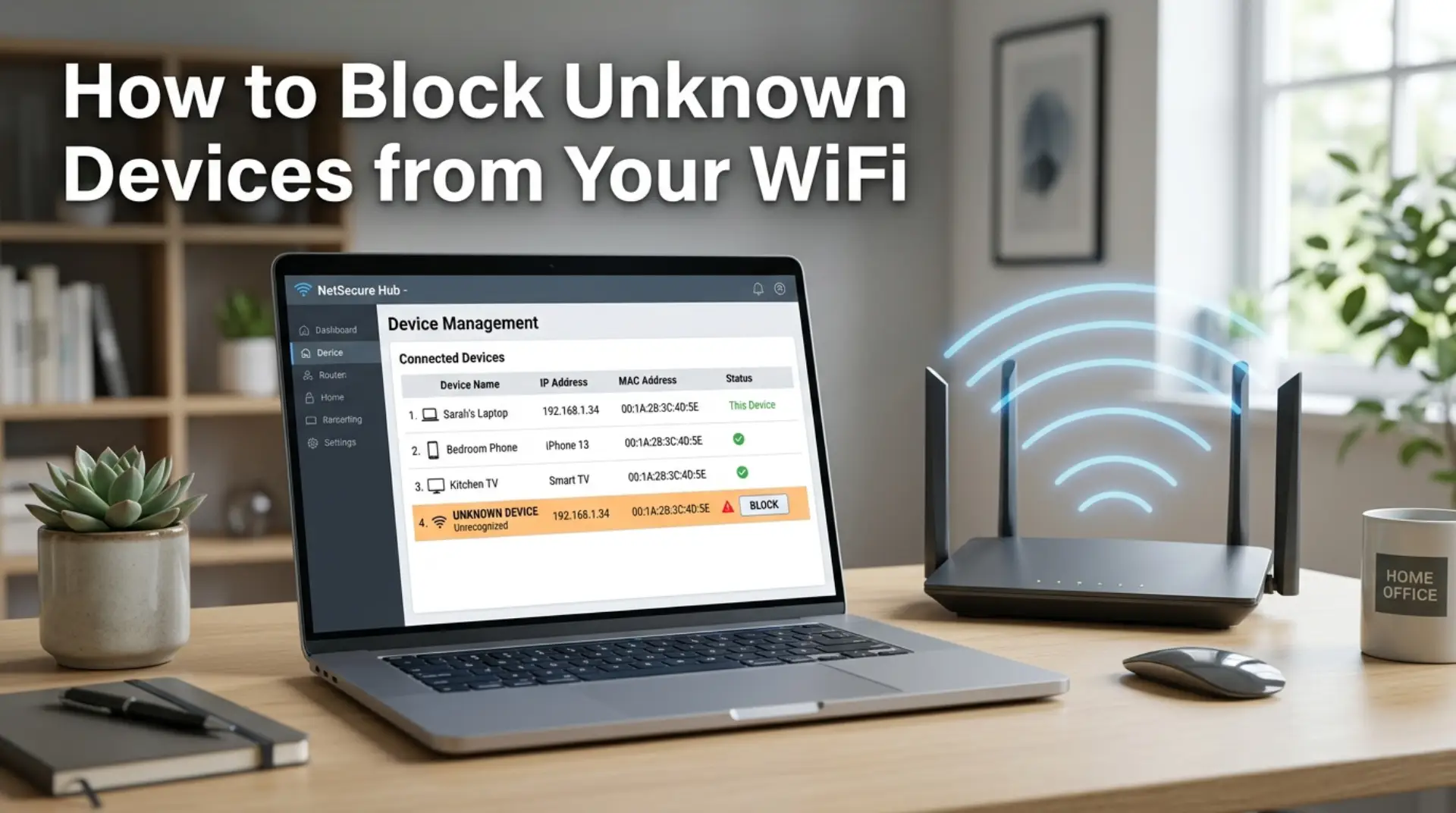
You open your phone, check your router app, and suddenly see a device name you do not recognize. Maybe your internet speed has dropped, your video calls are lagging, or your kids are complaining that gaming keeps freezing. If you are searching for how to block unknown devices on WiFi, the real issue is not just speed — it is control, privacy, and keeping your home or small business network safe.
Unknown devices can connect when your wifi password is weak, shared too often, saved on an old guest phone, or exposed through poor router settings. In apartments, villas, shared buildings, and small offices in Dubai, this is a common problem because many networks sit close to each other, and people often reuse simple passwords.
The good news is that you can usually remove unwanted devices yourself. You do not need to be a network expert, but you do need to follow the right steps carefully.
Why Unknown Devices Appear on Your WiFi
Not every unfamiliar device is a hacker. Sometimes your router shows connected devices with strange names like “Android-1234,” “ESP Device,” “Unknown,” or a random MAC address. These could be normal devices in your home, such as:
- Smart TVs
- Security cameras
- Gaming consoles
- Printers
- Smart bulbs
- WiFi boosters
- Old phones or tablets
- Guest devices
However, if you see a device you truly cannot identify, especially when your internet speed is slower than usual, it may be using your bandwidth without permission.
For remote workers, families, gamers, and small businesses, even one unwanted device can affect wifi performance. More connected devices can create network congestion, which means your router is handling too much traffic at the same time. As a result, video calls may freeze, downloads may slow down, and online games may suffer from high latency, which is the delay between your action and the server’s response.
First, Check Which Devices Are Connected
Before blocking anything, confirm what is actually connected to your router. Removing the wrong device could disconnect your camera, printer, or smart home system.
Use Your Router App or Admin Panel
Most modern routers have a mobile app or web dashboard. To check connected devices:
- Connect your phone or laptop to your WiFi.
- Open your router app or enter the router login address in a browser.
- Sign in using the admin username and password.
- Look for sections like “Connected Devices,” “Device List,” “Clients,” or “Attached Devices.”
- Review device names, IP addresses, and MAC addresses.
Common router login addresses include 192.168.1.1 or 192.168.0.1, but this can vary depending on your modem or router brand.
Match Devices One by One
A simple way to identify devices is to turn off WiFi on your phone, laptop, TV, or console one at a time. Refresh the connected devices list after each change. If a device disappears, you know what it was.
This takes a few minutes, but it helps you avoid blocking your own equipment by mistake.
The Fastest Way to Remove Unknown Devices
The quickest and safest method is to change your wifi password. When you change the password, every connected device is forced off the network. Only devices with the new password can reconnect.
This is often better than blocking one device because some unwanted users can reconnect with another device if they still know your password.
How to Change Your WiFi Password
Log in to your router settings and look for “Wireless,” “WiFi Settings,” or “Security.” Then:
- Change the wifi password to a strong new one.
- Use WPA2 or WPA3 encryption if available.
- Avoid using your name, phone number, villa number, business name, or simple words.
- Save the settings and reconnect your trusted devices.
A strong wifi password should be long, hard to guess, and not shared casually. For example, use a mix of words, numbers, and symbols rather than something like “Dubaiwifi123.”
How to Block a Specific Unknown Device
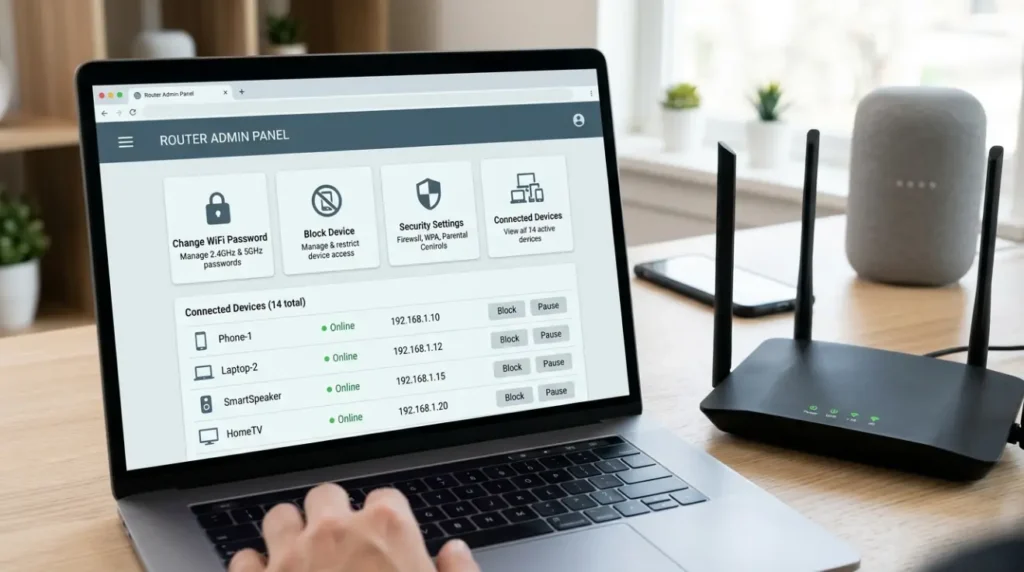
If you only want to block one device, most routers allow you to do this through MAC address filtering, access control, or parental controls.
A MAC address is a unique hardware address assigned to a device’s network adapter. Your router may show it beside each connected device.
Steps to Block a Device
- Open your router admin panel or app.
- Go to “Connected Devices” or “Access Control.”
- Select the unknown device.
- Choose “Block,” “Deny,” or “Remove.”
- Save the settings.
- Restart the router if needed.
Some routers also allow you to create a blacklist. Once a device is blacklisted, it cannot reconnect even if it knows the wifi password.
However, MAC blocking is not perfect. Advanced users can sometimes change or spoof a MAC address. Therefore, blocking should be combined with a strong password and better router security settings.
Secure Your Router Settings Properly
Many people change the wifi password but forget the router admin password. This is risky because the admin password controls the router itself.
Your wifi password connects devices to the internet. Your router admin password controls settings such as passwords, security mode, firmware updates, connected devices, and guest networks.
Change the router admin password if it is still set to the default. Default passwords are often easy to find online for common router models.
Also check these settings:
- Turn off WPS if you do not use it.
- Use WPA2 or WPA3 security.
- Rename your network so it does not reveal your router brand or apartment number.
- Update router firmware when available.
- Remove old guest networks you no longer use.
- Disable remote admin access unless required.
Firmware is the built-in software that runs your router. Keeping it updated can fix security bugs and improve wifi performance.
Use a Guest Network for Visitors
If friends, tenants, customers, or temporary staff need internet access, do not give them your main wifi password. Create a guest network instead.
A guest network keeps visitors separate from your main devices. This is especially useful for small businesses, Airbnb-style rentals, villas with staff areas, and homes with many smart devices.
For better security:
- Set a different password for the guest network.
- Change it regularly.
- Turn it off when not needed.
- Limit access to local devices if your router supports it.
This helps protect your laptops, printers, cameras, and business devices from unnecessary exposure.
Improve WiFi Speed After Removing Unknown Devices
Blocking unwanted users can help, but it may not fix every slow internet problem. Slow wifi can also come from weak signal coverage, old routers, poor placement, signal interference, or too many devices connected at once.
After securing your network, check your wifi performance again. If speed is still poor, try these steps:
- Place the router in a central location.
- Keep it away from thick walls, mirrors, metal cabinets, and appliances.
- Restart the modem and router.
- Remove devices you no longer use.
- Use a quality wifi booster or mesh system for large villas.
- Check whether your internet plan is enough for your household or office.
- Run a speed test near the router and again in weak-signal areas.
For large homes, offices, or multi-floor villas, bandwidth optimization may be needed. This means setting up the network so that important devices, such as work laptops, video call systems, and gaming consoles, get stable priority.
WiFi Repair Technician
You can usually change passwords and block devices yourself. However, some situations need professional network troubleshooting.
Contact a wifi repair technician or professional wifi service if:
- Unknown devices keep returning.
- You cannot access the router login page.
- Your router settings look confusing or locked.
- WiFi speed drops even after changing the password.
- Your villa or office has weak coverage in several rooms.
- Your mesh system or wifi booster is not working properly.
- Smart cameras, printers, or POS devices keep disconnecting.
- You need a secure network setup for a small business.
A technician can inspect your modem, router settings, connected devices, signal strength, and causes of slow wifi. For small businesses, this is especially important because poor security can affect customer data, staff productivity, and daily operations.
Smart Habits to Keep Unknown Devices Away
Once your network is clean, prevention matters. A secure network is not something you set once and forget forever.
Change your wifi password when tenants move out, staff leave, or many guests have used the network. Review connected devices every few weeks. Also, avoid sharing your main wifi password through screenshots, messages, or printed signs in public areas.
For families, keep a simple list of trusted devices. For small businesses, separate staff, customer, and office devices using different networks where possible.
These habits make your wifi easier to manage and harder for unknown users to abuse.
Final Thoughts
Blocking unknown devices from your WiFi is one of the simplest ways to protect your internet speed, privacy, and daily online experience. Start by checking connected devices, then change your wifi password, block suspicious devices, update router settings, and create a guest network for visitors.
If the issue keeps coming back, the problem may be deeper than one unwanted device. In that case, a professional wifi service can help with secure setup, network troubleshooting, wifi signal increase, router configuration, and long-term performance improvement.
FAQs
How do I know if someone is using my WiFi?
Check your router’s connected devices list through the router app or admin panel. If you see devices you do not recognize, compare them with your phones, TVs, laptops, cameras, and smart devices. Slow internet speed can be a clue, but the device list gives clearer proof.
What is the best way to remove unknown devices from WiFi?
The best method is to change your wifi password. This disconnects all devices and only allows trusted users to reconnect with the new password. You can also block a specific device through router access control if your router supports it.
Can I block a device without changing my WiFi password?
Yes, many routers allow device blocking using MAC address filtering or access control. However, changing the password is safer if you think someone outside your home or office knows your current password. Blocking only one device may not stop them from using another device.
Why does my router show unknown devices?
Your router may show normal devices with unclear names, such as smart TVs, printers, cameras, or phones. Some devices appear as “Unknown” or with only a MAC address. Before blocking, turn off your devices one by one and refresh the list to identify them.
Does changing the WiFi password improve internet speed?
It can improve speed if unwanted users were consuming bandwidth. However, slow wifi can also happen due to weak signal, router placement, old equipment, signal interference, or too many connected devices. If speed stays poor, further network troubleshooting may be needed.
Should I turn off WPS on my router?
Yes, turning off WPS is a good security step if you do not use it. WPS makes device connection easier, but it can also create a security risk on some routers. A strong wifi password with WPA2 or WPA3 encryption is safer.
Can a WiFi booster stop unknown devices?
No, a wifi booster only extends wireless coverage. It does not secure your network by itself. You still need strong router settings, a good wifi password, updated firmware, and proper access control to keep unknown devices away.
When should I call a professional WiFi service?
Call a professional if unknown devices keep appearing, your router settings are locked, your internet drops often, or your home or office has weak coverage. A wifi repair technician can secure the network, improve the Wi-Fi signal, and fix deeper router or modem issues.
Leave a Reply