
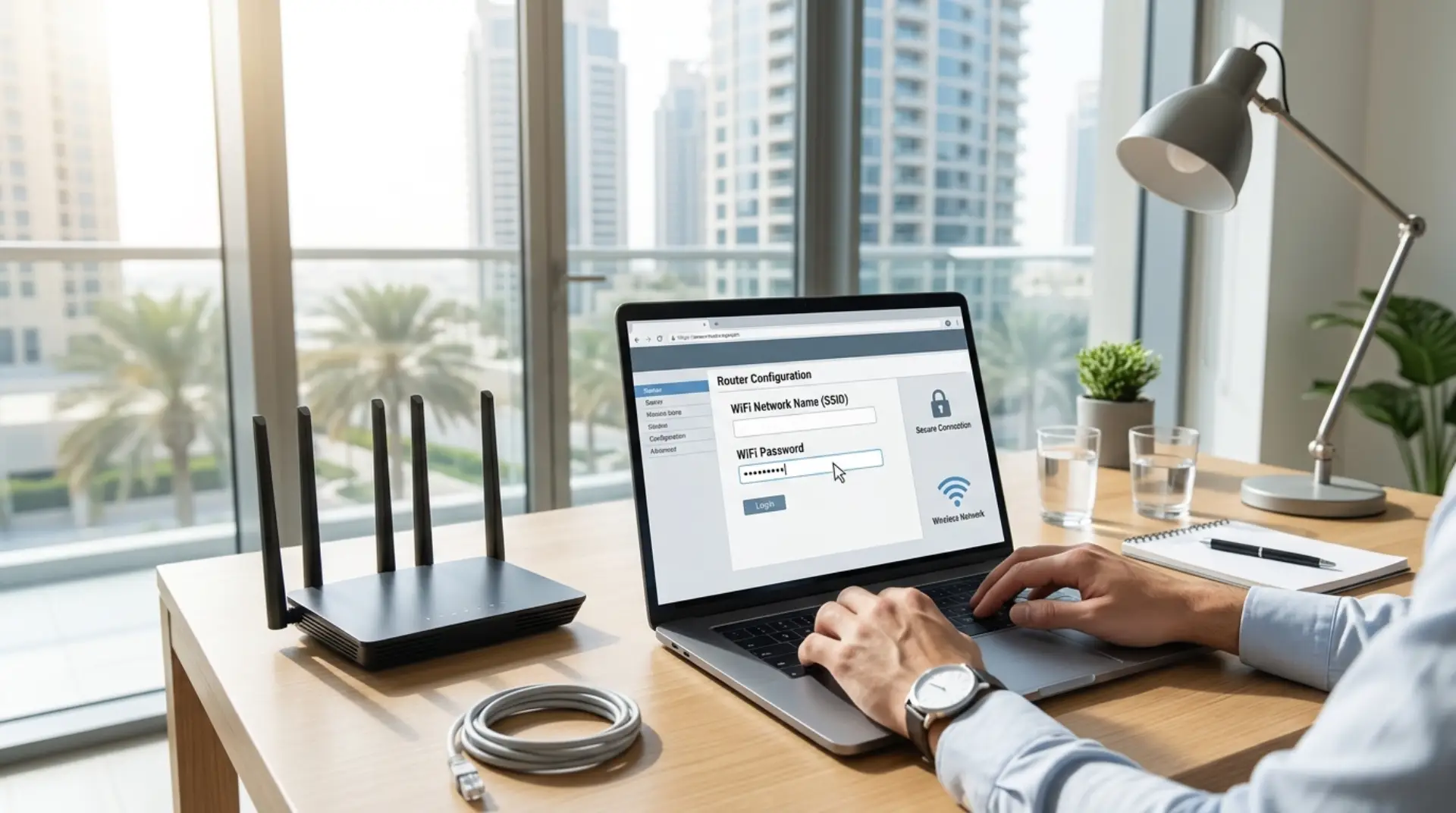
Laptop wifi password issues usually show up at the worst time: you open your laptop for work, gaming, streaming, or a video call, and suddenly the network asks for a password you do not remember, or your device keeps trying to connect with an old one. For many homes, apartments, villas, and small offices in Dubai, this becomes even more frustrating when several phones, smart TVs, cameras, printers, and laptops are connected to the same router. The good news is that changing or updating your WiFi password from a laptop is usually simple once you know whether you want to change the saved password on your laptop or change the actual router password for everyone.
First, Know What You Want to Change
Before opening settings, it helps to understand the difference between the two common situations.
If your laptop is asking for the WiFi password, you need to enter or update the password saved on that laptop. This does not change the network password for other devices.
If you want to create a new wifi password for your home or office network, you need to log in to your router settings. This changes the password for everyone using that WiFi network.
This difference matters because many users try to “change the WiFi password” from Windows settings, but Windows only changes what is saved on that laptop. The real network password is managed from the router login page.
How to Update a Saved WiFi Password on a Windows Laptop
This is useful when your router password has already changed, but your laptop still remembers the old one.
Method 1: Forget the Network and Reconnect
The easiest way is to remove the saved network and connect again.
- Click the WiFi icon in the taskbar.
- Open Network & Internet Settings.
- Go to WiFi.
- Click Manage known networks.
- Select your WiFi name.
- Click Forget.
- Reconnect to the WiFi network.
- Enter the new password.
This works well for Windows 10 and Windows 11. It is also a safe option because it does not affect your router, modem, or other connected devices.
Method 2: Change the Password Through WiFi Properties
In some Windows versions, you can update the saved security key directly.
- Open Control Panel.
- Go to Network and Sharing Center.
- Click your WiFi network name.
- Select Wireless Properties.
- Open the Security tab.
- Tick Show characters to check the saved password.
- Replace it if editing is available.
If the option is not editable, forget the network and reconnect instead.
How to Change the Actual WiFi Password from a Laptop
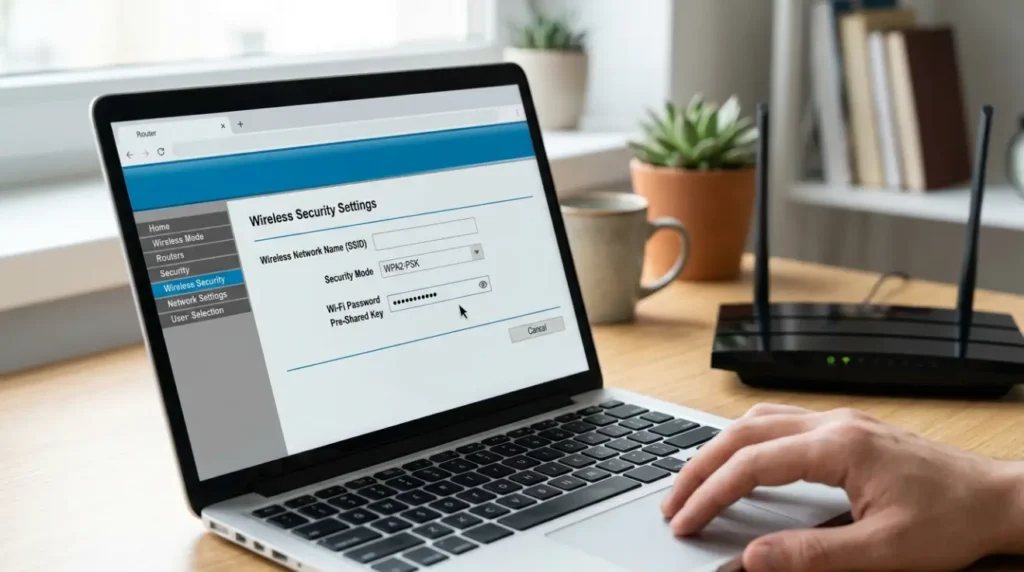
If you want to change the password for the whole network, you need to access your router settings from your laptop browser.
Step 1: Connect to the Router
Make sure your laptop is connected to the WiFi network. If WiFi is not working, connect your laptop to the router using an Ethernet cable.
Step 2: Open the Router Login Page
Open Chrome, Edge, or any browser and type your router IP address in the address bar. Common router login addresses include:
- 192.168.1.1
- 192.168.0.1
- 192.168.100.1
If none of these work, check the sticker on your router or look for the default gateway in your laptop network settings.
Step 3: Enter Router Username and Password
This is not always the same as your WiFi password. The router login details are often printed on the back or bottom of the router. Common default usernames include “admin,” but many internet providers in Dubai use customized router settings.
If you changed the router login before and forgot it, you may need help from your internet provider or a wifi repair technician.
Step 4: Find Wireless or WiFi Settings
Inside the router dashboard, look for sections named:
- Wireless
- WiFi Settings
- WLAN
- Security
- Wireless Password
- SSID Settings
The layout depends on the router brand and internet provider, but the password field is usually inside the wireless security section.
Step 5: Change the WiFi Password
Enter a new password and save the settings. A strong password should be easy for your family or team to use but hard for outsiders to guess.
A good WiFi password should include:
- At least 12 characters
- Uppercase and lowercase letters
- Numbers
- One or two symbols
- No apartment number, phone number, or business name
For example, avoid passwords like “Dubai12345” or “VillaWifi2026.” These are easy to guess.
Step 6: Reconnect All Devices
After saving the new password, your laptop, phones, smart TVs, cameras, printers, and other connected devices will disconnect. Reconnect each device using the new password.
For small businesses, it is smart to update staff devices first, then printers, POS systems, cameras, and smart office devices.
What If You Cannot Access Router Settings?
Sometimes the router login page does not open, or the username and password do not work. This can happen if the router was configured by an internet provider, building technician, previous tenant, or office IT person.
Try these checks first:
- Make sure you are connected to the correct WiFi network.
- Restart the router and laptop.
- Check the router label for login details.
- Use Ethernet if WiFi is unstable.
- Search your laptop’s default gateway address.
- Contact your ISP if the router is locked.
Avoid factory resetting the router unless you know how to set it up again. A reset can remove internet settings, mesh WiFi configuration, port forwarding, smart device connections, and custom network names.
Why You Should Change Your WiFi Password
Changing your password is not only about convenience. It also protects your secure network from unwanted users.
In Dubai apartments and villas, shared walls and close buildings mean your WiFi signal may reach neighbors, parking areas, or nearby offices. If too many unknown devices connect, your internet speed can drop, video calls may freeze, and gaming latency can become worse.
Latency means delay. In simple words, it is the time your connection takes to respond. High latency is especially annoying for online gaming, Zoom meetings, video calls, and cloud apps.
Changing your WiFi password helps when:
- You moved into a new apartment or villa.
- A tenant, staff member, or guest no longer needs access.
- Your internet speed suddenly feels slow.
- Unknown devices appear in router settings.
- You want better privacy for family or business use.
- Your current password is too simple.
Choosing the Right WiFi Security Settings
When changing your password, also check the security mode. Most modern routers offer WPA2 or WPA3. Choose WPA2-Personal or WPA3-Personal if available.
Avoid old security types like WEP because they are outdated and weak. Encryption protects the information moving between your devices and router. In simple terms, it helps stop outsiders from easily reading or accessing your network traffic.
For most homes and small businesses, WPA2 with a strong password is reliable. WPA3 is better if your router and devices support it.
Common Problems After Changing WiFi Password
Changing the password is simple, but reconnecting everything can be annoying. Some devices may not accept the new password immediately.
Here are common issues and fixes:
- Laptop says “Can’t connect to this network”: Forget the network and reconnect.
- Smart TV will not connect: Restart the TV and router, then enter the password again.
- Printer goes offline: Reconnect the printer from its wireless setup menu.
- Mesh WiFi stops working: Check whether the password changed on the main router only or across the mesh system.
- Phone connects, but laptop does not: Update the laptop WiFi driver or restart network settings.
- Internet works near the router but not in rooms: This may be a signal coverage issue, not a password issue.
If your villa, apartment, or office has weak coverage in certain rooms, you may need a wifi booster, mesh system, better router placement, or professional network troubleshooting.
Password Change vs WiFi Speed Problem
Many people change their WiFi password because the internet feels slow. That can help if unknown users are connected, but it will not fix every speed issue.
Slow WiFi can also happen because of:
- Poor router location
- Thick walls
- Too many connected devices
- Old router hardware
- Signal interference from nearby networks
- Network congestion during peak hours
- Low-speed internet plan
- Mesh WiFi misconfiguration
Bandwidth optimization can help small offices and busy homes manage internet use better. It means adjusting the network so important activities, such as video meetings, gaming, or business systems, get enough connection capacity.
If your WiFi is still slow after changing the password, the issue may need deeper checking.
When to Call a Professional WiFi Service
You can safely change your WiFi password yourself if you can access the router and understand the basic settings. However, some cases need a technician.
Contact a professional wifi service or wifi repair technician if:
- You cannot log in to the router.
- The router was configured by an ISP or previous tenant.
- Your mesh WiFi system stopped working.
- Smart cameras, printers, or office devices fail to reconnect.
- Your internet drops often after the password change.
- You need separate guest WiFi for home or business.
- You want better WiFi signal increase across a villa, apartment, or office.
For small businesses, a professional setup is often worth it because one wrong router setting can affect staff laptops, POS devices, security cameras, printers, and customer WiFi.
A Simple WiFi Password Routine for Homes and Offices
For better security and fewer problems, keep a simple routine:
Change your WiFi password when moving into a new place, after sharing it with many guests, after staff changes, or when you notice unknown connected devices. Keep the password in a safe password manager, not on a sticky note near the router.
For families, create a guest network for visitors. For businesses, avoid giving the main office WiFi password to every temporary visitor or contractor.
A clean WiFi setup is easier to manage, more secure, and often better for internet speed.
FAQs
How do I change my WiFi password on a laptop?
To change the actual WiFi password, log in to your router settings through a browser on your laptop. Find the wireless or security section, enter a new password, save the settings, and reconnect your devices.
How do I update the WiFi password saved on my laptop?
Open WiFi settings, go to known networks, select your network, and click “Forget.” Then reconnect to the same WiFi network and enter the new password when asked.
What is the router login password?
The router login password is used to access router settings. It is different from the WiFi password in many cases. You can usually find it on the router label or in documents from your internet provider.
Why does my laptop keep using the old WiFi password?
Your laptop may have saved the previous network details. Forget the WiFi network from settings, restart the laptop, and reconnect using the new password.
Will changing my WiFi password improve internet speed?
It can help if unknown users were connected to your network. However, slow internet can also be caused by weak signals, router placement, interference, old hardware, or network congestion.
What should I do if I forgot my WiFi password?
Check the router label, ask the person who set up the router, or log in to the router dashboard from a connected device. If you cannot access it, contact your internet provider or a wifi repair technician.
Is it safe to reset my router to change the password?
A factory reset should be the last option. It can remove internet settings, WiFi names, mesh setup, and connected device settings. Only reset it if you know how to configure the router again.
What is the best WiFi password for home or office use?
Use a password with at least 12 characters, including letters, numbers, and symbols. Avoid names, phone numbers, apartment numbers, business names, or simple words that others can easily guess.
Leave a Reply